

Signing in
Updated · 3 min read
You sign in to Sandbox Studio on its own sign-in page, either with your organisation's account (such as Okta, Microsoft Entra ID or Google) or with your email address. Which options you see depends on how your administrator set things up.
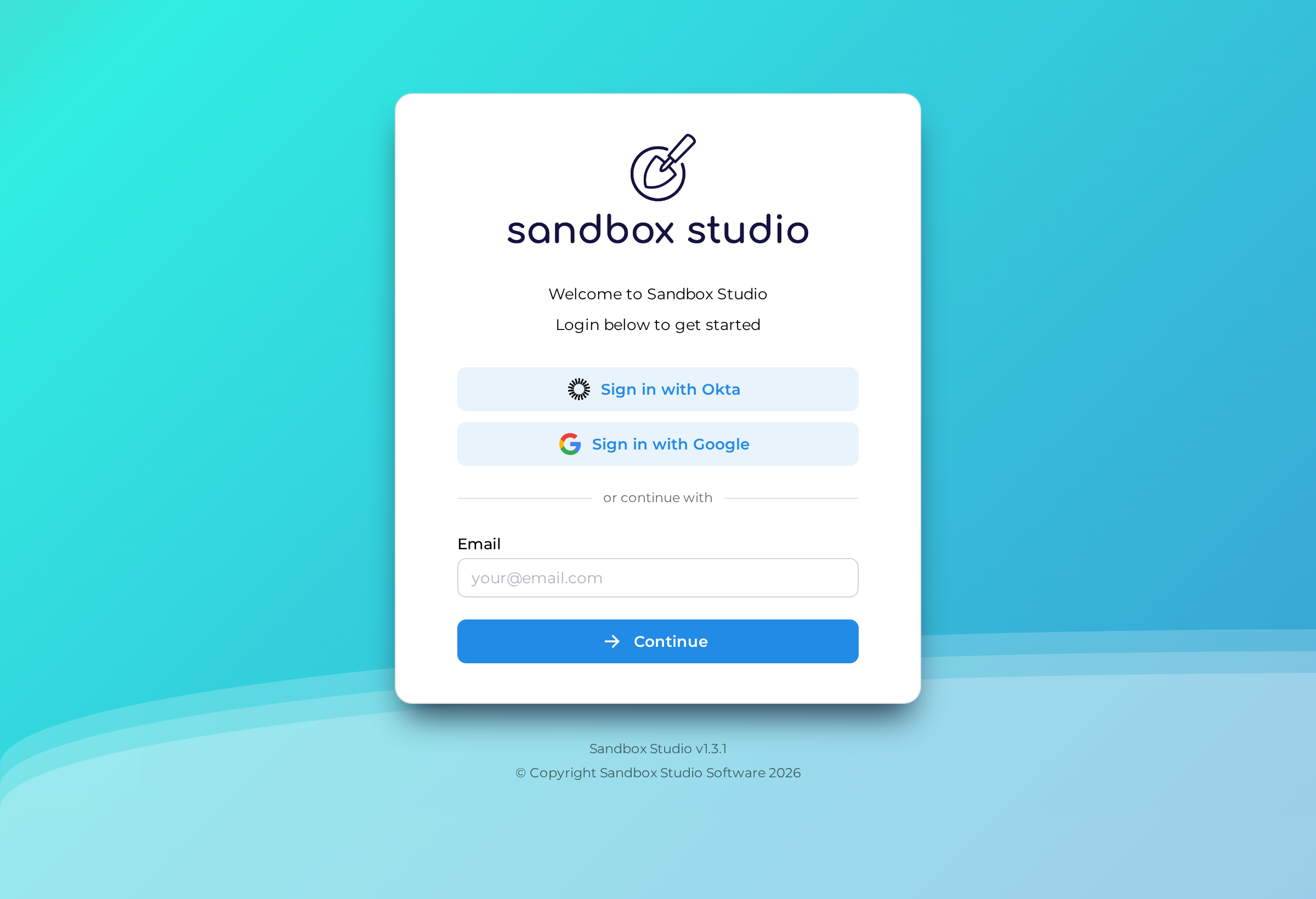
Sign in with your organisation account#
Open the Sandbox Studio address your organisation gave you.
Choose the button for your organisation, for example Sign in with Okta.
Sign in on your organisation's page as usual. You are then taken back to Sandbox Studio.
When you sign in this way, your organisation handles your password and any multi-factor authentication. Sandbox Studio does not ask for a second code.
Sign in with your email address#
Enter your email address and choose Continue.
Enter your Password and choose Login.
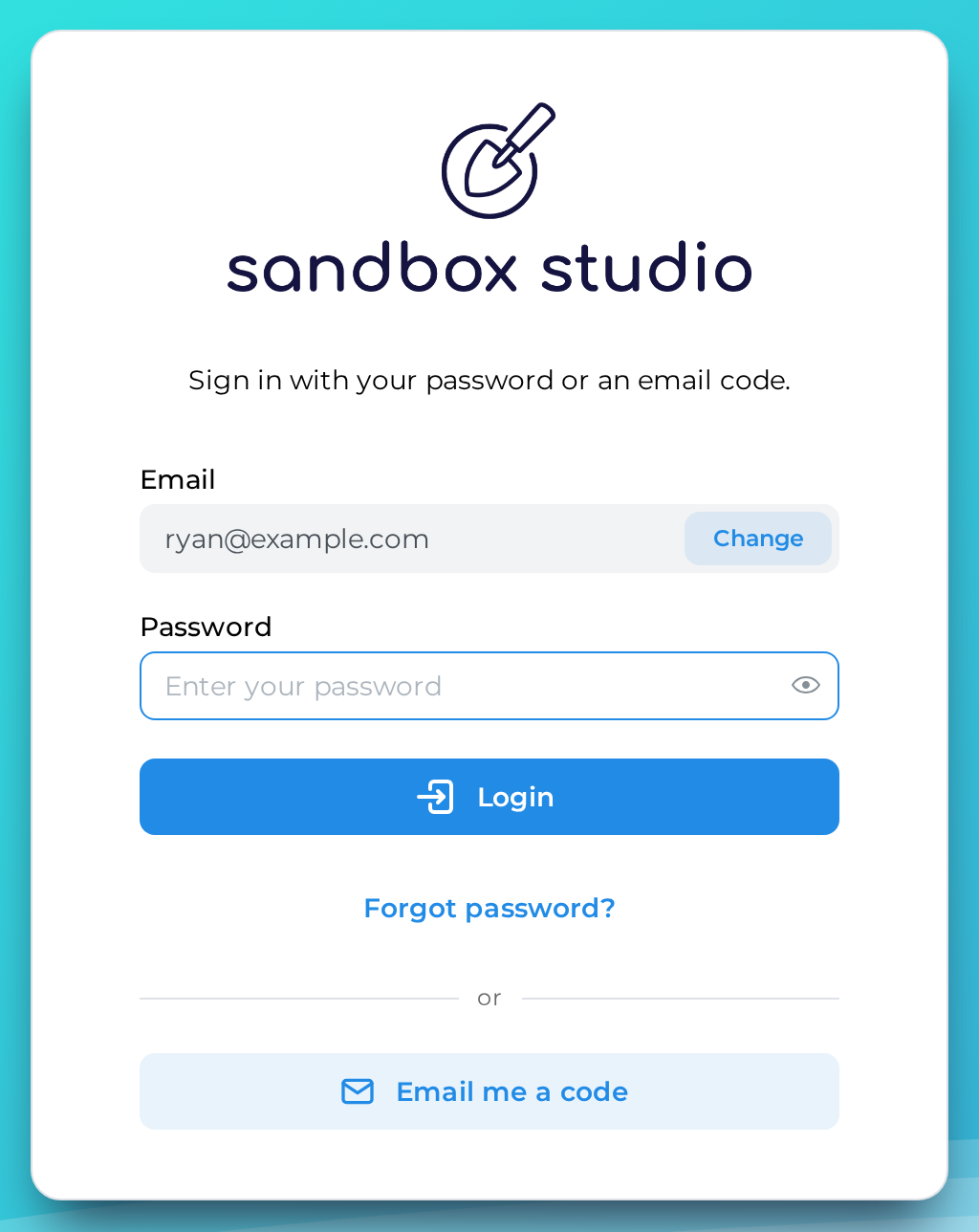
If you have set up multi-factor authentication, enter the code from your authenticator app or phone. See Multi-factor authentication.
Sign in with a code instead of a password#
If your organisation allows it, you can sign in without a password:
Enter your email address and choose Continue.
Choose Email me a code.
Enter the 8-digit code from the email and choose Verify.
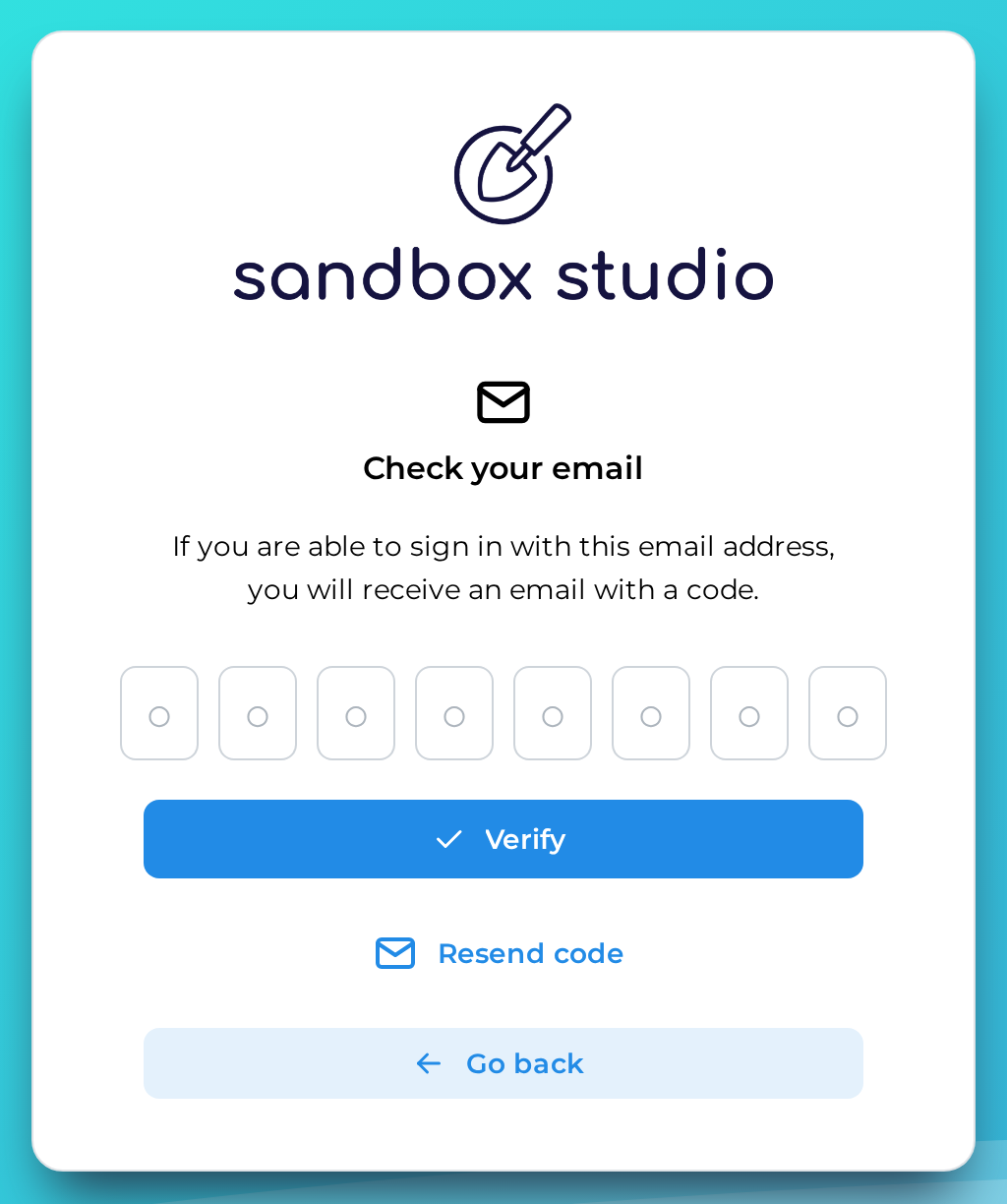
Email me a code is not offered once you have turned on multi-factor authentication, or when your organisation requires it. In that case, sign in with your password.
Your first sign-in#
How you get started depends on how you were added:
You received an invitation email. Open the link in the email. Confirm the email address the invitation was sent to, then enter your First name, Last name and a Password (at least 8 characters), and choose Create account. If your organisation requires multi-factor authentication, you set it up straight away. Invitations expire: if yours has, ask your administrator to send a new one.
Your organisation uses its own sign-in (Okta, Entra ID, Google…). Just choose its button on the sign-in page. Your Sandbox Studio account is created the first time you sign in.
Your organisation lets people from its email domain join. Enter your work email and choose Continue. Enter the code sent to your email, then add your name and a password to finish setting up your account.
An administrator gave you a temporary password. Sign in with it. You are then asked to enter your name and choose a new password.
Forgot your password?#
Enter your email address and choose Continue.
Choose Forgot password?, check your email address and choose Send reset code.
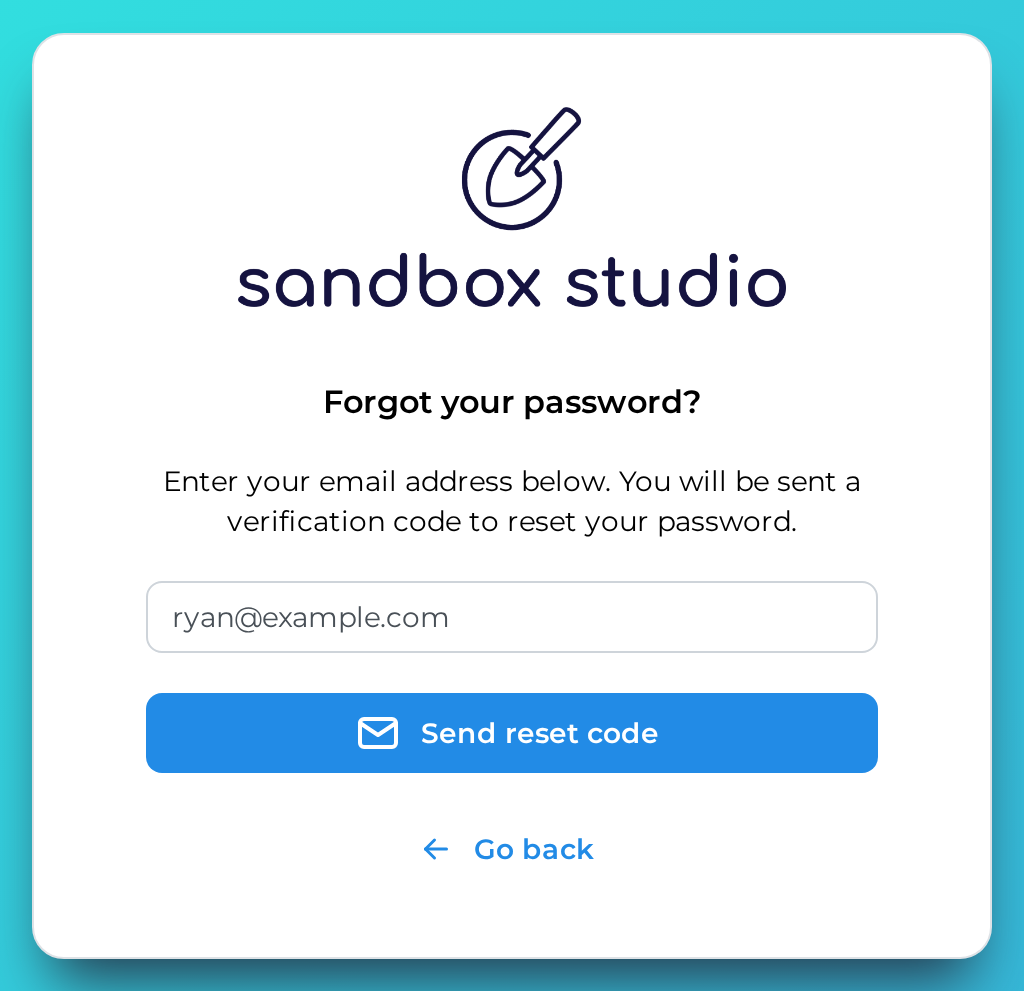
Enter the 6-digit code from the email and your new password, then choose Reset password.
Sign in with your new password.
If you sign in with your organisation's account, reset your password with your organisation instead: Sandbox Studio does not know that password.
Signing out and session timeouts#
To sign out, choose Exit at the bottom of the side menu.
For your security, your session ends after a period set by your organisation. When that happens you see Session Timeout and are asked to log in again. Accounts and AWS resources are not affected.
Why can't I sign in?#
What you see | What to do |
|---|---|
Incorrect email or password | Check for typos, or use Forgot password?. If you normally use your organisation's button, use that instead. |
You need an invitation to sign in. Please contact your administrator. | Your organisation only lets invited people in. Ask your administrator for an invitation. |
Sign-ups from this email domain are not permitted. | Use your work email address, or ask your administrator to invite you. |
Access denied. You are not assigned to any role group. | You signed in, but your organisation account is not in a group that gives access to Sandbox Studio. Ask your administrator to add you. |
A message asking you to contact your administrator with a reference | Your sign-in needs an administrator's review. Send them the reference shown. |
Too many attempts. Please wait a moment and try again. | Wait a few minutes before trying again. |
You lost access to your authenticator app or phone |
Administrators: sign-in options are configured in Sign-in and security settings.