

Inviting users
Updated · 3 min read
Invite people to Sandbox Studio so they can set up an email sign-in. An invitation creates the user straight away, so you can give them a role or add them to groups before they first sign in.
Invite a user#
Choose Users & Groups in the side menu, then choose Invite user.
Enter the person's Email address.
Leave Send invitation email ticked to email them a link to complete their account setup. Untick it if you want to add them without sending an email, for example because they'll sign in through an identity provider.
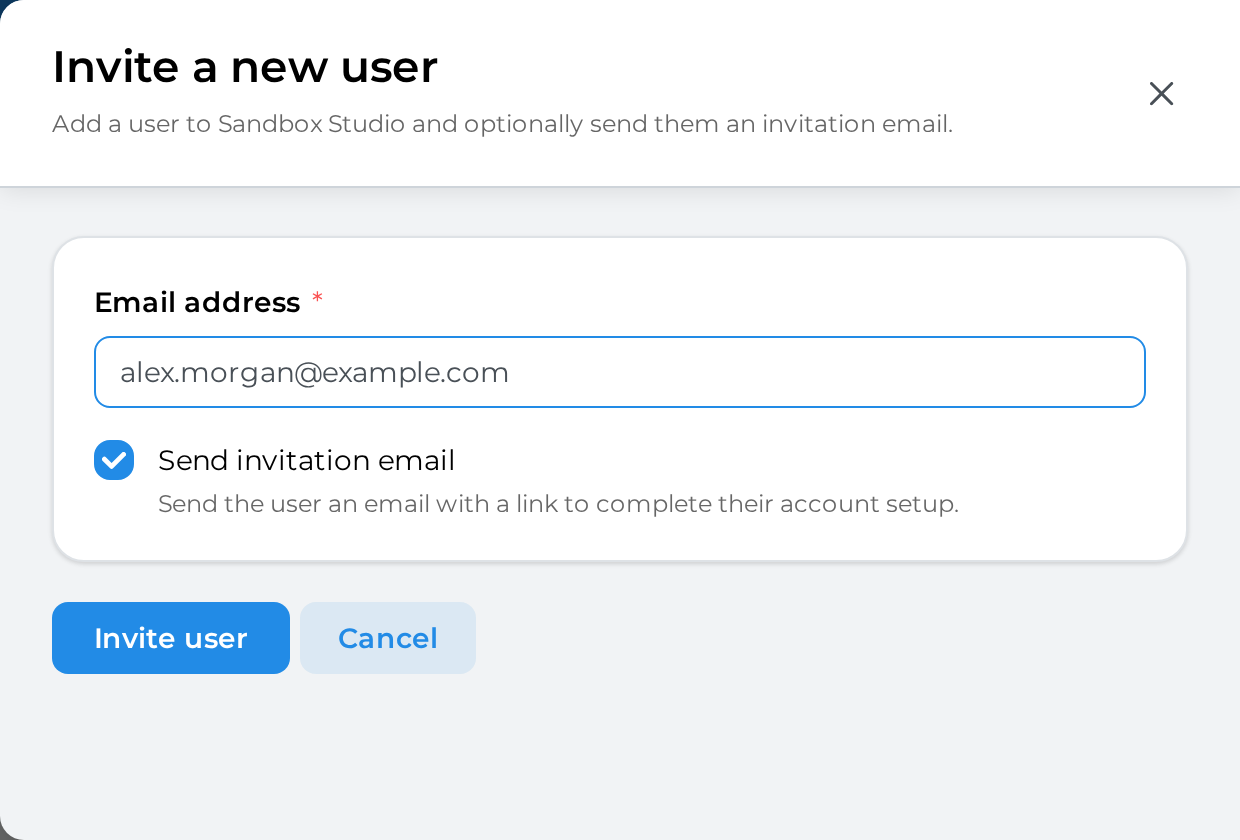
Choose Invite user.
The user appears in the list with the status Invited and the default role, User. To give them more rights, change their role. See Managing user roles.
The invitation email contains a link to create their account. What they see is described in Signing in in the User Guide. Invitation emails are sent through your email settings, so check those are working first.
Invite many people at once#
For an event: managers and administrators can import participants from a CSV file when creating an event. People who aren't in Sandbox Studio yet are invited in the same step. See Events in the Manager Guide.
From your own tools: the Sandbox Studio API can invite a list of email addresses in one call. See API clients and integrations.
Managers can also invite someone while choosing people for a lease or event. Their invitations always send an email, and the new user gets the User role.
Check, resend or revoke an invitation#
Open the invited user's page from the Users tab. The Invitation details card shows who invited them, when, and when the invitation expires.
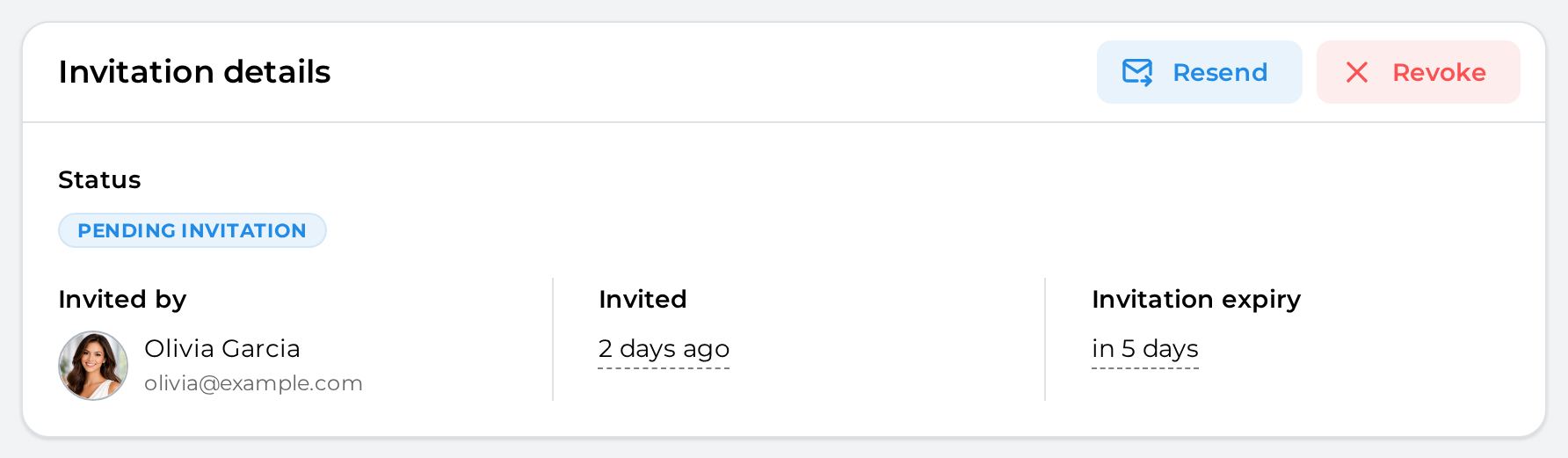
Resend: sends a fresh invitation email with a new link. The old link stops working and is shown as Replaced in the invitation history.
Revoke: the invitation link stops working. Other sign-in methods, such as an identity provider, aren't affected.
Send new invitation: shown when an invitation has expired or been revoked. It sends a new link to the same person.
Only the person who sent the invitation or an administrator can resend or revoke it. Older invitations are kept under Invitation history.
Invitation statuses#
Status | Meaning |
|---|---|
Pending invitation | Sent and still valid. The user hasn't signed in yet. |
Accepted | The user has signed in, with the link or another sign-in method. |
Invitation expired | The link was not used in time. Send a new invitation. |
Invitation revoked | The link was revoked by an administrator or the inviter, or because the user was deactivated. |
Replaced | In the history only: a newer invitation was sent. |
Invitations expire after 7 days by default. To change this, an AWS administrator can update the auth.email.invitationExpiry value in the Sandbox Studio configuration (for example 14d, 48h or unlimited). See Advanced settings in the Installation Guide.
Let people join without an invitation#
By default, people need an invitation to create an email sign-in. You can allow anyone with an approved email domain to sign up by themselves with Allow email sign-in without an invitation. See Sign-in and security settings.