

Account onboarding failures
Updated · 1 min read
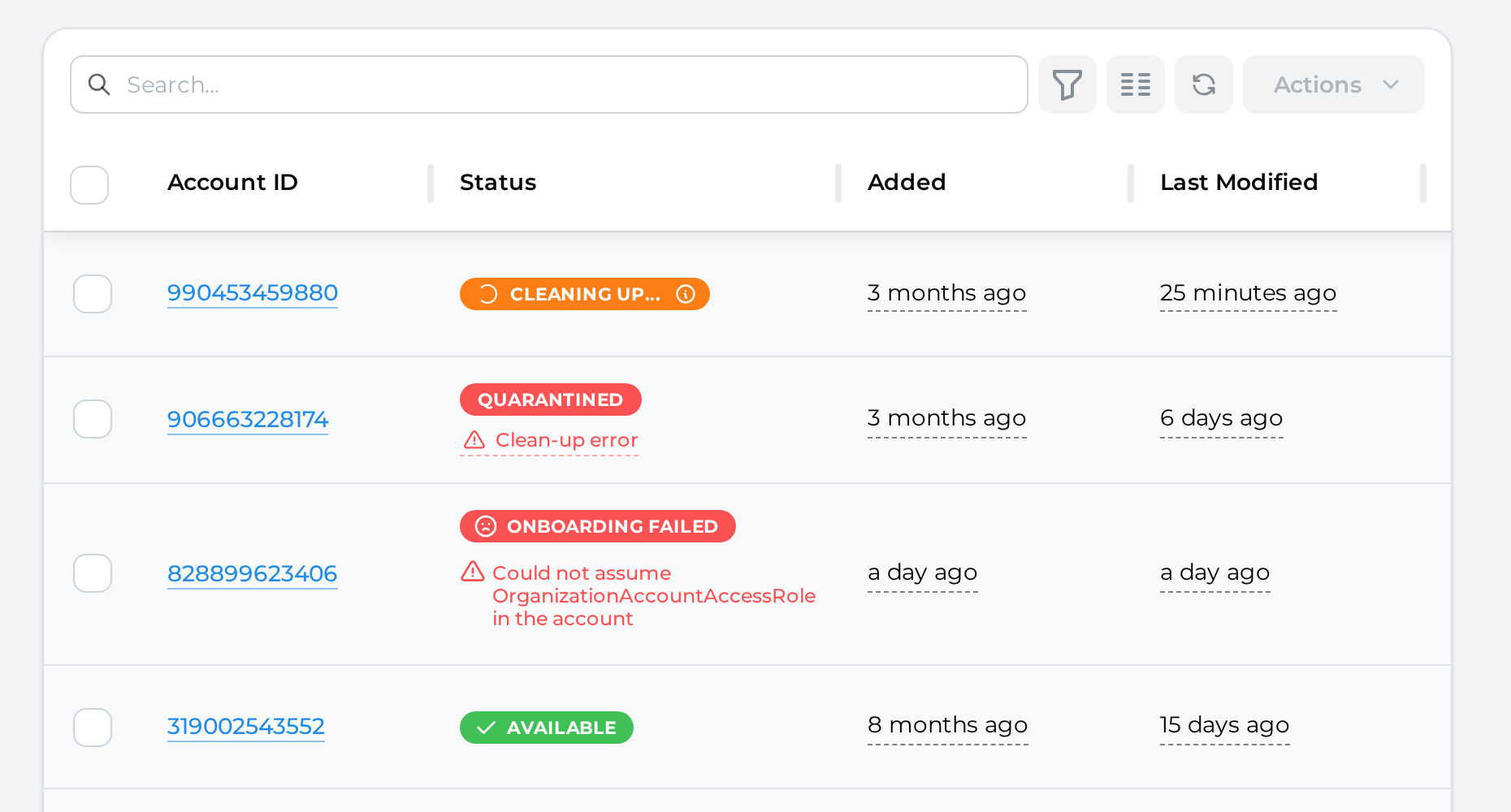
When you add an account to the pool, Sandbox Studio needs to reach it, wipe it and apply its guardrails. If that fails, the account shows Onboarding Failed on the AWS Accounts page and on the Account health card of your home page, with the reason underneath.
Common reasons#
Message | What to check |
|---|---|
Couldn't access the account's management role. Check the Sandbox Account Resources StackSet deployment, then retry onboarding. | The Sandbox Studio role isn't in the account yet. In the management account, open AWS CloudFormation StackSets and check that the Sandbox Studio account resources stack set deployed successfully to this account. Choose More info under the message to see the full AWS error. |
Could not assume OrganizationAccountAccessRole in the account | The account doesn't have the role AWS Organizations normally creates, for example because it was invited into the organisation rather than created in it. Create the role in the account, or create the account through AWS Organizations or Control Tower. |
Other errors | Copy the message and check the ErrorLogs saved query in CloudWatch. See Monitoring the solution. |
For the AWS-side requirements of sandbox accounts, see Creating sandbox accounts in the Installation Guide.
Try again#
Fix the cause in AWS.
On the AWS Accounts page, choose Eject account for the failed account and confirm.
In AWS Organizations, move the account back into the Entry OU.
Choose Add accounts and add it again. See AWS accounts.