

Account permissions
Updated · 2 min read
The Account Permissions step decides what users can and can't do inside accounts created from the template. By default they get full administrator access; you can restrict this with AWS managed policies, your own customer managed policies, an inline policy and a permission boundary.
How permissions are applied#
Each active lease gets its own IAM role in its AWS account, with the policies you choose here. The lease owner, anyone it's shared with, and managers who choose Open as Sandbox User all sign in with this role. Because each lease has its own role, access stays separate between leases.
Default permissions#
Under Use default settings?, keep Yes, use default permissions to give users Administrator Access (the AWS managed AdministratorAccess policy). This suits most sandboxes.
Customise permissions#
Select No, I want to customise permissions to choose the policies yourself.
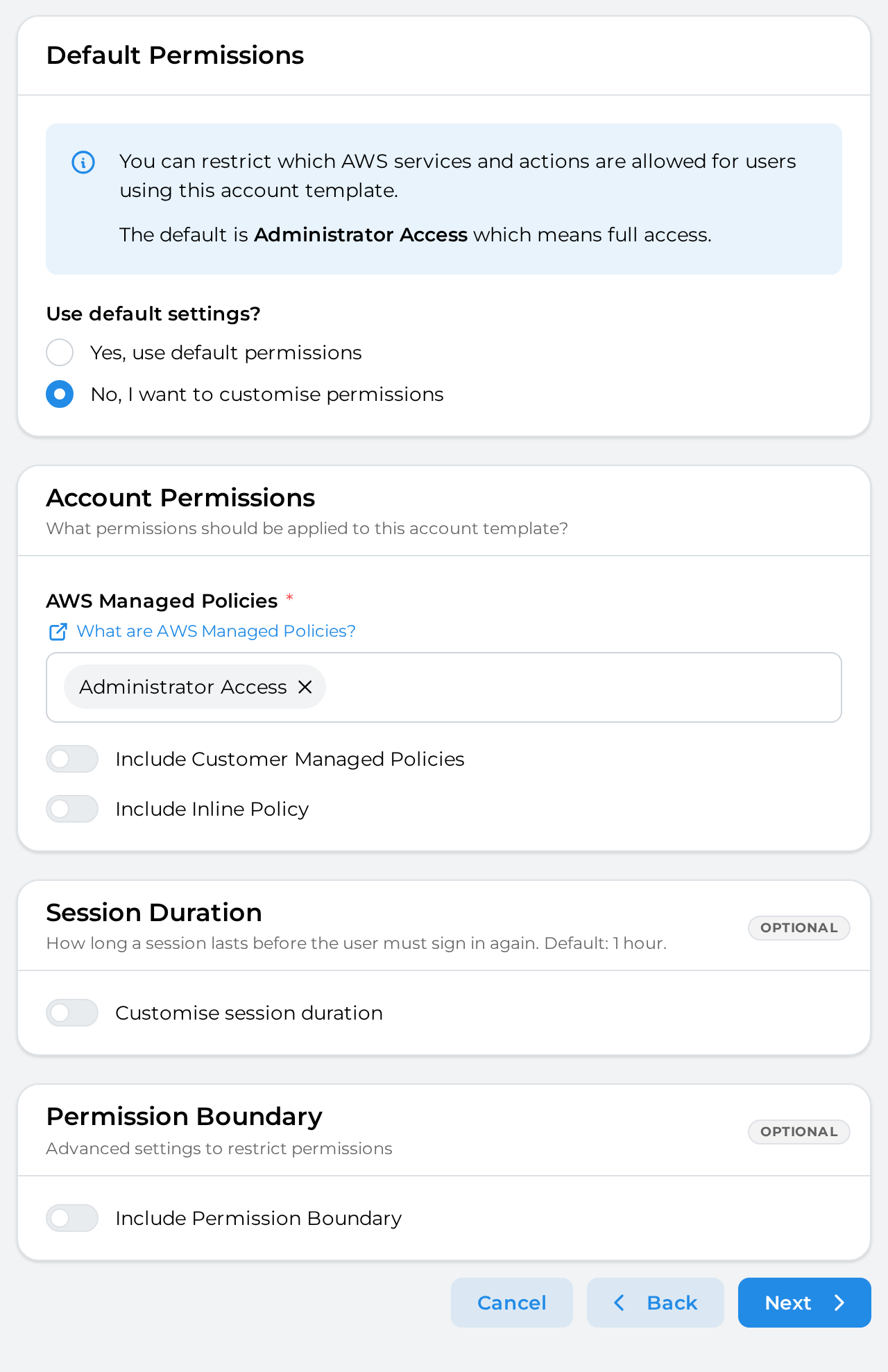
Setting | What it does |
|---|---|
AWS Managed Policies (required) | One or more policies maintained by AWS, such as |
Include Customer Managed Policies | Adds policies your organisation maintains, chosen by name. |
Include Inline Policy | A JSON policy you write directly in the template. See inline policies. |
Permission Boundary (optional) | Sets the maximum permissions users can have, whatever their policies allow. Choose AWS managed policy or Customer managed policy, then exactly one policy. See permission boundaries. |
Example: limit users to basic EC2 actions#
Choose the AWS managed policy ReadOnlyAccess, turn on Include Inline Policy and enter:
{
  "Version": "2012-10-17",
  "Statement": [
    {
      "Effect": "Allow",
      "Action": [
        "ec2:RunInstances",
        "ec2:StartInstances",
        "ec2:StopInstances",
        "ec2:TerminateInstances",
        "ec2:CreateTags"
      ],
      "Resource": "*"
    }
  ]
}
Session duration#
The Session Duration card sets how long a console or CLI session lasts before the user has to sign in again. The default is 1 hour. Turn on Customise session duration to choose 1, 2, 4, 8 or 12 hours. This setting is available with default or custom permissions.
Changing permissions later#
You can change permissions on the template's Account Permissions tab (see Managing account templates). New leases get the new permissions straight away. Leases that are already active keep their old permissions until they're locked and unlocked; you can do that in bulk from the Leases page.