

Users and groups
Updated · 3 min read
The Users & Groups page is where you see everyone who can access Sandbox Studio, invite new people, set their role and organise them into groups. Only administrators can open it.
Roles and groups in a nutshell#
Sign-in proves who someone is: an email address and password, a one-time email code, or your organisation's identity provider (such as Okta, Microsoft Entra ID or Google).
A role decides what someone can do. Everyone has exactly one role.
A group decides where a manager can do it. Account templates and events are assigned to people or groups who can manage them or approve requests.
Role | What they can do |
|---|---|
User | Can request and use sandbox accounts. |
Manager | Can manage leases, templates, events and reporting. Managers work on their own templates and events, plus the ones assigned to them directly or through a group. |
Administrator (shown as Admin) | Has full administrative access to Sandbox Studio, including everything in this guide. |
The users list#
To open it, choose Users & Groups in the Administration section of the side menu. The Users tab is shown first.
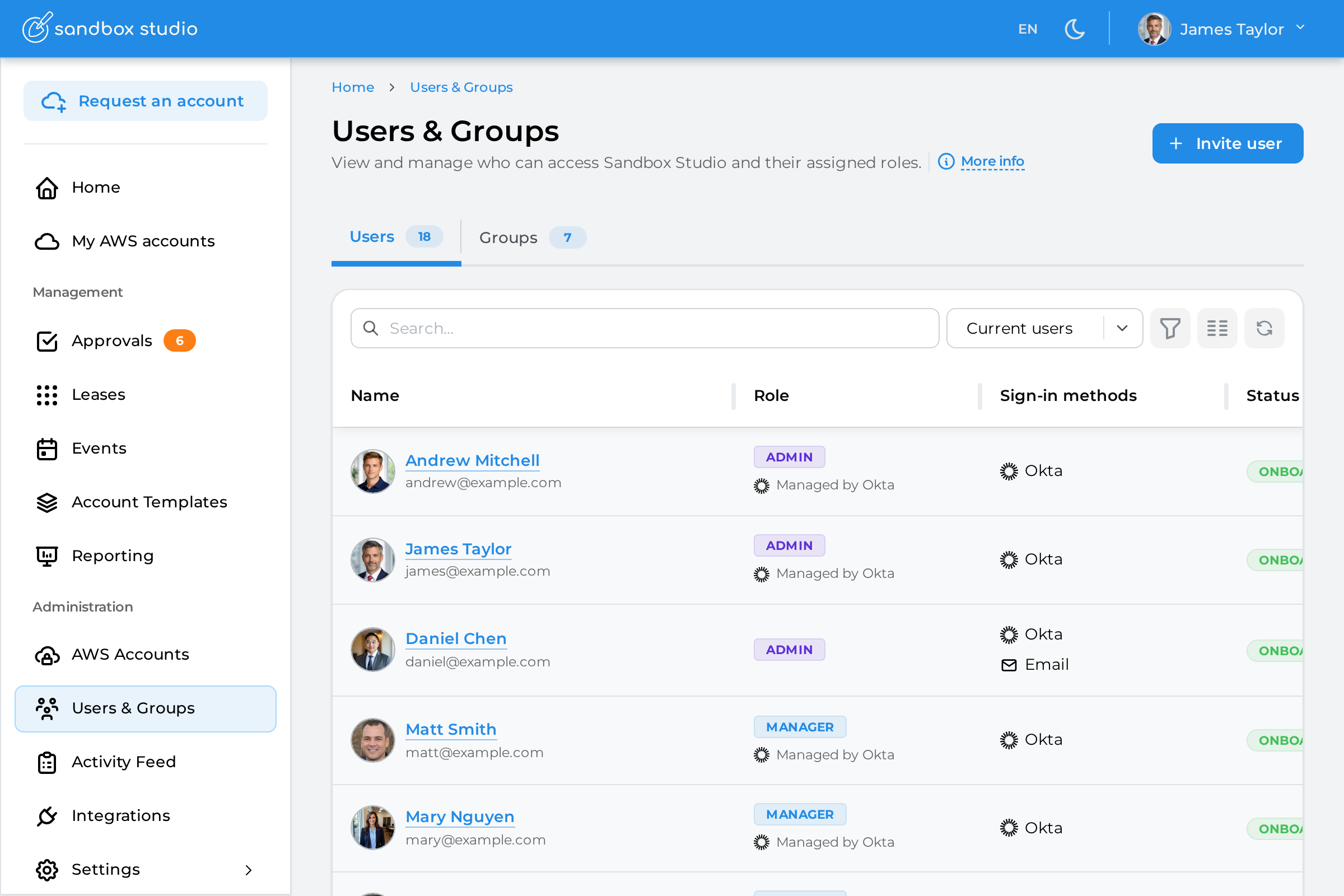
For each person you see:
Role: their current role, and where it comes from. Managed by Okta (or another provider) means their identity provider sets the role. No label means the role was set in Sandbox Studio.
Sign-in methods: how they have signed in, for example Okta, Google or Email. One person can have several.
Status: see the table below.
Use the search box to find someone by name or email. The drop-down next to it switches between Current users, Deactivated users and All users. The filter button filters by role, sign-in method, status or group, and the columns button shows extra columns such as Groups, First seen and Last login.
User statuses#
Status | Meaning |
|---|---|
Onboarded | The user has signed in at least once. |
Invited | The user has been invited but hasn't signed in yet. |
Expired | The invitation expired or was revoked before the user signed in. Send a new invitation. See Inviting users. |
Deactivated | An administrator removed the user's access. See Deactivating and restoring users. |
Suspended | The user can't access Sandbox Studio because the identity provider that grants their access no longer confirms it. Access returns after they sign in successfully through that provider again. |
User details#
Choose a name to open the user's page.
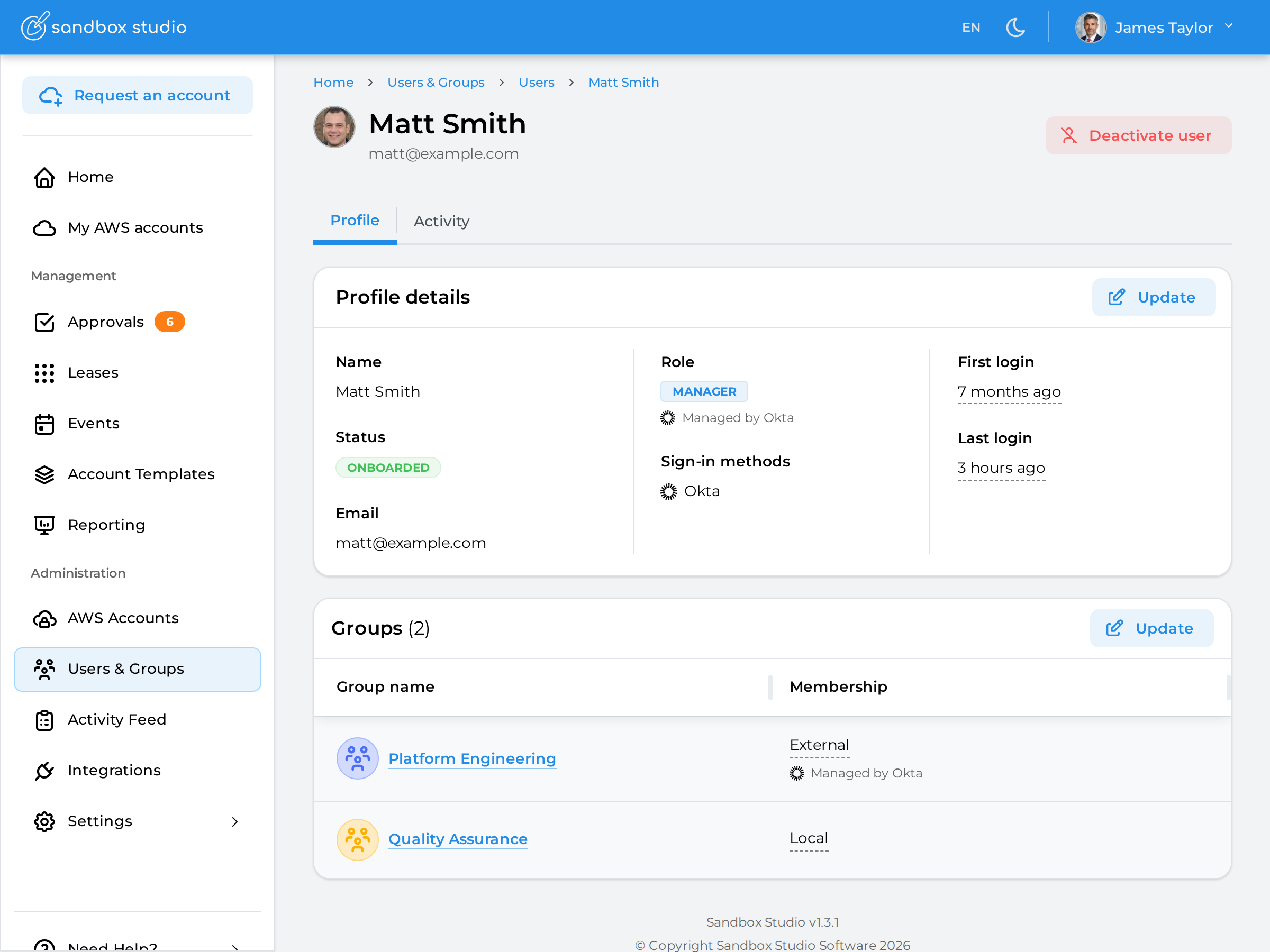
Profile details: name, status, email, role, sign-in methods, and first and last login. Choose Update to change the role. See Managing user roles.
Invitation details: shown for users who were invited. You can resend or revoke a pending invitation here.
Groups: the groups the user belongs to. External groups come from an identity provider, and Local groups are managed in Sandbox Studio. Choose Update to add or remove local groups.
Deactivate user: removes the user's access. See Deactivating and restoring users.
Add a user to groups#
On the user's page, choose Update on the Groups card.
Under Local groups, choose Add groups and pick the groups, or use the delete button to remove one.
Choose Save changes.
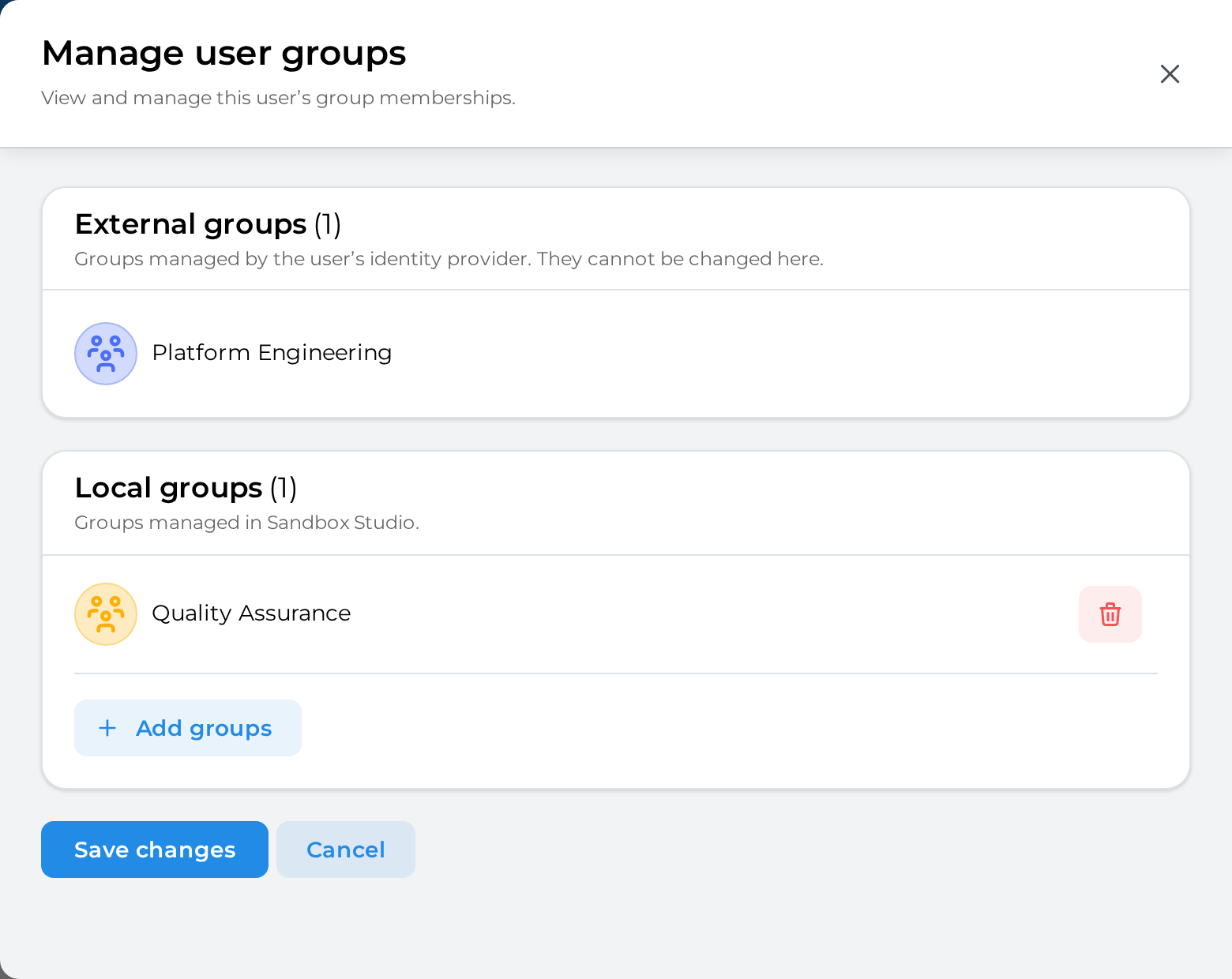
External groups can't be changed here. They follow the user's identity provider. See Managing groups.