

Identity providers
Updated · 4 min read
Let people sign in with your organisation's identity provider, such as Okta, Microsoft Entra ID or Google, and decide which Sandbox Studio role each person gets. Providers can use SAML or OpenID Connect (OIDC).
Where things are set up#
Step | Where | Who |
|---|---|---|
Create the application in your identity provider and add the provider to Amazon Cognito | Your identity provider and the AWS console. See External identity provider setup in the Installation Guide. | Your identity and AWS administrators |
Turn the provider on, set its sign-in button and decide how roles are assigned | Sandbox Studio, described on this page | A Sandbox Studio administrator |
Map provider groups to Sandbox Studio groups (optional) | Sandbox Studio. See Managing groups. | A Sandbox Studio administrator |
Providers added to Amazon Cognito appear automatically in Sandbox Studio. If you don't see one, check the Cognito setup first.
Turn on a provider#
In the side menu, choose Settings, then System Settings, then the Advanced tab.
On the Authentication Settings card, choose Update.
Under Identity providers, choose the provider to expand it.
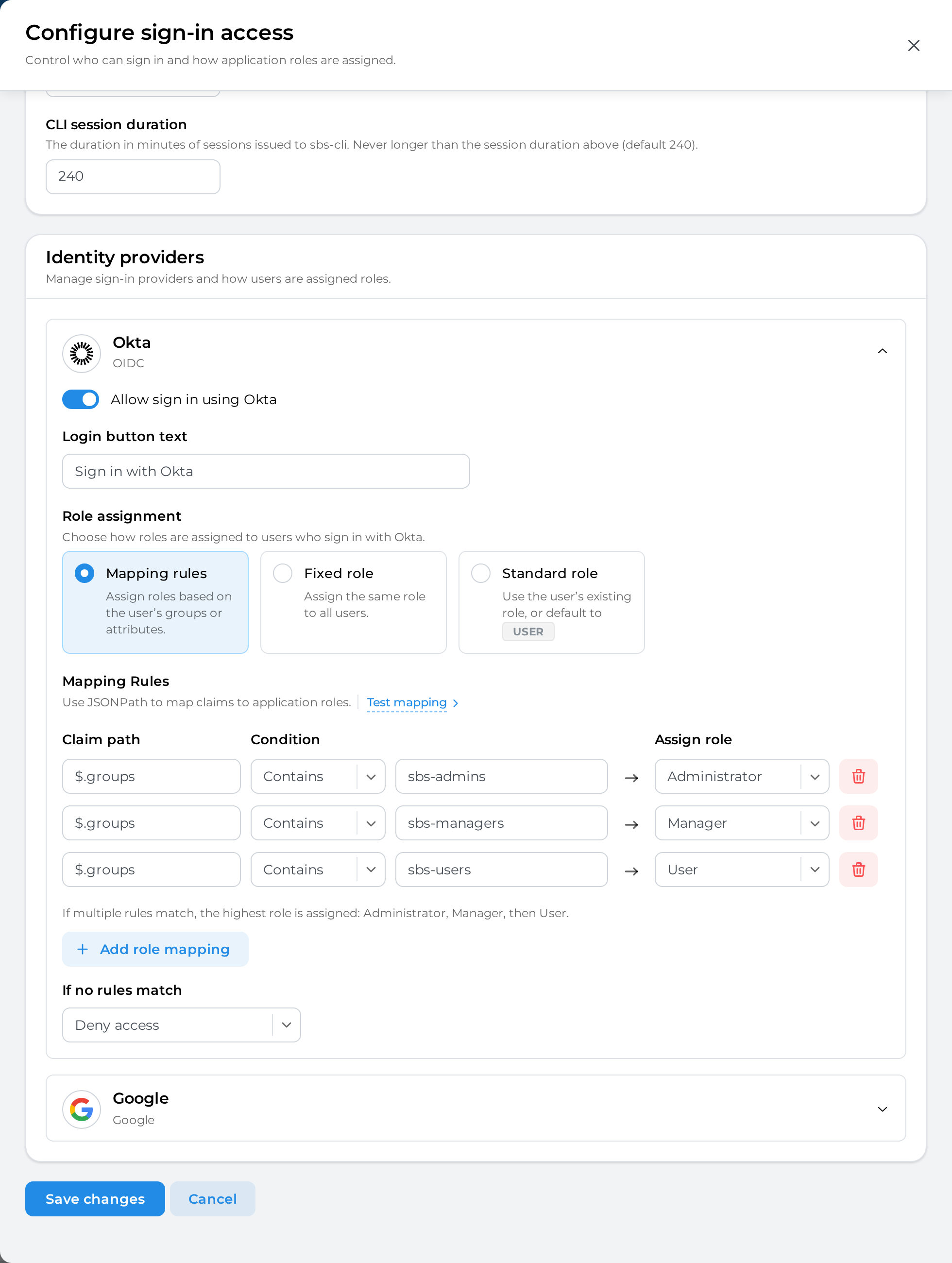
Turn on Allow sign in using the provider.
Enter the Login button text people see on the sign-in page, for example Sign in with Okta.
Choose how roles are assigned (see below), then choose Save changes.
Role assignment#
For each provider, choose one of:
Option | What happens when someone signs in with this provider |
|---|---|
Mapping rules | The role is worked out from the user's groups or other attributes sent by the provider. Recommended for Okta and Entra ID. |
Fixed role | Everyone gets the same role, for example User. |
Standard role | The provider doesn't set roles. Existing users keep their current role, and new users get the User role. Manage roles in Sandbox Studio instead. |
With Mapping rules or Fixed role, the provider controls the role. Users show Managed by the provider, and the role is updated each time they sign in through it. You can still override one person's role. See Managing user roles.
Mapping rules#
Each rule reads a value from what the provider sends at sign-in and assigns a role when it matches:
Claim path: where to look, written as a path that starts with
$. For a list of groups this is usually$.groupsor$.groups[*].Condition: Equals (exact match), Contains (the value appears anywhere in the text) or Exists (the claim is present at all).
The value to match, such as a group name or, for Entra ID, a group object ID.
Assign role: Administrator, Manager or User.
Choose Add role mapping for more rules. If several rules match, the highest role is assigned: Administrator, then Manager, then User.
If no rules match decides what happens to everyone else: Deny access stops them signing in, or Assign role gives them a role you choose. Use Deny access unless you want everyone in the provider to get in.
Test your rules#
Choose Test mapping, paste sample claims as JSON (for example {"groups": ["sbs-managers"]}) and choose Test sample claims. The result shows whether access would be granted, the role that would be assigned and the Sandbox Studio groups the user would join. Testing doesn't create or change any user.
Synchronising groups#
To keep a Sandbox Studio group in step with a group in your provider, create an External group that matches the provider's group name. Membership is updated each time a member signs in through that provider. Changes made in your provider show up at each user's next sign-in, not before. See Managing groups.
When someone leaves or changes team#
Removing a user from the provider's groups changes their role and synced groups at their next sign-in through that provider. If no rule matches and the provider is set to Deny access, they can no longer sign in through it.
To remove someone's access immediately, deactivate them in Sandbox Studio as well.
One person, several sign-in methods#
If the same person signs in with email and with a provider, or with two providers, Sandbox Studio links the sign-ins into one user when they share the same verified email address. All their sign-in methods are listed on their user page. Providers that send different email addresses create separate users.
Profile pictures#
Sandbox Studio shows a user's profile picture when their identity provider sends a picture URL. Map the provider's picture attribute to the picture attribute in the Amazon Cognito attribute mapping for that provider. Users without a picture are shown with their initials.
Upgrading from v1.2 (IAM Identity Center)#
From v1.3, sign-in goes through Amazon Cognito instead of directly through AWS IAM Identity Center. The upgrade migrates your users and identity-provider settings. Check the role assignment of each provider after upgrading. See Upgrading from v1.2 in the Installation Guide.