

Launch settings
Updated · 2 min read
Launch settings prepare each account before the user gets it: install tools, deploy CloudFormation stacks, create S3 buckets, start a development environment, and so on. You can also hand the user details such as a URL or password when setup finishes.
If users should get an empty account, leave Run setup before account access turned off.
Set up the account with scripts#
Turn on Run setup before account access. The scripts run in AWS CodeBuild, in the new account, in this order:
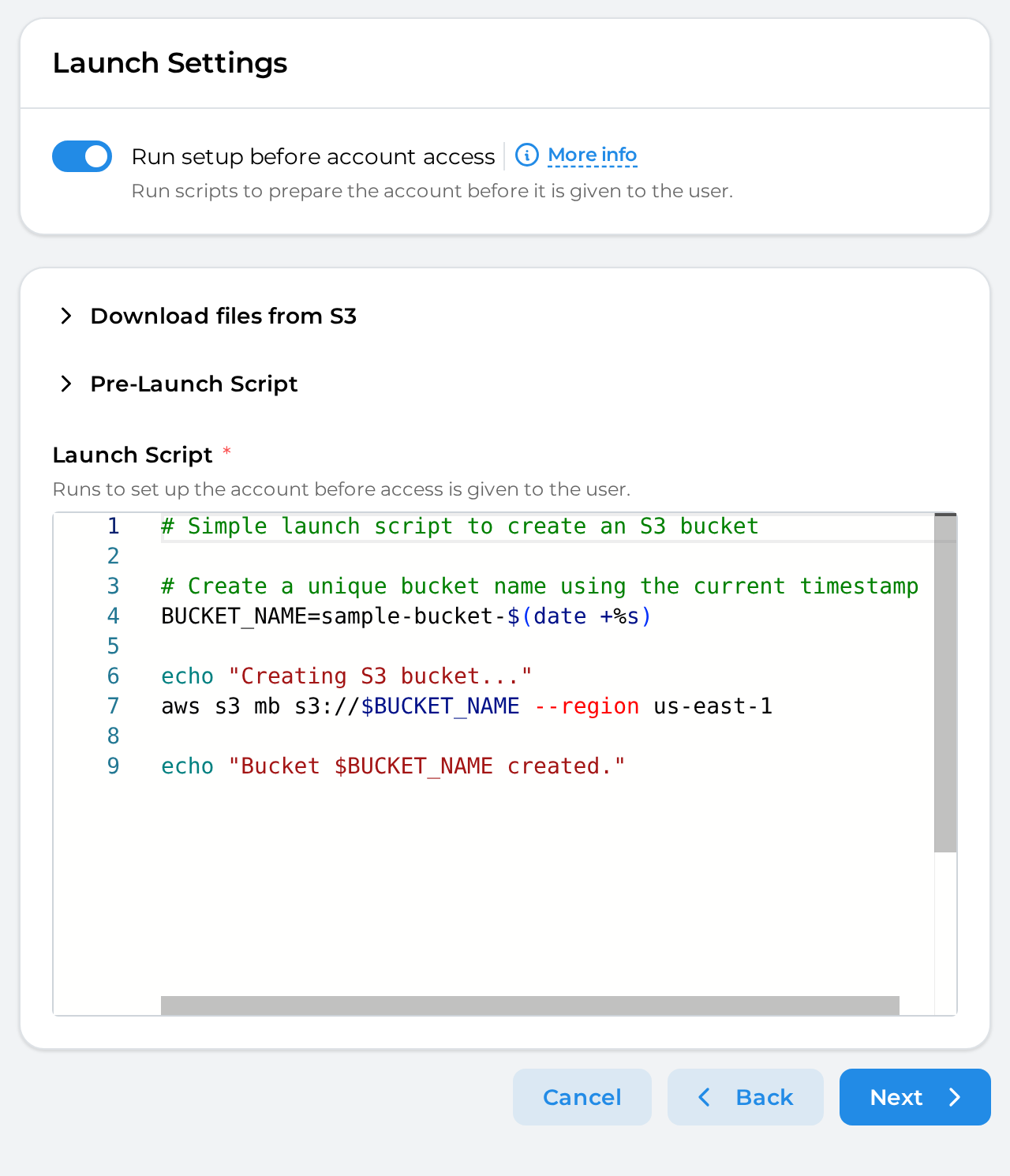
Section | What it's for |
|---|---|
Download files from S3 (optional) | An S3 folder to download before the scripts run, such as CloudFormation templates, configuration files or your own scripts. Enter a path like |
Pre-Launch Script (optional) | Runs first to prepare the environment, for example to install Terraform or other tools. |
Launch Script (required) | Creates the resources the user needs. Use the AWS CLI, AWS CloudFormation, AWS CDK, Terraform or any other tool. |
Scripts are shell scripts and run on Amazon Linux 2023 (the aws/codebuild/amazonlinux-x86_64-standard:5.0 image). For example, to deploy a CloudFormation template downloaded from S3:
#!/bin/bash
aws cloudformation deploy \
  --template-file /tmp/vpc.yaml \
  --stack-name sandbox-vpc \
  --region us-east-1
Give Sandbox Studio access to your S3 bucket#
Your bucket doesn't need to be public. Instead, allow the Sandbox Studio launch role to read it:
Under Download files from S3, select Configure S3 access.
Copy the bucket policy shown in S3 Bucket Policy Configuration. It already contains the right role for your installation.
Replace
your-bucket-namewith your bucket's name and add the policy to the bucket in the Amazon S3 console.
The policy looks like this:
{
  "Version": "2012-10-17",
  "Statement": [
    {
      "Sid": "AllowSandboxStudioAccess",
      "Effect": "Allow",
      "Principal": {
        "AWS": "<role ARN shown in Sandbox Studio>"
      },
      "Action": ["s3:GetObject", "s3:ListBucket"],
      "Resource": [
        "arn:aws:s3:::your-bucket-name",
        "arn:aws:s3:::your-bucket-name/*"
      ]
    }
  ]
}
Show environment details to the user#
Use the set-sandbox-output command in your scripts to show values to the user on their account page, under Environment Details:
set-sandbox-output --name "Application URL" --value "https://example.com"
set-sandbox-output --name "Username" --value "admin"
set-sandbox-output --name "Password" --value "$PASSWORD" --is-secret--nameis the label the user sees, and--valueis the value.Add
--is-secretfor passwords, keys and other sensitive values. They're stored encrypted and hidden until the user chooses to show them.
For example, a template can start a browser-based VS Code server and return its URL and password, so users can start working without opening the AWS console. See Accessing environment details in the User Guide.
How long setup takes#
While scripts run, the lease shows Setting up... and the user can't open the account yet. They get an email when it's ready.
Setup time depends entirely on your scripts, from a minute or two to an hour or more.
Only a limited number of setups run at the same time; the rest wait their turn. For events, prepare accounts in advance (see Prepare accounts and start an event).
If setup fails#
If a script exits with an error, the lease shows Setup Failed, and the user and the template owner are emailed. The account isn't given to the user and is cleaned up automatically. Open the lease to see the setup logs and the error. Fix the script on the template's Launch Settings tab; the user then needs to request a new account. Common causes are a customer managed policy that doesn't exist in the account, a resource type not available in the Region, or a service control policy blocking an action.
You can see the build specification Sandbox Studio generates on the template's Launch Settings tab, under AWS CodeBuild BuildSpec File.