

API clients and integrations
Updated · 3 min read
Connect your own tools to Sandbox Studio. API clients let scripts and applications call the Sandbox Studio API, for example to request leases or invite users. Event notifications push changes, such as a lease being approved, to your systems through Amazon SNS.
API clients#
An API client is a client ID and client secret that an application uses to get an access token (OAuth 2.0 client credentials). Each client belongs to a person and acts with that person's role and permissions.
Everyone can create and manage their own API clients: they choose their name in the top-right corner, then API access.
Administrators can also see and delete everyone's clients: choose Integrations in the side menu, then the API Integration tab.
See all API clients#
On the API Integration tab, change the drop-down next to the search box from My Clients to All Clients.
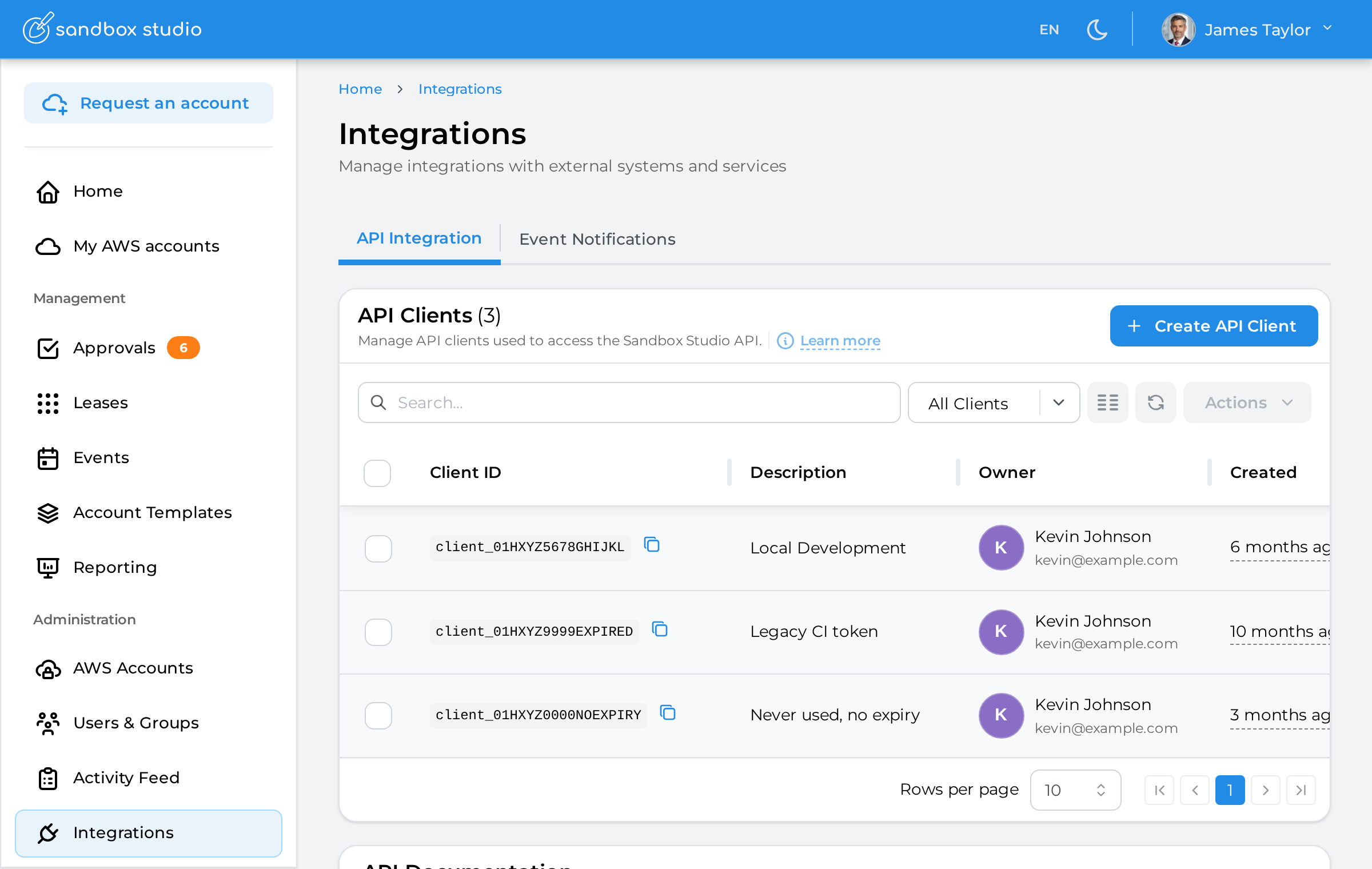
The table shows each client's Owner, when it was Created, its Status (active or Expired), its Expiration, and when it was Last used. Use Last used to spot clients nobody needs any more.
Create an API client#
Choose Create API Client.
Enter a Description that says what the client is for, such as Reporting export.
Choose the Expiration: 7, 14, 30 or 90 days, your default expiry, or Never expires if your settings allow it.
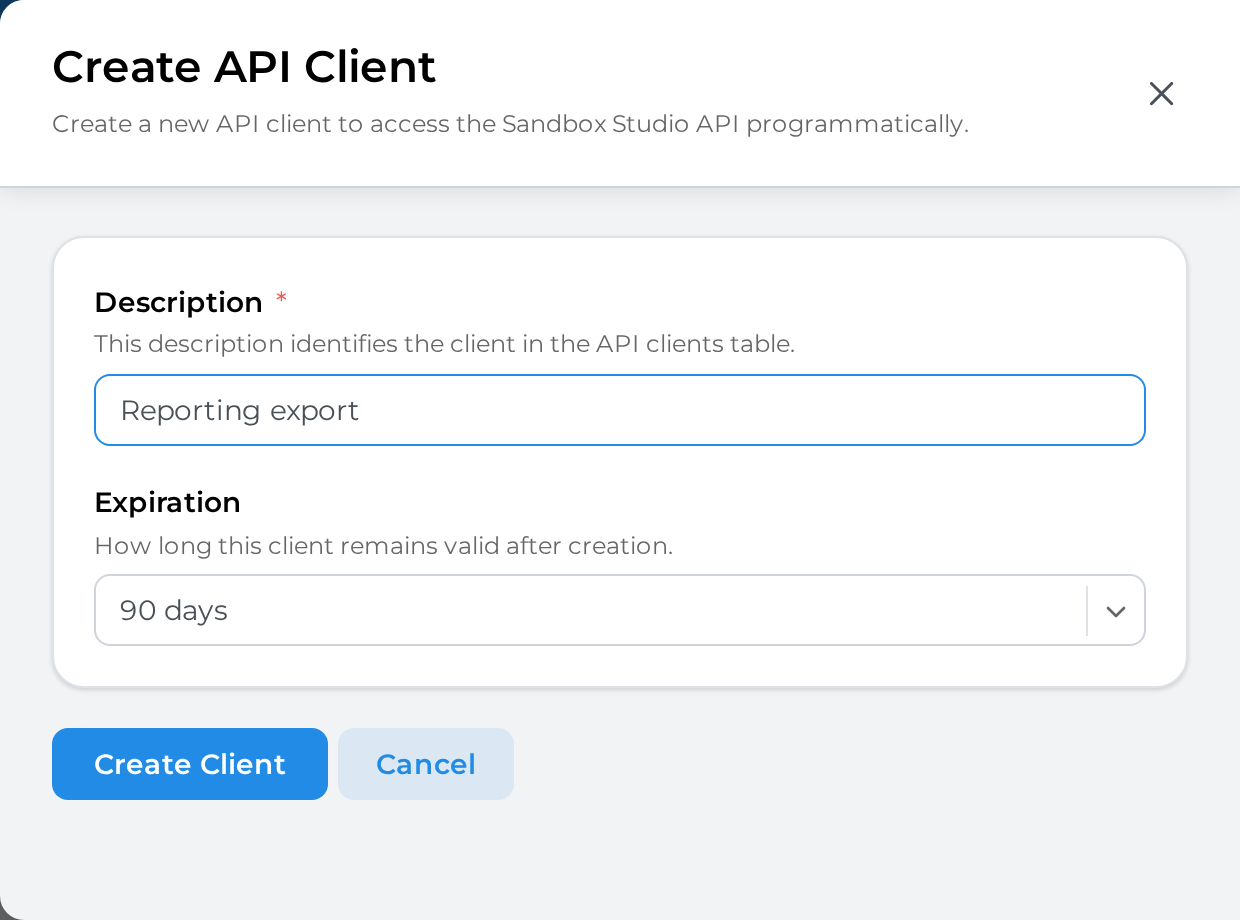
Choose Create Client.
Copy the client ID and client secret, then choose Done.
Rotate or revoke a client#
Revoke: delete the client. Use the Delete client button in its row (or select several clients and use Actions), then confirm. Applications using it stop working straight away.
Rotate: create a new client, update your application to use the new ID and secret, check it works, then delete the old client.
Rename: use Edit client to change the description at any time. The ID and secret don't change.
When a user is deactivated, all their API clients stop working. See Deactivating and restoring users. Creating, changing and deleting clients is recorded in the activity feed.
Expiry and limits#
Set these on the API Client Settings card: in the side menu, choose Settings, System Settings, then the Advanced tab, and choose Update on the card.
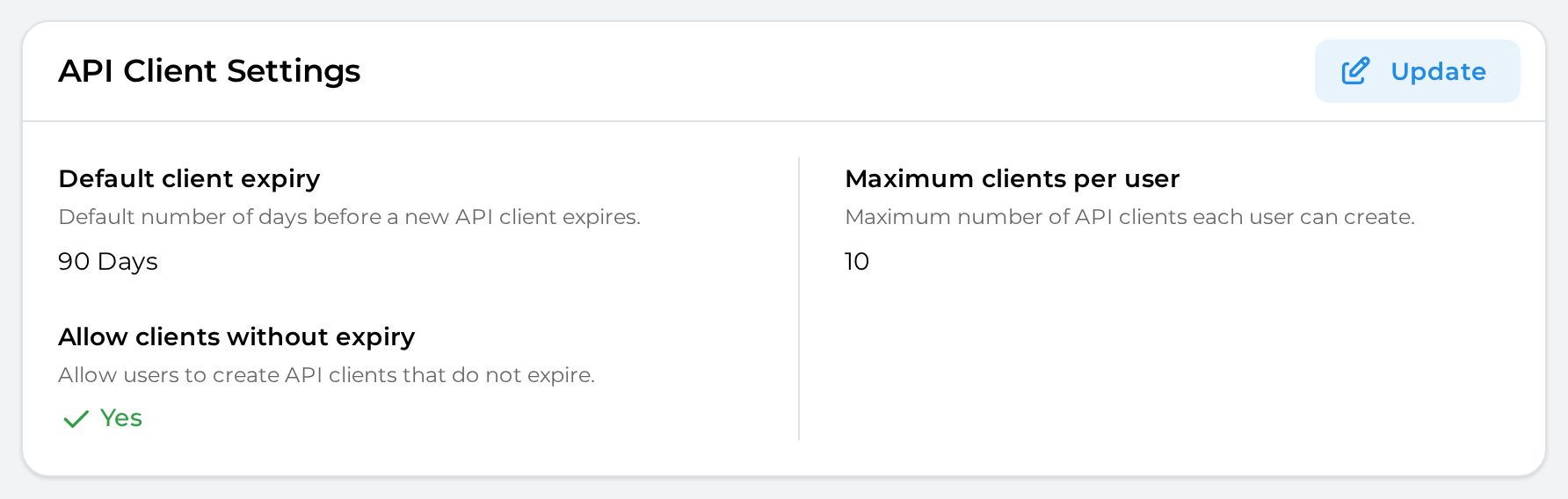
Setting | What it does | Default |
|---|---|---|
Default client expiry | The number of days a new client is valid for, unless the user picks something else. | 90 days |
Allow clients without expiry | Whether users can choose Never expires. Turn it off to make every client expire. | Yes |
Maximum clients per user | How many API clients each user can have. Users at the limit must delete one before creating another. | 10 |
API documentation#
The API Documentation section under the API clients lists every endpoint with its schema. You can try requests directly from your browser. The OAuth2 Client Credentials panel explains how to get an access token with a client ID and secret, and View Example Request shows a ready-made request.
The API can do most things you can do in the web interface, such as listing and requesting leases or inviting a list of users in one call.
Event notifications#
Sandbox Studio publishes an event to an Amazon SNS topic whenever something important happens, such as a lease being requested, approved, terminated or reaching a budget threshold, an event starting, an account cleanup failing or drift being detected. Subscribe your own systems (email, AWS Lambda, Amazon SQS, HTTPS endpoints and so on) to react automatically.
Choose Integrations in the side menu, then the Event Notifications tab.
Copy the SNS Topic ARN.
In the AWS console of the hub account, create a subscription to that topic.
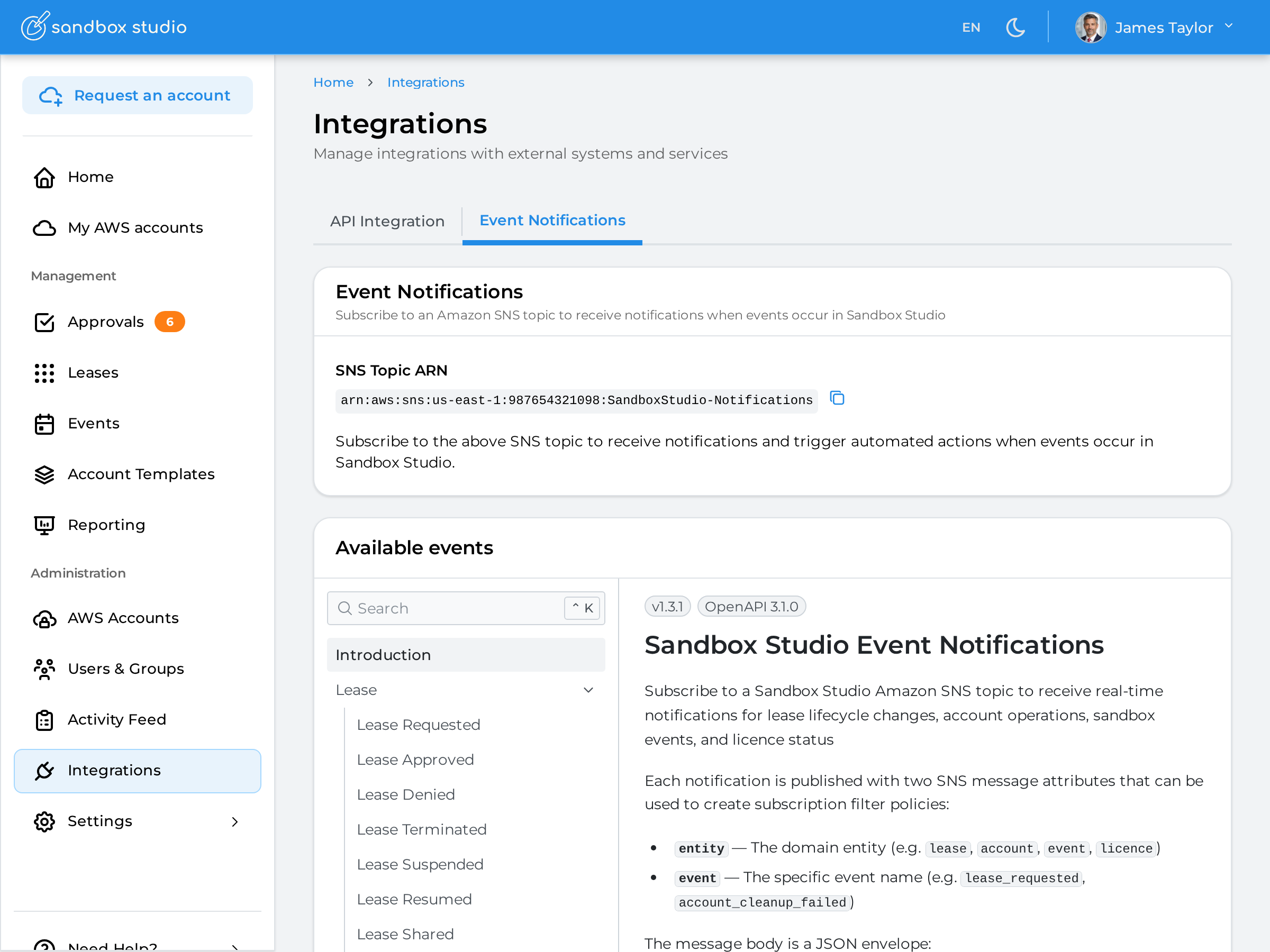
Each message has two attributes, entity (for example lease, account, event or licence) and event (for example lease_requested). Use them in an SNS subscription filter policy to receive only the events you need. Available events lists every event with its schema and an example payload.