

Update, duplicate or delete a template
Updated · 2 min read
You can change any setting of a template you own or manage, make a copy to use as a starting point, or delete a template you no longer need.
The template page#
Select Account Templates in the side menu and select a template's name to open it.
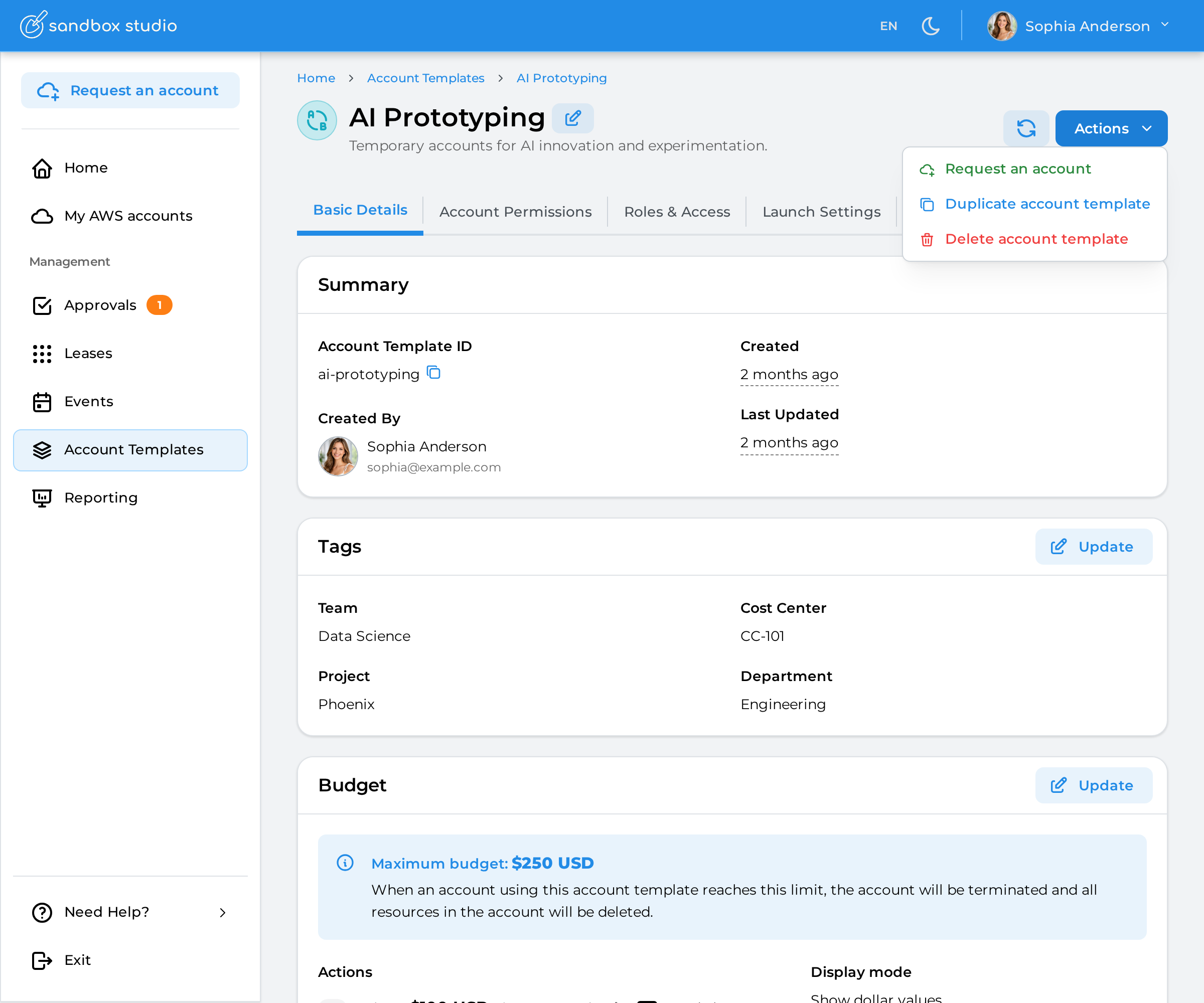
The page has tabs for Basic Details (summary, tags, budget and duration), Account Permissions, Roles & Access, Launch Settings and Active Leases. The Active Leases tab lists the template's leases and can also show pending requests and terminated leases.
Update a template#
Open the template.
Select Update on the card you want to change (for example Tags, Budget, Duration, Permission Set, Team Sharing or Managers). To change the name, description, icon or colour, select the edit button next to the template name.
Make your changes and save. On the Launch Settings tab, you edit the scripts in place and select Save.
The same rules and limits apply as in the wizard.
What happens to existing leases#
Budget and duration changes apply to new leases only. To change an existing lease, see Change a lease's budget or expiry.
Permission changes apply to new leases straight away. Active leases pick them up only after they're locked and unlocked.
Approvers and managers changes apply straight away, including to existing leases.
Launch settings changes apply to accounts set up from now on. Accounts already set up aren't changed.
Duplicate a template#
Open the template, select Actions, then Duplicate account template. (You can also use the duplicate button in the template's row on the Account Templates page.)
The wizard opens with all the settings copied, including approvers and managers, and the name ending in "(Copy)". Change what you need.
On the Review step, select Submit.
The original template isn't changed.
Delete a template#
Open the template, select Actions, then Delete account template.
Select Delete to confirm.
To delete several templates, tick them on the Account Templates page and select Actions, then Delete account template. The confirmation flags any template that Has active leases.
Request an account from a template#
Select Actions, then Request an account, to request an account from this template for yourself or someone else.