

AWS accounts
Updated · 4 min read
Sandbox Studio hands out AWS accounts from an account pool that you provide. On the AWS Accounts page you add accounts to the pool, check their status, open them in the AWS console, and clean up or remove them.
The account pool#
Choose AWS Accounts in the Administration section of the side menu.
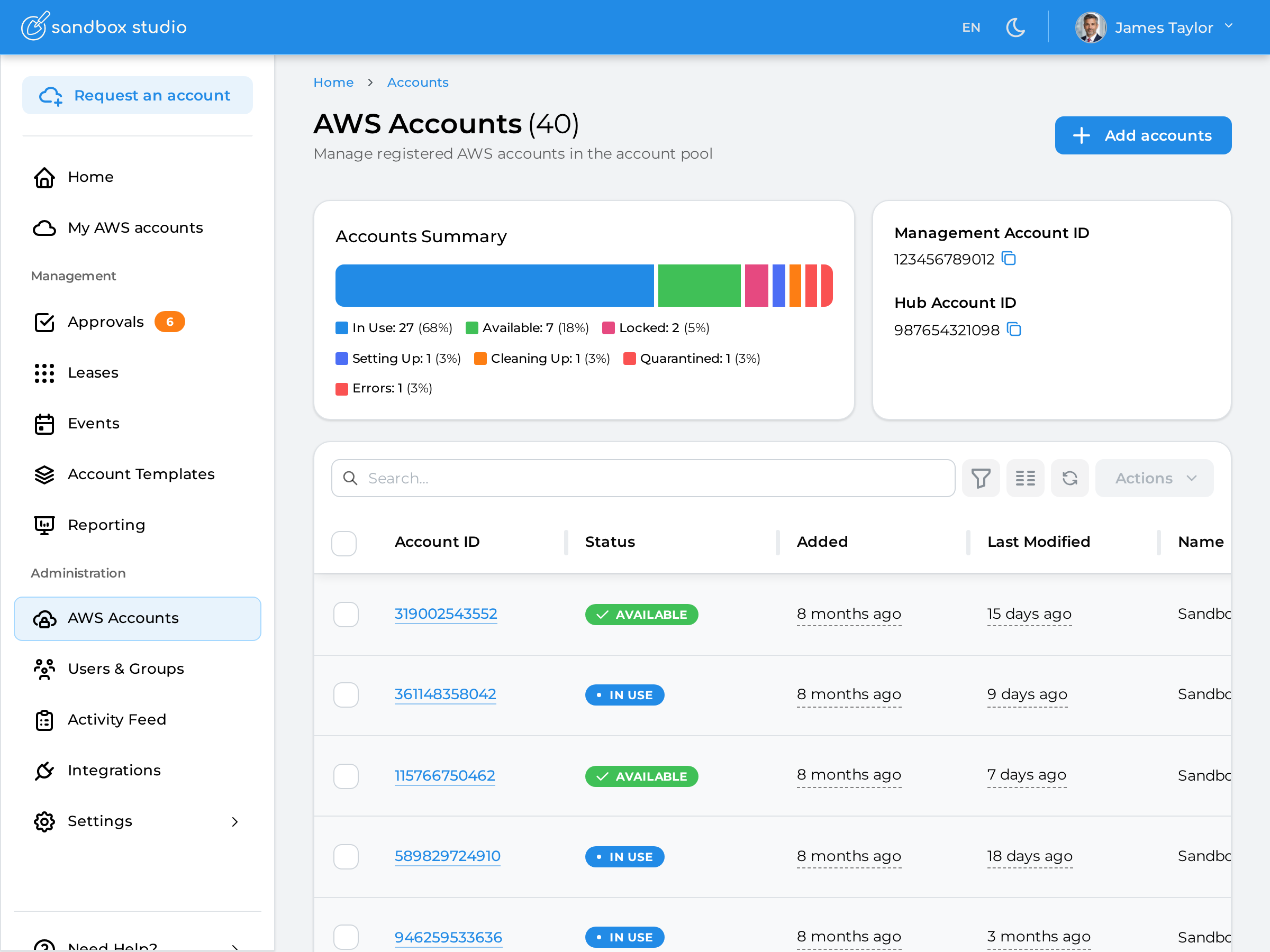
Accounts Summary: how many accounts are in each state. Keep enough accounts Available for upcoming requests and events.
Management Account ID and Hub Account ID: the AWS Organizations management account and the account where Sandbox Studio runs.
The list of accounts, with search, filters (for example by status) and these buttons in each row: log in to the account, Clean up account and Eject account. To act on several accounts at once, select them and use Actions.
Account statuses#
Status | Meaning |
|---|---|
Available | Clean and ready to be leased. |
In Use | Leased to a user. Choose View current lease to see the lease. |
Reserved | Being assigned to a new lease. This normally only lasts a moment. |
Setting up... | Being prepared for a new lease, including any launch settings of the account template. |
Account Locked | Its lease is locked (suspended), for example because it reached a budget or time limit. Users can't open it until the lease is unlocked. |
Cleaning up... | Resources are being removed after a lease ended. Choose the information icon to follow progress. When many accounts are cleaned at once, accounts wait their turn, so this can take longer than usual. |
Quarantined | Cleanup failed and the account needs your attention. See Quarantined accounts and clean-up failures. |
Onboarding... | Being added to the pool. |
Onboarding Failed | Could not be added. The reason is shown under the status. See Account onboarding failures. |
Ejecting... / Ejecting Failed | Being removed from the pool, or removal failed. |
For lease states, see Lease states in the Manager Guide.
Add accounts to the pool#
Sandbox Studio doesn't create AWS accounts. Create them with your usual process (for example AWS Control Tower or AWS Organizations), then:
In AWS Organizations, move the new accounts into the Sandbox Studio Entry OU.
In Sandbox Studio, choose Add accounts on the AWS Accounts page. Accounts in the Entry OU are listed.
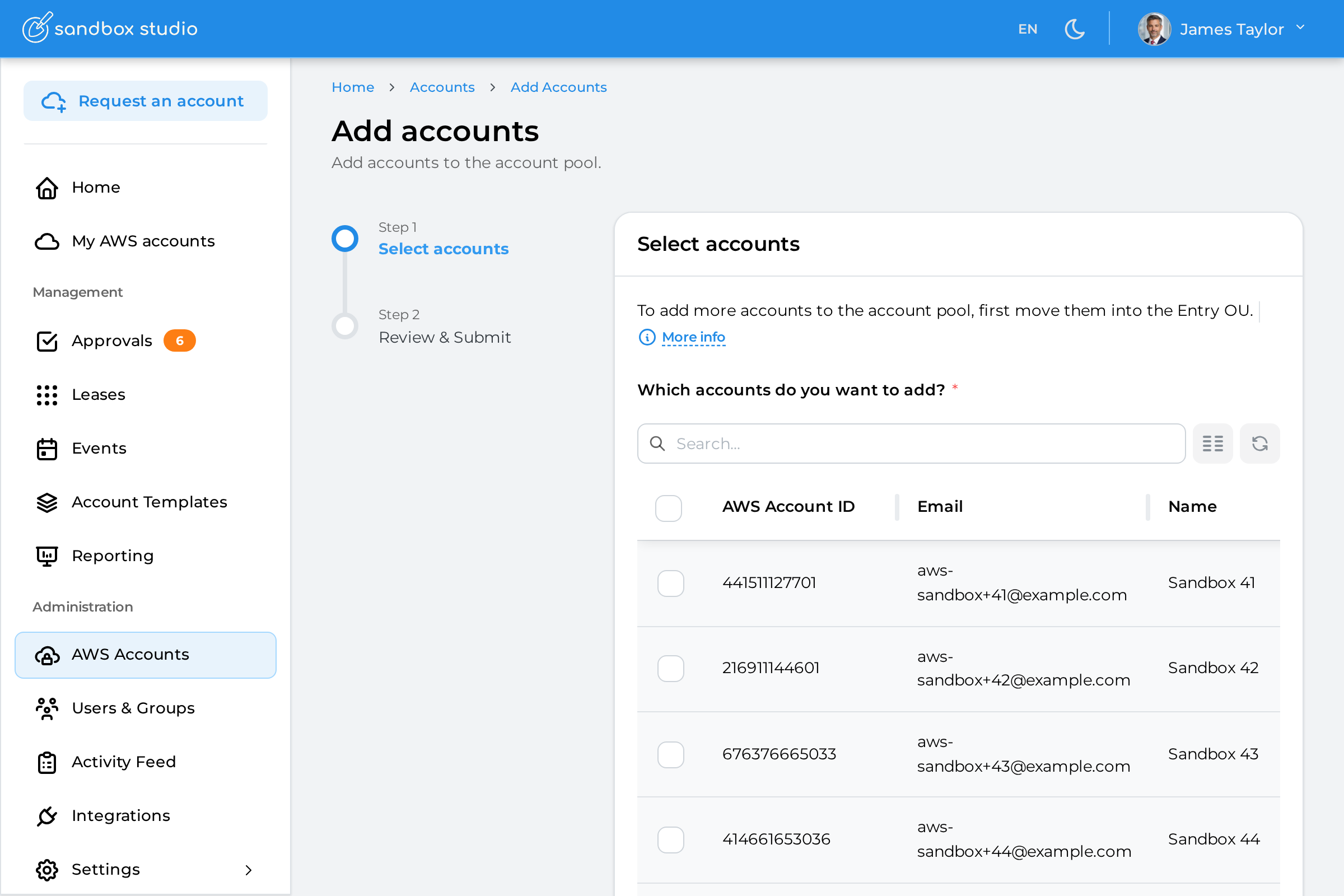
Under Which accounts do you want to add?, select the accounts.
Continue to the Review & Submit step, check the list and submit.
The accounts show Onboarding..., then Available when they're ready. Your subscription limits how many accounts you can manage. See Subscription.
For how accounts are prepared on the AWS side, see Creating sandbox accounts in the Installation Guide.
Account details#
Choose an account ID to open its page.
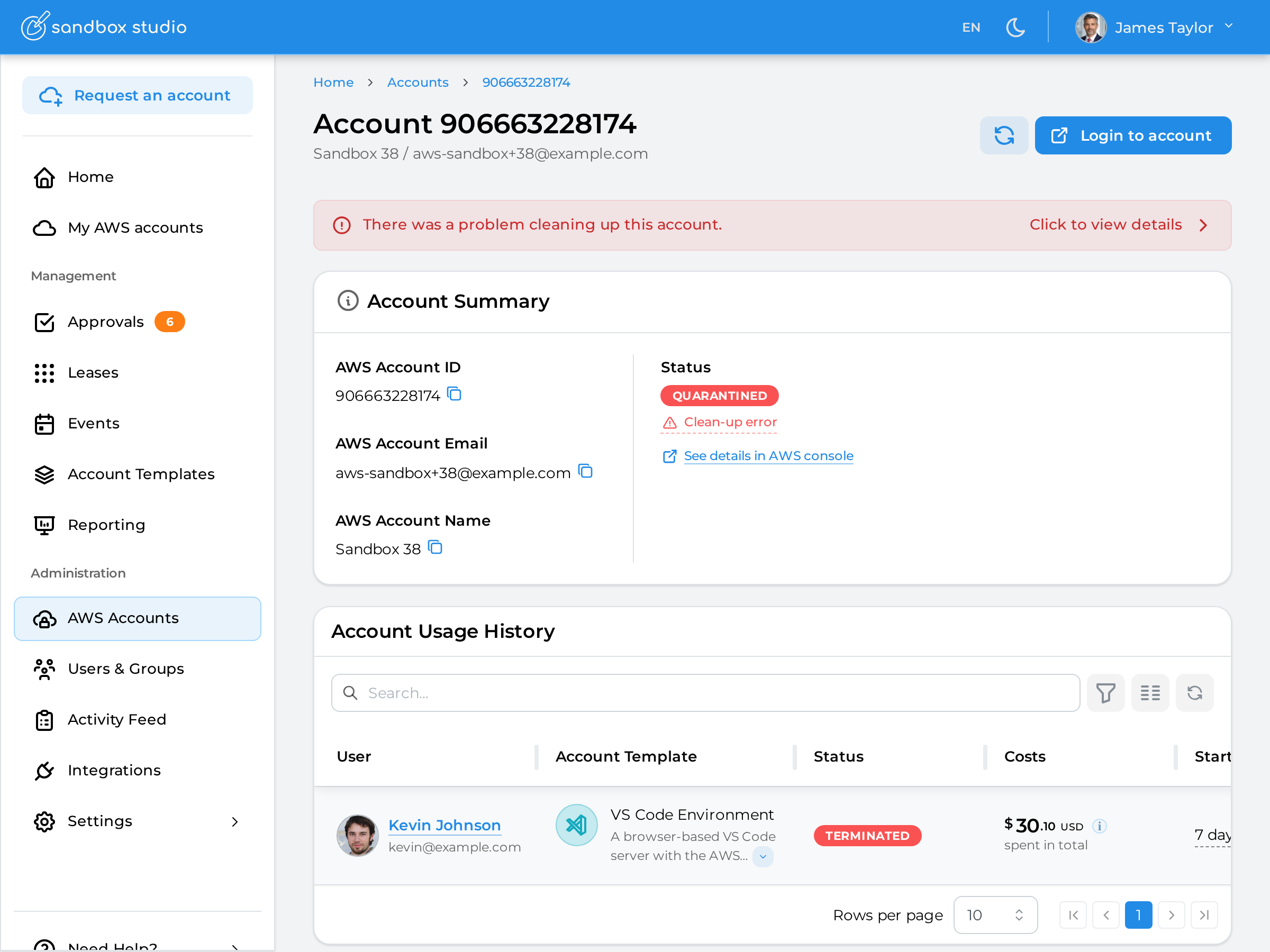
Account Summary: the account ID, email, name, status and, if it's leased, who is using it.
Account Usage History: every lease that has used this account, with the user, template, status and cost.
A banner appears if the last cleanup failed. Choose Click to view details to see what went wrong.
Open an account in the AWS console#
Choose Login to account on the account's page, or the login button in its row. The AWS console opens in a new tab with administrator access to that account. Use this to investigate problems, for example a failed cleanup. Each time, Account accessed by administrator is recorded in the activity feed.
Clean up an account#
Cleanup removes all resources from an account and returns it to the pool. It runs automatically when a lease ends. To run it yourself, for example to retry after a failure:
Choose Clean up account in the account's row, or select several accounts and choose Actions, then Clean up account.
Confirm.
Cleanup is only available for accounts that are Available, Cleaning up... or Quarantined. How cleanup works is set in Cleanup settings.
Eject an account#
Ejecting removes an account from Sandbox Studio, for example to hand it over to a team for production use.
Choose Eject account in the account's row, or select several accounts and choose Actions, then Eject account.
Confirm.
Sandbox Studio terminates any lease on the account, removes its access, moves the account to the Exit OU in AWS Organizations and removes it from the pool. The account's resources are not deleted. You can't eject an account while it's being cleaned up.