

First sign-in
Updated · 1 min read
The administrator you entered during installation can sign in straight away. They have no password: they sign in with a one-time code sent to their email address.
Find the sign-in address#
The installer prints the address when it finishes (You can access the application at: …). It is your custom domain if you set one, otherwise a CloudFront address such as https://d1234abcd.cloudfront.net.
If you've lost it, sign in to the AWS console for the hub account, open CloudFormation in your home region, select the SandboxStudio-API stack and look for CloudFrontDistributionUrl on the Outputs tab.
Sign in as the first administrator#
To sign in for the first time:
Open the Sandbox Studio address in a browser.
Enter the administrator's email address.
Choose Email me a code.
Enter the 8-digit code from the email Amazon Cognito sends.
There is no temporary password or invitation email to hand over. The User Guide explains sign-in options in more detail, including setting a password and multi-factor authentication: see Signing in and Multi-factor authentication.
What you see first#
On a new installation the home page shows a Let's get started card with three steps: Register your product key, Onboard your first sandbox account and Create your first account template. Each step shows a tick once it's done.
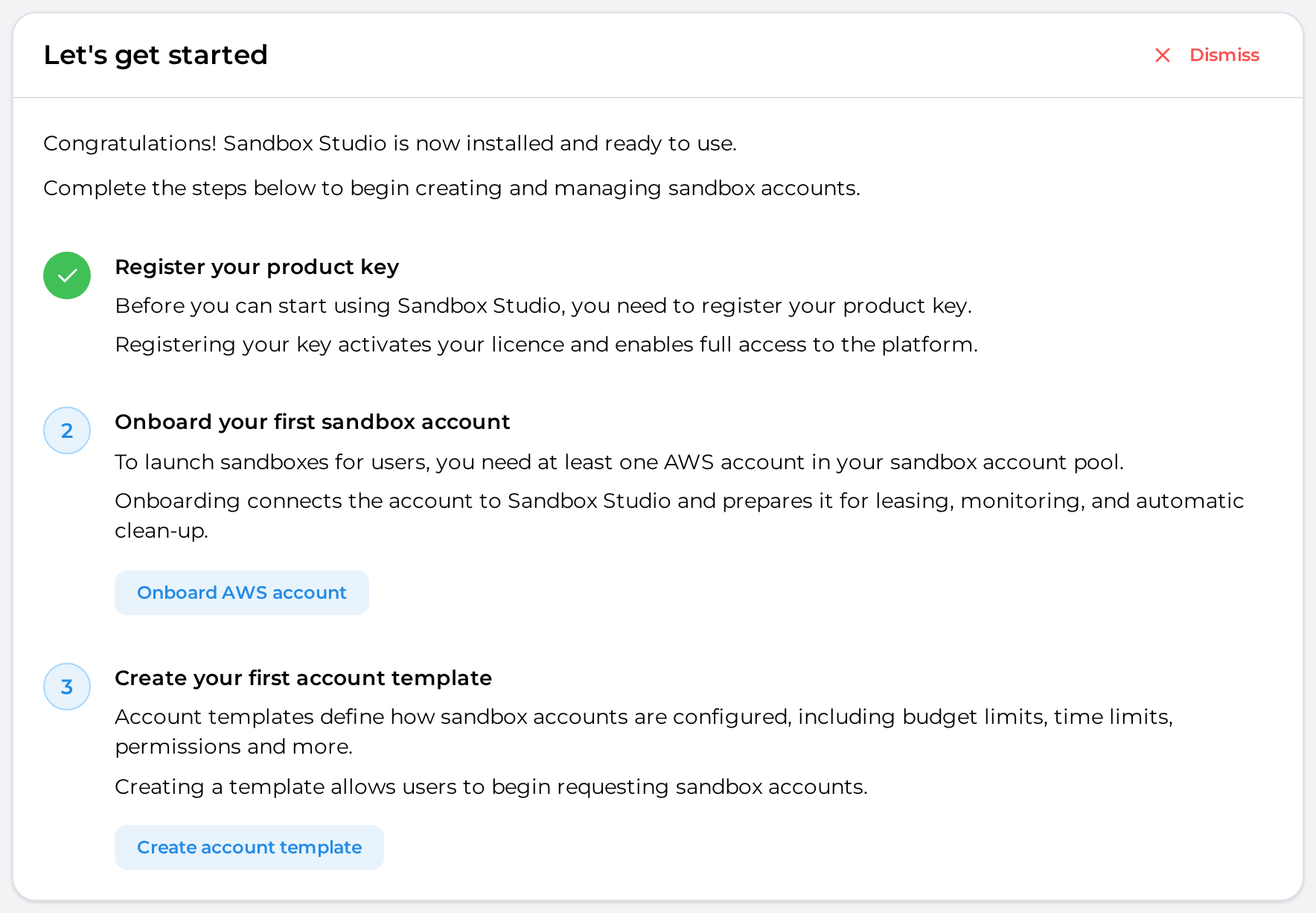
Work through the steps, then the rest of the post-deployment configuration tasks. You can hide the card with Dismiss; it comes back after a few days while steps remain.
Add more administrators#
Invite other administrators from Users & Groups in the app. See Inviting users in the Administrator Guide. If you connect an identity provider, you can also give administrator rights through a group mapping.