

Sign-in and security settings
Updated · 4 min read
Decide how people sign in to Sandbox Studio: with an email address, through your identity provider, or both. You also set the multi-factor authentication (MFA) policy, which email domains are allowed, and how long sessions last.
Sign-in is handled by Amazon Cognito in your AWS account. The most common settings are available in Sandbox Studio. Anything else, such as password rules, is changed in the Amazon Cognito console.
View the current settings#
In the side menu, choose Settings, then System Settings.
Choose the Advanced tab. The Authentication Settings card shows the current settings.
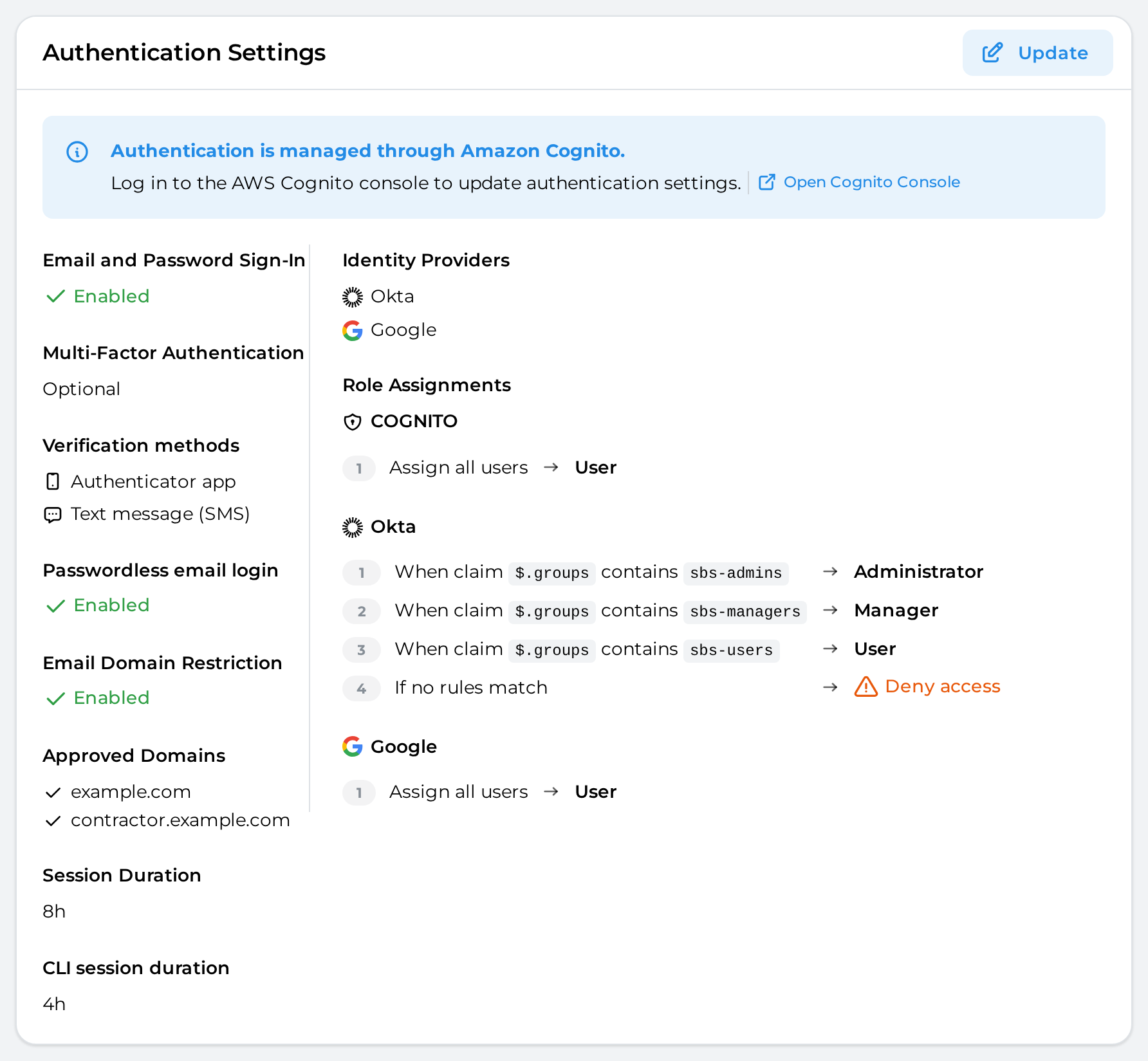
Open Cognito Console takes you to the Amazon Cognito user pool in the AWS console, if you have AWS access.
Change the settings#
On the Authentication Settings card, choose Update. The Configure sign-in access drawer opens.
Change the settings described below.
Choose Save changes.
Email sign-in#
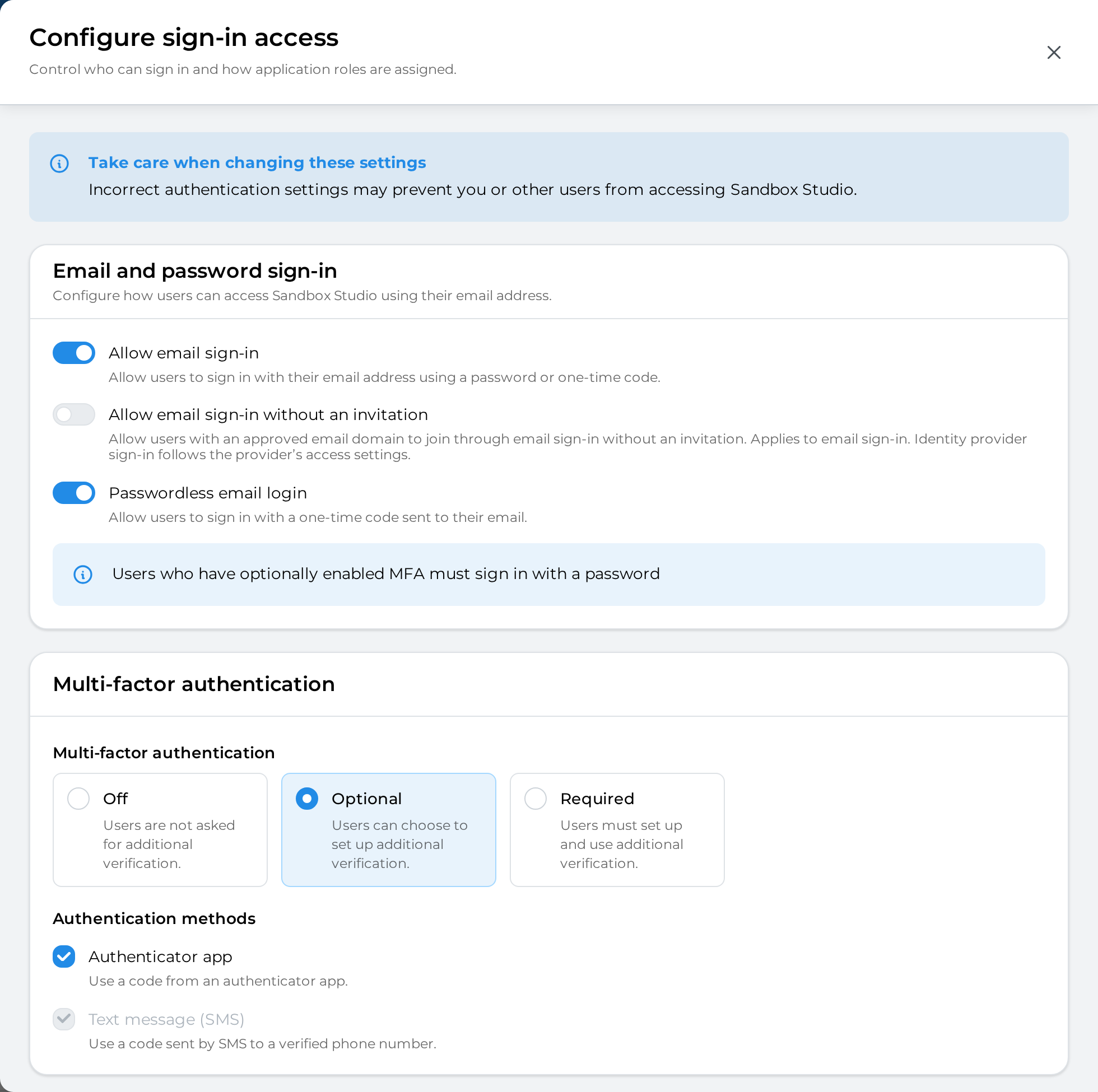
Setting | What it does |
|---|---|
Allow email sign-in | Lets people sign in with their email address, using a password or a one-time code. Turn it off if everyone signs in through an identity provider. |
Allow email sign-in without an invitation | Lets people create an email sign-in by themselves, without an invitation. If email domain restrictions are on, only people with an approved domain can do this. When it's off, people need an invitation. See Inviting users. |
Passwordless email login | Lets people sign in with an 8-digit code sent to their email instead of a password. Not available when MFA is Required. When MFA is Optional, people who have set up MFA must sign in with their password. Needs the Amazon Cognito Essentials or Plus feature plan. |
New users who join with email sign-in get the User role. You can change it afterwards. See Managing user roles.
Multi-factor authentication#
Option | What users experience |
|---|---|
Off | Users are not asked for additional verification. |
Optional | Users can choose to set up additional verification from their profile. |
Required | Users must set up and use additional verification. Anyone who hasn't set it up is asked to do so at their next sign-in. |
Under Authentication methods, choose which second factors users can use. Select at least one when MFA is Optional or Required:
Authenticator app: a code from an app such as Google Authenticator or Microsoft Authenticator.
Text message (SMS): a code sent by SMS to a verified phone number. This needs SMS delivery to be set up in your AWS account, and AWS SMS sandbox and destination limits apply.
Email codes are not an MFA method. Signing in with an email code is a separate, passwordless option (see Email sign-in), and it can't be combined with Required MFA.
MFA applies to email sign-in. People who sign in through an identity provider use that provider's own MFA. Users set up and change their factors themselves. See Multi-factor authentication in the User Guide.
If a user loses their MFA device#
There is no button in Sandbox Studio to reset another user's MFA. Try these in order:
Another factor: if the user set up both an authenticator app and SMS, they can choose the other method at sign-in, then replace the lost one from their profile.
Identity provider: if the user can also sign in through your identity provider, they can sign in that way. The provider's own MFA applies.
Reset in Amazon Cognito: an AWS administrator with access to the Sandbox Studio hub account removes the user's lost factor, for example from AWS CloudShell:
# Find the user's Cognito username from their email address
aws cognito-idp list-users --user-pool-id <user-pool-id> \
  --filter 'email = "alex@example.com"' --query 'Users[].Username'

# Turn off their authenticator app (use --sms-mfa-settings for SMS)
aws cognito-idp admin-set-user-mfa-preference --user-pool-id <user-pool-id> \
  --username <username> \
  --software-token-mfa-settings Enabled=false,PreferredMfa=false
Use Open Cognito Console on the Authentication Settings card to find the user pool ID.
At their next sign-in, the user signs in with their password. If MFA is Required, they are asked to set up a new factor straight away. If it's Optional, they can add one again from their profile.
Email domain restrictions#
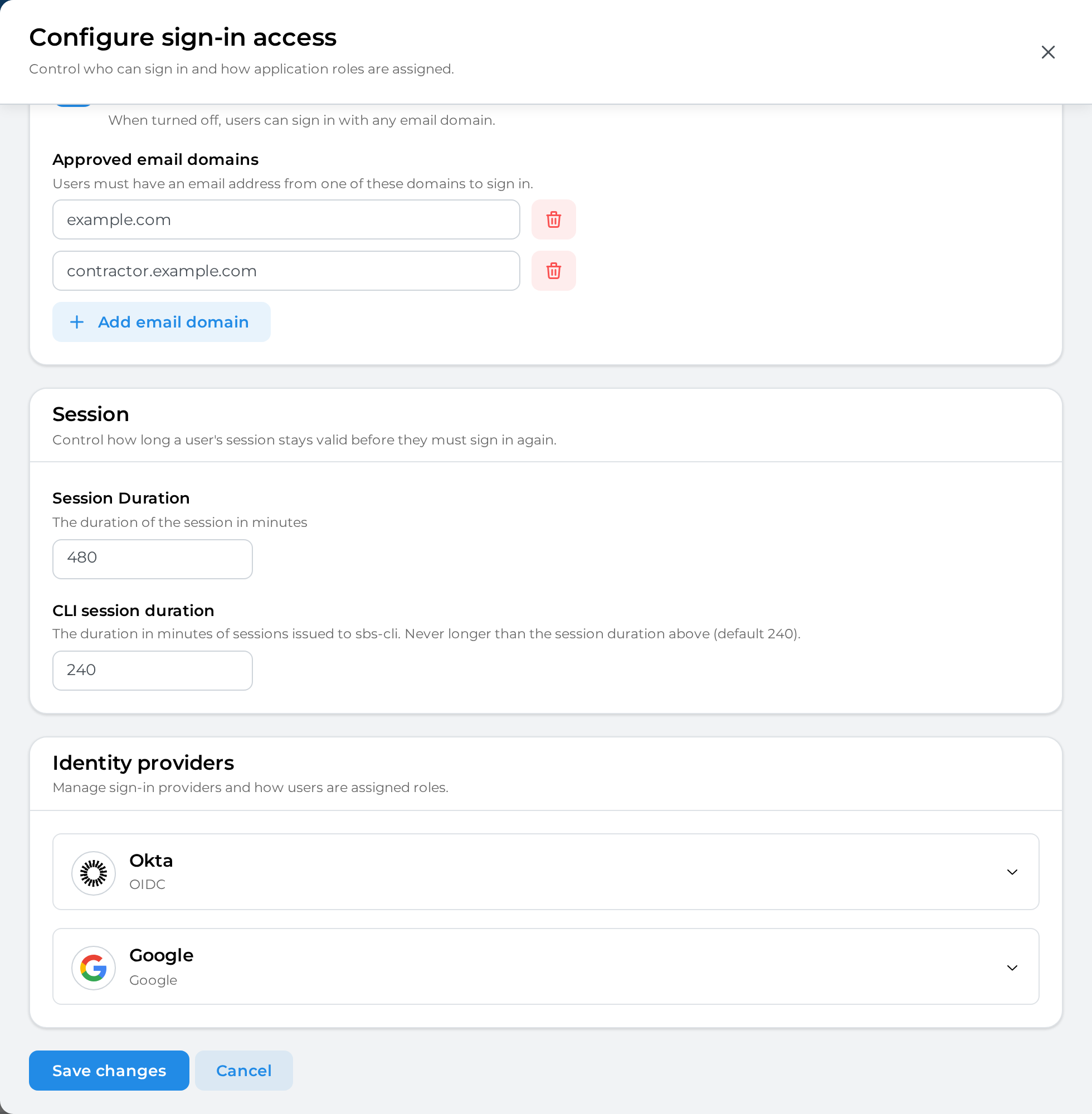
Only allow approved email domains: when turned on, users must have an email address from one of the Approved email domains to sign in. When turned off, any email domain can be used.
Approved email domains: enter domains without
@, for exampleexample.com. Choose Add email domain for each extra domain.
The approved domains also limit who you can invite. Existing users with other domains can't sign in while the restriction is on.
Session#
Setting | What it does |
|---|---|
Session Duration | How long, in minutes, a user stays signed in before they must sign in again. Between 5 and 1440 minutes (24 hours). |
CLI session duration | How long, in minutes, a sign-in from the Sandbox Studio command-line tool ( |
For the command-line tool, see Using your account from the AWS CLI in the User Guide.
Identity providers#
The last section of the drawer turns identity providers on or off and sets how they assign roles. See Identity providers.
Web App URL#
The Web App URL card, above Authentication Settings, holds the address people use to reach Sandbox Studio. Sign-in redirects use it, so only change it when your address changes, for example after setting up a custom domain. See System settings.