

Managing groups
Updated · 2 min read
Groups let you give a team of managers or approvers access to account templates and events in one step, instead of adding people one by one. Only administrators can create, edit or delete groups.
Local and external groups#
Group type | Who decides membership | When membership changes |
|---|---|---|
Local | Administrators, in Sandbox Studio. | Only when an administrator adds or removes a member. |
External | Your identity provider. The group matches a group name sent by one provider, such as Okta. | Each time a member signs in through that provider. Members are read-only in Sandbox Studio. |
Groups don't change anyone's role. See Roles and groups in a nutshell.
View groups#
Choose Users & Groups in the side menu, then the Groups tab.
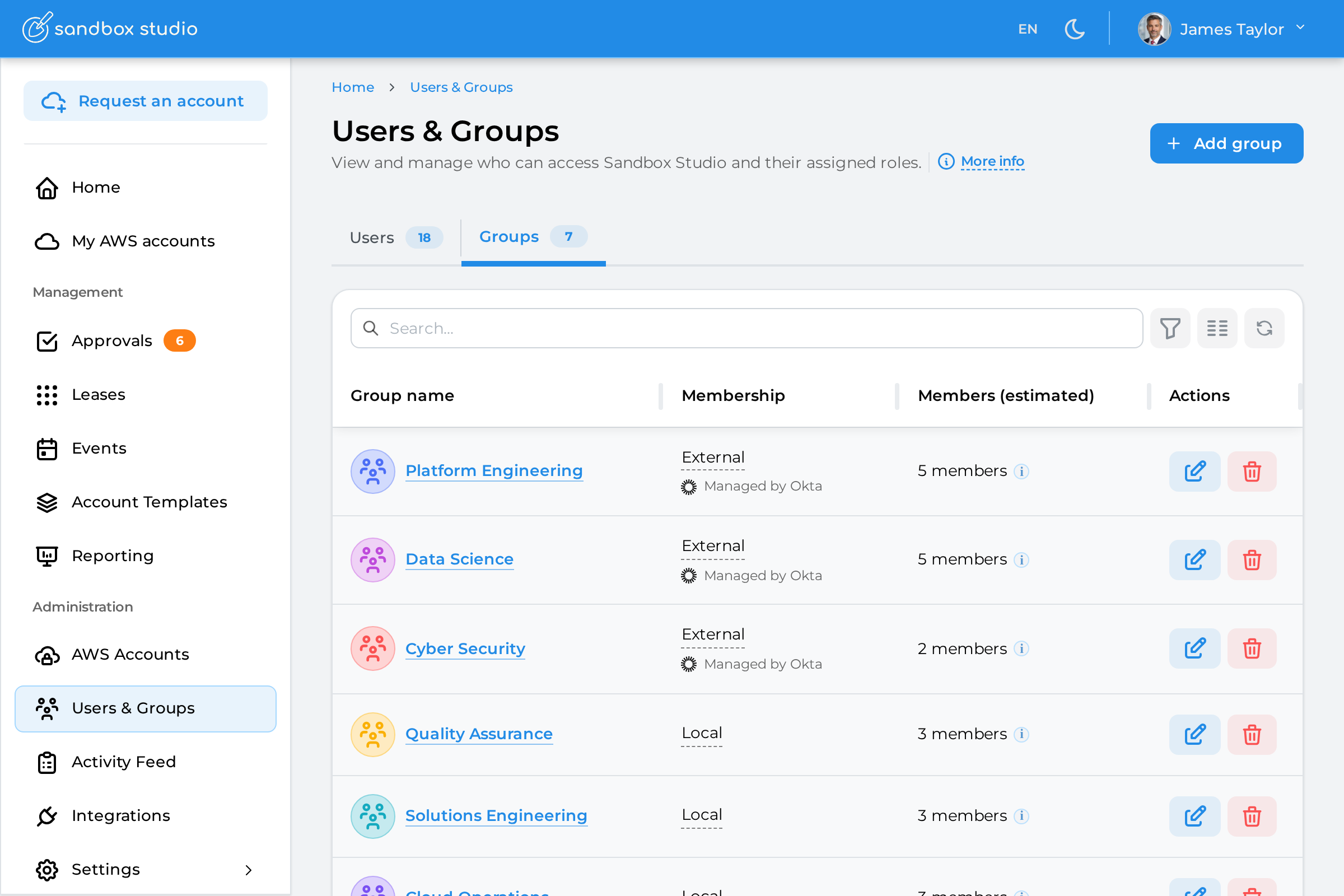
Members (estimated) for an external group only counts members who have signed in since the group was set up. More appear as people sign in.
Create a group#
On the Groups tab, choose Add group.
Enter a Group name and pick a Colour. The colour helps you recognise the group in lists.
Choose the Group type:
Local: you add members yourself after saving.
External: choose the Identity provider, enter the External group name exactly as the provider sends it, and choose a Match condition. Equals is the safe choice. Contains can match more groups than you intend.
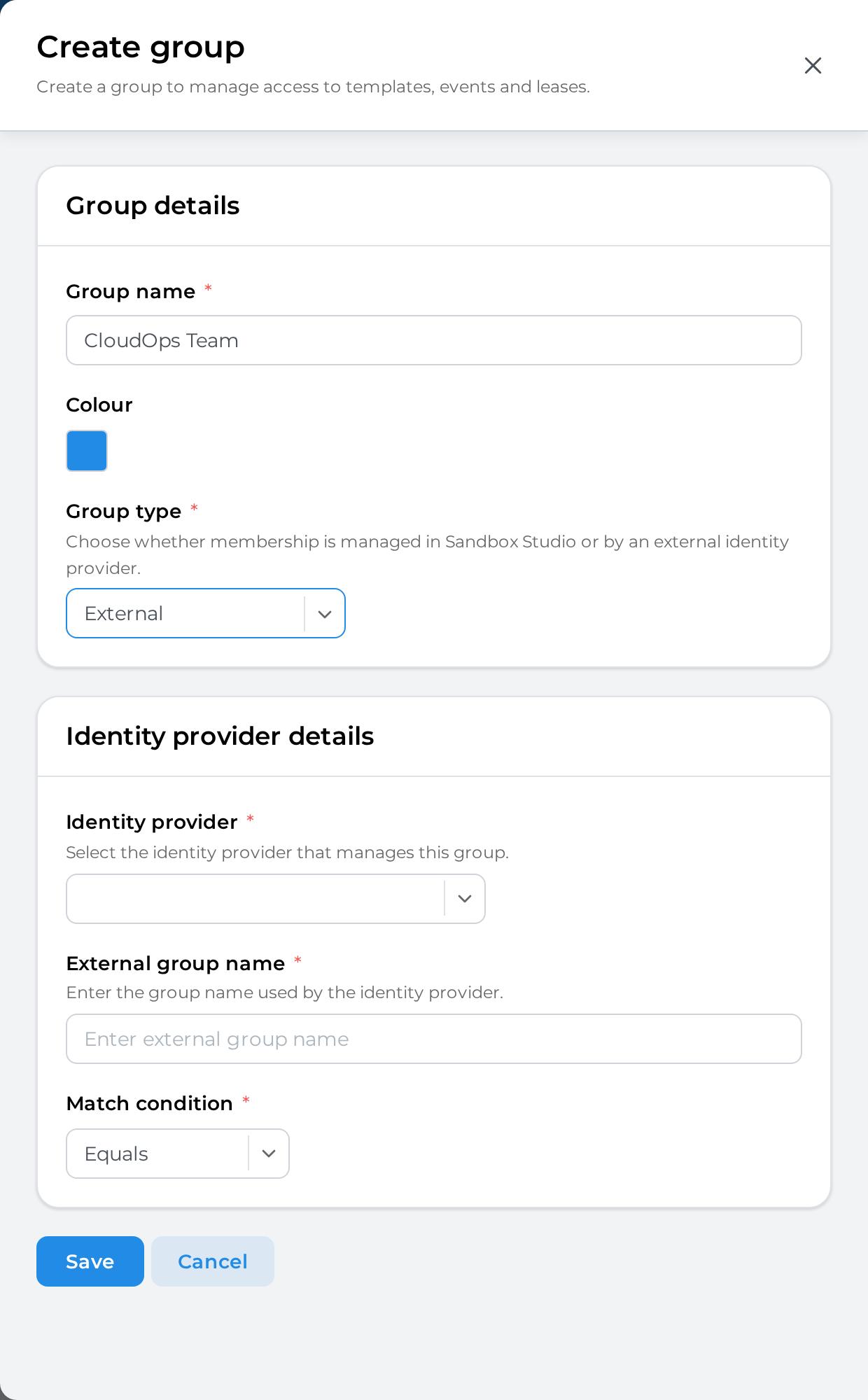
Choose Save.
Group details and members#
Choose a group's name to open it.
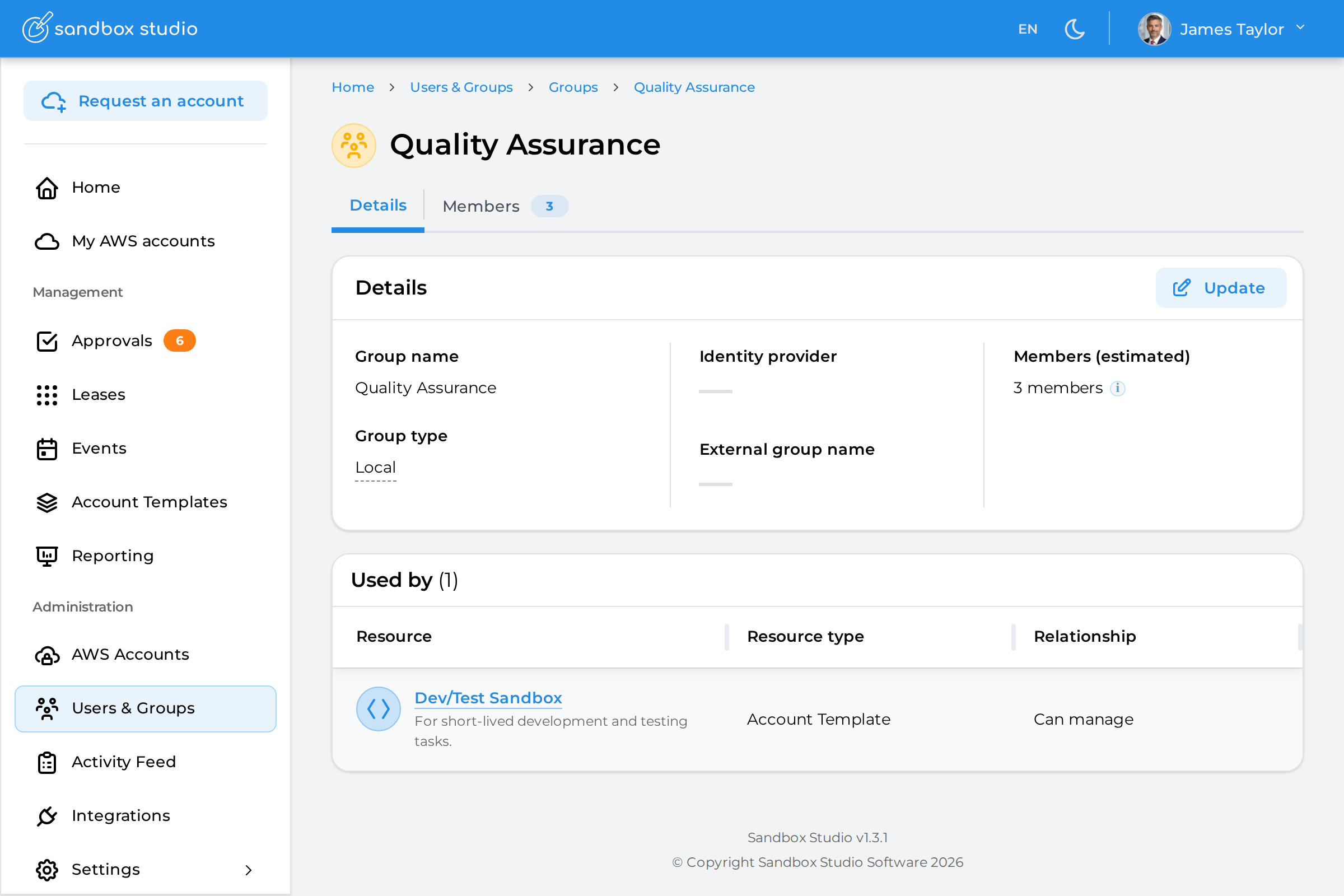
Details: the group type, identity provider and external group name, and Used by, which lists the templates and events the group is assigned to and whether it Can manage, Can approve requests or both.
Members: who is in the group. For a local group, choose Add a member to add someone, or the remove button next to a member. For an external group, each member shows Managed by the provider and the list is read-only.
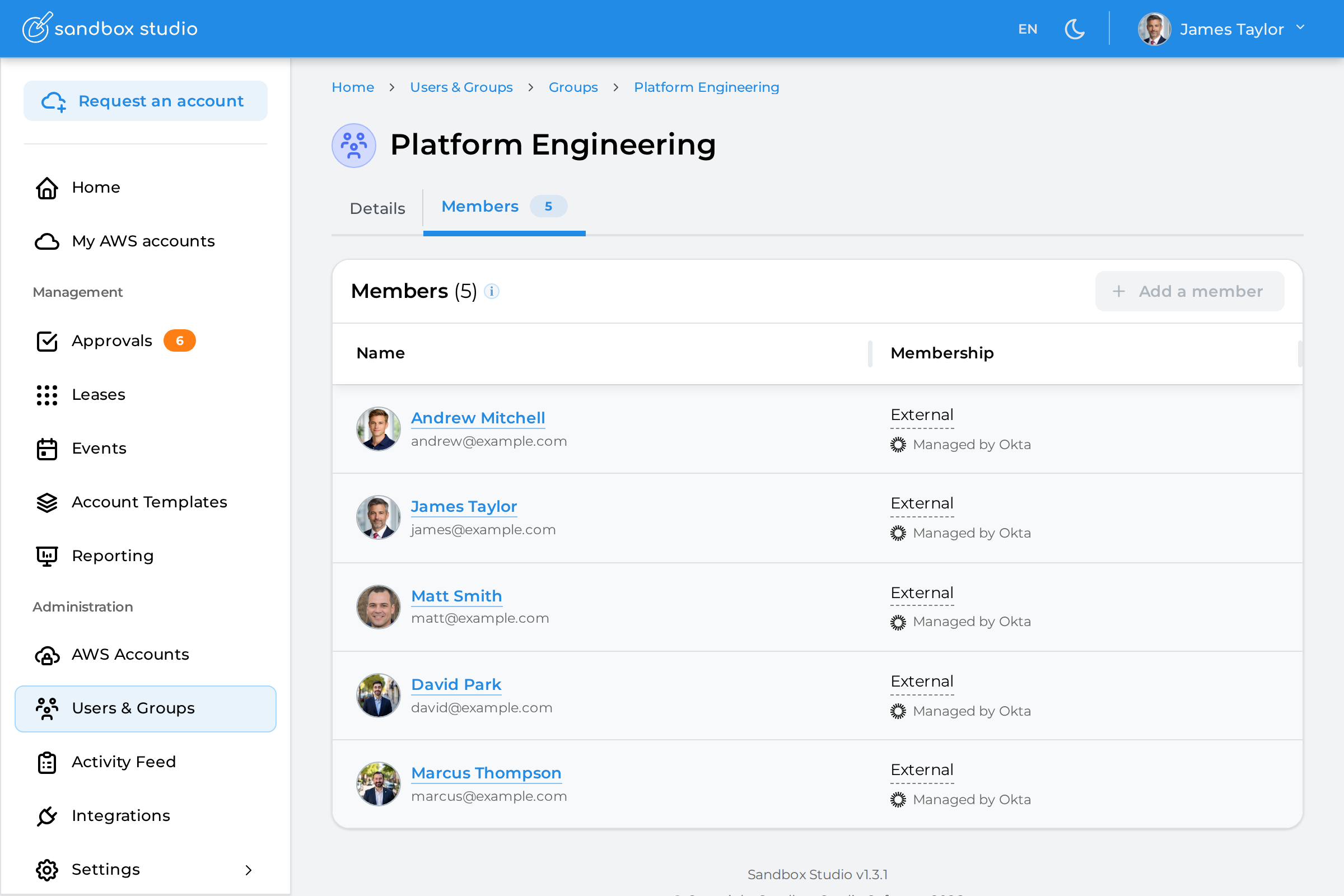
If the identity provider doesn't send complete group information for some members, a Users needing attention card lists them. Fix the provider's group claim, then ask those users to sign in again.
Change a group's type#
Choose Update on the group's Details card, or the edit button on the Groups tab.
Local to External: you must confirm that existing members will be replaced by membership from the identity provider.
External to Local: choose Keep current members as app-managed or Start with no members.
Changing the provider or external group name clears the synced members. They come back as people sign in.
Delete a group#
Choose the delete button on the Groups tab and confirm. Deleting a group doesn't delete its members' accounts. A group that is still assigned to a template or event can't be deleted. Remove it from those templates and events first. They're listed under Used by.
Assign a group to templates and events#
Managers and administrators assign groups when they set the managers and approvers of an account template or event. See Account templates and Events in the Manager Guide.