

Multi-factor authentication
Updated · 3 min read
Multi-factor authentication (MFA) adds a second step when you sign in with your email address and password: after your password, you enter a 6-digit code from an authenticator app or a text message. Someone who learns your password still cannot get in.
Sandbox Studio supports two methods:
Method | How it works |
|---|---|
Authenticator app | An app on your phone or computer (for example Google Authenticator, Microsoft Authenticator, 1Password or Authy) shows a new 6-digit code every 30 seconds. Works without mobile signal. |
Text message (SMS) | Sandbox Studio texts a 6-digit code to your verified phone number. |
Your organisation chooses which methods are available, and whether MFA is optional or required.
When your organisation requires MFA#
If MFA is required and you have not set it up yet, Sandbox Studio asks you to do it the next time you sign in:
Sign in with your email address and password.
On Set up two-factor authentication, choose Authenticator app or Text message (SMS).
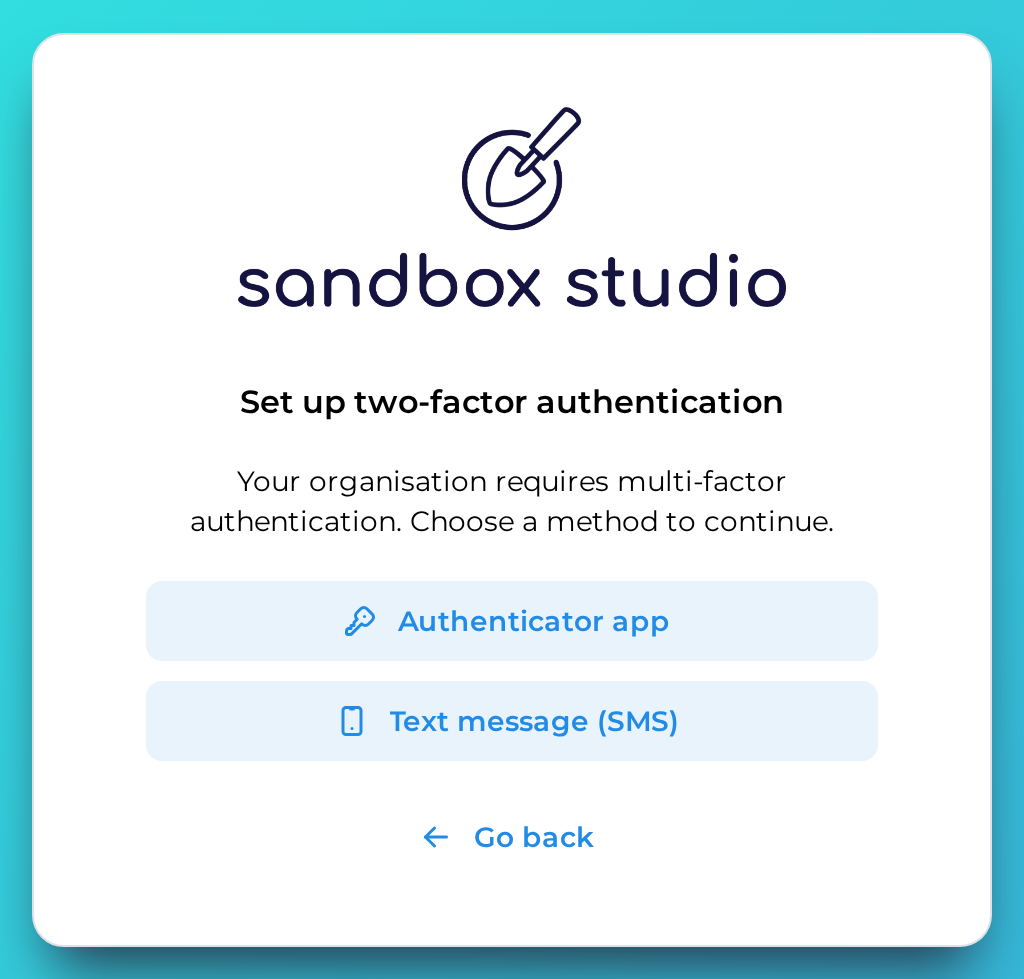
For an authenticator app: scan the QR code with your app (or type the Setup key), enter the 6-digit code it shows and choose Verify and continue.
For SMS: confirm your password, enter your phone number, choose Send verification code and enter the code you receive.
Set up MFA from your profile#
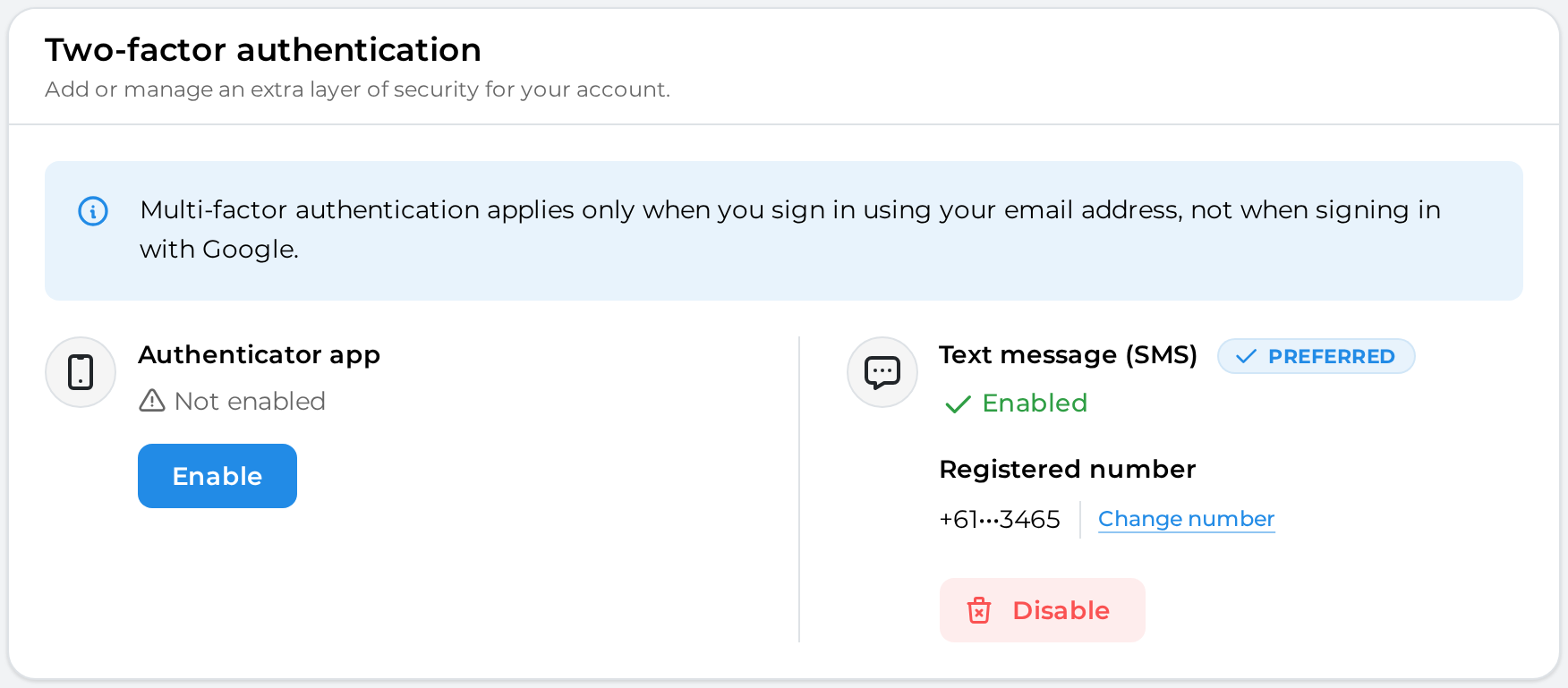
When MFA is optional, you can turn it on at any time from your profile. Choose your name at the top right, then My profile. The Two-factor authentication section shows each method and whether it is enabled.
Add an authenticator app#
Under Authenticator app, choose Enable.
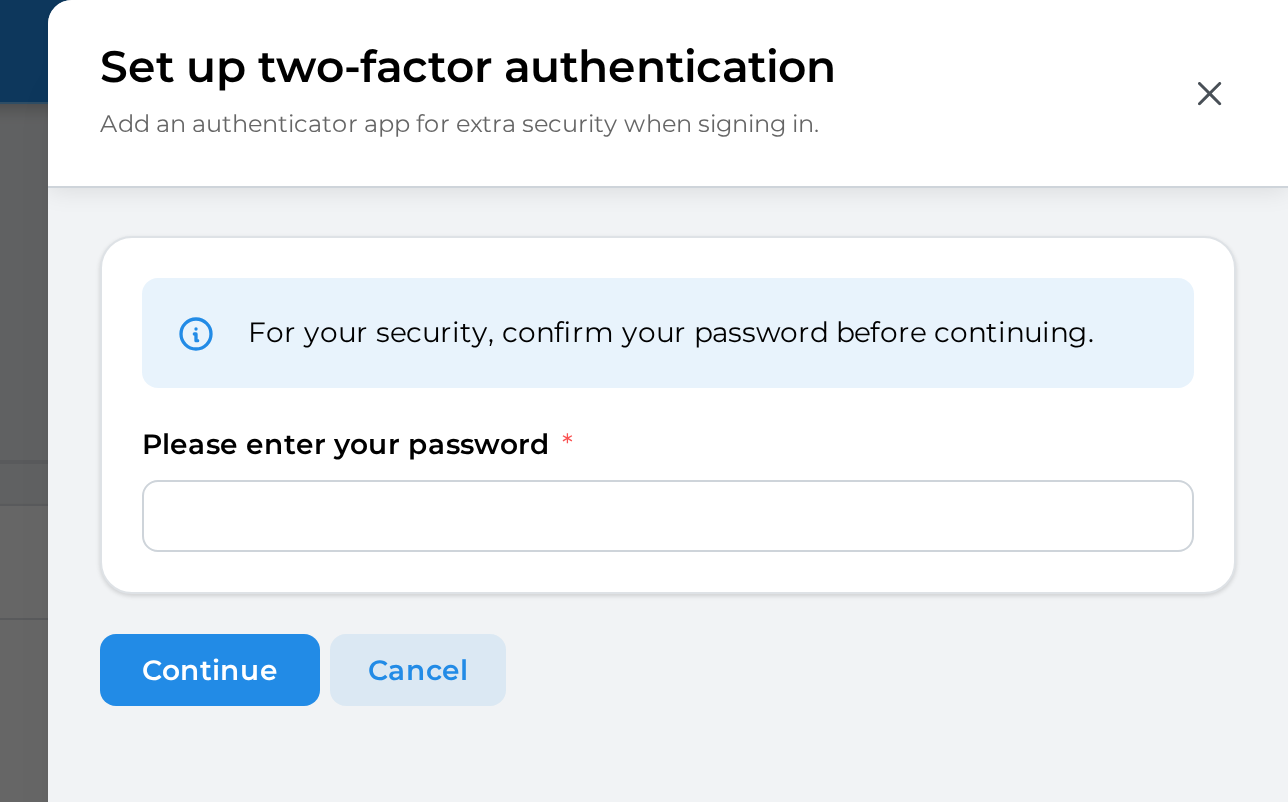
Enter your password and choose Continue. If you already use SMS, also enter the code sent to your phone.
Scan the QR code with your authenticator app, or enter the setup key manually.
Enter the 6-digit code shown in the app and choose Verify and enable.
Add text message (SMS)#
Under Text message (SMS), choose Add phone number. If a verified number is already on file, choose Enable instead and confirm your password.
Confirm your password, choose your Country and enter your Phone number, then choose Continue.
Enter the code sent to your phone. SMS verification is now enabled.
To use a different phone, choose Change number.
Choose your preferred method#
If both methods are enabled, a Preferred method option appears. Pick the method Sandbox Studio should use first when you sign in, or No preference to choose each time.
Turn a method off#
Choose Disable under the method and confirm with a current code. If your organisation requires MFA, you will have to set it up again the next time you sign in.
Signing in with MFA#
After your password, Sandbox Studio asks for a code:
If you have more than one method and no preference, first choose one on Choose a verification method.
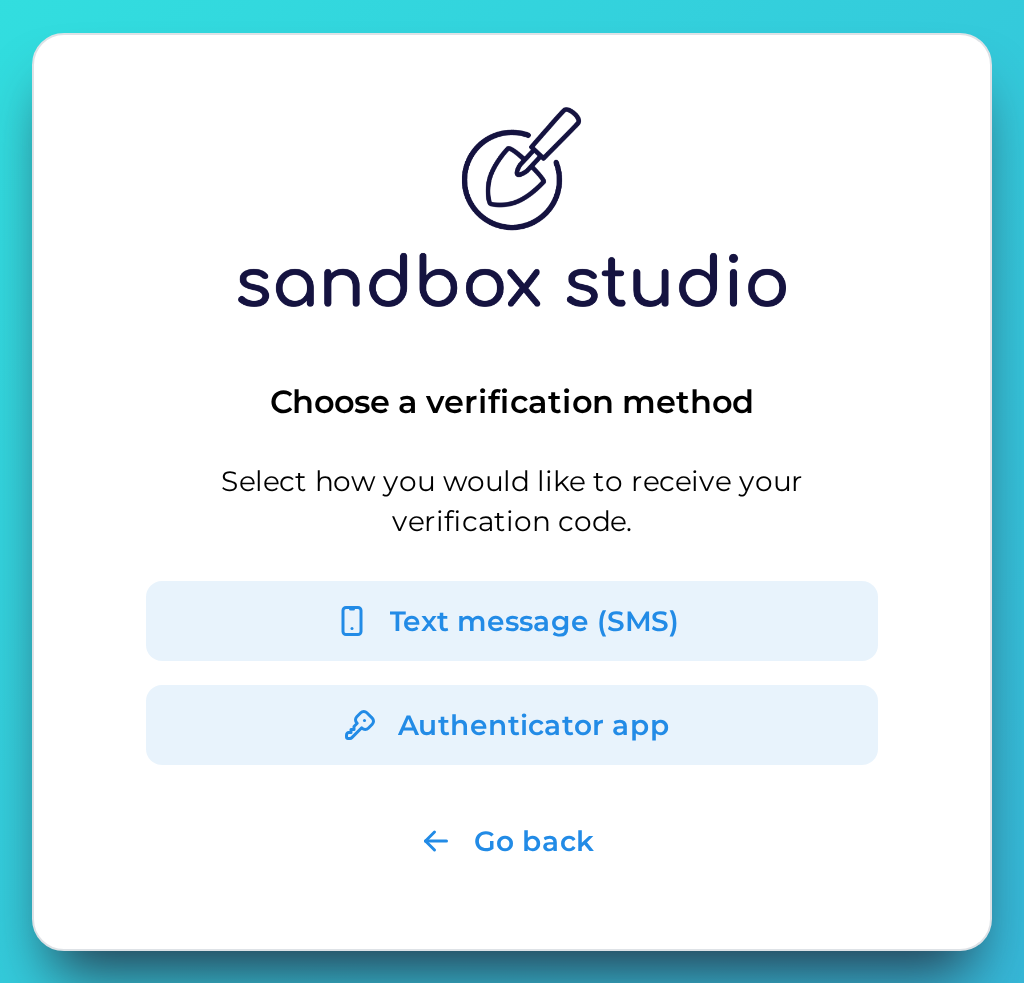
Enter the 6-digit code and choose Verify.
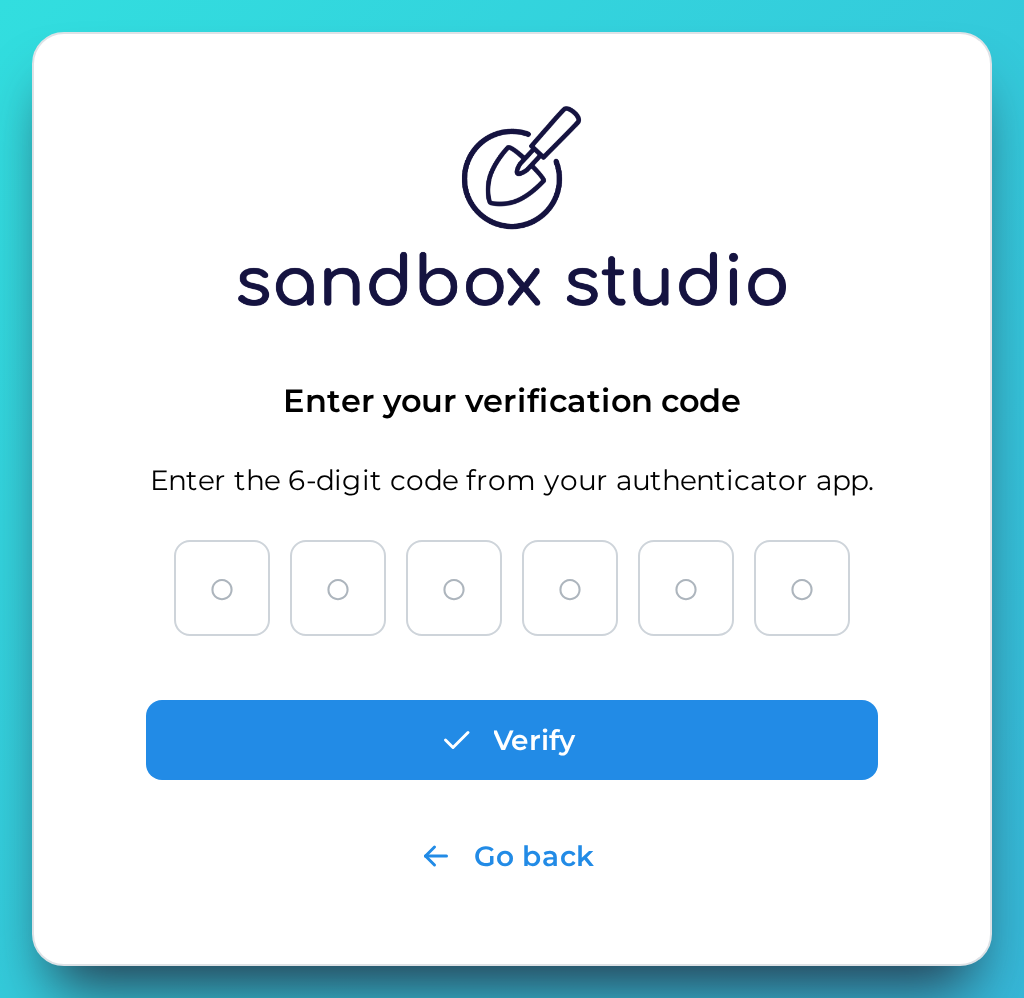
Authenticator codes change every 30 seconds. If you see That code was already used, wait for the next code. If your SMS code doesn't arrive, choose Go back and start again to get a new one.
Lost your phone or authenticator app?#
You have another method enabled (for example SMS as well as an authenticator app): sign in with that one, then go to your profile, disable the lost method and set it up again on your new device.
You have no other method: contact your Sandbox Studio administrator. They can remove your second factor so you can sign in again. Then set up MFA on your new device.