

Budget and duration
Updated · 3 min read
The Budget and Lease Duration steps of the template wizard set how much each lease can spend and how long it lasts, what happens when a limit is reached, and what alerts or actions happen along the way. Every new lease from the template starts with these settings; you can change them later for a single lease.
Budget#
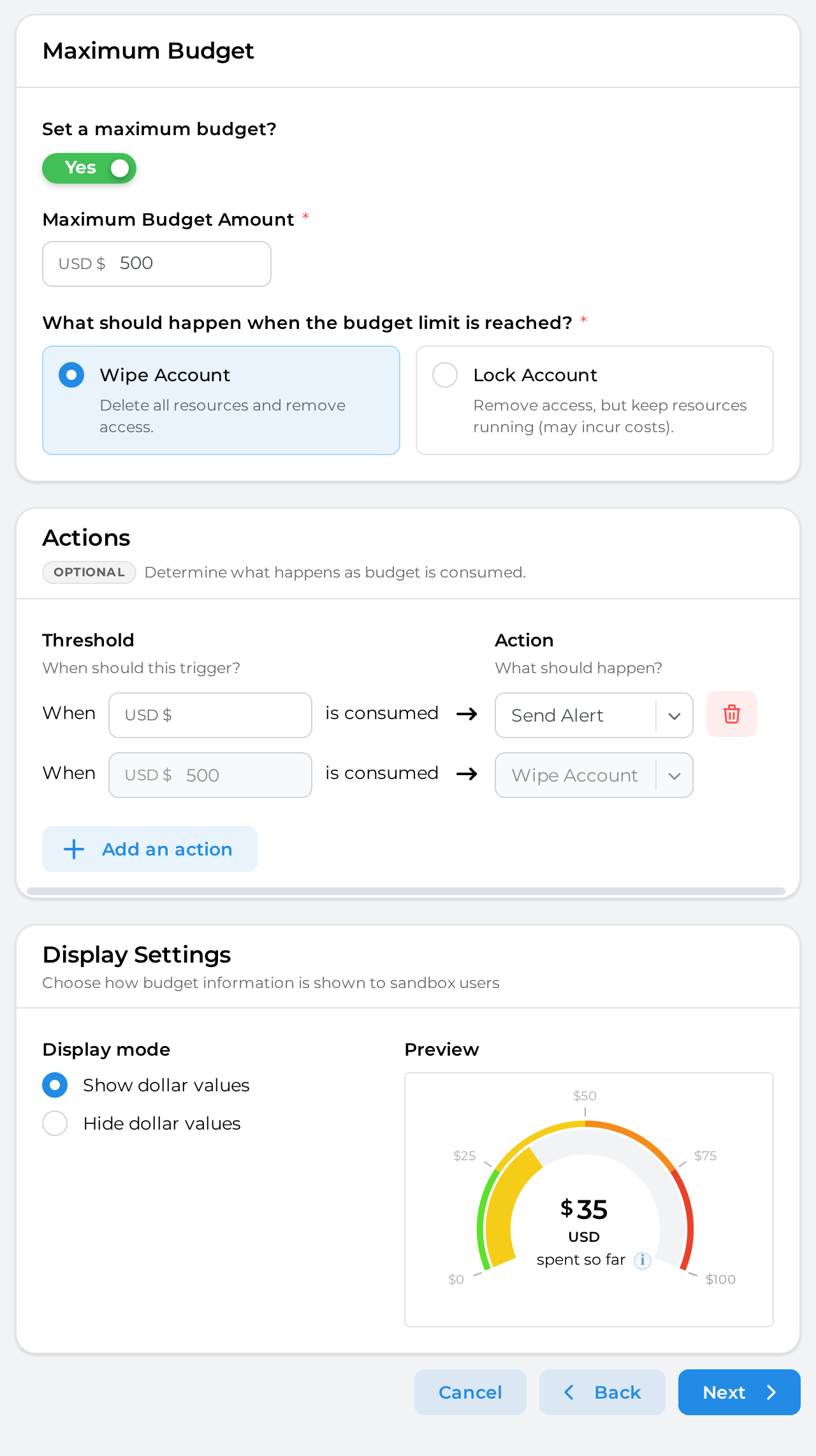
Setting | What it does | Default |
|---|---|---|
Set a maximum budget? | Whether leases have a spending limit. Hidden if your administrator requires every template to have one. | Yes |
Maximum Budget Amount | The limit for each lease, in US dollars. It must be more than $0 and no more than the maximum your administrator allows. | None |
What should happen when the budget limit is reached? | Wipe Account ("Delete all resources and remove access") or Lock Account ("Remove access, but keep resources running (may incur costs)"). | Wipe Account |
Actions (optional) | Steps before the limit: When a dollar amount is consumed, Send Alert or Lock Account. Select Add an action to add a row. | None |
Display mode | Show dollar values lets users see what they've spent and their budget. Hide dollar values shows them only the percentage used. | Show dollar values |
Rules for actions: each amount must be below the maximum budget and used only once, and you can have only one Lock Account action. Lock Account isn't offered as an action when the limit itself already locks the account, or when there's no maximum budget.
Wipe or lock?#
What happens to | Wipe Account | Lock Account |
|---|---|---|
Costs | Stop: all resources are deleted. | Continue while resources keep running. |
Data | Lost. | Kept. Managers and administrators can still open the account. |
Lease | Terminated, reason Budget Exceeded. | Account Locked, reason Budget Exceeded, until a manager raises the budget and unlocks it. |
How budgets are checked#
Sandbox Studio reads each account's costs from AWS Cost Explorer about once an hour and compares them with the budget. AWS can take up to 24 hours to report some charges, so an account can go over its budget before the action happens. Leave some headroom, and use a lock or alert action at a lower amount if overspend matters.
Lease duration#
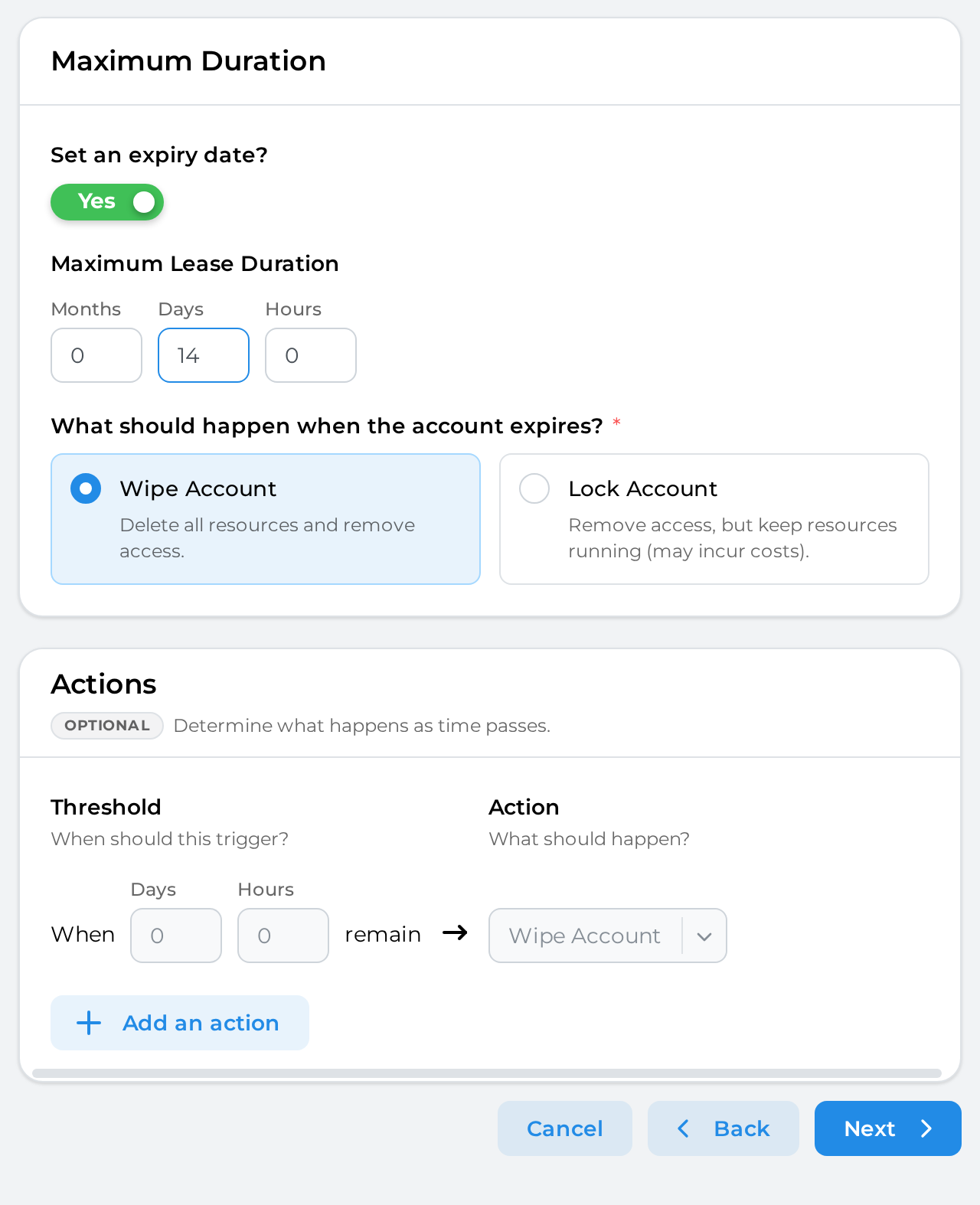
Setting | What it does | Default |
|---|---|---|
Set an expiry date? | Whether leases expire. Hidden, and always on, if your administrator requires an expiry. | No |
Maximum Lease Duration | How long each lease lasts, in Months, Days and Hours (a month counts as 30 days). It can't be longer than your administrator allows. | None |
What should happen when the account expires? | Wipe Account or Lock Account, as for the budget. | Wipe Account |
Actions (optional) | Steps before expiry: When a certain time remains, Send Alert or Lock Account. For example, an alert when 2 days remain. | None |
A lease that expires with Wipe Account is terminated with the reason Account Expired.
Who is notified#
Send Alert actions email the lease owner.
When a lease is locked or wiped because it reached its budget or expiry, the owner is emailed, and so are all administrators and all users with the Manager role.
Changing these later#
To change a template's budget or duration, open the template and select Update on its Budget or Duration card (see Managing account templates). Existing leases keep their settings; to change one lease, see Change a lease's budget or expiry.