

Lock, unlock or terminate a lease
Updated · 2 min read
Lock a lease to stop users getting into the account while keeping everything in it. Terminate a lease to end it for good and clean the account. Managers of a lease and administrators can do both.
Lock or terminate?#
What happens to | Lock | Terminate |
|---|---|---|
User and team access | Removed until you unlock. Shared team members lose access too, and get it back on unlock. | Removed permanently. |
Resources and data in the account | Kept and left running. | All deleted. This can't be undone. |
Costs | Running resources keep costing money, and spend is still tracked against the budget. | Stop once cleanup finishes. |
Managers and administrators | Can still open the account with Open as Administrator. | Can't open the account. |
Status | Account Locked | Terminating..., then Terminated |
Locking is also what happens automatically when a template's budget or expiry action is set to Lock Account; terminating is what happens with Wipe Account. In a few places (for example, emails and some tooltips) a locked lease is called "suspended". It's the same thing.
Lock a lease#
You can lock an Active lease.
Open the lease details.
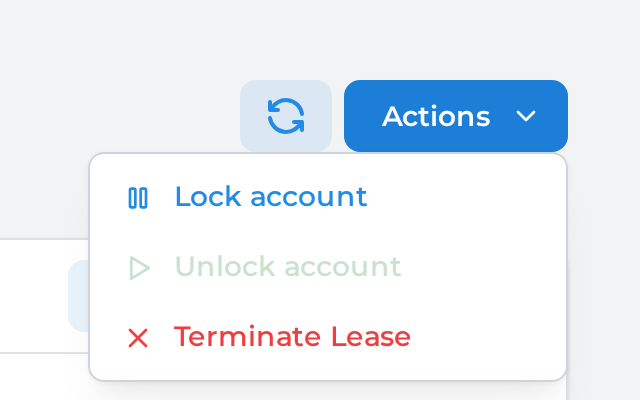
Select Actions, then Lock account.
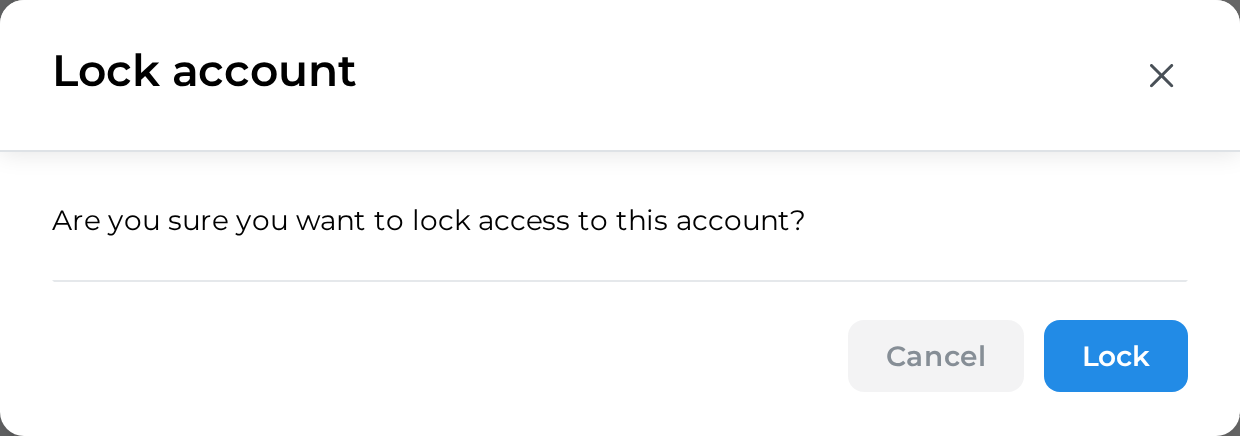
Select Lock to confirm.
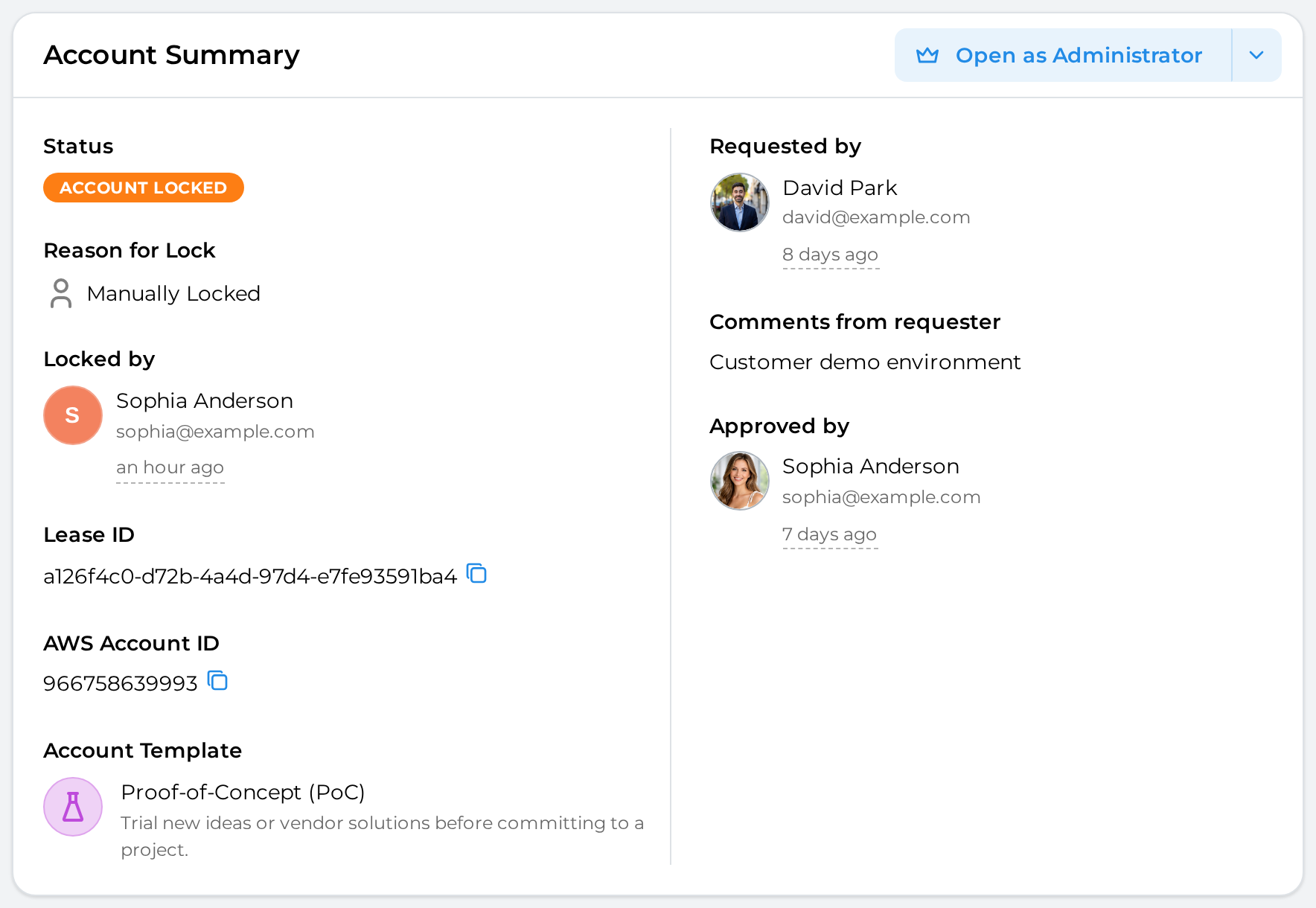
The status changes to Account Locked, and the summary shows the Reason for Lock and who locked it. The owner gets an email.
Unlock a lease#
Open the lease details of a locked lease.
Select Actions, then Unlock account.
Select Unlock to confirm.
The lease returns to Active, the owner and team members get their access back, and the owner gets an email.
Terminate a lease#
You can terminate a lease that is active, locked or being set up.
Open the lease details.
Select Actions, then Terminate Lease.
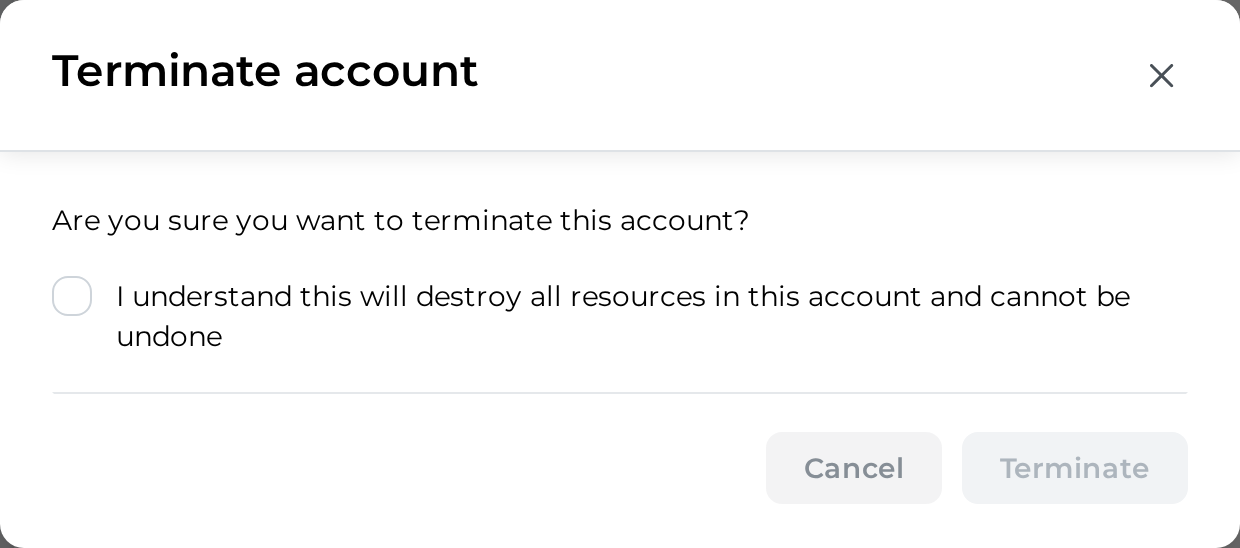
Tick I understand this will destroy all resources in this account and cannot be undone, then select Terminate.
The lease shows Terminating... while access is removed and the account is cleaned, then Terminated with the termination reason Manually Terminated. The owner gets an email. The cleaned account goes back to the pool for reuse.
Do it for several leases#
To lock, unlock or terminate several leases at once, tick them on the Leases page and use Actions. See Act on several leases at once. For event accounts, you can also do this from the event's Accounts tab (see Manage event accounts).
Who gets notified#
What happened | Who gets an email |
|---|---|
You lock, unlock or terminate a lease | The lease owner |
A lease is locked or terminated because it reached its budget or expiry | The lease owner, plus all administrators and all users with the Manager role |
Setup failed | The lease owner and the template owner |
Team members the account is shared with aren't emailed when it's locked or unlocked.