
Lease details
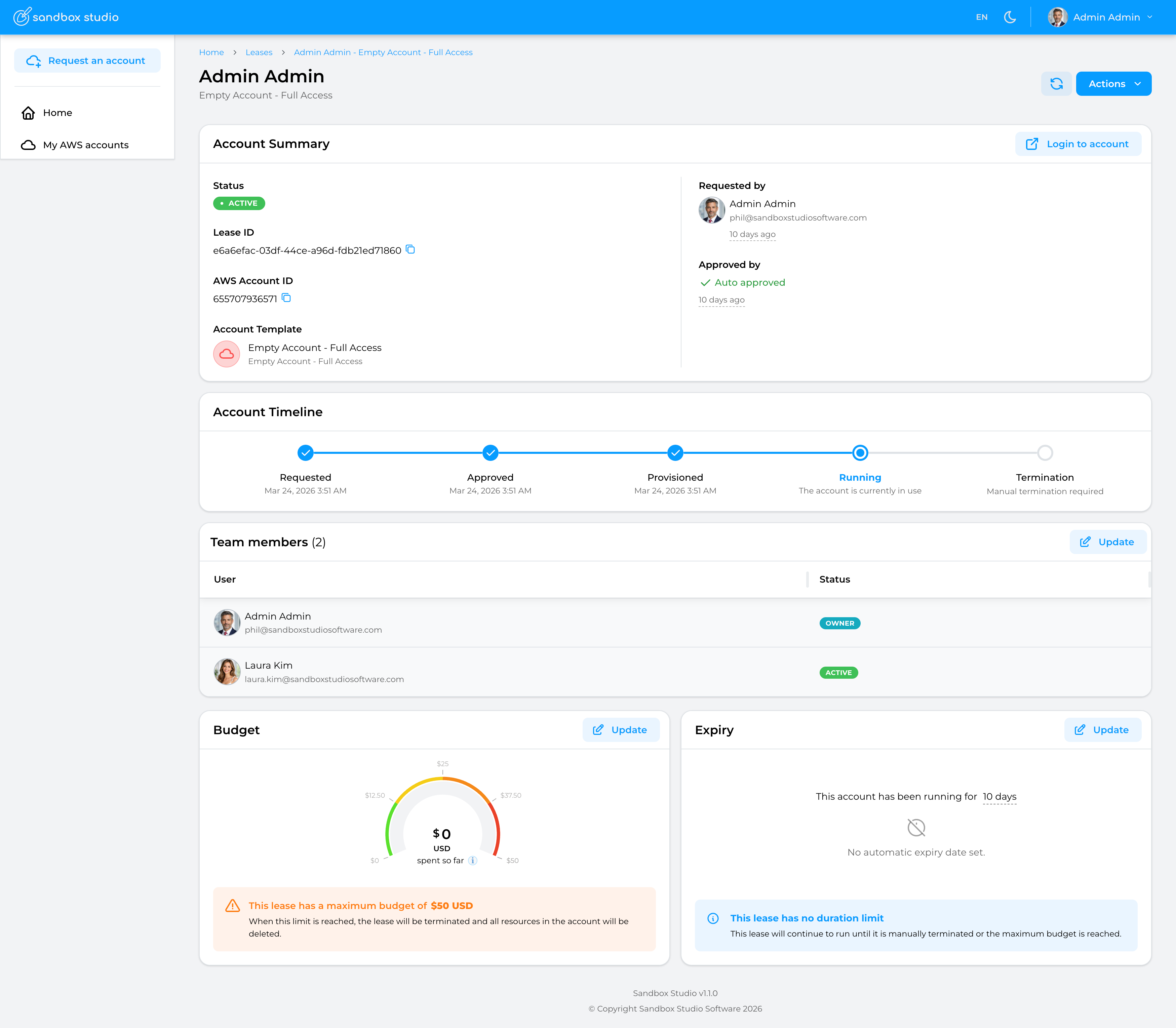
This page describes the different sections of the lease details page:
Account Summary
Account summary contains the basic information about the lease and its associated account:
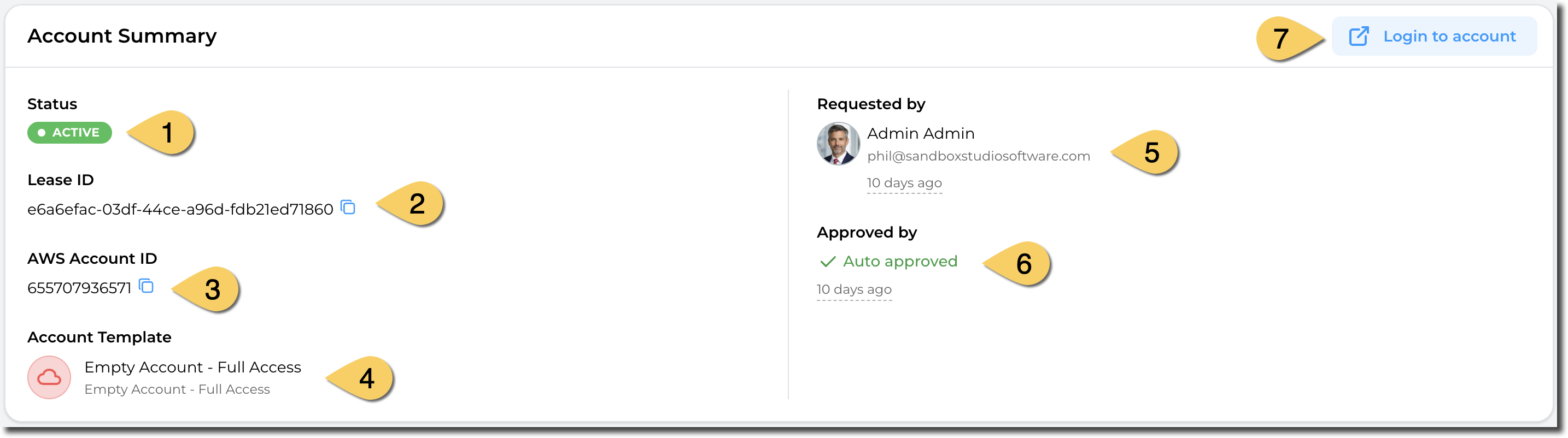
- The Status of the lease. See lease status here
- Lease ID. This is the unique identifier of the lease.
- AWS Account ID: When a lease is active, an AWS account is associated to it. This is the AWS account ID for the current lease.
- Account template used for this lease.
- User who has requested the lease. The lease owner may be different than the requester as managers and administrators can request leases on behalf of other users.
- Approved by: Shows the user who has approved (or rejected the lease). For account templates that do not require approval, the lease it auto approved.
- Login to the AWS account using AWS Identity Center.
Note: When a manager or administrator requests an account for an account template he/she can approve, the lease will be automatically approved.
Account Timeline
The timeline shows you the different stages an account (lease) can go through. It also shows you what current state the account is in.

Team members
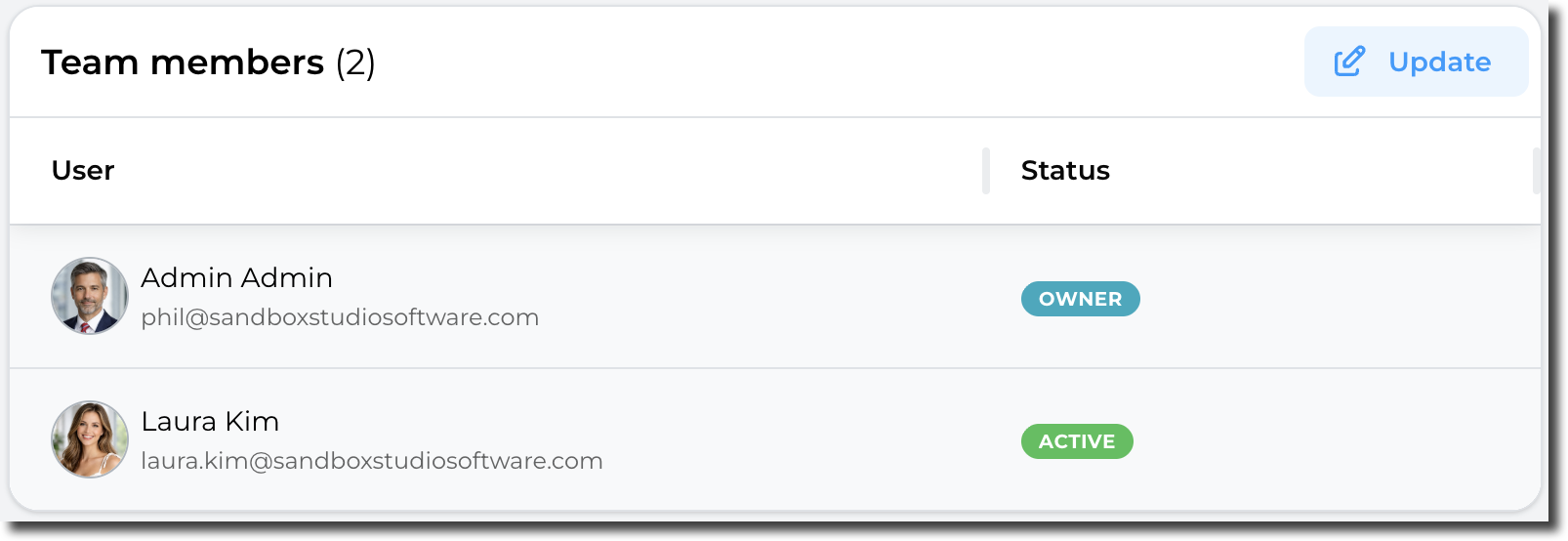
This sections shows the users who can access this account. If the account template allows team sharing, then the owner (or a manager/admin) can share the account with other users.
The "Status" columns indicates if the share is active (The other user can see and access the lease) or if the account is being shared (Status = "Sharing...").
By clicking on "Update", managers and administrators can share or un-share the account with other users. Refer to How to share an account for more details.
Budget & Duration
Account limits versus Account templates limits:
It is important to understand how duration and budget work:
- The initial budget/duration of an account (or lease) is set on account creation, based on the account template used.
- i.e: If the account template has a budget of $50, then the account created will have a default budget of $50.
- The expiration date is calculated on account creation/start. This is particularly important for accounts related to events: The duration countdown will only start when the event (and therefore the lease) actually start, not when it's created.
- During the account lifetime, managers and administrators can update the budget/expiration, independently from the account template. They can, for instance, extend the budget or prolongate the lifetime for a particular account without having to change the account template.
Budget
The budget card shows the maximum budget for the account and the current spend.
In this example, the maximum budget for this account is $50 and so far, $4.26 have been spent. Managers and Administrators can extend (or reduce) the budget by clicking on the "Update" button.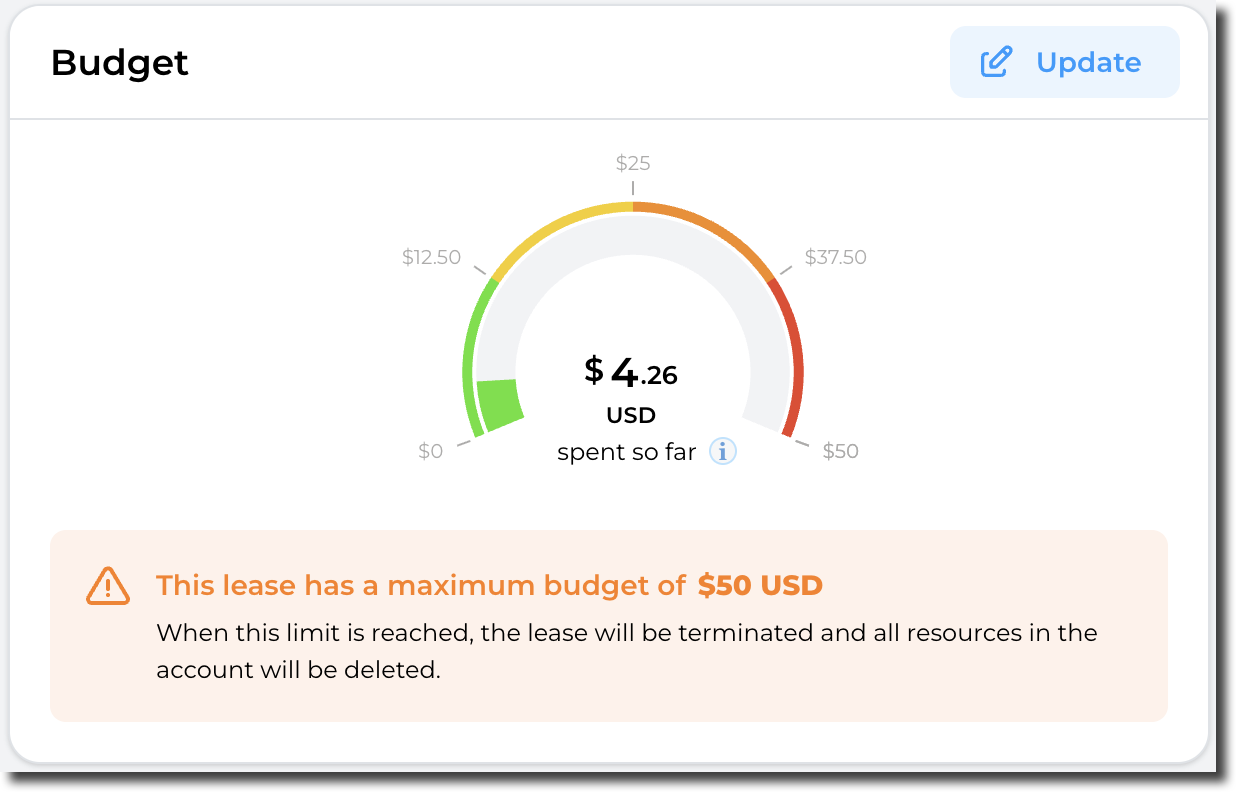
Duration
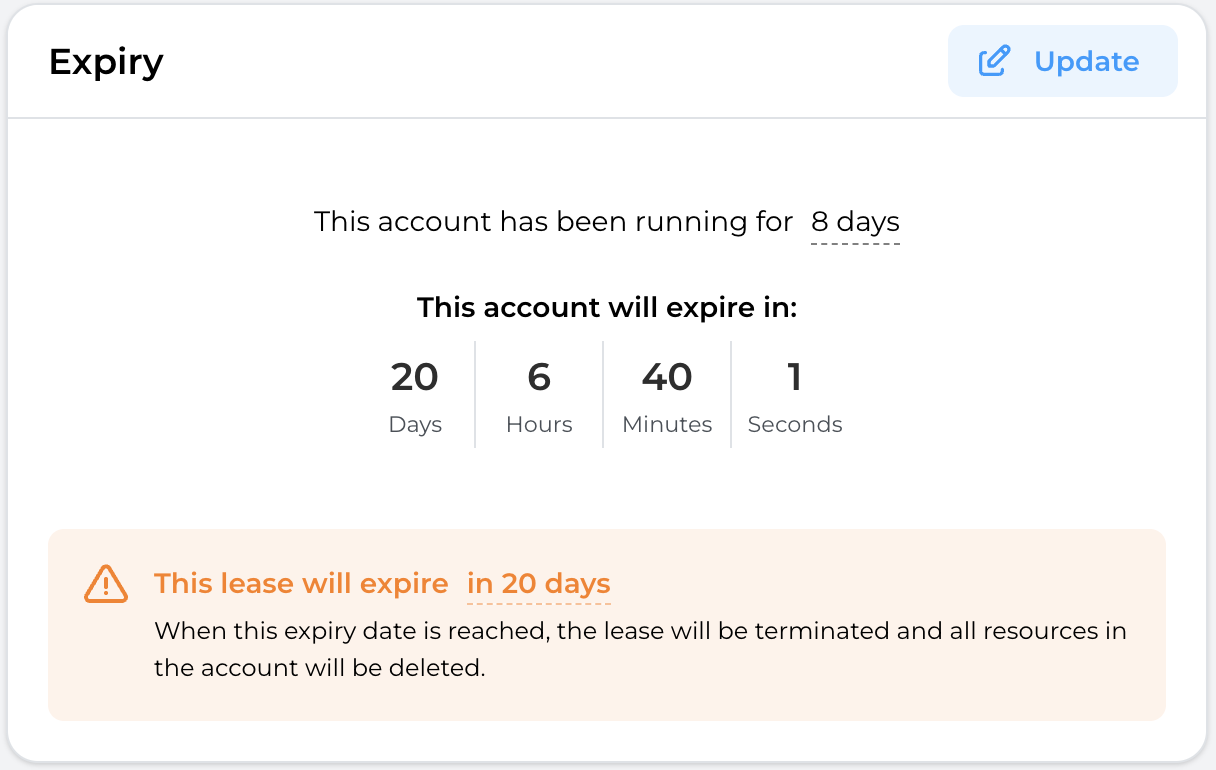
The duration card shows when this account will expire.
The expiration date is calculated on account creation/start. This is particularly important for accounts related to events: The duration countdown will only start when the event (and therefore the lease) actually start, not when it's created.
In this example, the account has been running for 8 days and will expire in 20 days and 6 hours. Managers and Administrators can extend (or reduce) the lifespan of the account by clicking on the "Update" button.
No comments to display
No comments to display