
Account template creation - Launch Settings
Using launch templates, managers can define what resources need to be set up on new accounts creation. For instance, create S3 buckets, deploy Cloud Formation templates, etc.
Sandbox Studio uses AWS Codebuild to set up resources.
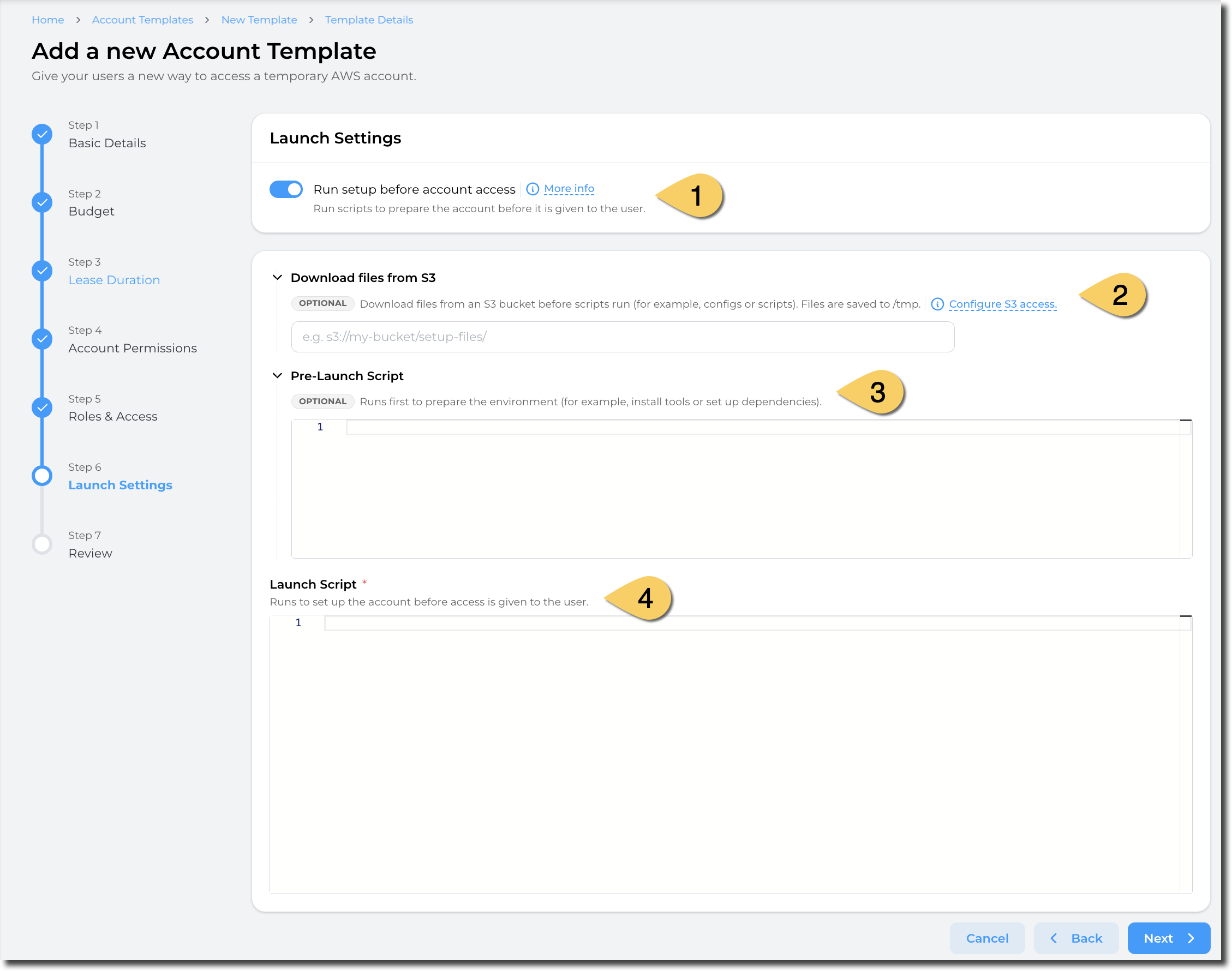
Launch Settings (1)
Select "Run setup before account access" to enable launch templates. By ticking this item, you need to provide the script to create resources on account creation.
If no resource needs to be created on account creation, untick this box to provide an "empty" account to users.
Download files from S3 (2)
In some scenario, you may need to download files from S3 to create your resources. For example, download a Cloudformation template, download softwares, etc.
You need to provide an S3 path to a folder or a bucket (not to the object directly).

Sandbox Studio will run a sync command to fetch the folders and objects from S3 into the /tmp folder of the Codebuild instance.
Sandbox Studio does not require your bucket to be public! Follow the next steps to learn how to configure S3 access
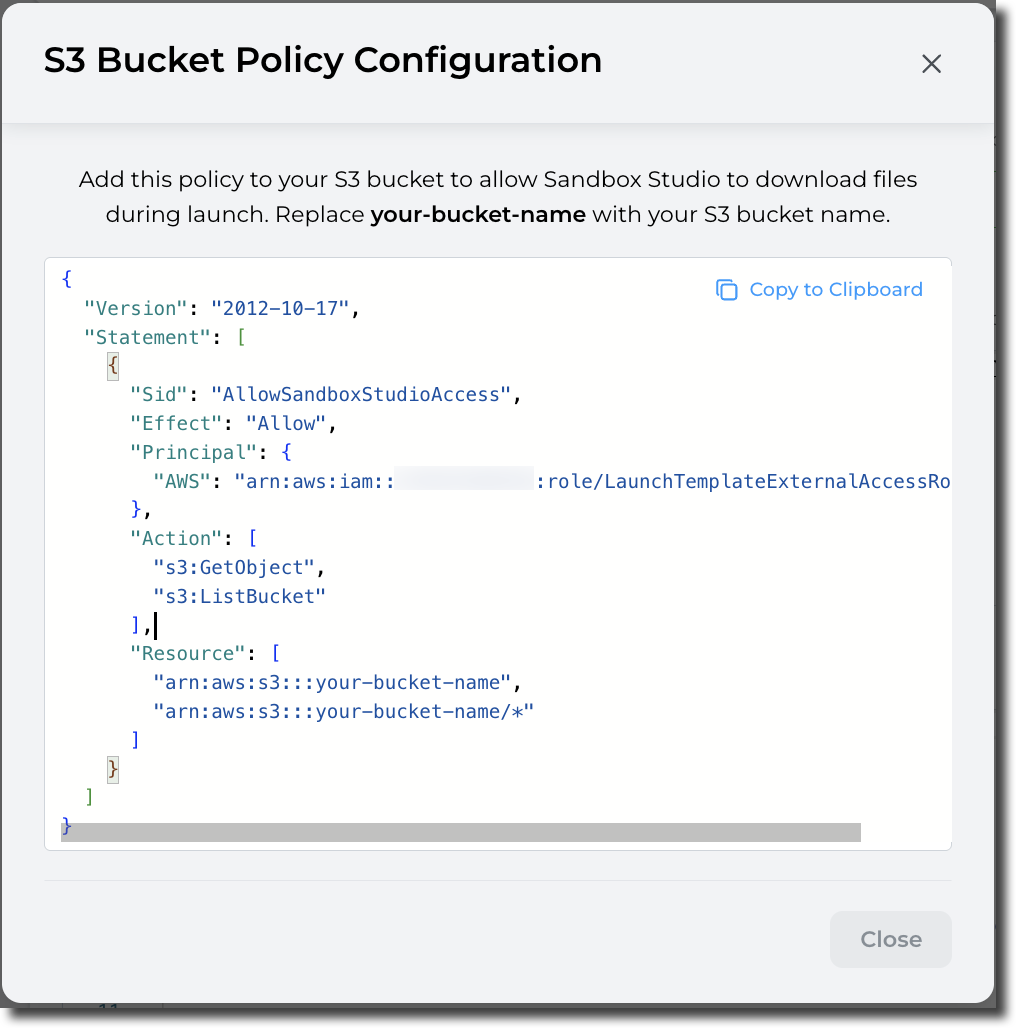
Sandbox Studio requires your bucket to be accessible to the LaunchTemplateExternalAccessRole created in your environment.
You can click on "Configure S3 access" to display the S3 bucket policy to apply on your S3 bucket:
|
|
|
Pre-Launch script (3)
Pre-Launch script allows you to run a script before your actual launch script to, for example, install tools, packages, update the environment, etc.
The environment used to create the resources is based on Amazon Linux 2023 (x86_64). (aws/codebuild/amazonlinux-x86_64-standard:5.0)
Launch script (4)
Launch script is your actual script to create resources in your account.
The environment used to create the resources is based on Amazon Linux 2023 (x86_64). (aws/codebuild/amazonlinux-x86_64-standard:5.0)
Please refer to following section to return environment details to the Sandbox Studio interface.
Example of script to create a S3 bucket:
#!/bin/bash
BUCKET_NAME="sample-bucket-$(date +%s)" # Unique bucket name from current timestamp
REGION="us-east-1"

aws s3 mb --region $REGION s3://$BUCKET_NAME
How to set "Environment details" in Sandbox Studio?
Sandbox Studio allows you to display environment details from the launch template script. You can, for example, return URLs, passwords, environment variables, etc.
One interesting use case is to provide access to a VSCode environment: You can create a VSCode environment to your users and return the URL to the user. They don't need to login to the account and can directly access their VSCode with the information provided by the install script.
To set the environment details, you can use the pre-defined set-sandbox-output command:
VSCODE_URL="https://example.com"
PASSWORD="SuperStrongPassword"

set-sandbox-output --name "VSCodeServerUrl" --value "$VSCODE_URL"
set-sandbox-output --name "Password" --value "$PASSWORD" --is-secret
The tool takes 2 parameters (name and value).
For secret strings (i.e.: Password, API keys, etc.), add the parameter is-secret
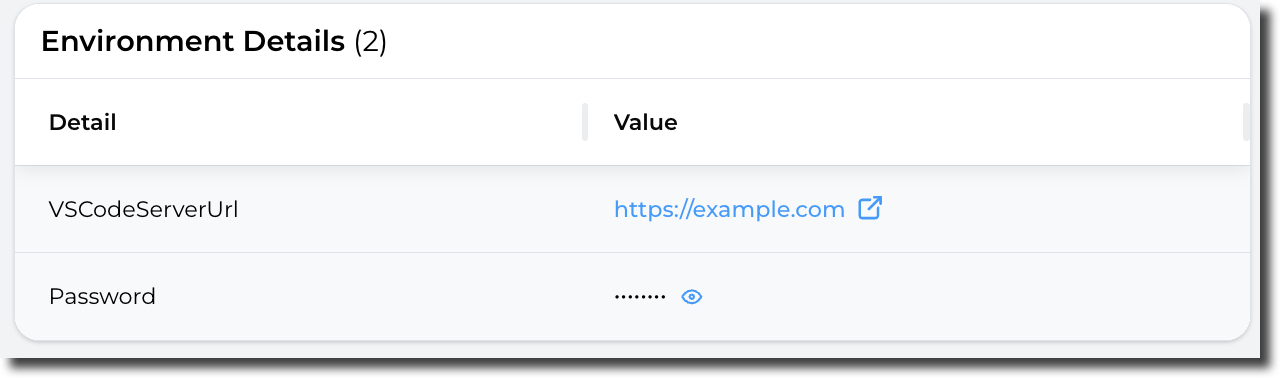
Secrets variables are saved in AWS Secrets Manager and only displayed when the user clicks on the Display icon.
Having completed all the fields on the Launch Settings page as needed, click on Next to Account template creation - Review
No comments to display
No comments to display