
Account template creation - Permissions
Using Permissions, you can configure what the end users can and cannot do in their accounts.
Sandbox Studio uses IAM Identity Center Permissions Sets for permissions. You can see more details explaining each of the sections of this page at https://docs.aws.amazon.com/singlesignon/latest/userguide/permissionsetcustom.html
Default permissions
By default, "Administrator Access" is provided to end users.
Service Control Policies (SCP) are still applied on the accounts and even with Administrator access, some resources and actions may be blocked by your Administrators.
If the default configuration suits your needs, proceed to the next step Account template creation - Roles & Access
Customise permissions
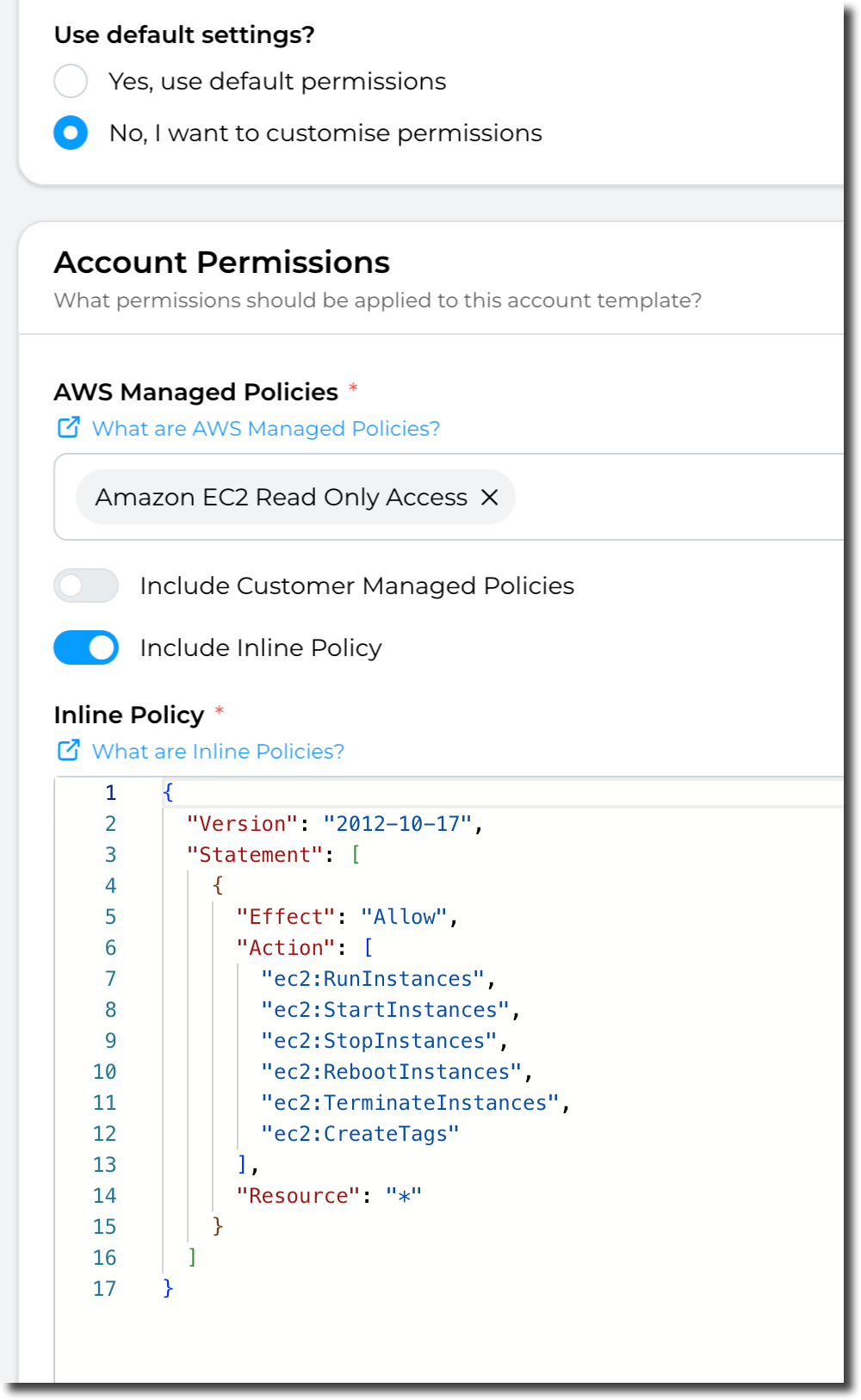
For more granular permissions configuration, you can customise the permissions you provide to the end users by selecting No, I want to customise permissions:
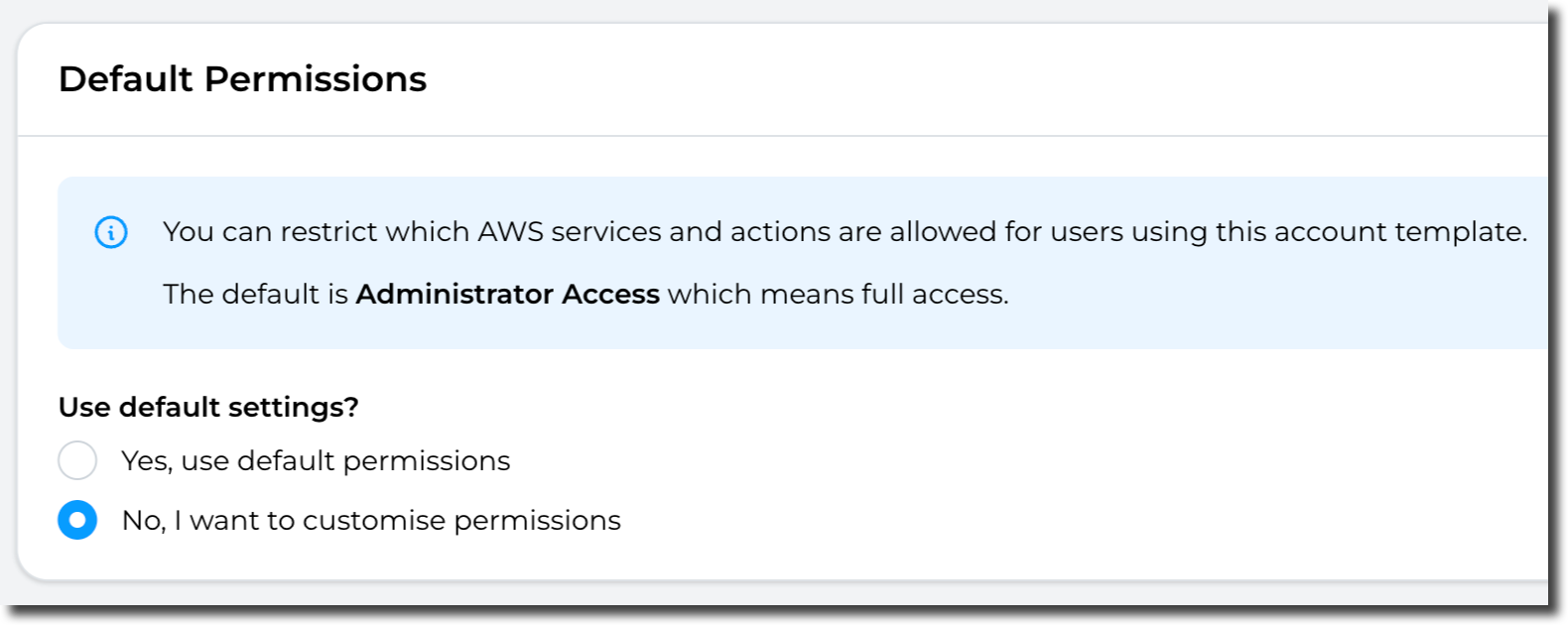
The following sections can be configured:
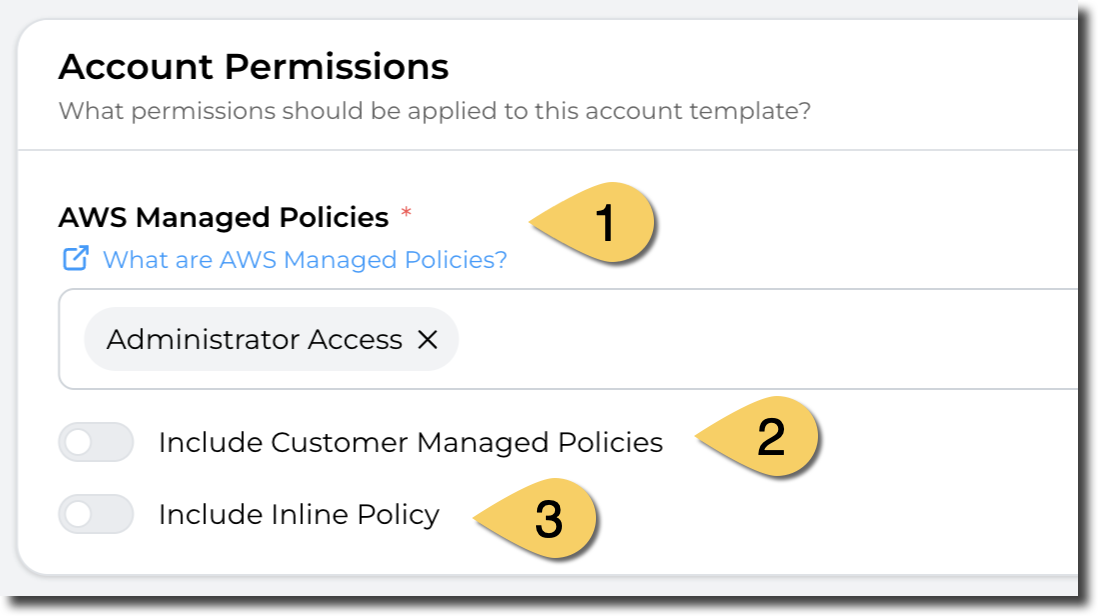
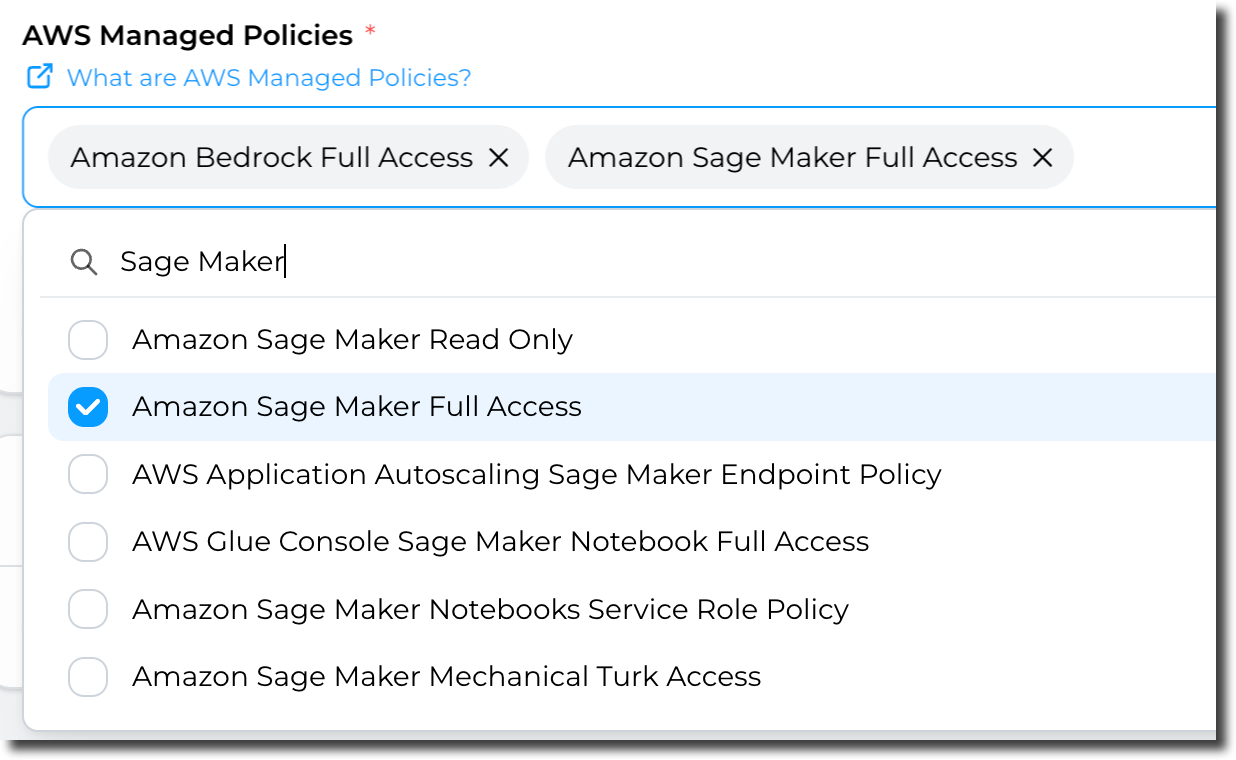
- AWS Managed Policies
By default, the Administrator Access policy is applied but you can select one or more policies from the list of AWS Managed policies. More details here about AWS Managed policies: https://docs.aws.amazon.com/aws-managed-policy/latest/reference/about-managed-policy-reference.html
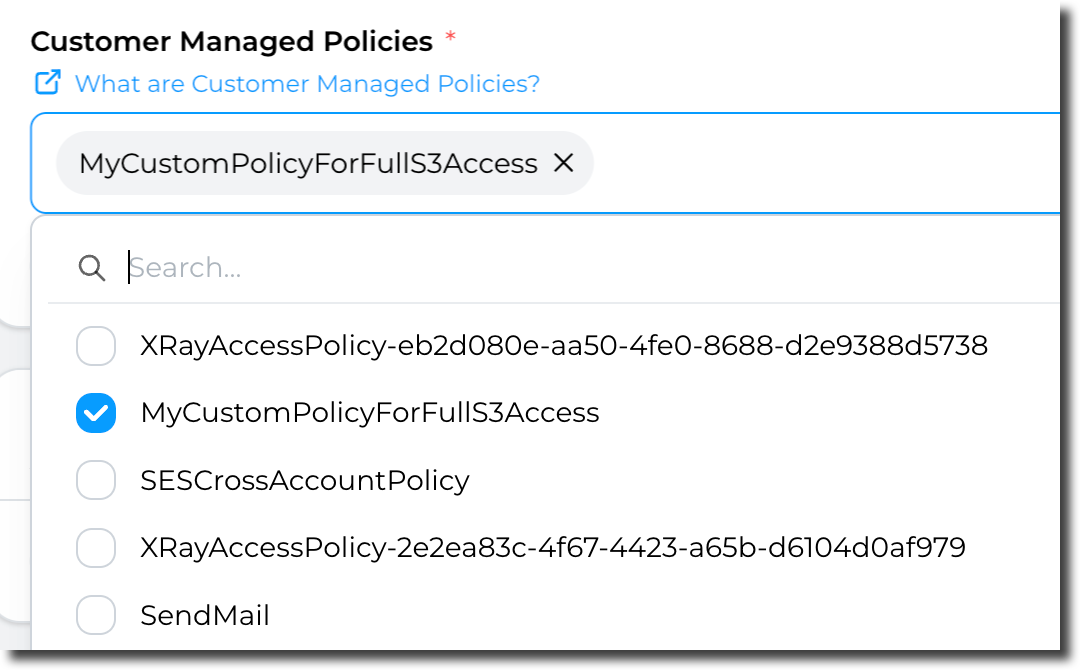
- Customer Managed Policies
If you have pre-defined policies you manage, you can use them here. More details about Customer managed policies
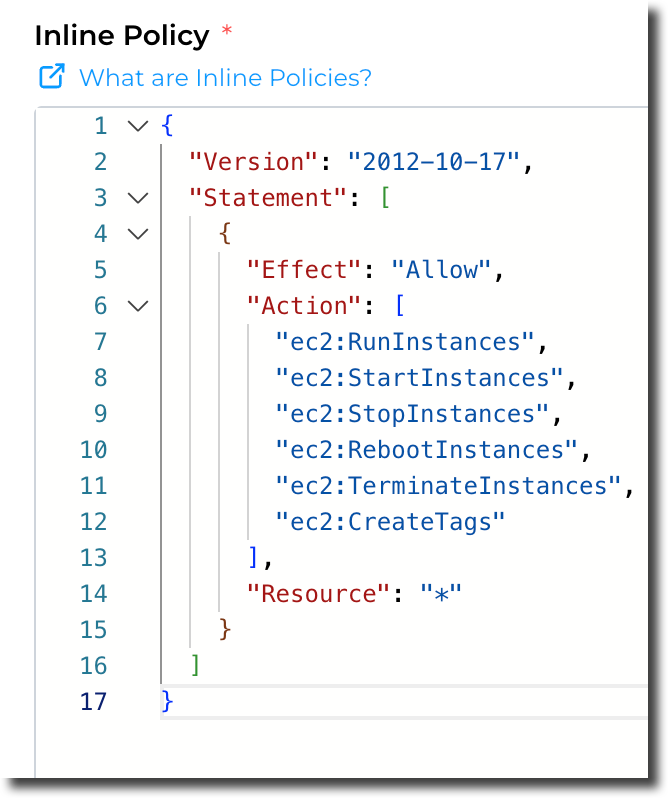
- Inline policy
Finally, you can use inline policy (define the access directly in the section). More details about inline policies.
Example:
Permission Boundary:
Finally, and following the same principles as previous options, you have the option to include Permission boundaries. More details about Permission boundaries.
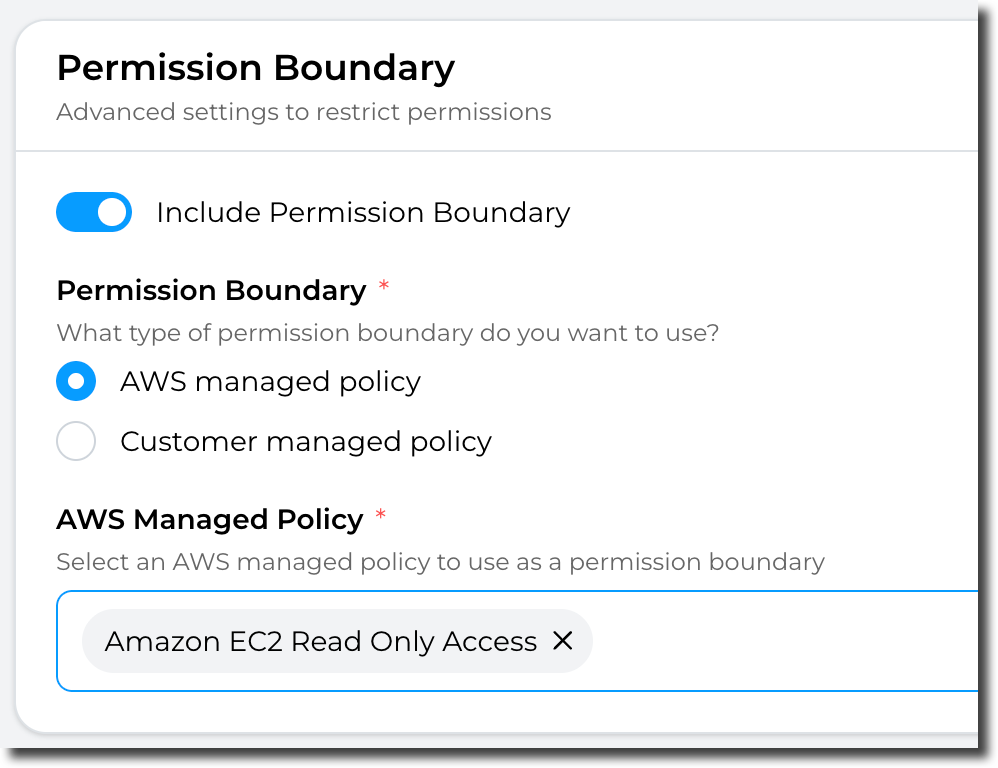
Note: Permission boundaries can only be "AWS managed policy" OR "Customer managed policy" (Not both). In addition, you can only select ONE policy to apply.
Having completed all the fields on the Permissions page as needed, click on Next to move to Account template creation - Roles & Access
Example:
This example restricts users to only basic EC2 actions:
No comments to display
No comments to display