
Running the Installation Wizard
Running the Installation Wizard
Introduction
This wizard has been created to facilitate the installation and deployment of the Sandbox Studio solution in your environment. It automates as many steps as possible and checks for prerequisites before the installation.
Prefer an unattended, scripted installation? You can skip the interactive prompts and provide all settings up front using a configuration file. See Non-interactive installation (Configuration file).
Running the wizard
- Login to your AWS Organisation Management account.
- Open a new CloudShell console (a link to open CloudShell can be found in the bottom left corner of the AWS console).
- Ensure you are in the region where you want to install Sandbox Studio.
- Run the following command:
bash <(curl -s https://dist.sandboxstudiosoftware.com/install.sh)
The following should display:
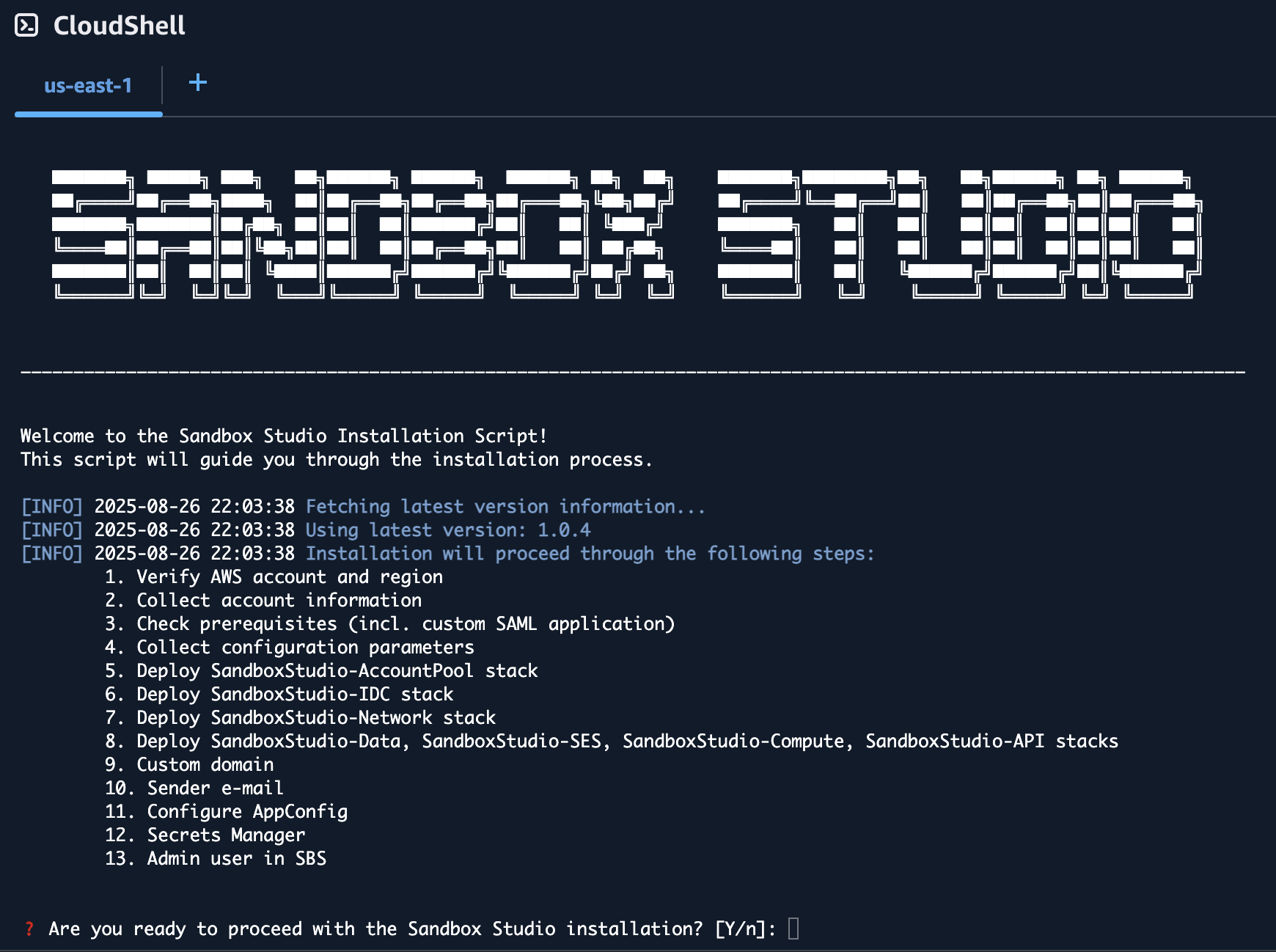
The wizard will guide you through the installation process.
Do not use your root account to run this script as it will fail and does not follow AWS best practices!
Prerequisites
The wizard will automatically check for prerequisites. If any of the prerequisites are not met, the wizard will display the URL to the right documentation to help you configure your environment. See Installation Prerequisites page for more details.
Inputs
The installation wizard will ask you to set/confirm a set of input parameters during the installation process:
| **Input Variable** | **Description** | **Input or Confirm** | **Comments** |
|---|---|---|---|
| Management Account ID | The AWS account ID of the management account (auto-detected by the script). | Confirm | During setup, you will be asked to confirm that you are indeed using the correct **organisation management account**. This ensures Sandbox Studio can set up organisation units and Service Control Policies. |
| Region | AWS region where Sandbox Studio will be deployed. | Confirm / Input | The script attempts to detect the region from AWS CLI config. If not found, you will be prompted to input one (default `us-east-1`). |
| Hub Account ID | The account ID that will host Sandbox Studio infrastructure (may be same as management account). | Input | Must be a 12-digit AWS account ID. If left empty, the management account ID will be used. See [Choosing the hub account](https://docs.sandboxstudiosoftware.com/books/installation-guide/page/choosing-the-hub-account "Choosing the hub account"). |
| Parent OU ID | AWS Organisation Unit ID where Sandbox Studio OUs will be created. | Input | Defaults to the **Root OU ID**, but can be set to any valid parent OU so that Sandbox Studio's OU are created under that OU and inherit existing SCP's if required. |
| Namespace | Short prefix (3–8 alphanumeric characters) used to name Sandbox Studio resources. | Input | Example: `MySs`. Used as a unique identifier in stack names and IAM groups. |
| Managed Regions | List of AWS regions where Sandbox Studio should manage accounts/resources. | Input | Comma-separated values (e.g., `us-east-1,eu-west-1`). Defaults to the chosen region. See [Choosing your region(s)](https://docs.sandboxstudiosoftware.com/books/installation-guide/page/choosing-your-regions "Choosing your region(s)"). |
| Admin Group Name | IAM Identity Center group name for Sandbox Studio administrators. | Input | Defaults to `_SsAdminsGroup`. This is the **"Administrators"** group for users who will configure and maintain the Sandbox Studio application.
If you are integrating with an external identity provider such as Microsoft Entra, see External identity provider setup (Optional). |
| Manager Group Name | IAM Identity Center group name for Sandbox Studio managers. | Input | Defaults to `_SsManagersGroup`. This is the **"Managers"** group for users who oversee day-to-day sandbox usage within a department or team.
If you are integrating with an external identity provider such as Microsoft Entra, see External identity provider setup (Optional). |
| User Group Name | IAM Identity Center group name for Sandbox Studio end users. | Input | Defaults to `_SsUsersGroup`. This is the **"Users"** group for users who login to sandbox accounts and use them for development, testing, training, or experimentation. If you are integrating with an external identity provider such as Microsoft Entra, see [External identity provider setup (Optional)](https://docs.sandboxstudiosoftware.com/books/installation-guide/page/external-identity-provider-setup-optional "External identity provider setup (Optional)"). |
| Identity Center Instance | The IAM Identity Center instance ARN and Identity Store ID used for Sandbox Studio integration. | Confirm | The wizard will list the detected Identity Center instance and ask you to confirm it is the correct one. |
| Custom Application in Identity Center | The SAML 2.0 application used by Sandbox Studio for authentication. | Confirm / Input | You can either select an existing Identity Center application or the wizard will help you create a new one. |
| Allowed IP Ranges | CIDR ranges of IP addresses allowed to access the Sandbox Studio API. | Input | Defaults to all IPs (`0.0.0.0/1,128.0.0.0/1`). Restrict to corporate ranges if needed. |
| Custom Domain | (Optional) A DNS domain for Sandbox Studio instead of the CloudFront URL. | Input | If used, must configure CloudFront and ACM with this domain, and update Identity Center ACS URL accordingly. |
| Email From Address | Email address Sandbox Studio will use to send system notifications. | Input | Must be a verified identity in SES. Example: `sandboxstudio@example.com`. |
| Admin Users | Initial set of users (by username) to be added to the Admin group in Identity Center. | Input | You will be prompted to enter usernames to grant them full Sandbox Studio admin rights. |
Deployment time
The deployment of the Sandbox Studio solution with the script should take around 1 hour.
Make sure your session timeout is at least 2 hours for during the installation of Sandbox Studio.
No comments to display
No comments to display