
Requesting a new account
You can request an account to gain access to an AWS environment.
To request an account:
- After logging in to the web UI, on the home page you can choose Request an Account.
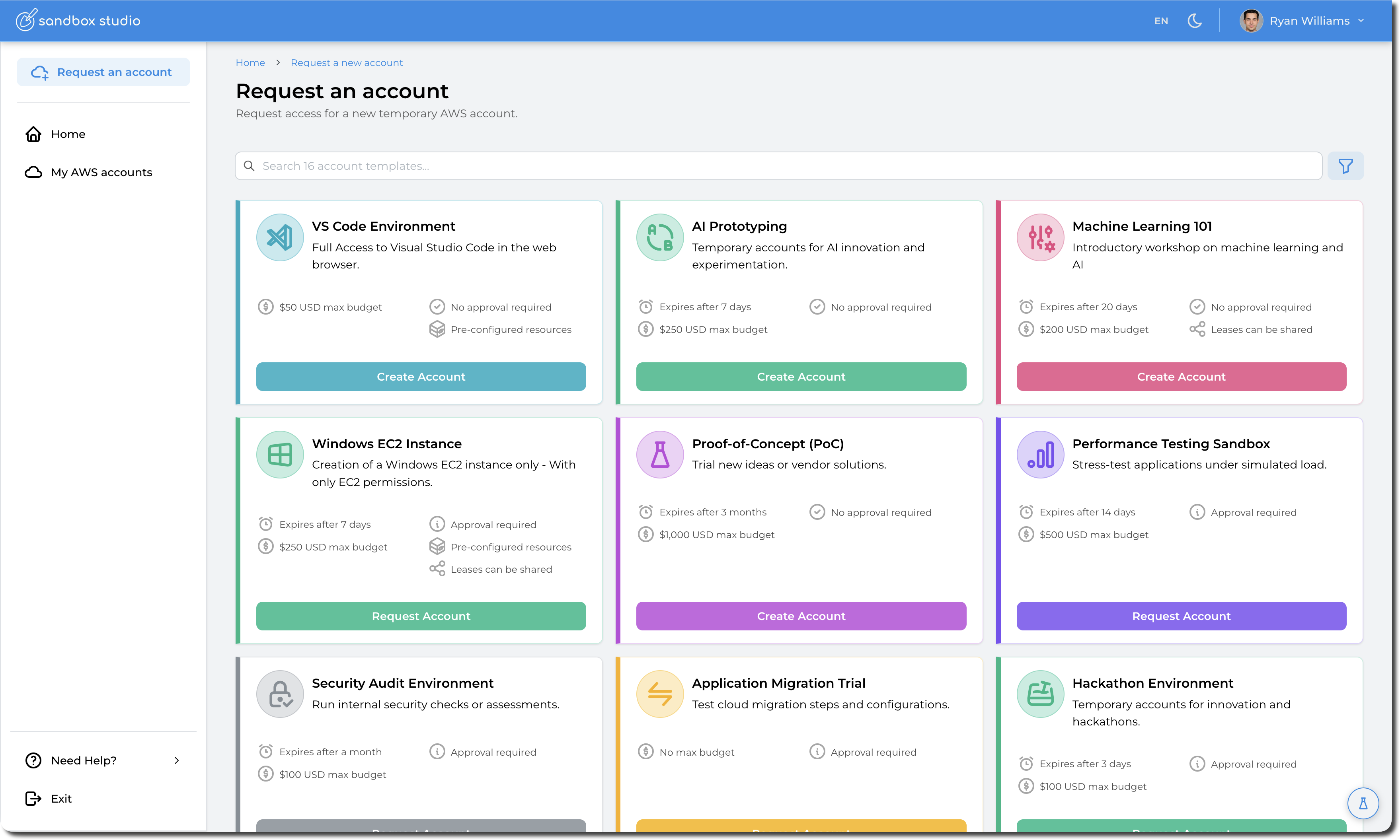
- Next, select the account type you want to request. Account types are created by your management and administration team and define the duration, budget, access type (permissions), sharing configuration and resources to create in the account.
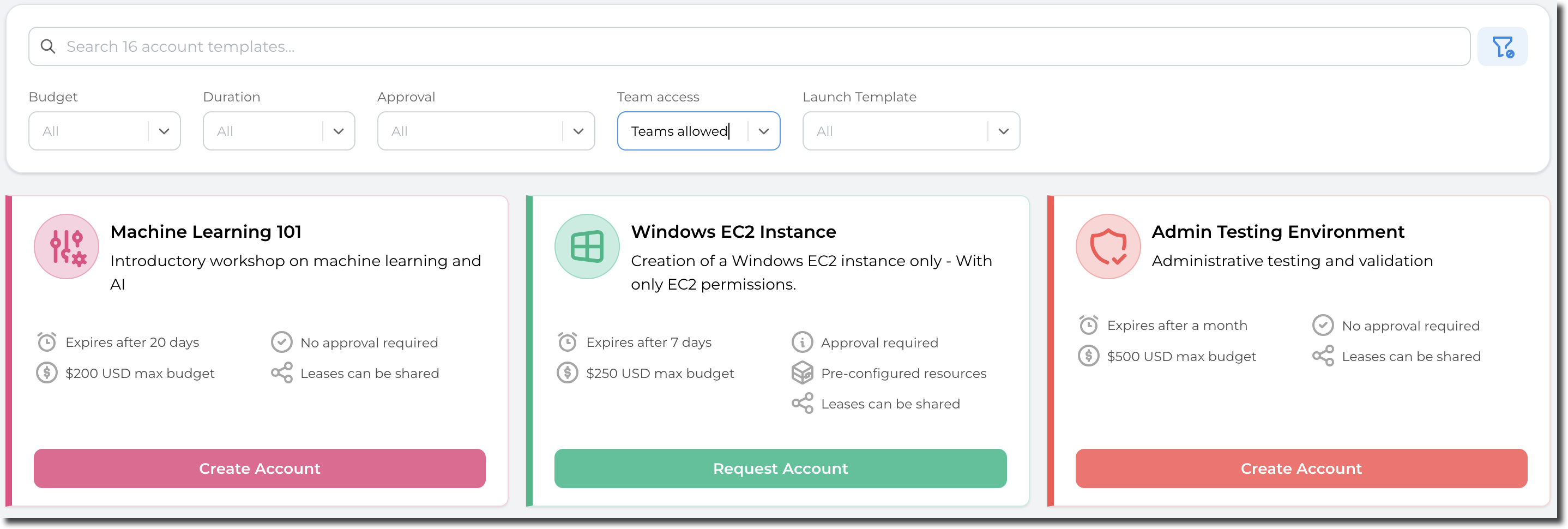
- You can filter out the account types you want to use by filtering the results:
- Select your account type by clicking on "Create Account" (No approval required) or "Request Account" (Approval required)
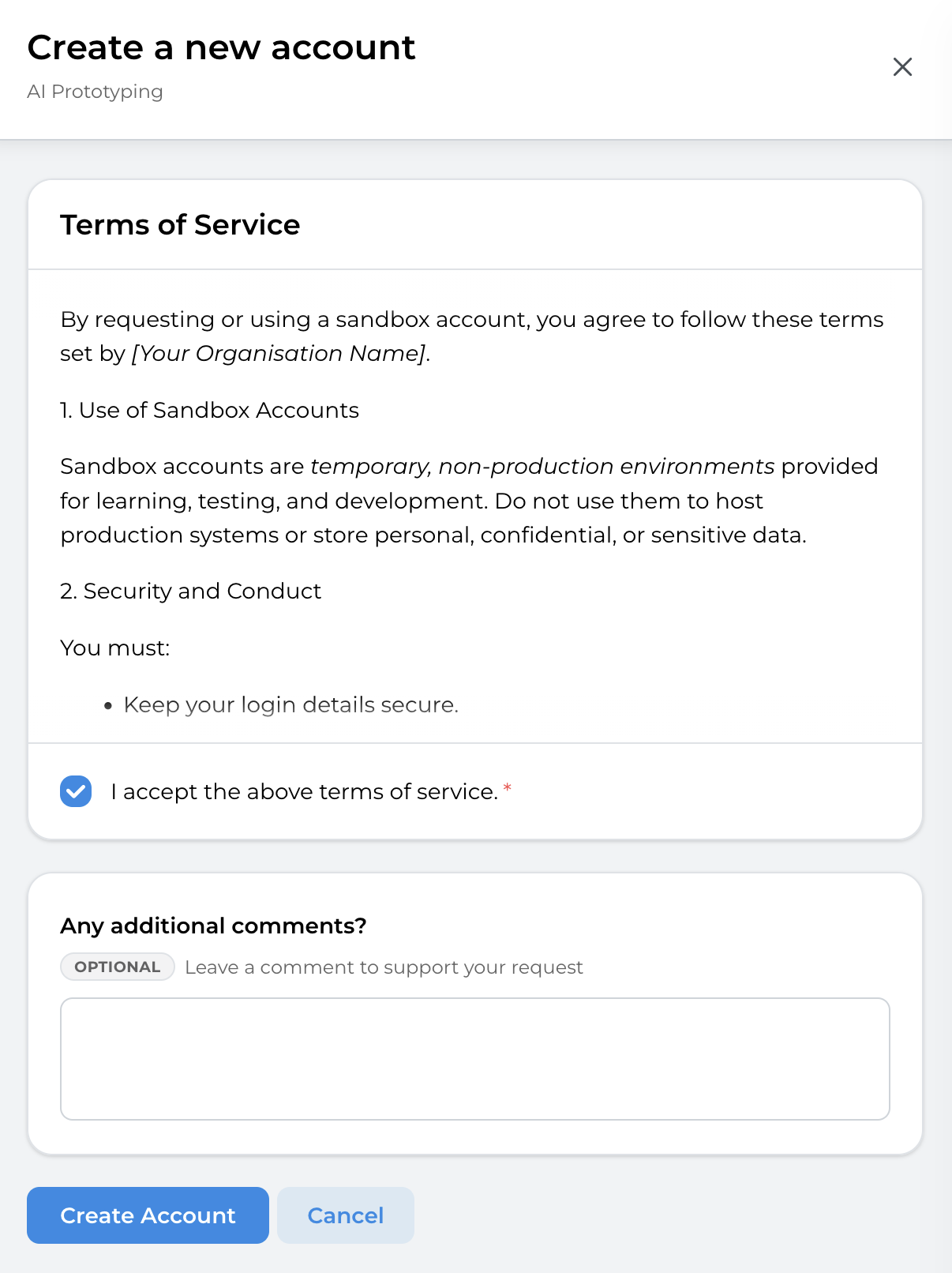
Before creating/requesting an account, users need to agree with the terms of service defined by your organisation.
Carefully read the terms of service and check the box that says I accept the above terms of service. Ensure that you understand the risks associated with owning a Sandbox Studio account.
- Some account types allow sharing. In this case, you can select the users you want to give access your account to:
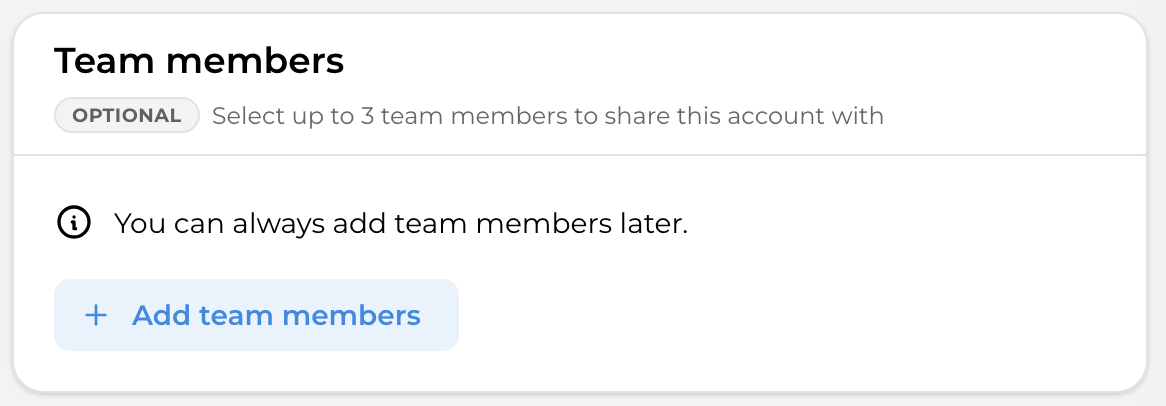
- Click on "Add team members" to add the users of your choice. Each account type defined the team maximum size (e.g. You + the users you share with).
- Finish by clicking on Create Account (or "Request Account"). Optionally, you can add comments describing why you are requesting this account. Note that these comments are visible to the reviewer of the account (managers or administrators).
You are now redirect to the "My AWS Accounts" page with the new account added to the list. Depending on the scenario, the account may be:
- Active: No resource to be created and no approval required
- Pending Approval: A manager needs to approve your request (Managers will receive an e-mail notification)
- Pending Setup: Resources need to be provisioned in your account before it becomes Active
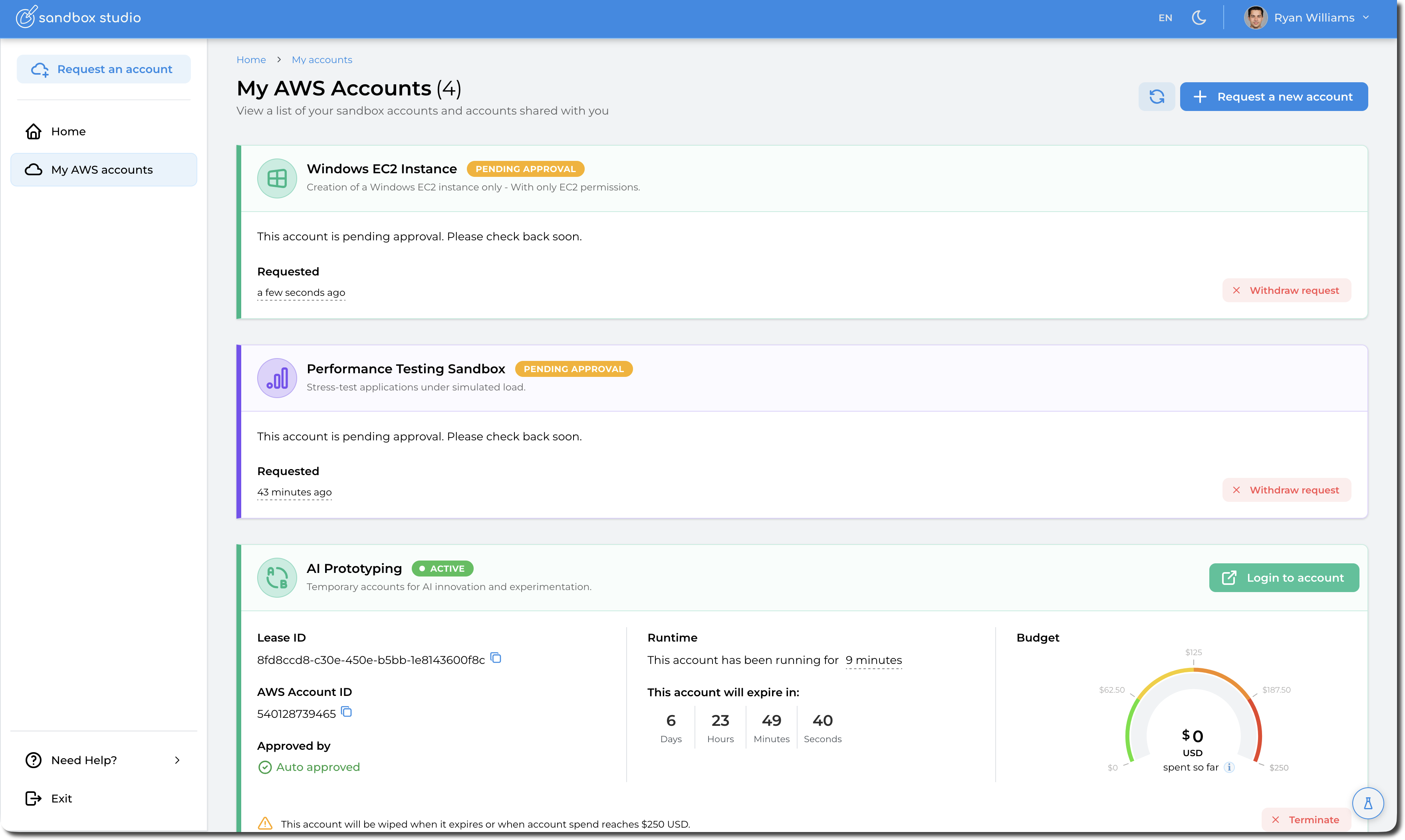
Note: You may need to click the refresh icon or refresh the browser to see the updated status of the account.
- If you made a mistake, or no longer needed the account, you could select Withdraw request:

No comments to display
No comments to display