Locking/Unlocking an account
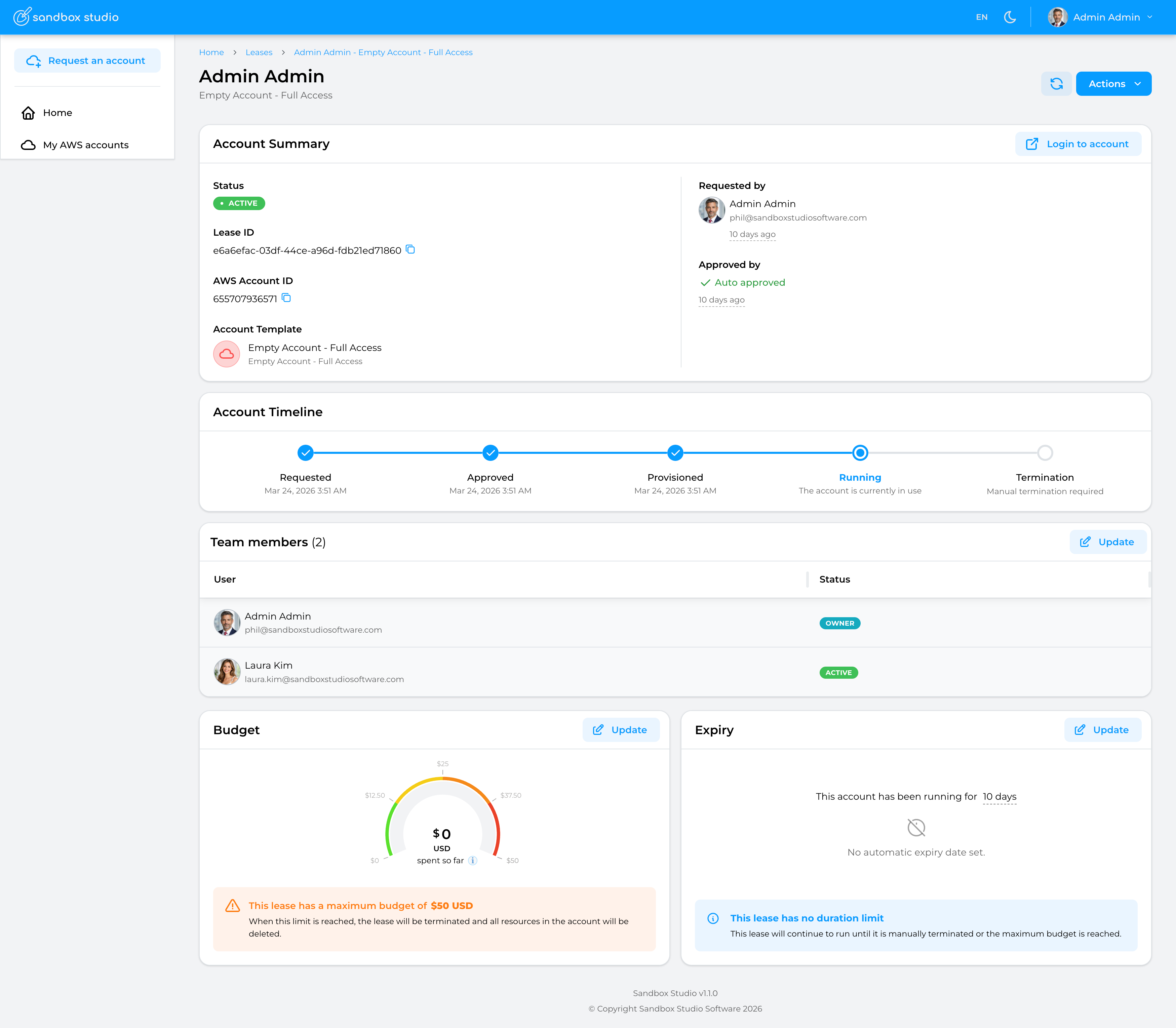
This page describes the different sections of the lease details page:
Account Summary
Account summary contains the basic information about the lease and its associated account:
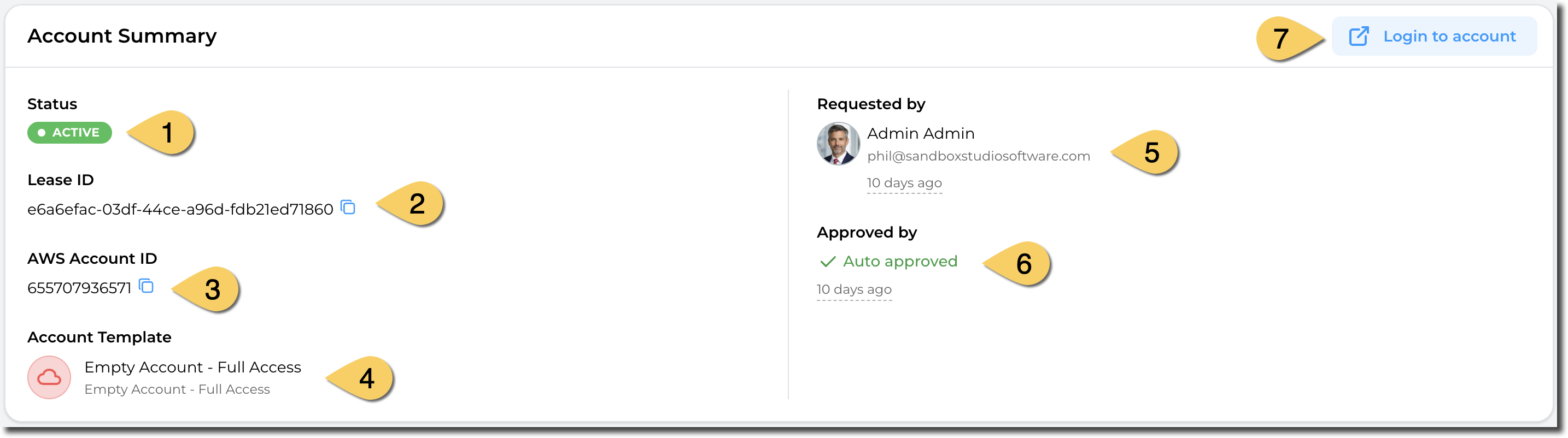
Note: When a manager or administrator requests an account for an account template he/she can approve, the lease will be automatically approved.
Account Timeline
The timeline shows you the different stages an account (lease) can go through. It also shows you what current state the account is in.

Team members
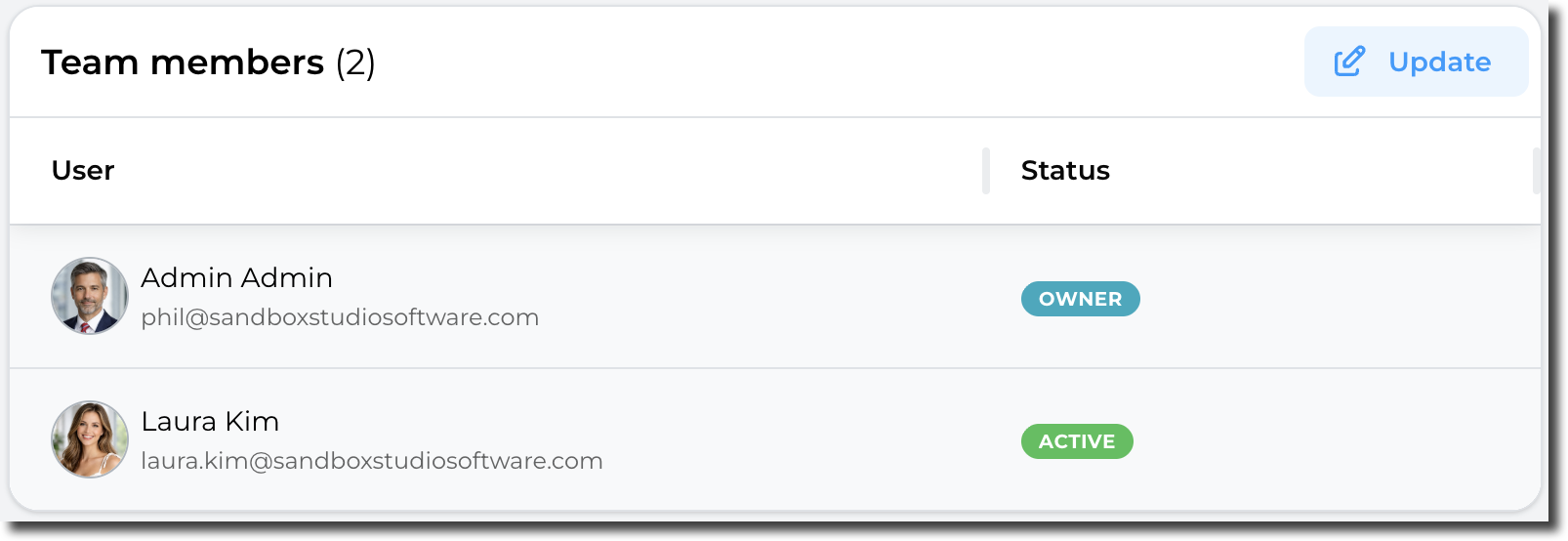
This sections shows the users who can access this account. If the account template allows team sharing, then the owner (or a manager/admin) can share the account with other users.
The "Status" columns indicates if the share is active (The other user can see and access the lease) or if the account is being shared (Status = "Sharing...").
By clicking on "Update", managers and administrators can share or un-share the account with other users. Refer to How to share an account for more details.
Budget & Duration
Account limits versus Account templates limits:
It is important to understand how duration and budget work:
Budget
The budget card shows the maximum budget for the account and the current spend.
In this example, the maximum budget for this account is $50 and so far, $4.26 have been spent. Managers and Administrators can extendlock (and unlock) accounts. Accounts can be locked if they are over budget or reduce)if they have expired.
Once locked, the budgetaccount is not accessible anymore to the end user, but remains active and accessible to the managers and administrators.
Accounts that are locked keep on incurring cost as existing resources are not stopped.
Lock an account
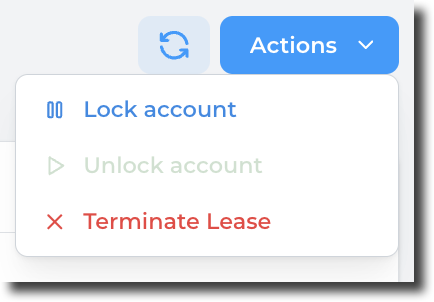
From the lease details page, click on the Actions button and select "Lock account":
Confirm the action by clicking on the "Update" button.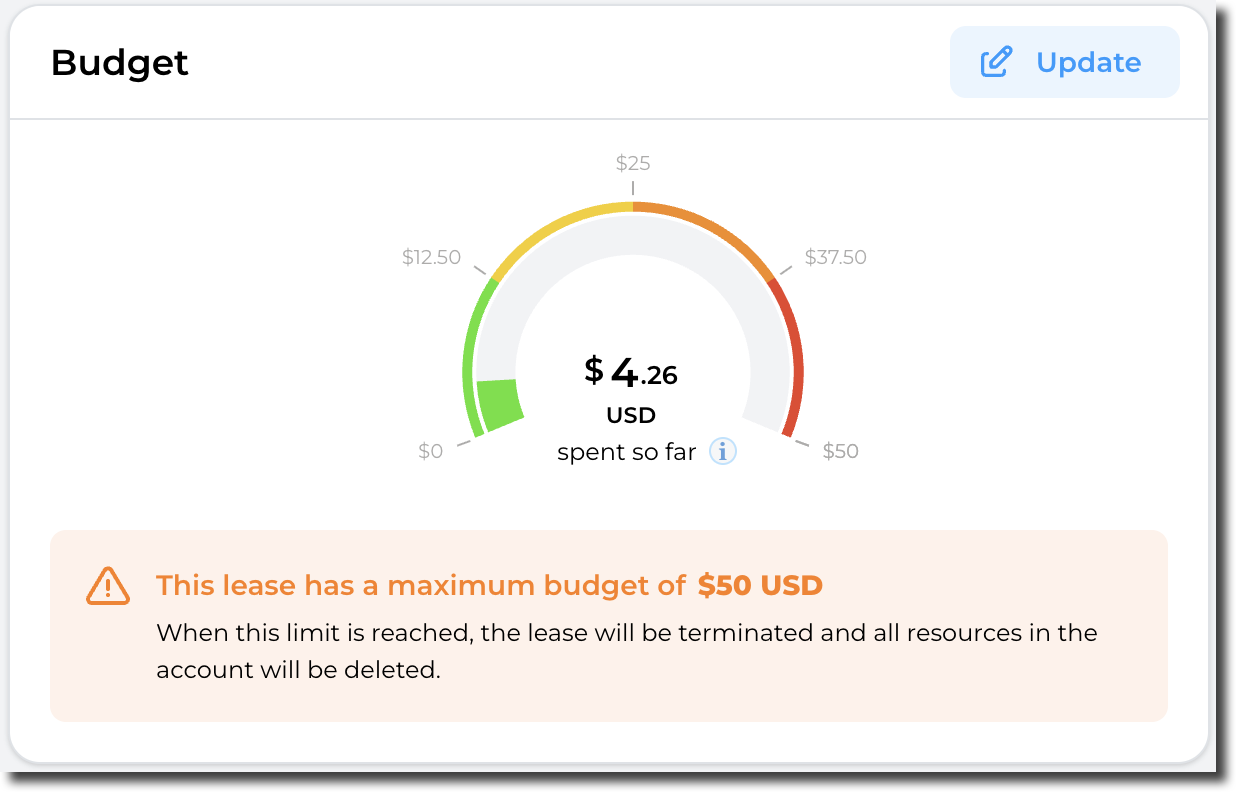
Duration
The duration card shows when this account will expire.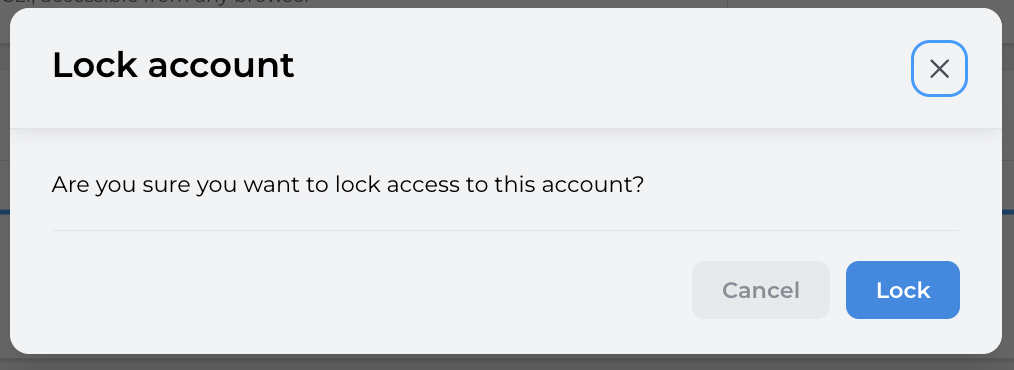
The expirationaccount datestatus changes to "Account locked" and name of the user who locked the account is calculatedshown:
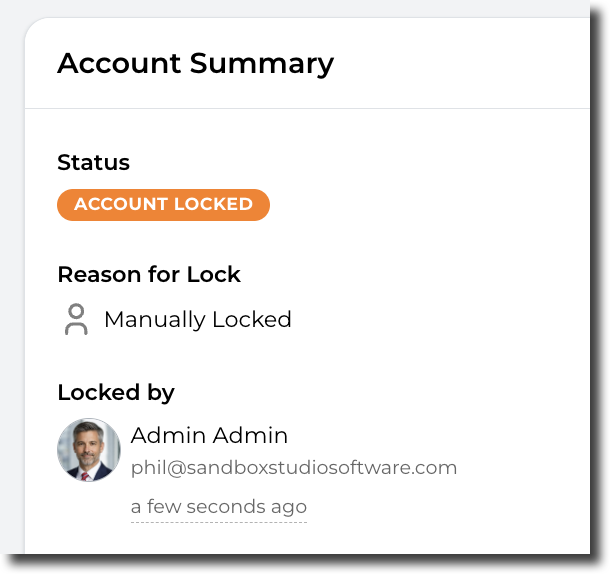
The account creation/start. This is particularly important for accounts related to events: The duration countdownowner will onlybe startnotified whenby thee-mail event (and therefore the lease) actually start, not when it's created.
In this example,that the account has been runninglocked.
8
Unlock an account
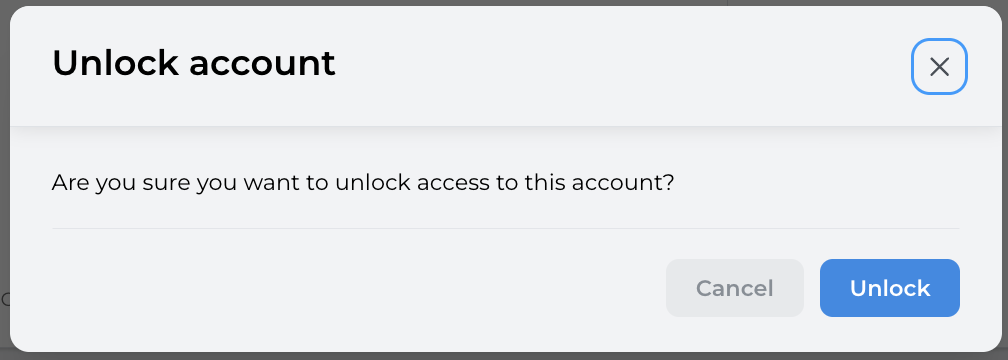
From the lease details page, click on the Actions button and willselect expire"Unlock inaccount":
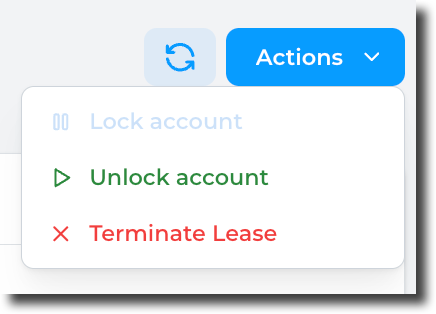
Confirm the lifespan of the accountaction by clicking on the "Update" button.Unlock":
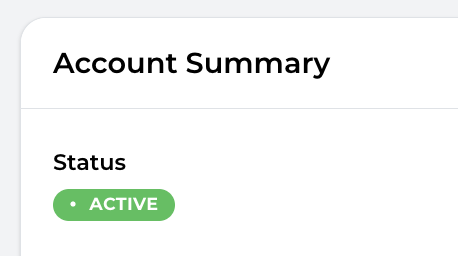
The account status return to its previous state:
The account owner will be notified by e-mail that the account has been unlocked.
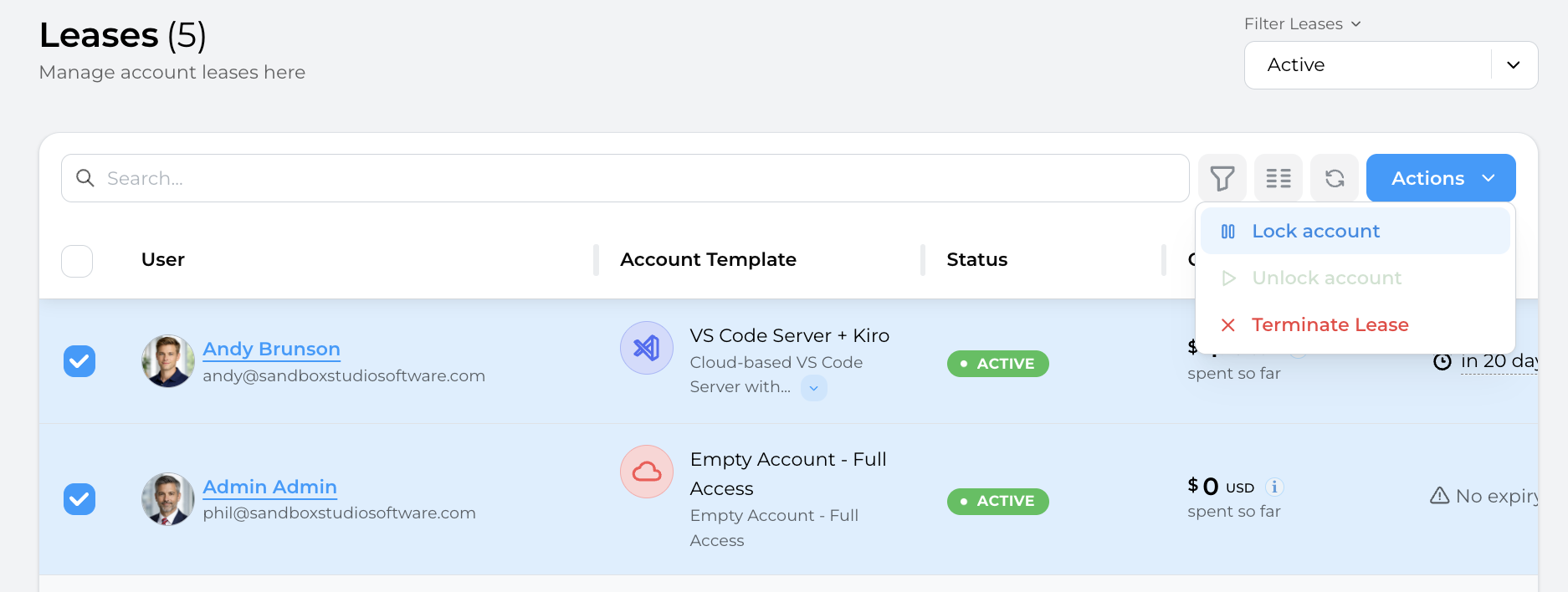
Lock/Unlock accounts in bulk:
From the leases page, select the accounts you want to lock/unlock and click on the "Actions" button and select "Lock account"/"Unlock accounts":