
My AWS accounts
From the My AWS Accounts page, you can see the status and details of all the AWS accounts (aka "leases") you have requested.
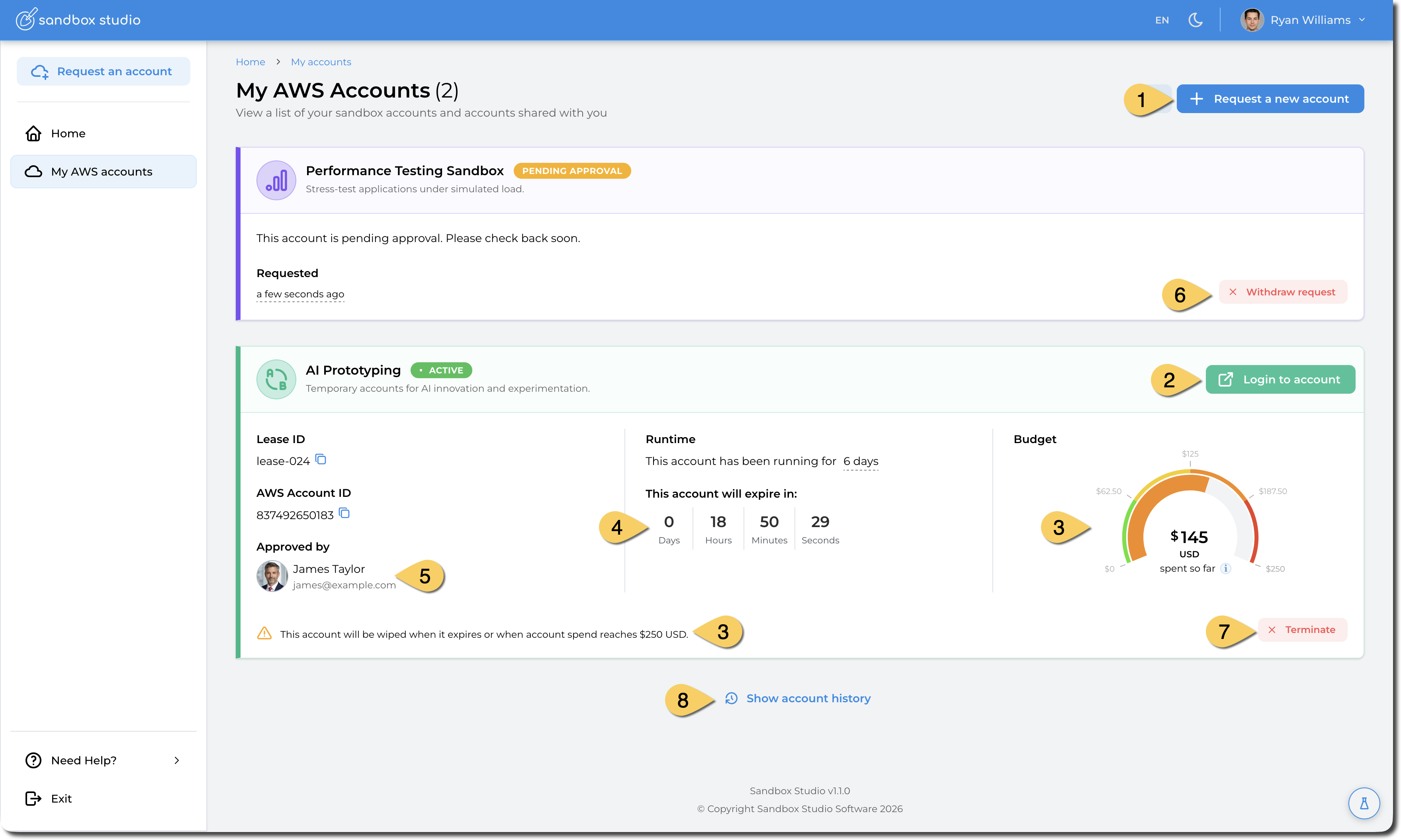
- Request a new Account
- For active accounts, users can access the AWS console using this button
- If the account has a budget limit, the gauge with the current cost is displayed
- If the account has a duration limit, a countdown is displayed
- If the account requires approval, the approver is displayed
- For accounts that requires approval, and before the account is approved or denied, end users can withdraw their request.
- For active accounts, users can terminate their own account. This action will clean the account and all resources will be deleted.
- Users can access their accounts history
Account Status
When you request or use an AWS sandbox account through Sandbox Studio, the account will move through different states during its lifecycle. The state shows whether the account is ready to use, being prepared, or temporarily unavailable.
The possible states are:
-
Pending Approval
Your request has been submitted but not yet approved. A Manager or Administrator must review and approve the request before you can access the account. -
Setting up
The request has been approved, and Sandbox Studio is preparing the account. This process may include automatically deploying resources defined in the account template.-
If setup completes successfully, the account moves to Active.
-
If setup fails, the account will enter Setup Failed. In this case, contact your Manager or Administrator to investigate.
-
-
Active
The account is ready to use. You can log in to the AWS console or retrieve temporary credentials from Sandbox Studio. Active accounts remain available until they reach their budget or duration limits, or until they are suspended. -
Suspended
The account still exists and any resources you created remain running, but you cannot log in. This usually happens when your Manager or Administrator locks the account, often because a budget or duration threshold has been reached.-
Resources inside the account will continue to incur AWS charges.
-
To regain access, request that your Manager or Administrator unlock the account.
-
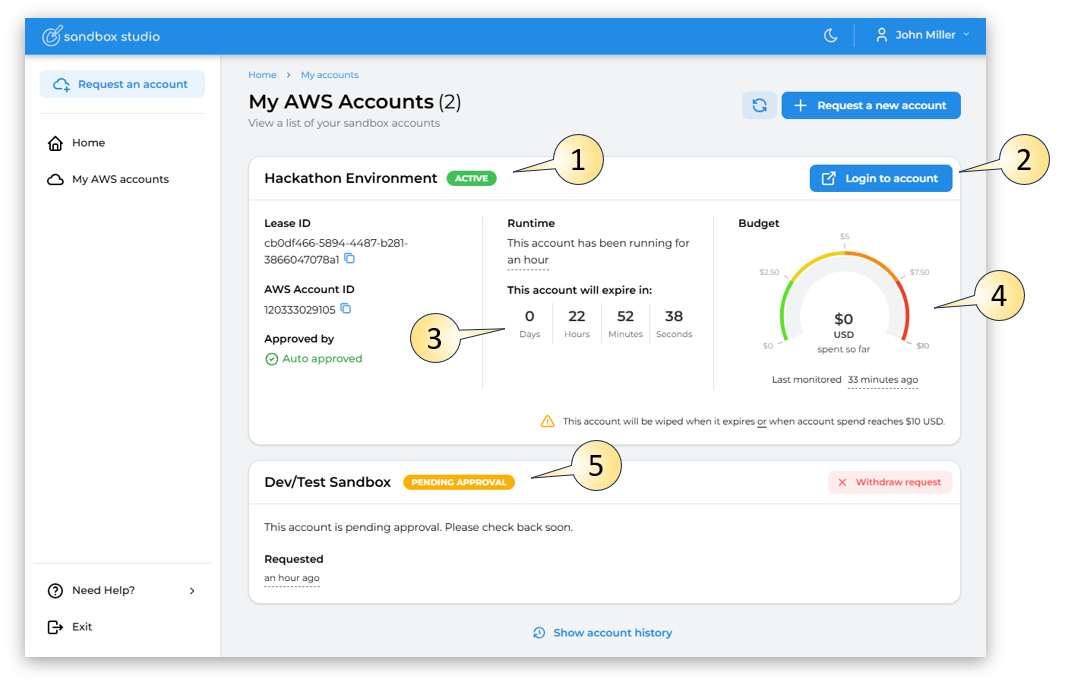 Figure 1
What You Can Do with an Active Account
When your account is in the Active state, you can perform the following actions:
-
Log in to the account
A Login to account button will appear. Selecting this takes you to the AWS Access Portal, where you can choose your role and access the AWS console or retrieve CLI credentials.
For step-by-step instructions, see Logging into an account. -
Check the account expiry
Each account shows the expiry date and time when it will automatically be cleaned up.-
-
If your Manager or Administrator has set no expiry, the account will remain active until manually ended.
-
When an account expires, all resources and data inside it are permanently deleted. Make sure you save anything important before the expiry date.
-
-
-
Monitor your budget usage
You can see how much of your allocated budget has already been spent. The system updates this information regularly and shows the time of the last check.-
-
Keep track of your usage to avoid hitting the maximum budget.
-
If the budget limit is reached, the account will be cleaned up and all of your work will be destroyed.
-
-