
Event creation - Participants
This step allows you to define how many accounts (leases) you want to have as part of your event.
For instance, for a hackathon with 5 participants, you would define 5 accounts:
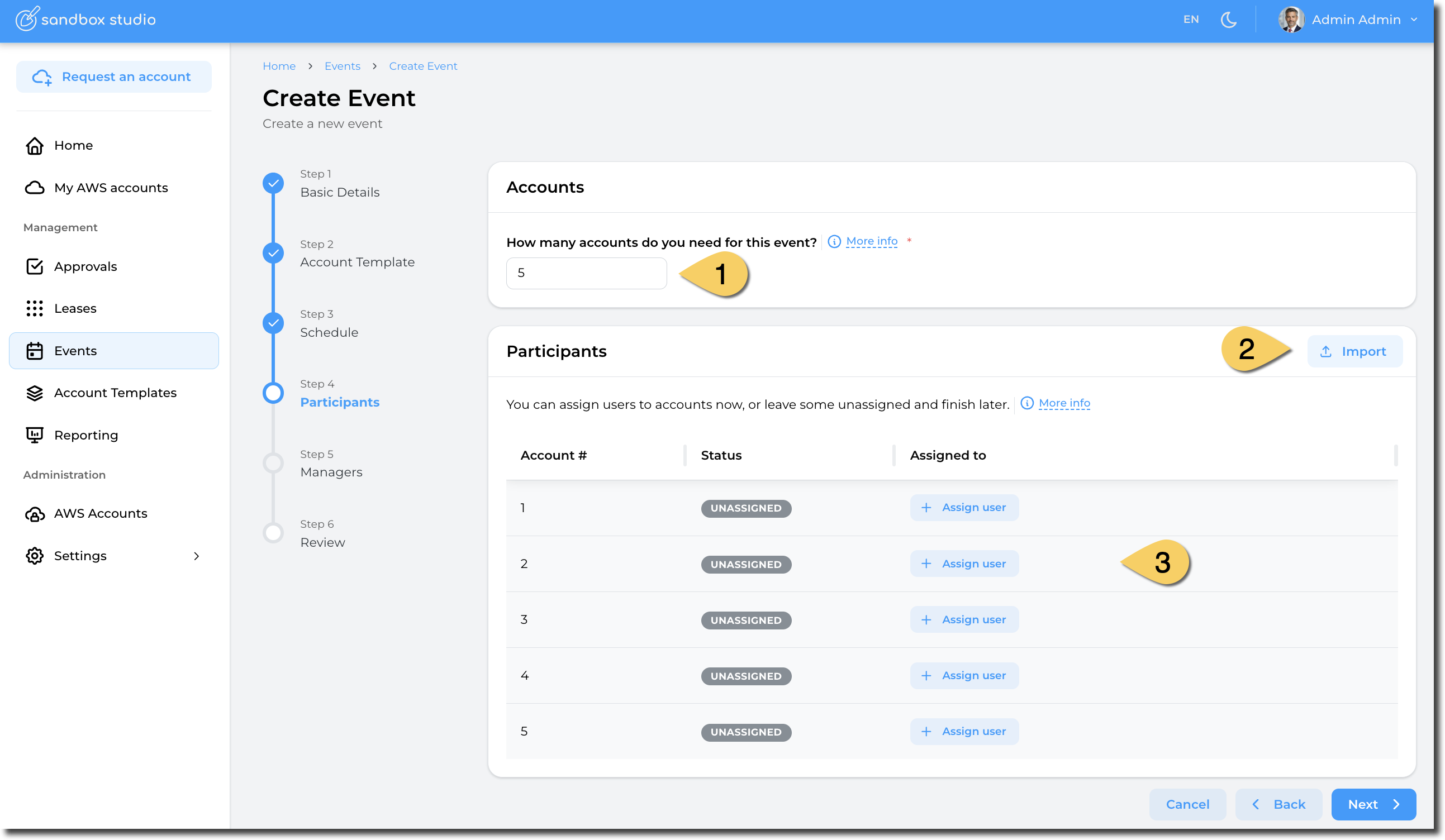
- Set the number of accounts you want to create
Note: You can reserve accounts for your event by adding an account and not assigning it to any user
How to assign user to an account
Click on the "Assign user" button and select the user you want to assign to an account. Once assigned, the status becomes "Assigned"
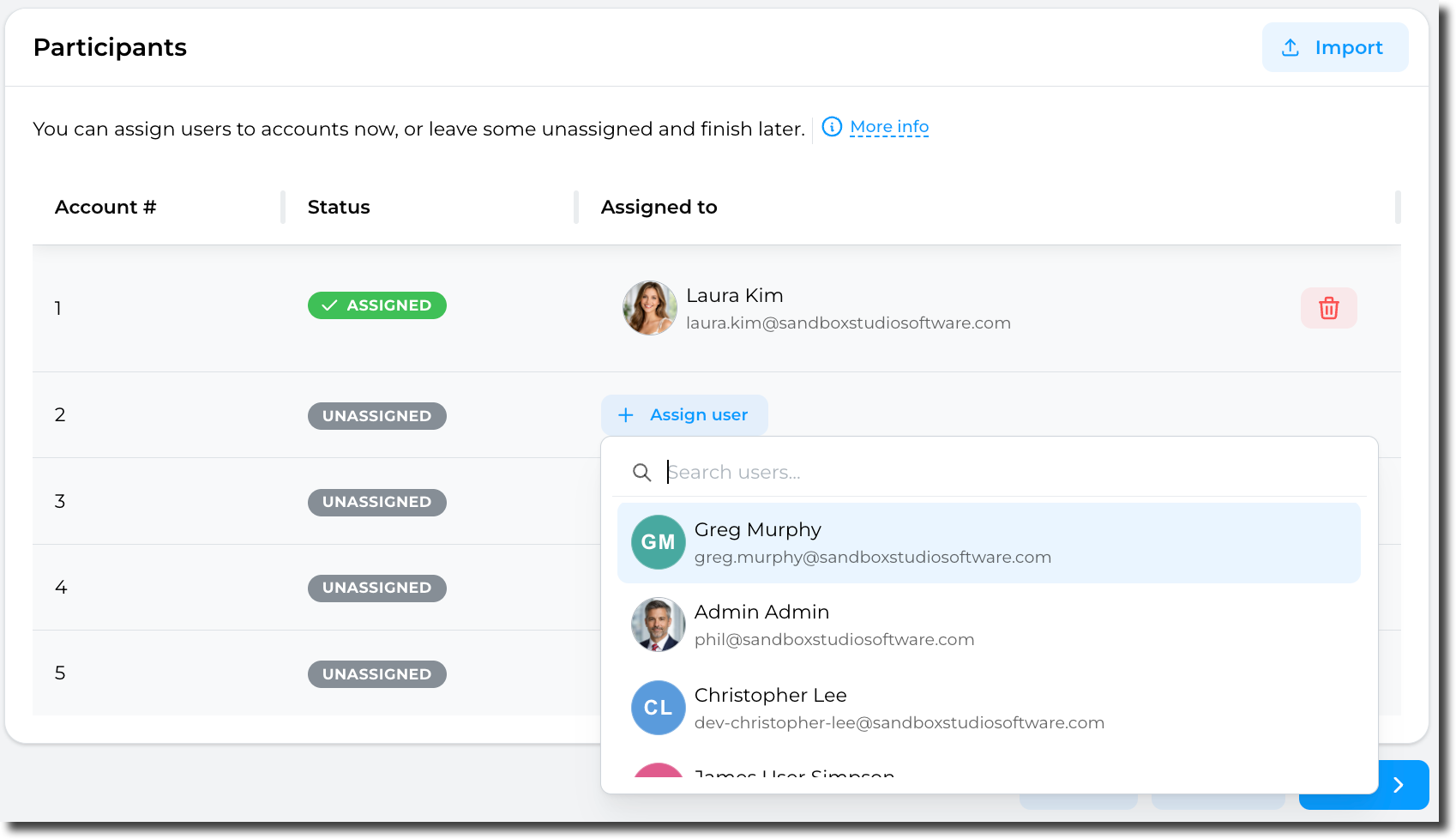
If you let the account "Unassigned", a lease will be created but not assigned to any user. This is a way to "reserve" an account and prepare it before later assigning it to users.
How to import a CSV
Click on the Import button:
You can then Drag and Drop your CSV file:
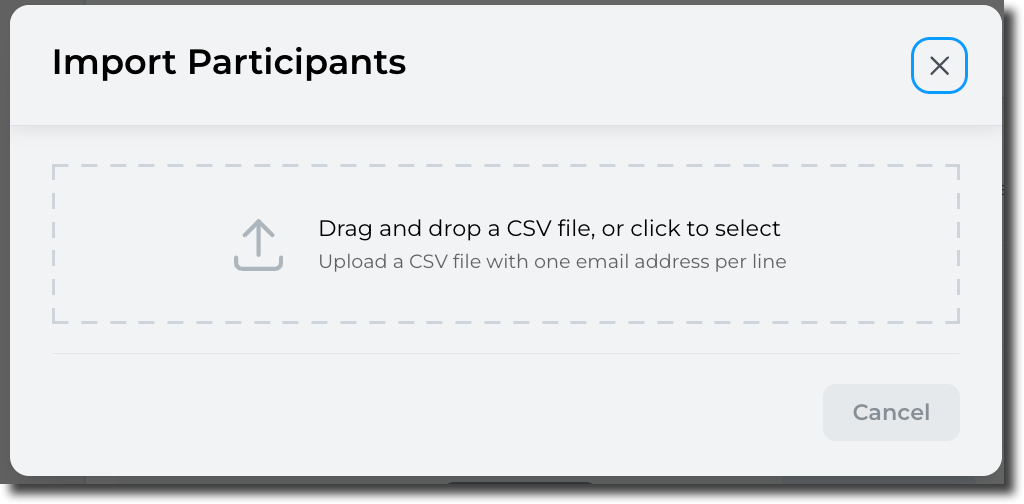
Format of the CSV file is as follows:
email1@example.com
email2@example.com
email3@example.com
Only valid e-mail addresses will be processed. So if you add a header to CSV file, it will be ignored.
Sandbox Studio will then check the CSV file:
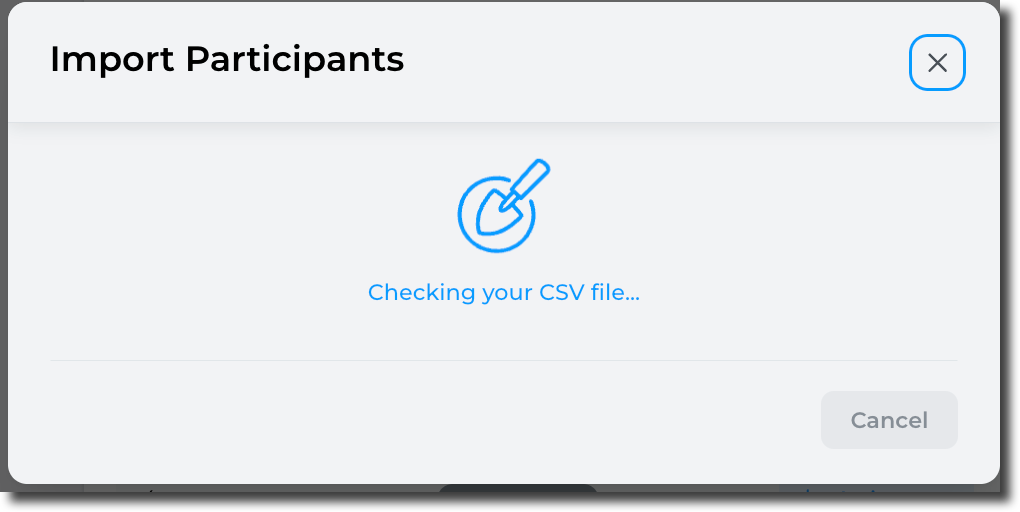
After a few seconds (depending on how many users are in the CSV file):
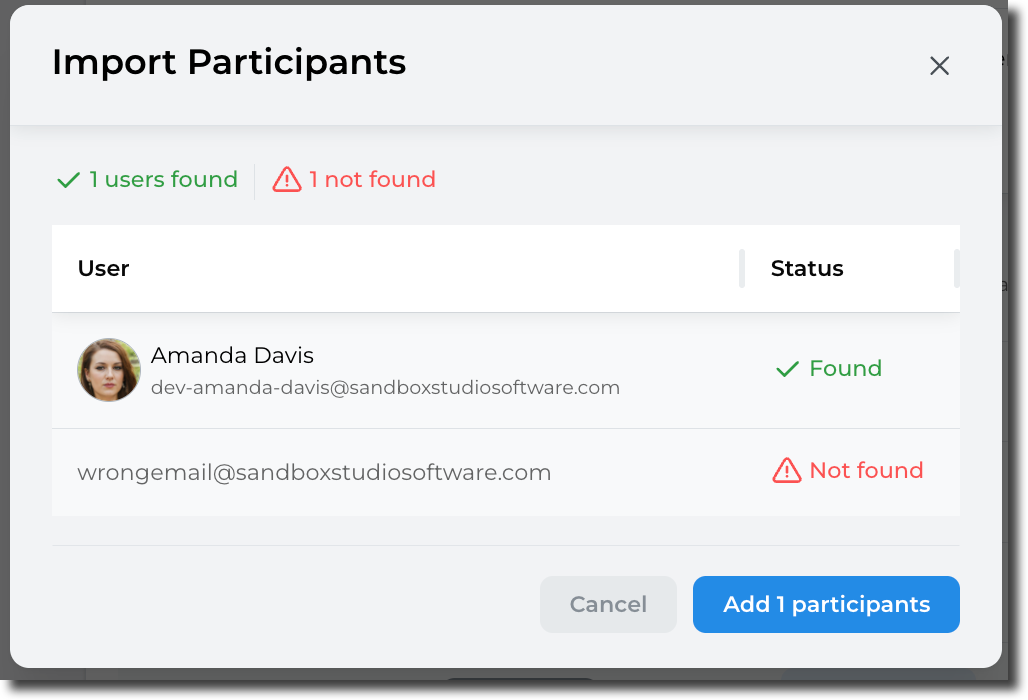
Only the found users will be added to the event:

Once account numbers are set and users assign, click Next to Event creation - Managers