
Account template creation - Duration
This step defines the maximum duration for leases using this template.
The countdown for a lease starts when the lease is created.
Actions:
Sandbox Studio can perform automatic actions if some thresholds are met. You can define those thresholds and actions in the "Actions" section:
Having completed all the fields on the Budget page as needed, click on Next to Account template creation - Duration
On the Duration page, complete the required fields.
-
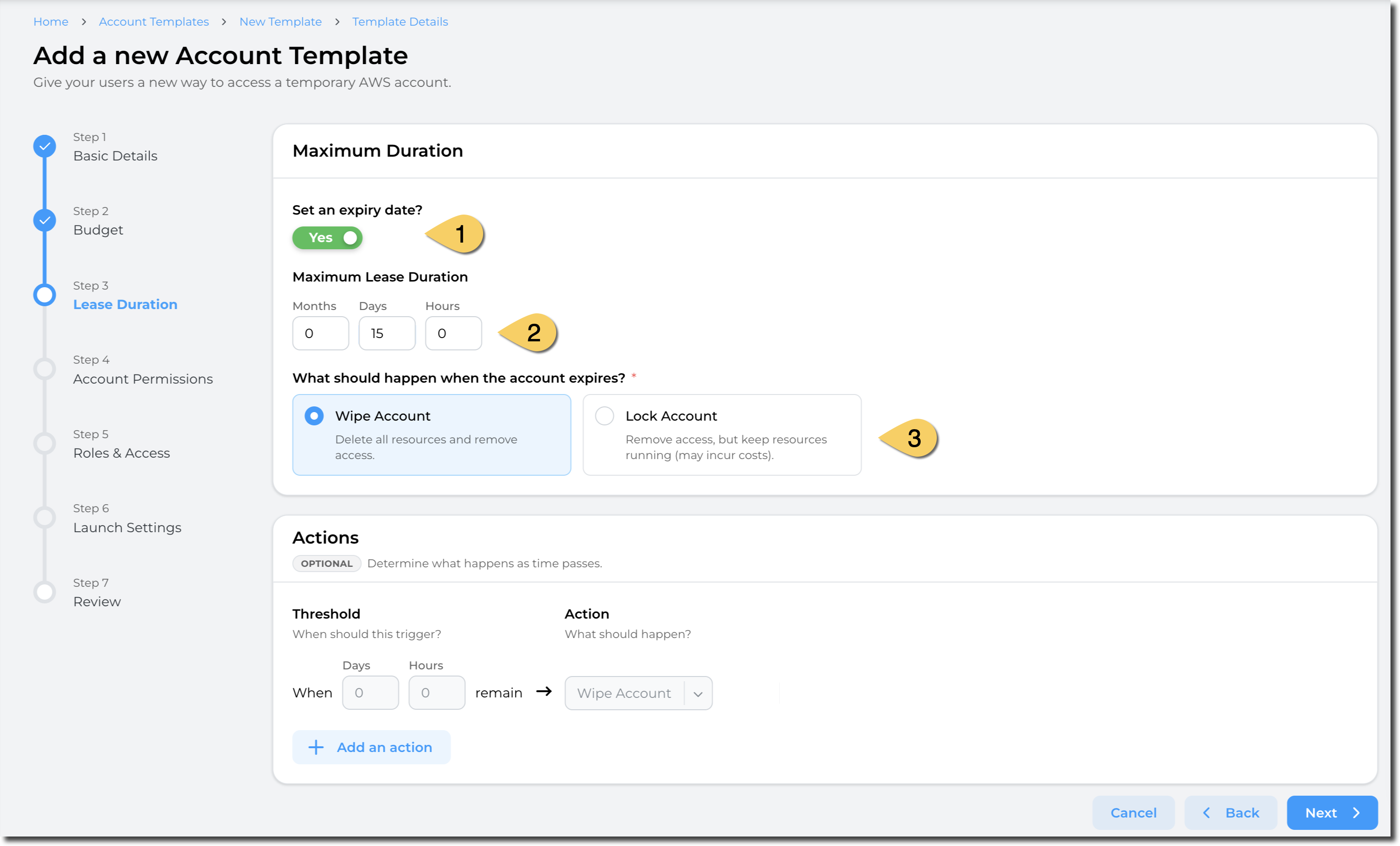
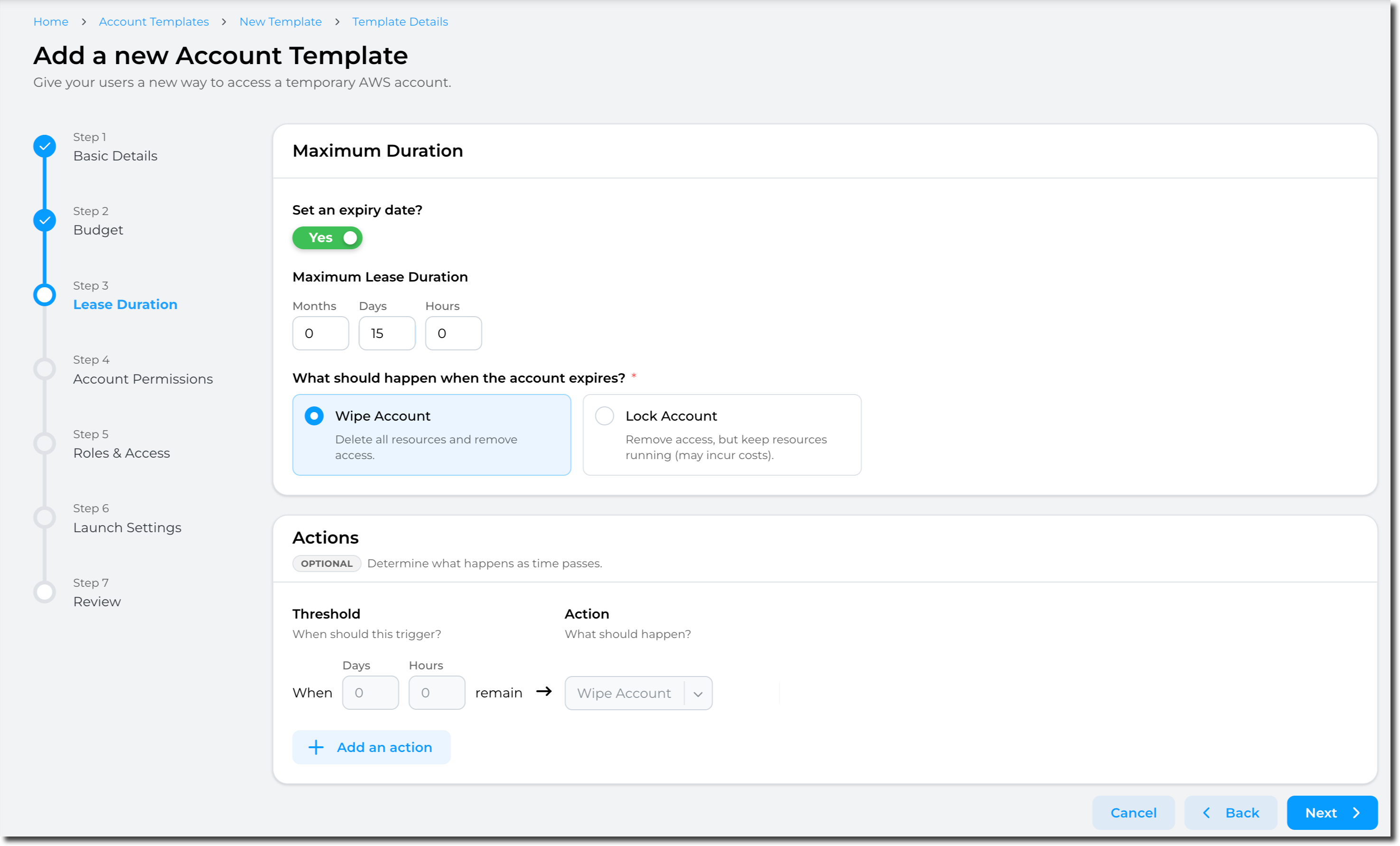
If you select Set an expiry date, enter a value in Maximum Lease Duration (in Months, Days or Hours. ). The duration configuration (1) determines how long the account is available once leased to a user.
-
You can optionally set thresholds if a maximum duration is set, to specify what happens as the threshold approaches. To add a threshold, click Add an action. Enter a value in Months, Days or Hours and select an action to be initiated once that value is reached.
Important: It is important to note that the threshold’s actions are effectively a count down - and only trigger when a certain amount of time is left. e.g. 5 Days left, or 24 Hours to go or in the case of "Wipe" when Zero ( 0 , 0 , 0 ) time to go - see (3))
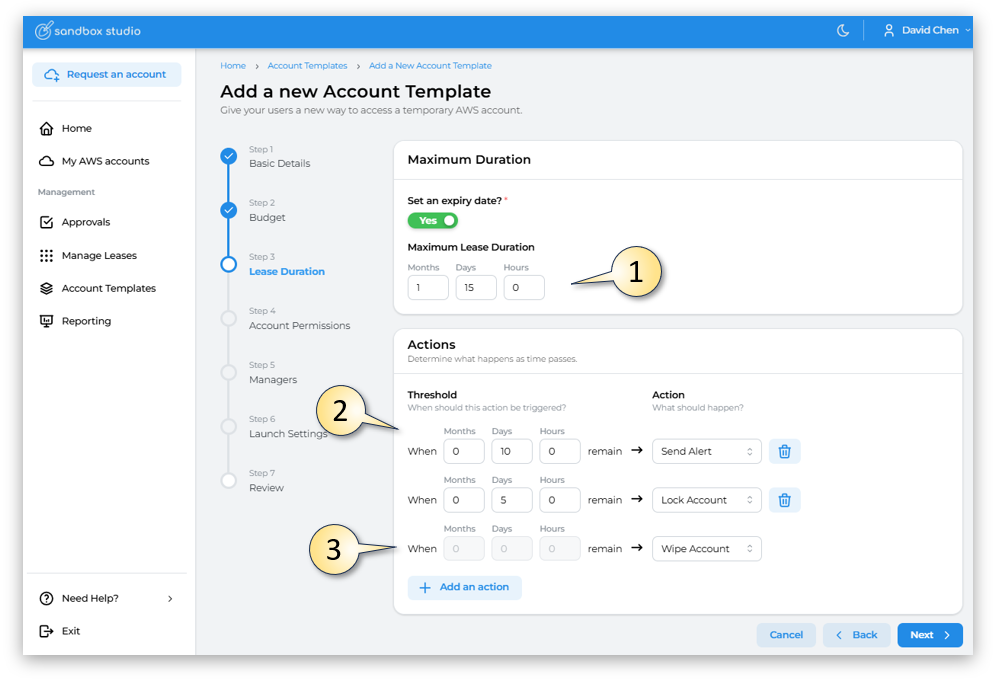
- In this example, an alert is sent when 10 Days (2) are left on the lease. It gives the user time to save their work if they want or ask for an extension. Then at 5 Days to go, it locks the account, and only when the lease reaches zero ( 0 , 0 , 0 ) time to go (3), will the account Wipe (terminate) and recycle through the clean-up process.
- Having completed all the fields on the Duration page as needed, click on Next to move to section 4 - Account Permissions