Deploy the Solution Manually
Note: We strongly recommend using the installation script available here to deploy the Sandbox Studio.
- Before you start...
- Overview of what you'll do
- AWS CloudFormation templates
- Step 1: Deploy the AccountPool stack
- Step 2: Deploy the IDC stack
- Step 3: Deploy the Network stack
- Step 4: Deploy the Data stack
- Step 5: Deploy the Compute stack
- Step 6: Deploy the API stack
Before you start...
Before you embark on this manual AWS CloudFormation adventure, let us remind you that we've poured countless hours (and several pots of coffee) into creating a beautiful, automated deployment wizard that handles all the CloudFormation templates, Identity Center custom SAML application setup, and custom application configurations for you. It's tested, reliable, and significantly less likely to result in you going back and forth between the AWS console, CloudFormation stacks, and custom application logs at 2 AM trying to figure out why your deployment failed. If you're here because you enjoy the thrill of manually configuring SAML attributes, debugging CloudFormation syntax errors, and the unique satisfaction of troubleshooting custom application integrations that could have been automated entirely, then welcome—you're in the right place!
But seriously, unless you have a very specific reason for going manual, please consider using our automated script. Your future self will thank you, and so will our support team.
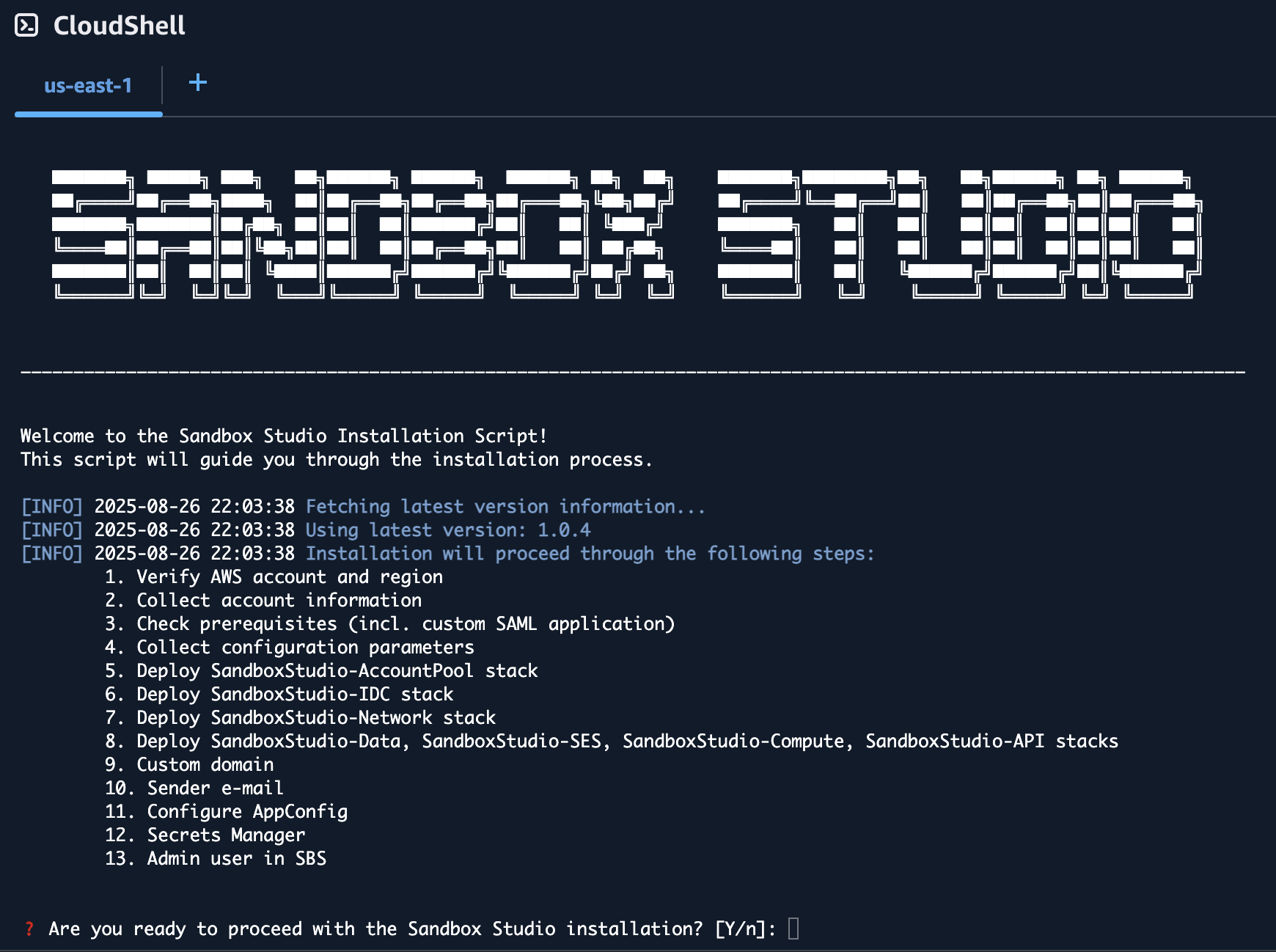
Click here to see how to run the Installation Wizard instead
Overview of what you'll do
Installing Sandbox Studio manually follows three main stages. Each stage builds on the last, so it’s important to work through them in order.
1. Confirm Prerequisites
Before beginning the installation, you should confirm that your organisation meets all prerequisites.
Sandbox Studio relies on several AWS services and features being enabled in advance, including:
-
AWS Organisations with all features enabled
-
Service Control Policies (SCPs) for account guardrails
-
AWS Resource Access Manager (RAM) for resource sharing
-
CloudFormation StackSets trusted access
-
AWS Cost Explorer for spend tracking
-
IAM Identity Center (IdC) for centralised access control
-
AWS Service Quotas (e.g. Lambda concurrency, CodeBuild quotas)
For a full checklist of requirements, please see the Installation Prerequisites.
You will also need to collect configuration values in advance, such as:
-
AWS Region
-
Organisation and OU IDs
-
IAM Identity Center group names
-
IP allow-list ranges
2. Deploy the CloudFormation Stacks
Next, you will deploy the Sandbox Studio CloudFormation templates. Each stack must be launched in the correct AWS account and in a specific order.
-
Organisation Management account
-
Hub account
Each stack depends on outputs from earlier stacks. The next page, Deploying the Stacks provides the exact order and details.
3. Complete Post-Deployment Steps
Once the stacks are deployed successfully, you’ll need to carry out some manual configuration tasks. These ensure Sandbox Studio integrates with your organisation’s identity provider, DNS, and and your application settings are in sync with your environment.
At a high level, you will:
-
Set up a SAML 2.0 application in IAM Identity Center, and assign Sandbox Studio groups to it.
-
Configure DNS (optional) for a custom domain, and update the application ACS URL.
-
Update AWS AppConfig settings (IdP URLs, audience, web app URL, access portal, email “from” address).
-
Store the IdP certificate in AWS Secrets Manager (the API stack provides the secret ARN).
-
Add initial administrators to the Sandbox Studio Admin group in IAM Identity Center.
Each of these steps is explained in detail in the Post-Deployment Configuration section.
AWS CloudFormation templates
Sandbox Studio is packaged as a set of AWS CloudFormation stacks. If you decide to manually install Sandbox Studio, you must deploy them in the order shown below and into specific AWS accounts. This page explains each stack, where to deploy it, and why the order matters.
Stack Summary
| # | Stack | What it does | Deploy to | Key AWS Services | Depends on |
| 1 | Account Pool | Creates OUs to host sandbox accounts and applies SCPs to govern them. | Org Management Account | AWS Organisational Units (OU's), Service Control Policies (SCP's) | - |
| 2 | IDC | Sets up IAM Identity Center groups used by Sandbox Studio users. | Org Management Account | IAM Identity Center Groups | - |
| 3 | Network | Provisions a VPC with multiple subnets. Hosts the database in a private subnet and runs Lambda functions in private subnets with egress access. | Hub Account | Amazon VPC, VPC Endpoints | |
| 4 | Data | Deploys the application database that stores all Sandbox Studio data. Kept separate to simplify upgrades. | Hub Account | Amazon RDS | Network |
| 5 | SES | Creates email templates for alerts and notifications. | Hub Account | Amazon SES | - |
| 6 | Compute | Core back end components such as event driven Step Functions and CodeBuild tasks that are used to clean up and set up new accounts. | Hub Account | Event Bridge, Lambda, Step Functions, CodeBuild | Data, Network, SES |
| 7 | API | The front end compute stack including the API and user facing web application. | Hub Account | Lambda, API Gateway, S3, CloudFront | Compute |
Where to get the CloudFormation templates
All templates are published to S3. Choose the version you want and construct URLs as:
The stack names (filenames) are shown below:
-
SandboxStudio-AccountPool.template.json -
SandboxStudio-IDC.template.json -
SandboxStudio-Network.template.json -
SandboxStudio-Data.template.json -
SandboxStudio-SES.template.json -
SandboxStudio-Compute.template.json -
SandboxStudio-API.template.json
Find the latest version (optional): fetchhttps://dist.sandboxstudiosoftware.com/latest.json
and use its "version" value in place of <VERSION>.
Example: if latest.json says {"version":"1.2.3"}, the AccountPool template ishttps://sandbox-studio-software-dist.s3.amazonaws.com/versions/1.2.3/SandboxStudio-AccountPool.template.json.
Step 1: Deploy the AccountPool stack
Install the AccountPool CloudFormation stack in the organisation management account.
How to Install this Stack
- Login to the AWS Management Console using the Organisation Management Account.
- Navigate to the CloudFormation page.
- Click Create Stack and select With new resources (standard).
- For Template Source, select Amazon S3 URL and enter the CloudFormation Template URL shown below and click Next.
- On the Specify Stack page, enter the stack name 'SandboxStudio-AccountPool' and use the parameters shown below.
CloudFormation Template URL
https://sandbox-studio-software-dist.s3.amazonaws.com/versions/<VERSION>/SandboxStudio-AccountPool.template.jsonFor more information on how to find the latest version, click here.
Parameters
| Key | What to enter |
|---|---|
| Namespace | 3–8 chars, e.g. MySs |
| HubAccountId | 12‑digit Hub account ID |
| ParentOuId | OU ID to nest Sandbox OUs under (e.g. your root ID r-xxxx or a specific OU ID e.g. o-xxxx) |
| SsManagedRegions | Comma separated list of regions managed by Sandbox Studio, e.g. eu-west-2,us-east-1 |
About this Stack
Purpose
-
Creates multiple Organisational Units (OUs) to contain all sandbox accounts.
-
Applies Service Control Policies (SCPs) to those OUs to enforce guardrails.
Where to deploy
-
Organisation management account only. Creating OUs and attaching SCPs requires management‑account permissions.
What it creates
-
OU structure under your AWS Organisation or specific existing OU that you specify.
-
A set of SCPs applied to the OU(s).
Validation checks
-
New OUs are visible in AWS Organisations.
-
SCPs are attached to the target OUs and show as Active.
Tips
-
Review isntalled SCPs and enhance or relax as needed to suit your organisation's security requirements.
Step 2: Deploy the IDC stack
Install the IDC CloudFormation stack in the organisation management account.
How to Install this Stack
- Login to the AWS Management Console using the Organisation Management Account.
- Navigate to the CloudFormation page.
- Click Create Stack and select With new resources (standard).
- For Template Source, select Amazon S3 URL and enter the CloudFormation Template URL shown below and click Next.
- On the Specify Stack page, enter the stack name 'SandboxStudio-IDC' and use the parameters shown below.
CloudFormation Template URL
https://sandbox-studio-software-dist.s3.amazonaws.com/versions/<VERSION>/SandboxStudio-IDC.template.jsonFor more information on how to find the latest version, click here.
Parameters
| Key | What to enter |
|---|---|
| Namespace | Use the same namespace you used in step 1. |
| HubAccountId | 12‑digit Hub account ID |
| IdentityStoreId | From IAM Identity Center |
| SsoInstanceArn | From IAM Identity Center |
| AdminGroupName | Default: <Namespace>_SsAdminsGroup |
| ManagerGroupName | Default: <Namespace>_SsManagersGroup |
| UserGroupName | Default: <Namespace>_SsUsersGroup |
About this Stack
Purpose
-
Sets up IAM Identity Center groups, permissions and roles used by Sandbox Studio. You add users to these groups to grant role‑based access to the application.
Where to deploy
-
Organisation management account, even if you have delegated IAM Identity Center administration to another account.
What it creates
-
A set of IDC groups aligned to Sandbox Studio roles (for example: administrators, managers, end users).
Validation checks
-
Groups appear in IAM Identity Center.
-
Assigning a user to a group grants the expected application role after sign‑in.
Tips
-
Add test users to each group and confirm the correct level of access in the UI before onboarding wider teams.
Step 3: Deploy the Network stack
Install the Network CloudFormation stack in the hub account.
How to Install this Stack
- Login to the AWS Management Console using the Hub Account.
- Navigate to the CloudFormation page.
- Click Create Stack and select With new resources (standard).
- For Template Source, select Amazon S3 URL and enter the CloudFormation Template URL shown below and click Next.
- On the Specify Stack page, enter the stack name 'SandboxStudio-Network' and use the parameters shown below.
CloudFormation Template URL
https://sandbox-studio-software-dist.s3.amazonaws.com/versions/<VERSION>/SandboxStudio-Network.template.jsonFor more information on how to find the latest version, click here.
Parameters
| Key | What to enter |
|---|---|
| Namespace | Use the same namespace you used in step 1. |
About this Stack
Purpose
-
Creates the VPC foundation required by the application.
-
Provides private subnets for the database and private subnets with egress for Lambda functions that require outbound access.
Where to deploy
-
Hub account.
What it creates
-
One VPC with multiple subnets (at minimum: private subnets for RDS and for VPC‑attached Lambdas).
-
Route configuration to allow egress from private subnets (for example, via NAT or suitable endpoints).
- VPC endpoints for AWS services that support private routing.
- Internet Gateway and NAT Gateway for AWS services that do not support private routing.
Validation checks
-
VPC and subnets are visible in the VPC console.
-
Private subnets have no direct internet ingress and can reach required AWS endpoints for the application.
Tips
-
Adjust VPC after installation to suit your needs such as routing through enterprise firewalls if needed.
Step 4: Deploy the Data stack
Install the Data CloudFormation stack in the hub account.
How to Install this Stack
- Login to the AWS Management Console using the Organisation Management Account.
- Navigate to the CloudFormation page.
- Click Create Stack and select With new resources (standard).
- For Template Source, select Amazon S3 URL and enter the CloudFormation Template URL shown below and click Next.
- On the Specify Stack page, enter the stack name 'SandboxStudio-Data' and use the parameters shown below.
CloudFormation Template URL
https://sandbox-studio-software-dist.s3.amazonaws.com/versions/<VERSION>/SandboxStudio-Data.template.jsonFor more information on how to find the latest version, click here.
Parameters
| Key | What to enter |
|---|---|
| Namespace | Use the same namespace you used in step 1. |
About this Stack
Purpose
-
Deploys the Amazon RDS database that stores Sandbox Studio application data.
-
Isolated from other stacks so you can upgrade application components without touching data.
Where to deploy
-
Hub account.
Dependencies
-
Network stack must be in place to supply VPC and subnets for the database.
Validation checks
-
RDS instance/cluster appears in the RDS console and is placed in the private database subnets.
-
Security groups allow required access from application Lambdas.
Tips
-
Define and test backup/restore procedures appropriate to your organisation.
Step 5: Deploy the Compute stack
Install the Compute CloudFormation stack in the hub account.
How to Install this Stack
- Login to the AWS Management Console using the Hub Account.
- Navigate to the CloudFormation page.
- Click Create Stack and select With new resources (standard).
- For Template Source, select Amazon S3 URL and enter the CloudFormation Template URL shown below and click Next.
- On the Specify Stack page, enter the stack name 'SandboxStudio-Compute' and use the parameters shown below.
CloudFormation Template URL
https://sandbox-studio-software-dist.s3.amazonaws.com/versions/<VERSION>/SandboxStudio-Compute.template.jsonFor more information on how to find the latest version, click here.
Parameters
| Key | What to enter |
|---|---|
| Namespace | Use the same namespace you used in step 1. |
| OrgMgtAccountId | 12‑digit management account ID |
| IdcAccountId | 12‑digit management account ID |
About this Stack
Purpose
-
Deploys the core backend components that respond to events and orchestrate workflows such as new account setup and account cleanup.
Where to deploy
-
Hub account.
What it creates
-
Amazon EventBridge rules.
-
AWS Lambda functions that react to events and perform application logic.
-
Amazon SQS queues to drive asynchronous processing.
-
AWS Step Functions for multi‑step workflows.
-
AWS CodeBuild projects used during setup/cleanup tasks.
Dependencies
-
Requires Network (for VPC‑attached Lambdas) and Data (to read/write application state). If notifications are used, it may reference SES templates.
Validation checks
-
EventBridge rules are enabled.
-
Lambda functions deploy successfully and, where configured, attach to the VPC subnets.
-
SQS queues and Step Functions state machines are present.
Tips
-
Become familiar with logs/metrics produced by compute components in Amazon CloudWatch and monitor for errors.
Step 6: Deploy the API stack
Install the API CloudFormation stack in the hub account.
How to Install this Stack
- Login to the AWS Management Console using the Hub Account.
- Navigate to the CloudFormation page.
- Click Create Stack and select With new resources (standard).
- For Template Source, select Amazon S3 URL and enter the CloudFormation Template URL shown below and click Next.
- On the Specify Stack page, enter the stack name 'SandboxStudio-API' and use the parameters shown below.
CloudFormation Template URL
https://sandbox-studio-software-dist.s3.amazonaws.com/versions/<VERSION>/SandboxStudio-API.template.jsonFor more information on how to find the latest version, click here.
Parameters
| Key | What to enter |
|---|---|
| Namespace | Use the same namespace you used in step 1. |
| OrgMgtAccountId | 12‑digit management account ID |
| IdcAccountId | 12‑digit management account ID |
| AllowListedIPRanges | Comma separated CIDRs allowed to call the API (default “allow all”): 0.0.0.0/1,128.0.0.0/1 |
About this Stack
Purpose
-
Publishes the application’s public API and front‑end web experience.
Where to deploy
-
Hub account.
What it creates
-
Amazon API Gateway with Lambda integrations that expose Sandbox Studio APIs.
-
The end‑user web application for accessing Sandbox Studio.
Dependencies
-
Compute (backend logic) and Data (application database) must exist.
Validation checks
-
API endpoints return healthy responses.
-
The web UI loads and users can sign in via IAM Identity Center groups created by the IDC stack.
Tips
-
Capture the API base URL and distribute it to administrators and managers.