# User Guide

As a Sandbox Studio User, you will request and use sandbox accounts for development, testing, training, or experimentation purposes. You are expected to work within the guardrails, permissions, and budget limits set by your Managers and Administrators.

Your responsibilities include using your sandbox securely and handling data appropriately. This guide will show you how to request a sandbox, access it, and manage it during your allocated time.

# What is Sandbox Studio?

##### [![sandbox-studio-logo-vertical-light.png](https://docs.sandboxstudiosoftware.com/uploads/images/gallery/2025-07/scaled-1680-/sandbox-studio-logo-vertical-light.png)](https://docs.sandboxstudiosoftware.com/uploads/images/gallery/2025-07/sandbox-studio-logo-vertical-light.png)

##### Sandbox Studio helps you access AWS easily

Sandbox Studio helps you, as a developer or student, to easily create and use temporary, secure account on Amazon Web Services (AWS) for your projects and learning. Think of it as your own personal AWS playground where you can experiment freely without affecting important live systems or worrying about unexpected costs.

Here's what Sandbox Studio does for you:

- **Easy Access to AWS**: It simplifies getting access to AWS accounts. You can get an account quickly and start building and testing your ideas right away.
- **Safe Experimentation**: You get an isolated environment where you can try out new AWS services and features. This means you can learn and innovate without any risk of breaking things in a production environment.
- **Enables cost monitoring and alerts**: Sandbox Studio helps manage costs by sending alerts if your spending approaches a set budget and can even automatically stop resources to prevent overspending. This allows you to learn and build without worrying about unexpected bills.
- **Pre-configured Security**: The accounts come with pre-set security policies, so you don't have to worry about configuring complex security settings yourself. This ensures a secure learning environment from the start.
- **Automatic Cleanup**: When you're done with an account, Sandbox Studio can automatically clean up all the resources you've used and recycle the account. This saves you time and ensures efficient use of resources.

In essence, Sandbox Studio is designed to empower you to learn and innovate on AWS securely and cost-effectively, reducing the typical complexities involved in setting up and managing your cloud environment.

# Home Page

After logging into the web UI, the following page displays.

From the home page (Figure 1), you can:

- Request a new account See (1) . For more information see: [Requesting a new account](https://docs.sandboxstudiosoftware.com/books/user-guide/page/requesting-a-new-account).
- View all of your current AWS Accounts. See (2)
- View your overall spend on all your current active accounts. See (3)

[![image.png](https://docs.sandboxstudiosoftware.com/uploads/images/gallery/2026-03/scaled-1680-/4Ppimage.png)](https://docs.sandboxstudiosoftware.com/uploads/images/gallery/2026-03/4Ppimage.png)


<p class="callout warning">It is really important to monitor the **duration and budget** on all of your accounts. If they reach their thresholds , the accounts will (depending how your Sandbox Studio environment is setup) **terminate and delete everything** in that account. So if what you are working on is important, closely monitor the thresholds and/or move the account out of the sandbox environment into a production environment. You can [request an account extension](https://docs.sandboxstudiosoftware.com/books/user-guide/page/requesting-an-account-extension) from your manager or administrator.</p>

# My AWS accounts

From the **My AWS Accounts** page, you can see the status and details of all the AWS accounts (aka "leases") you have requested.

[![image.png](https://docs.sandboxstudiosoftware.com/uploads/images/gallery/2026-03/scaled-1680-/6zrimage.png)](https://docs.sandboxstudiosoftware.com/uploads/images/gallery/2026-03/6zrimage.png)
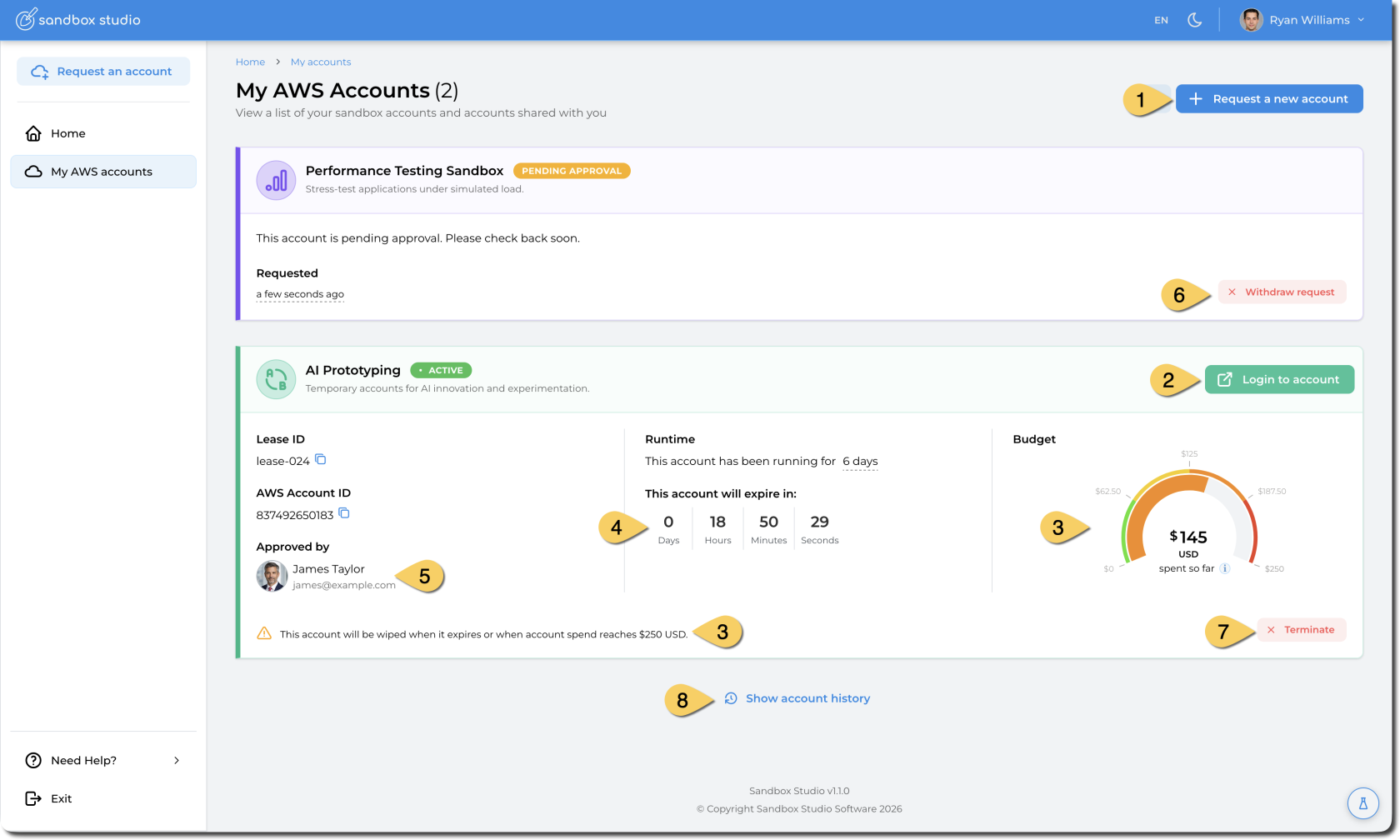
1. Request a new Account
2. For active accounts, users can access the AWS console using this button
3. If the account has a budget limit, the gauge with the current cost is displayed
4. If the account has a duration limit, a countdown is displayed
5. If the account requires approval, the approver is displayed
6. For accounts that requires approval, and before the account is approved or denied, end users can withdraw their request.
7. For active accounts, users can terminate their own account. This action will clean the account and all resources will be deleted.
8. Users can access their accounts history

#### Account Status

When you request or use an AWS sandbox account through Sandbox Studio, the account will move through different states during its lifecycle. The state shows whether the account is ready to use, being prepared, or temporarily unavailable.

The possible states are:

- **Pending Approval**  
    Your request has been submitted but not yet approved. A Manager or Administrator must review and approve the request before you can access the account.
- **Setting up**  
    The request has been approved, and Sandbox Studio is preparing the account. This process may include automatically deploying resources defined in the account template.
    
    
    - If setup completes successfully, the account moves to **Active**.
    - If setup fails, the account will enter **Setup Failed**. In this case, contact your Manager or Administrator to investigate.
- **Active**  
    The account is ready to use. You can log in to the AWS console or retrieve temporary credentials from Sandbox Studio. Active accounts remain available until they reach their budget or duration limits, or until they are suspended.
- **Suspended**  
    The account still exists and any resources you created remain running, but you cannot log in. This usually happens when your Manager or Administrator locks the account, often because a budget or duration threshold has been reached.
    
    
    - Resources inside the account will continue to incur AWS charges.
    - To regain access, request that your Manager or Administrator unlock the account.

# Requesting a new account

You can request an account to gain access to an AWS environment.

To request an account:

- After logging in to the web UI, on the home page you can choose **Request an Account**.

[![image.png](https://docs.sandboxstudiosoftware.com/uploads/images/gallery/2026-03/scaled-1680-/JjCimage.png)](https://docs.sandboxstudiosoftware.com/uploads/images/gallery/2026-03/JjCimage.png)
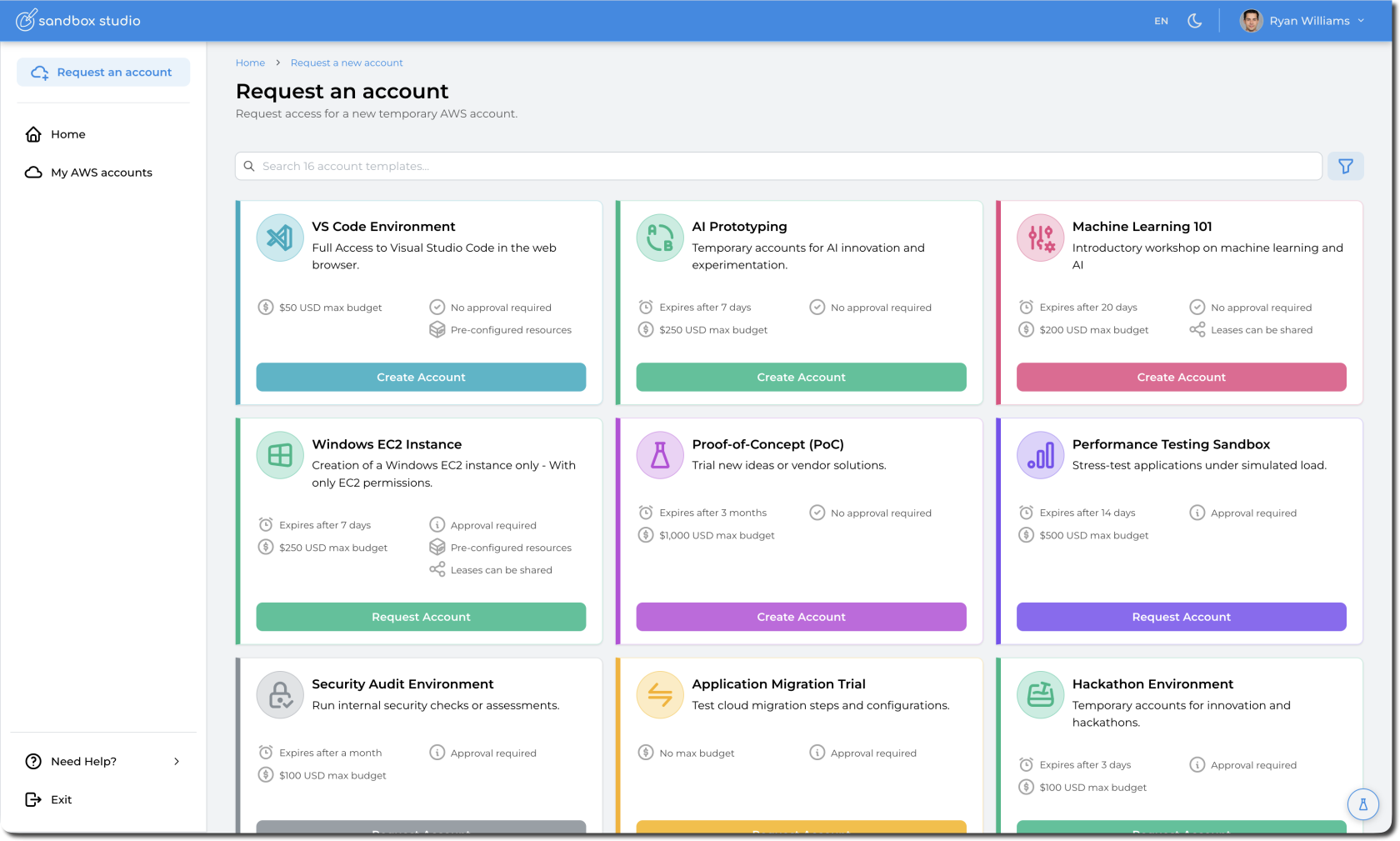
- Next, select the account type you want to request. Account types are created by your management and administration team and define the duration, budget, access type (permissions), sharing configuration and resources to create in the account.

[![image.png](https://docs.sandboxstudiosoftware.com/uploads/images/gallery/2026-03/scaled-1680-/ebuimage.png)](https://docs.sandboxstudiosoftware.com/uploads/images/gallery/2026-03/ebuimage.png)
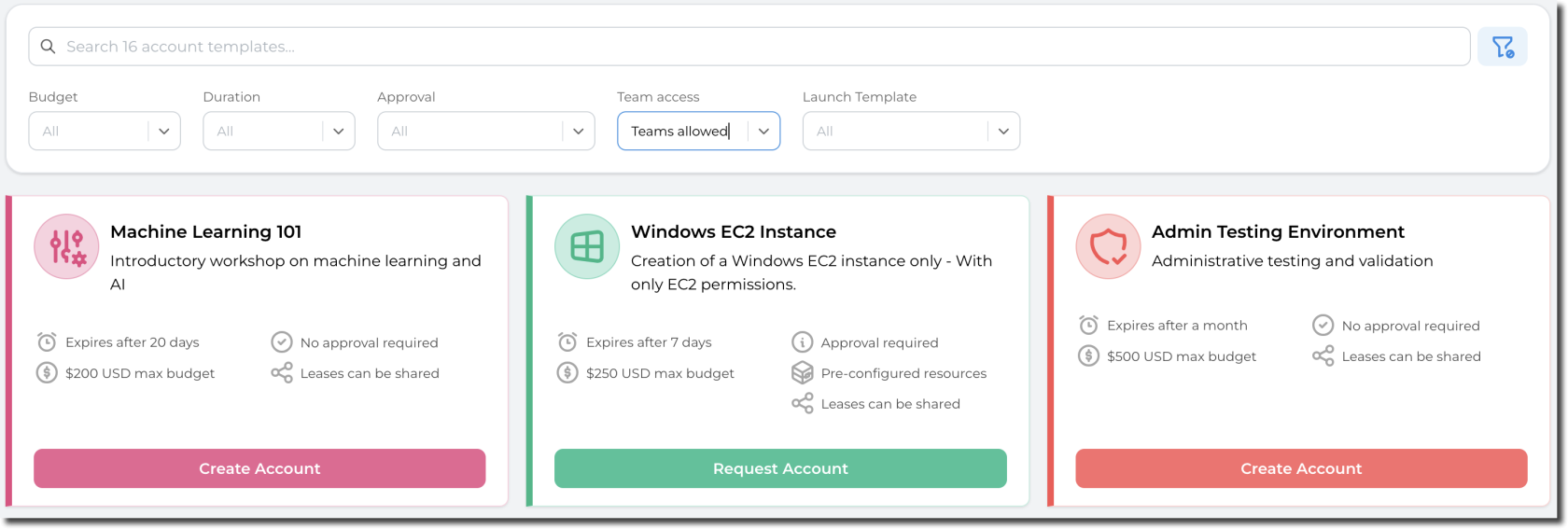
- You can filter out the account types you want to use by filtering the results:

[![image.png](https://docs.sandboxstudiosoftware.com/uploads/images/gallery/2026-03/scaled-1680-/4wqimage.png)](https://docs.sandboxstudiosoftware.com/uploads/images/gallery/2026-03/4wqimage.png)
- Select your account type by clicking on "*Create Account*" (No approval required) or "*Request Account*" (Approval required)

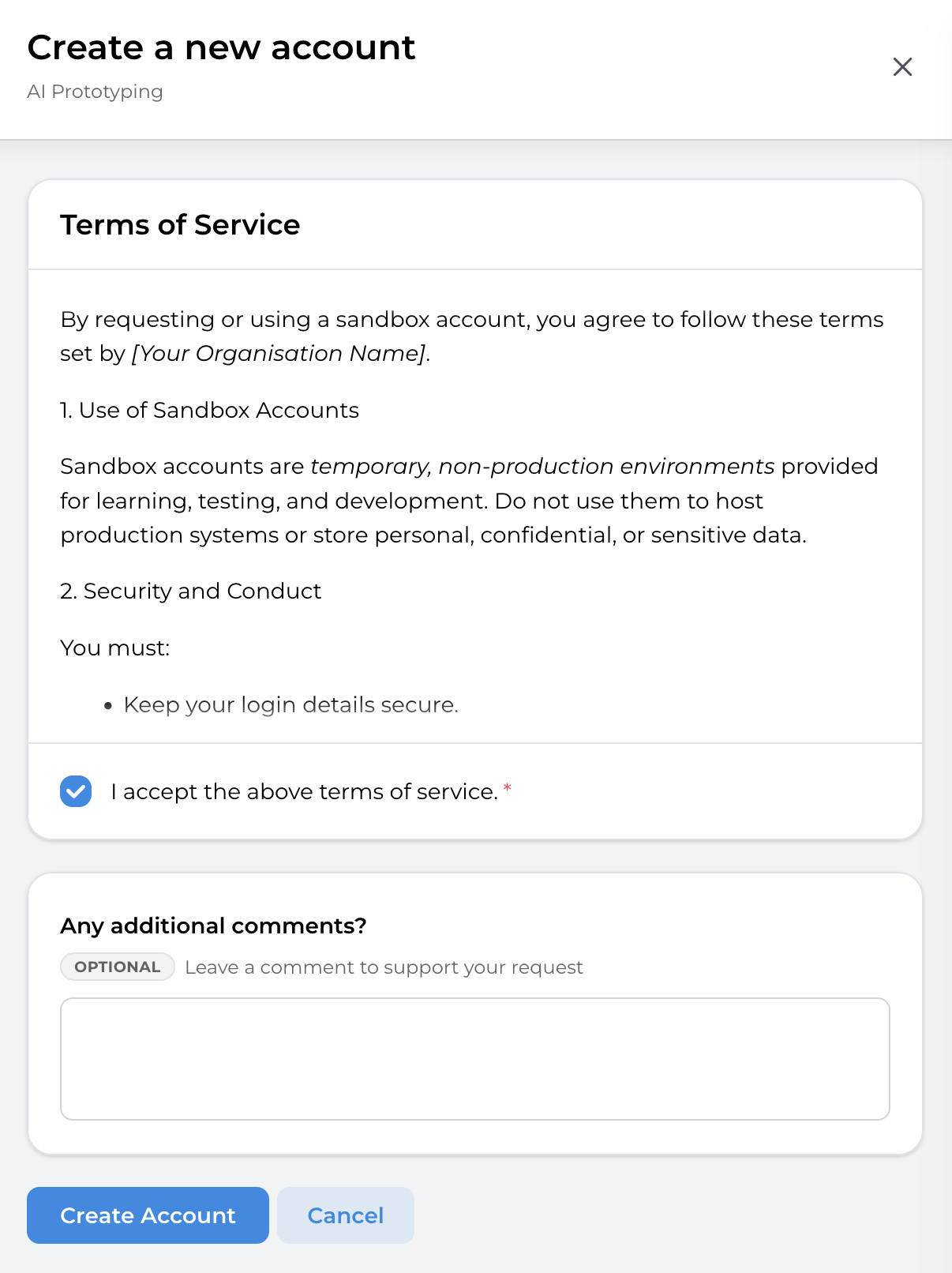
Before creating/requesting an account, users need to agree with the terms of service defined by your organisation.

Carefully read the terms of service and **check the box that says I accept the above terms of service**. Ensure that you understand the risks associated with owning a Sandbox Studio account.

- Some account types allow sharing. In this case, you can select the users you want to give access your account to:

[![image.png](https://docs.sandboxstudiosoftware.com/uploads/images/gallery/2026-03/scaled-1680-/geiimage.png)](https://docs.sandboxstudiosoftware.com/uploads/images/gallery/2026-03/geiimage.png)
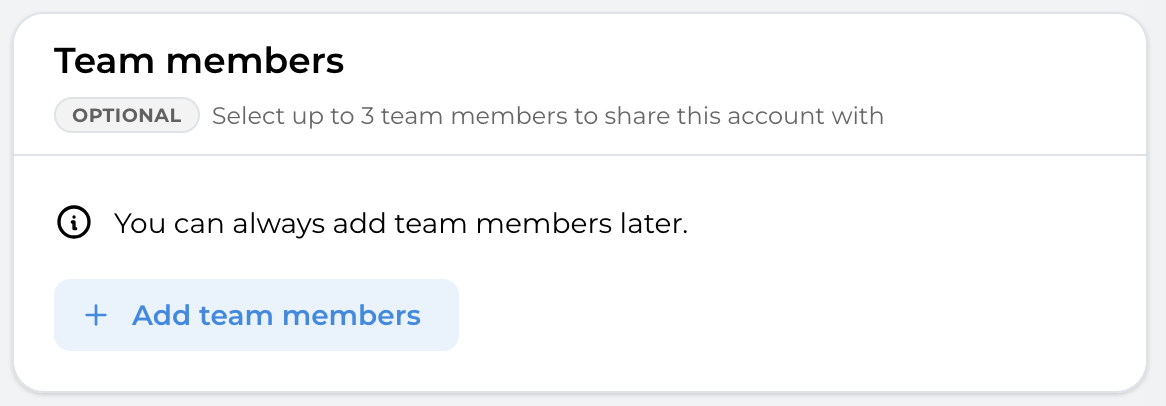
- Click on "**Add team members**" to add the users of your choice. Each account type defined the team maximum size (e.g. You + the users you share with).

- Finish by clicking on **Create Account** (or "**Request Account**"). Optionally, you can add comments describing why you are requesting this account. Note that these comments are visible to the reviewer of the account (managers or administrators).

[![image.png](https://docs.sandboxstudiosoftware.com/uploads/images/gallery/2026-03/scaled-1680-/9BOimage.png)](https://docs.sandboxstudiosoftware.com/uploads/images/gallery/2026-03/9BOimage.png)
You are now redirect to the "My AWS Accounts" page with the new account added to the list. Depending on the scenario, the account may be:

- **Active**: No resource to be created and no approval required
- **Pending Approval**: A manager needs to approve your request (Managers will receive an e-mail notification)
- **Pending Setup**: Resources need to be provisioned in your account before it becomes Active

[![image.png](https://docs.sandboxstudiosoftware.com/uploads/images/gallery/2026-03/scaled-1680-/3N1image.png)](https://docs.sandboxstudiosoftware.com/uploads/images/gallery/2026-03/3N1image.png)
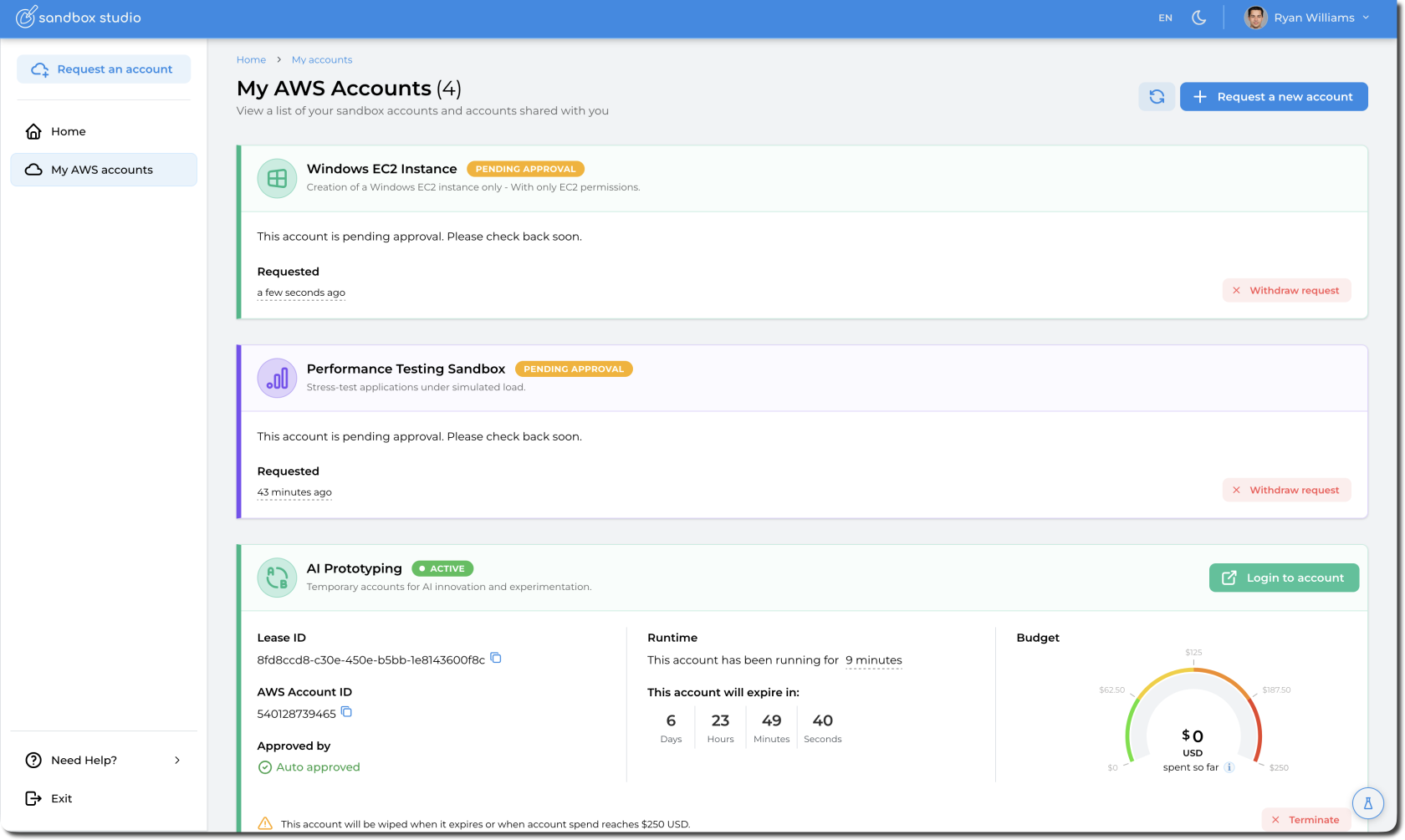
<p class="callout info">Note: You may need to click the refresh icon or refresh the browser to see the updated status of the account.</p>


- If you made a mistake, or no longer needed the account, you could select **Withdraw request:**

[![image.png](https://docs.sandboxstudiosoftware.com/uploads/images/gallery/2026-03/scaled-1680-/k5kimage.png)](https://docs.sandboxstudiosoftware.com/uploads/images/gallery/2026-03/k5kimage.png)

<div class="chat-history-scroll-container" id="bkmrk--7"><div class="conversation-container message-actions-hover-boundary ng-star-inserted" id="bkmrk--8"><div><div class="response-container ng-tns-c1037973350-211 response-container-with-gpi ng-star-inserted response-container-has-multiple-responses"><div class="response-container-footer ng-tns-c1037973350-211"><div class="actions-container-v2 ng-tns-c1194771869-213"><div class="buttons-container-v2 ng-tns-c1194771869-213 ng-star-inserted">  
</div></div></div></div></div></div></div>

# Logging into an account

Once you’ve requested an account and the account is in an **Active** state, you can access login to the associated AWS console.

- On the home page, select **Login to account** (1) for the account you want to access. This directs you to the **AWS Access portal.**

[![image.png](https://docs.sandboxstudiosoftware.com/uploads/images/gallery/2026-03/scaled-1680-/V3Timage.png)](https://docs.sandboxstudiosoftware.com/uploads/images/gallery/2026-03/V3Timage.png)

- On the AWS Access portal, the **Account access details** box, you will find all the available roles that can be used for logging in. You can either: 
    - **Select the role name** (1) you want to use. This will redirect you to the AWS console.
    - Alternatively, to retrieve your AWS CLI credentials, choose **Access keys** next to your desired role. This will open a pop-up with instructions for Mac, Linux, Windows and PowerShell environments.

[![image.png](https://docs.sandboxstudiosoftware.com/uploads/images/gallery/2026-03/scaled-1680-/4U6image.png)](https://docs.sandboxstudiosoftware.com/uploads/images/gallery/2026-03/4U6image.png)

# Terminate my account

From the left menu, access your accounts by clicking on "**My AWS accounts**":

[![image.png](https://docs.sandboxstudiosoftware.com/uploads/images/gallery/2026-03/scaled-1680-/1fsimage.png)](https://docs.sandboxstudiosoftware.com/uploads/images/gallery/2026-03/1fsimage.png)

In the list of accounts, select the account you want to terminate and click on the "Terminate" button (1):

[![image.png](https://docs.sandboxstudiosoftware.com/uploads/images/gallery/2026-03/scaled-1680-/j4Himage.png)](https://docs.sandboxstudiosoftware.com/uploads/images/gallery/2026-03/j4Himage.png)

Tick the box to acknowledge that all resources in the account will be deleted and click on "**Terminate**" to terminate the account:

[![image.png](https://docs.sandboxstudiosoftware.com/uploads/images/gallery/2026-03/scaled-1680-/v8qimage.png)](https://docs.sandboxstudiosoftware.com/uploads/images/gallery/2026-03/v8qimage.png)

# Share my account

<span class="s1">Accounts can be shared with other users either at creation time (see \[Requesting a New Account\](https://docs.sandboxstudiosoftware.com/books/user-guide/page/requesting-a-new-account)) or after the account is active. </span>

<span class="s1">Shared users receive the same </span><span class="s1">access permissions as the account owner, making this feature particularly useful for group projects where multiple people need access to the same resources.</span>

To access Sharing option, click on the "Teams" icon in your account list:

[![image.png](https://docs.sandboxstudiosoftware.com/uploads/images/gallery/2026-03/scaled-1680-/qrRimage.png)](https://docs.sandboxstudiosoftware.com/uploads/images/gallery/2026-03/qrRimage.png)

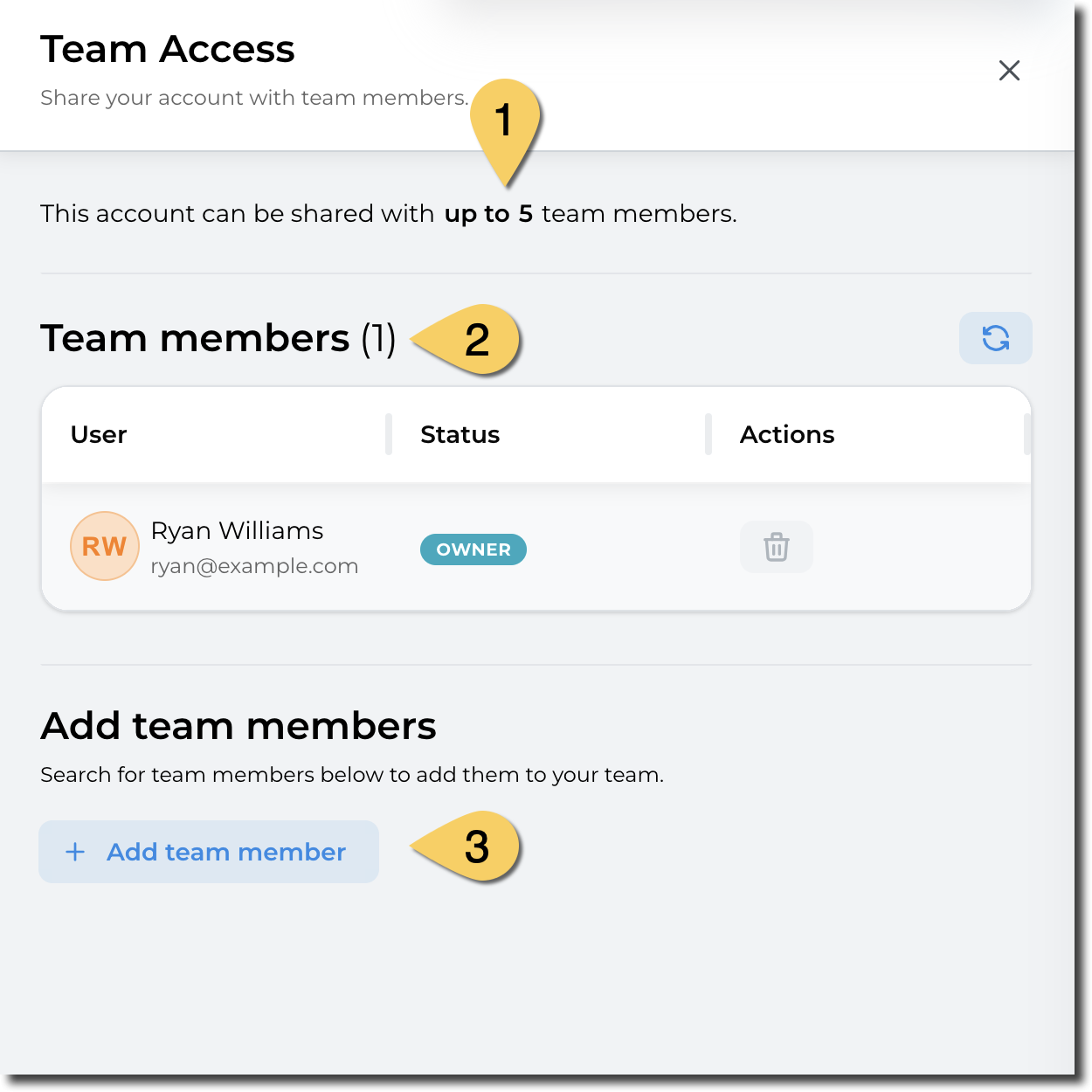
- In the side panel, sharing details (or "Team Access") is displayed: 
    1. Maximum team size:
    2. Current team members
    3. Adding a new team

<p class="callout info"><span class="s1">The maximum team size (including the account owner) is defined by the manager or administrator of the account type.</span></p>

[![image.png](https://docs.sandboxstudiosoftware.com/uploads/images/gallery/2026-03/scaled-1680-/B6Yimage.png)](https://docs.sandboxstudiosoftware.com/uploads/images/gallery/2026-03/B6Yimage.png)

<p class="callout warning"><span class="s1">Note that it may take a few seconds for a shared account to become visible to the invited users. </span></p>

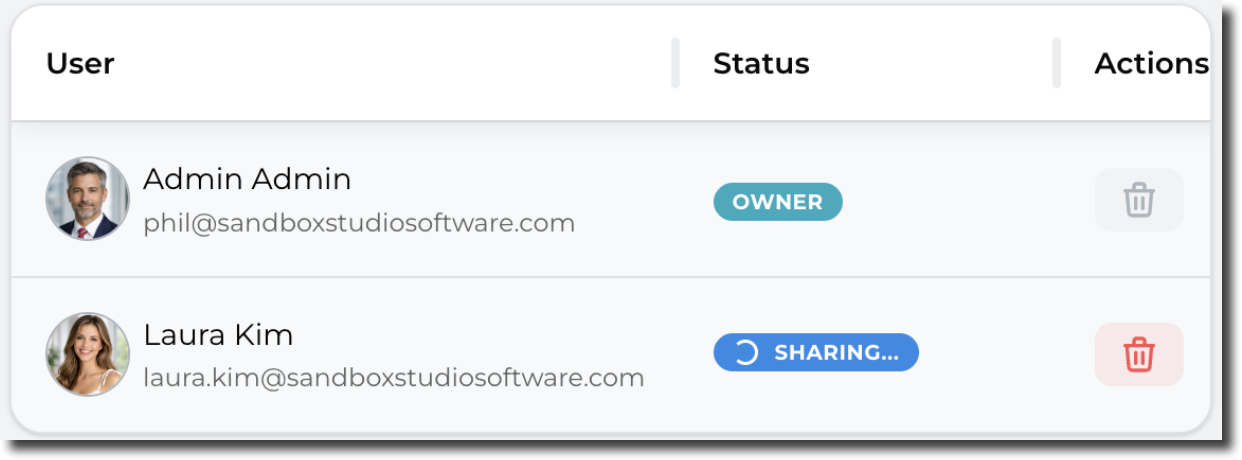
<span class="s1">During that time, the account shows as "Sharing...":</span>

[![image.png](https://docs.sandboxstudiosoftware.com/uploads/images/gallery/2026-03/scaled-1680-/Iqzimage.png)](https://docs.sandboxstudiosoftware.com/uploads/images/gallery/2026-03/Iqzimage.png)

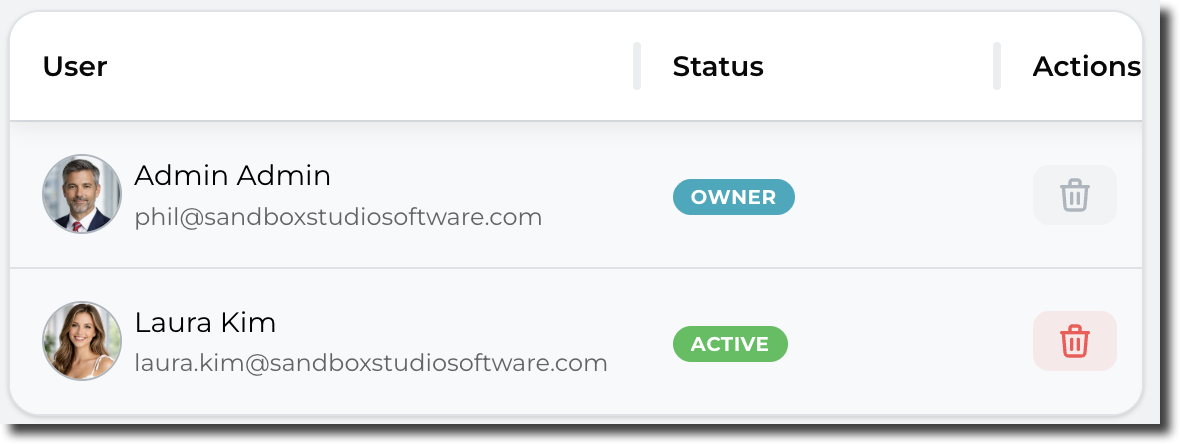
After a few seconds, the account share becomes active and is shown as below:[  
![image.png](https://docs.sandboxstudiosoftware.com/uploads/images/gallery/2026-03/scaled-1680-/O2Zimage.png)](https://docs.sandboxstudiosoftware.com/uploads/images/gallery/2026-03/O2Zimage.png)

<p class="callout info"><span class="s1">Sharing can be revoked at any time. For this, simply click on the red bin account to remove access to other users</span></p>

# Accessing environment details

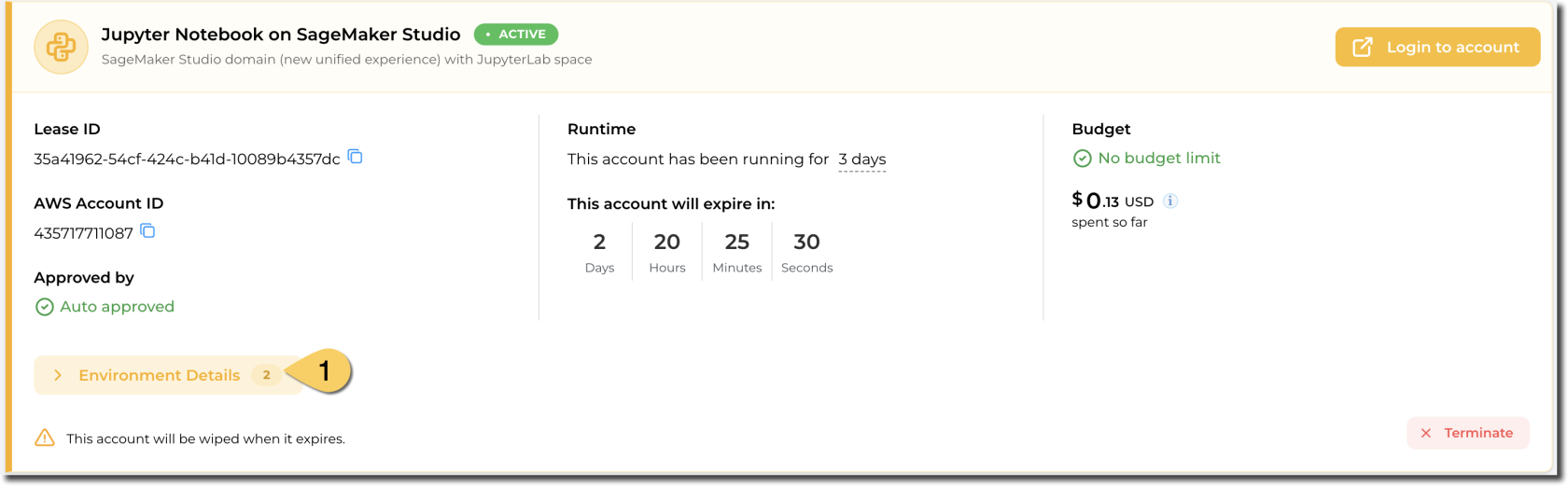
<span class="s1">For accounts with pre-provisioned resources, AWS resources are automatically provisioned when a lease is created. Template owners can configure specific outputs — such as environment variables, URLs, and credentials — to be surfaced to you once </span><span class="s1">provisioning is complete. </span>

<span class="s1">These outputs are available from the account details page (1):</span>

[![image.png](https://docs.sandboxstudiosoftware.com/uploads/images/gallery/2026-03/scaled-1680-/g4aimage.png)](https://docs.sandboxstudiosoftware.com/uploads/images/gallery/2026-03/g4aimage.png)

Click on "Environment Details" to expand the details:

[![image.png](https://docs.sandboxstudiosoftware.com/uploads/images/gallery/2026-03/scaled-1680-/pNnimage.png)](https://docs.sandboxstudiosoftware.com/uploads/images/gallery/2026-03/pNnimage.png)

<p class="callout info">In case of sensitive information (eg Passwords), values will be automatically masked</p>

# Account Setup Failed

<span class="s1">Account with pre-defined resources may fail during setup. When this occurs, the following message is displayed. </span>

[![image.png](https://docs.sandboxstudiosoftware.com/uploads/images/gallery/2026-03/scaled-1680-/r4Nimage.png)](https://docs.sandboxstudiosoftware.com/uploads/images/gallery/2026-03/r4Nimage.png)

Click on "Show account history" to see the account that filed setup:

[![image.png](https://docs.sandboxstudiosoftware.com/uploads/images/gallery/2026-03/scaled-1680-/BbGimage.png)](https://docs.sandboxstudiosoftware.com/uploads/images/gallery/2026-03/BbGimage.png)
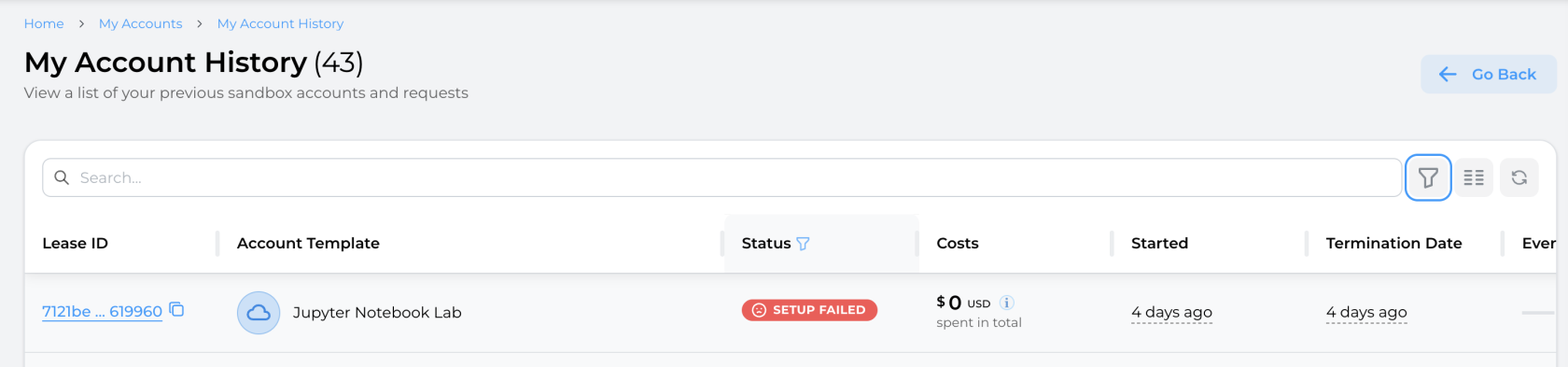
Copy the "**Lease ID**" and contact the manager of the account type or the administrator of the platform for further investigation.

<p class="callout info"><span class="s1">By default, administrators are also notified by e-mail when pre-provisioning of resources fail.</span></p>