Note: You can reserve accounts for your event by adding an account and not assigning it to any user
2. For big events, you can **import a CSV** file with the list of events 3. **Assign users** to the event you will create ##### How to assign user to an account Click on the "Assign user" button and select the user you want to assign to an account. Once assigned, the status becomes "**Assigned**" [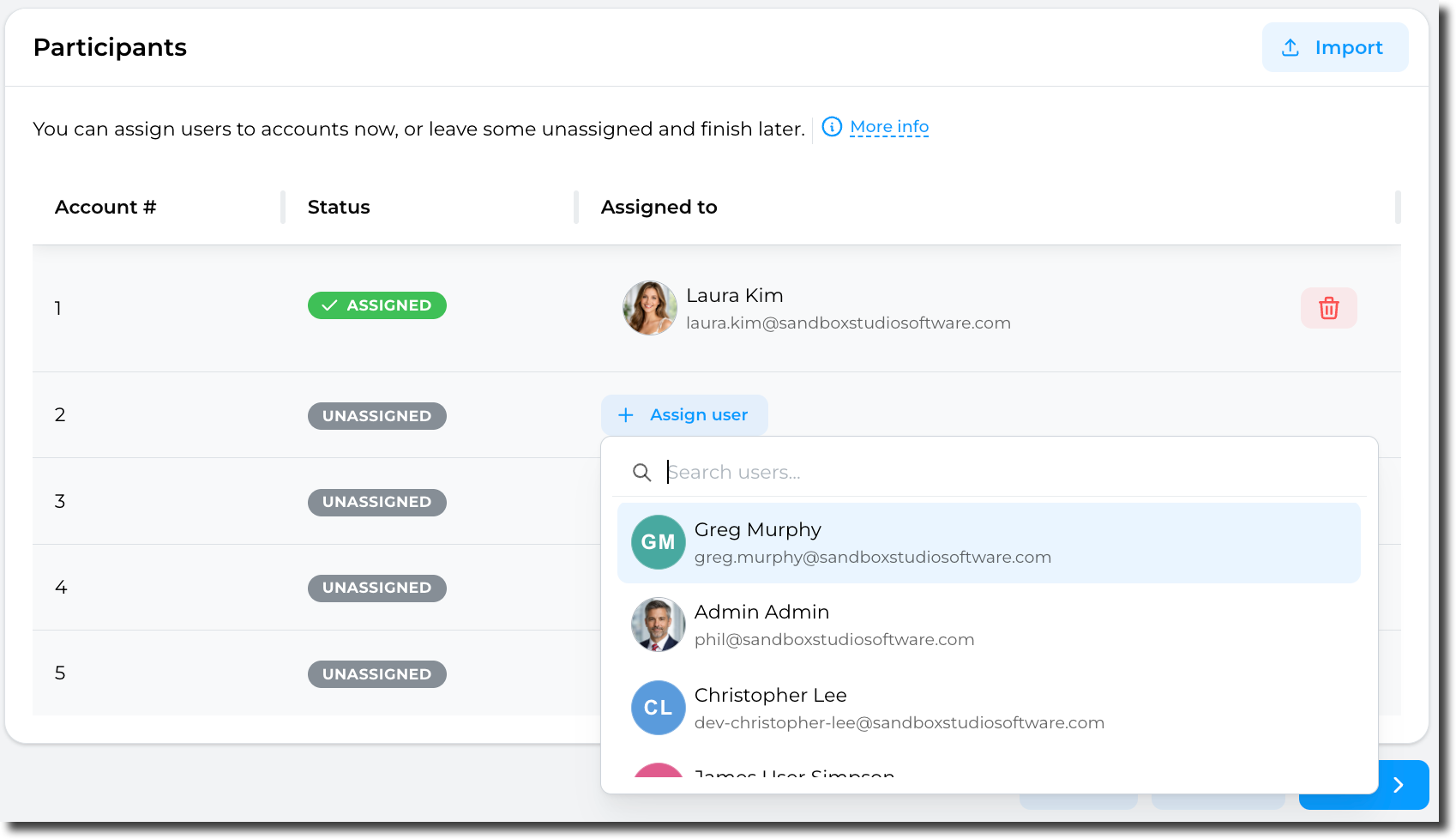](https://docs.sandboxstudiosoftware.com/uploads/images/gallery/2026-04/qy7image.png)If you let the account "Unassigned", a lease will be created but not assigned to any user. This is a way to "reserve" an account and prepare it before later assigning it to users.
##### How to import a CSV Click on the Import button: [](https://docs.sandboxstudiosoftware.com/uploads/images/gallery/2026-04/UPUimage.png) You can then Drag and Drop your CSV file: [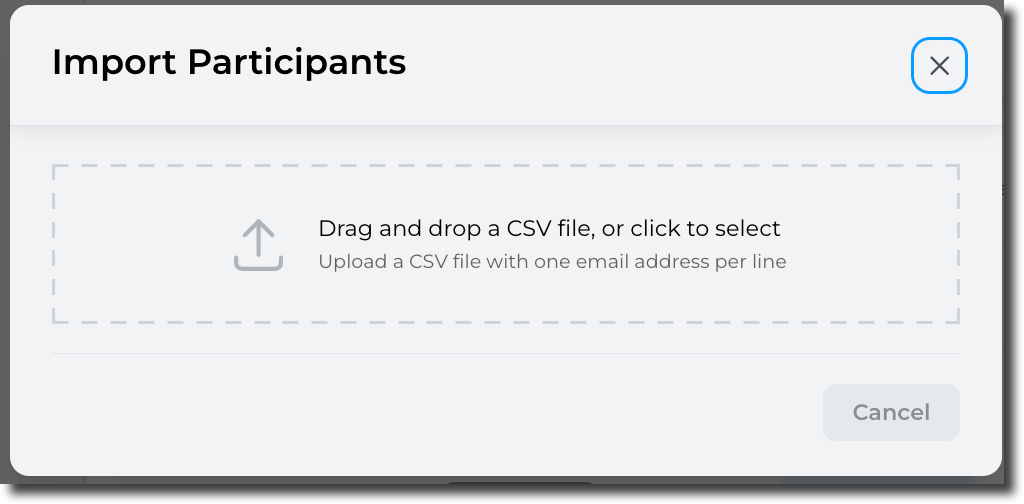](https://docs.sandboxstudiosoftware.com/uploads/images/gallery/2026-04/tN9image.png) Format of the CSV file is as follows: ``` email1@example.com email2@example.com email3@example.com ```Only valid e-mail addresses will be processed. So if you add a header to CSV file, it will be ignored.
Sandbox Studio will then check the CSV file: [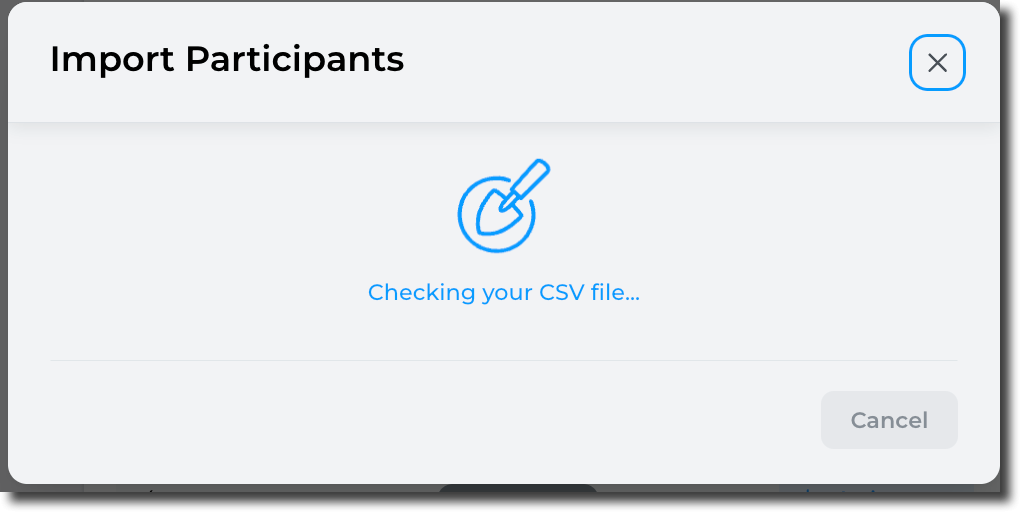](https://docs.sandboxstudiosoftware.com/uploads/images/gallery/2026-04/Cbdimage.png) After a few seconds (depending on how many users are in the CSV file): [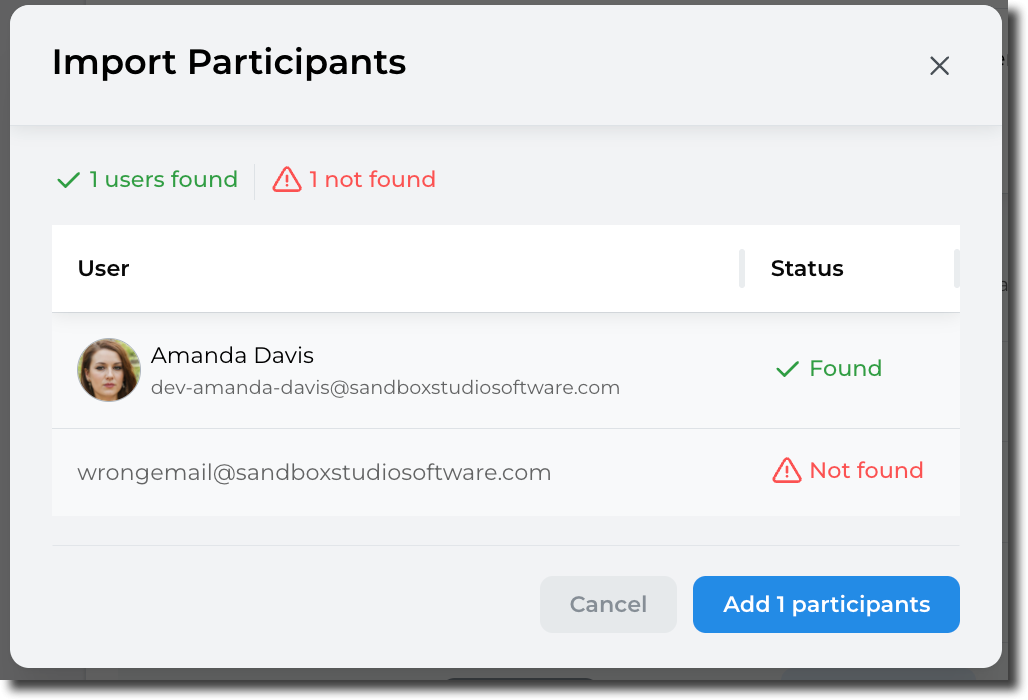](https://docs.sandboxstudiosoftware.com/uploads/images/gallery/2026-04/Vtdimage.png) Only the found users will be added to the event: [](https://docs.sandboxstudiosoftware.com/uploads/images/gallery/2026-04/ob4image.png) Once account numbers are set and users assign, click Next to [Event creation - Managers](https://docs.sandboxstudiosoftware.com/books/manager-guide/page/event-creation-managers "Event creation - Managers")