# Account template creation - Basic Details
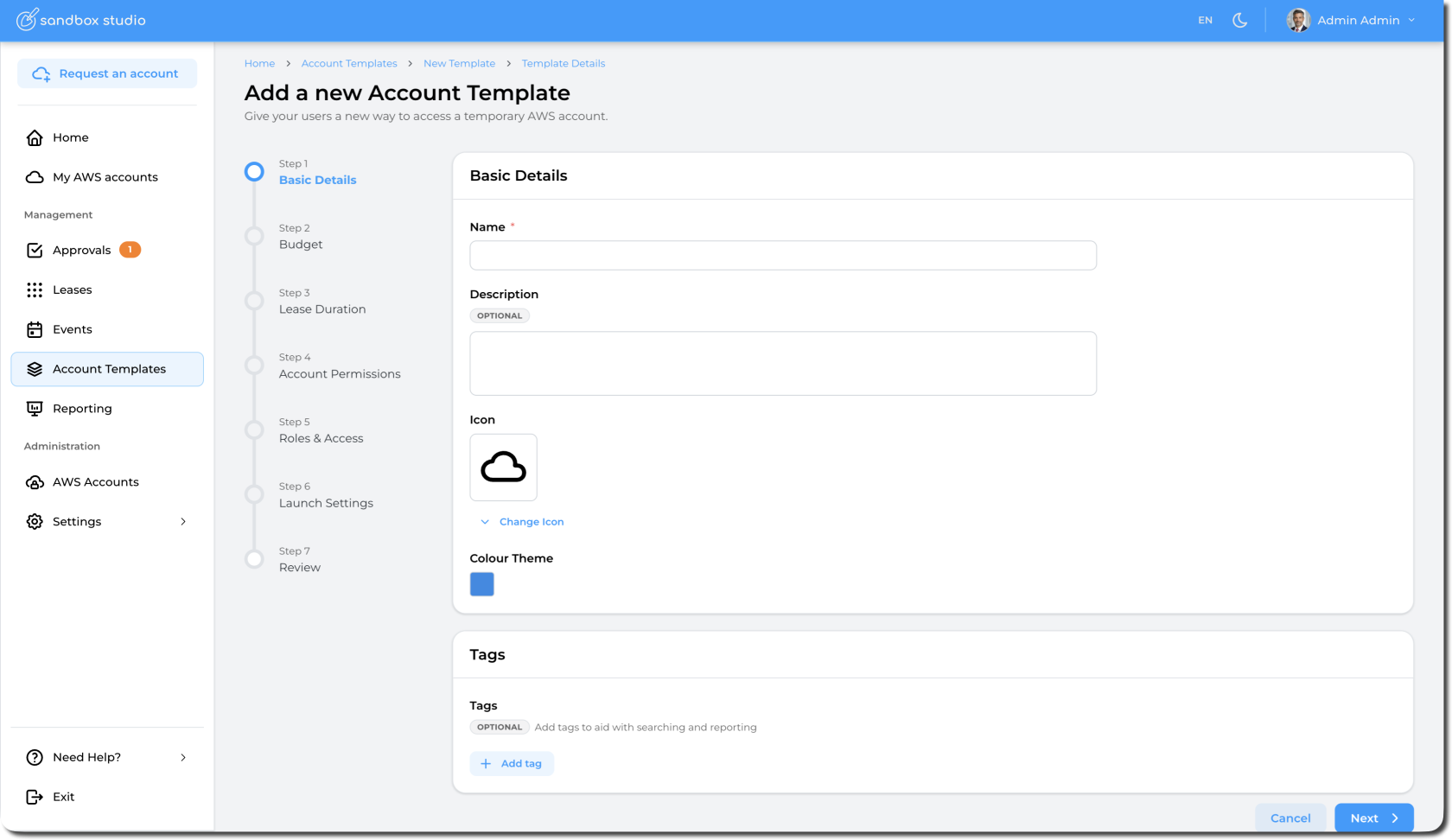
On the **Add a new Account Template** page, complete the required fields in the **Basic Details** section.
- For **Name**, enter a descriptive name for your lease template so that you can easily keep track of it.
- *(Optional)* For the description, specify the intended purpose of the account type.
- Click on **Change Icon** if you want to change the icon associated with your template.
- Click on the **Colour Theme** selector to choose the colour of the icon and template theme.
- Lastly you have the option to add **Tags**, let's look at that in more detail below.
[](https://docs.sandboxstudiosoftware.com/uploads/images/gallery/2026-04/s9Vimage.png)
**Tagging** accounts with parameters like "Department Name = Engineering" or "Cost Centre = M004" would enable users to gain granular insights into their AWS Sandbox Studio usage. This would allow for **precise cost allocation** and **chargebacks** to specific teams or projects, providing a clear understanding of spending patterns and resource consumption. It also facilitates better resource governance and optimisation by identifying areas of high expenditure or underutilised resources, leading to improved cost efficiency.
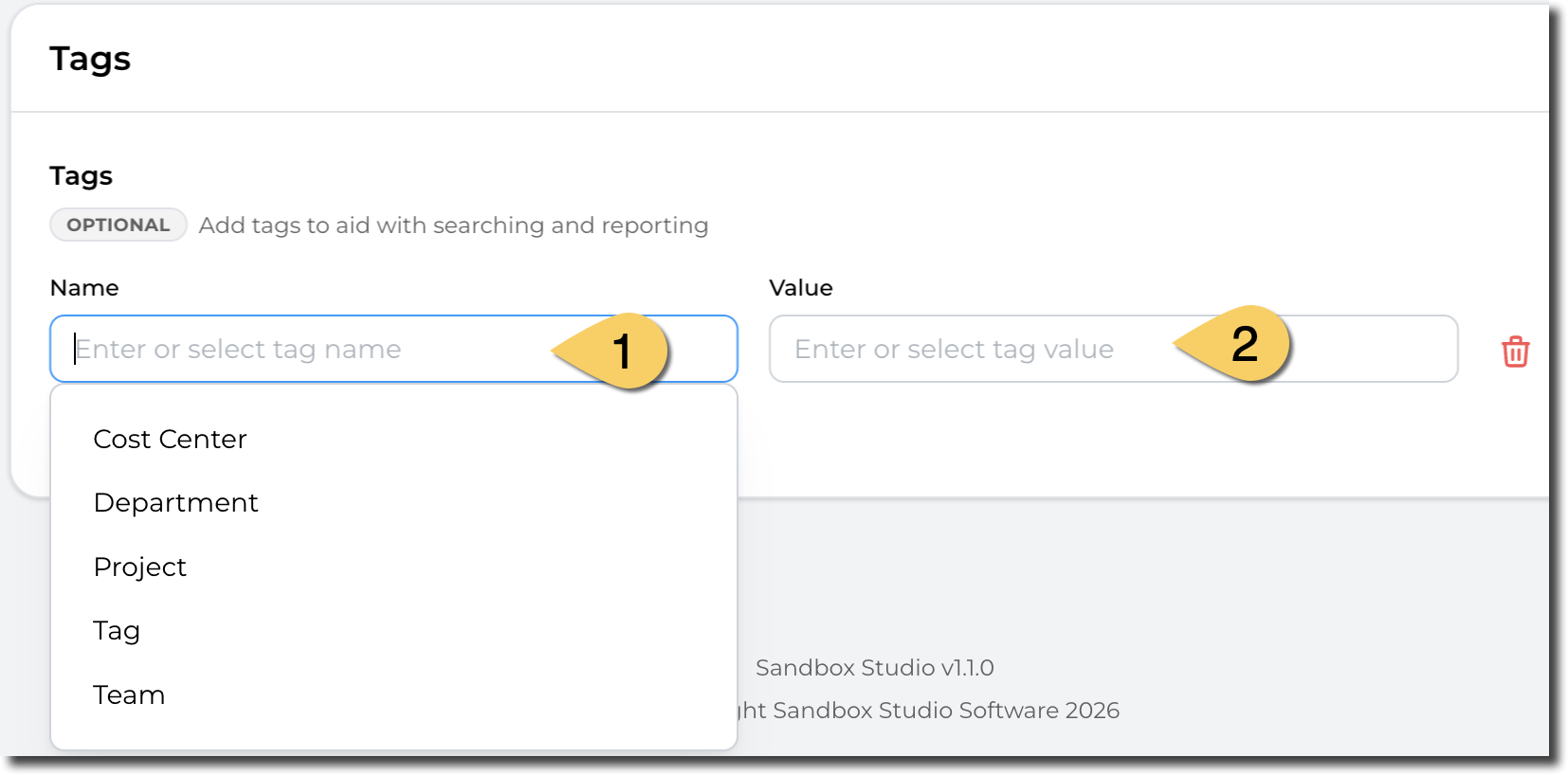
In the **Tags** section, users can either select from the options in the drop down, or create their own custom Tag names, by just typing into the **Name (1)** field. One you have selected or entered a name, you can type in or select a corresponding **value (2)** e.g. Department Name = Engineering
[](https://docs.sandboxstudiosoftware.com/uploads/images/gallery/2026-04/lkwimage.png)
Sandbox Studio does not include any predefined tags. The dropdown list is populated with tags that already exist in your environment.
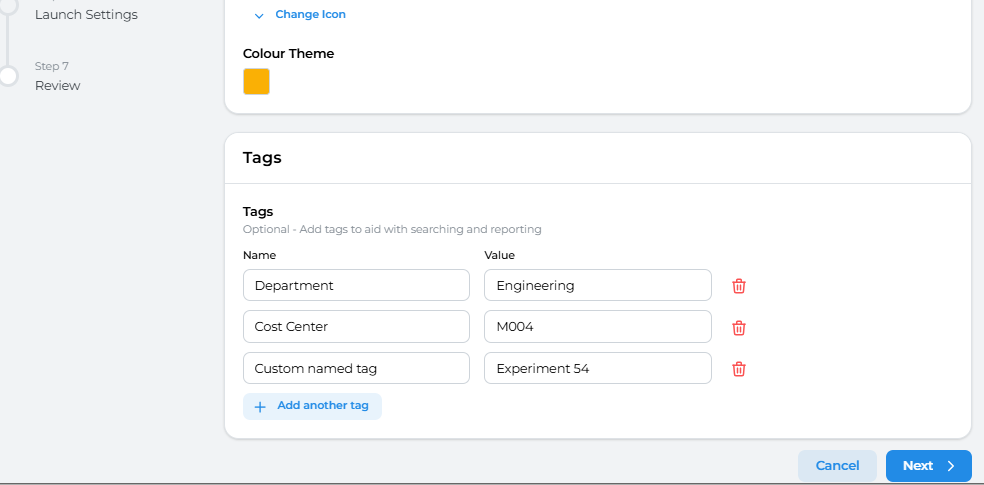
You can addd as many tags as needed to help you filter accounts as required. In the example below you can see 3 different tags
[](https://docs.sandboxstudiosoftware.com/uploads/images/gallery/2025-07/hsrimage.png)
Having completed all the fields on the Basic Details page as needed, click on **Next** to move to [Account template creation - Budget](https://docs.sandboxstudiosoftware.com/books/manager-guide/page/account-template-creation-budget "Account template creation - Budget")