
Note: Administrators have full permissions and can see all leases.
To access leases, click on the "Leases" link in the left menu: [](https://docs.sandboxstudiosoftware.com/uploads/images/gallery/2026-04/8bBimage.png) This displays the list of leases that are currently being used (Status Active, Locked, or Pending Approval): [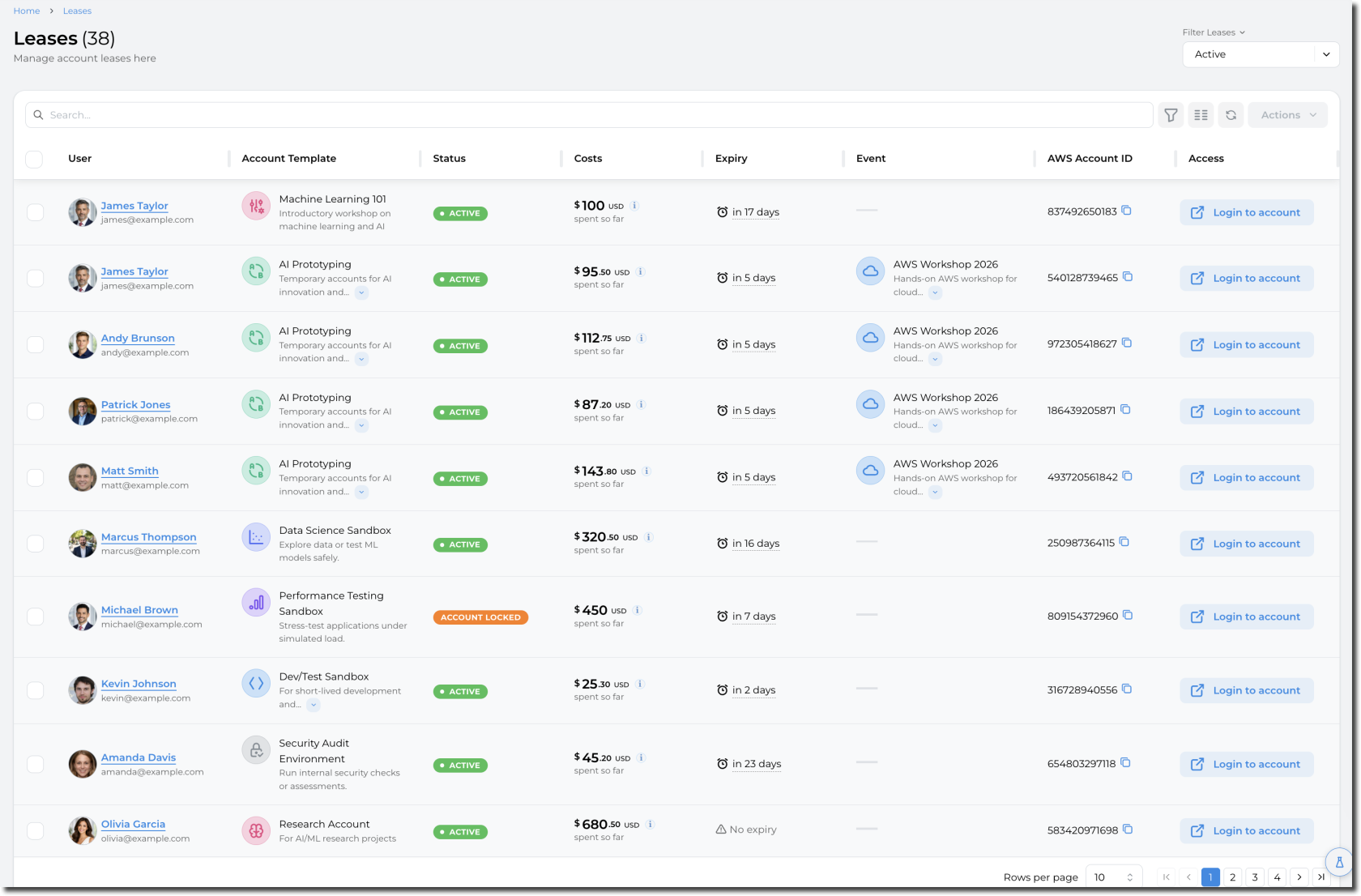](https://docs.sandboxstudiosoftware.com/uploads/images/gallery/2026-04/DyRimage.png) # Filtering leases #### Filter by lease status From the leases page, you can select the status of the leases you want to display. Example, only showing "**Pending Approval**" leases: [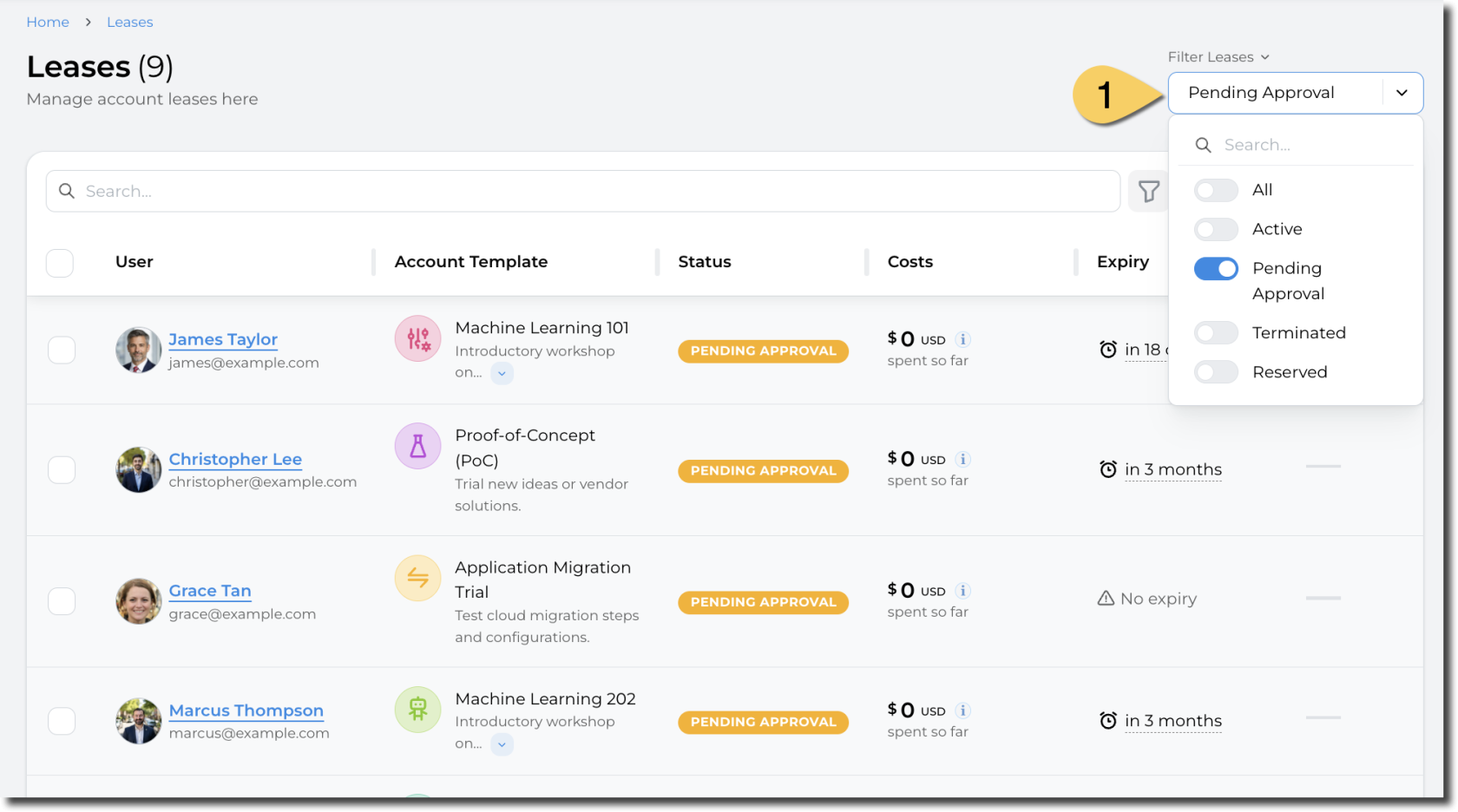](https://docs.sandboxstudiosoftware.com/uploads/images/gallery/2026-04/8vbimage.png) #### Filter by other fields You can also filter by all the fields displayed in the table. This allows, for example, to filter on a particular event, budget, or account template. To access this filter, click on the filter icon at the top of the table: [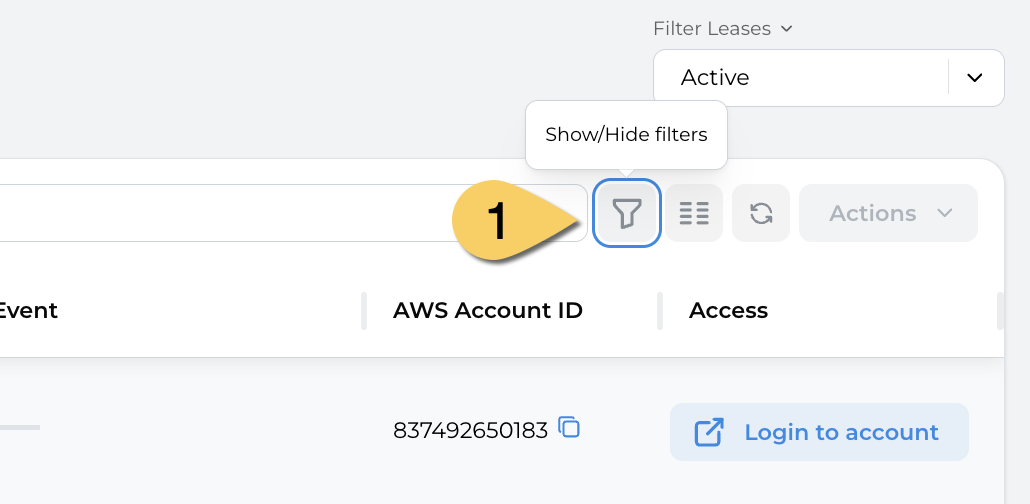](https://docs.sandboxstudiosoftware.com/uploads/images/gallery/2026-04/tKUimage.png) The list of filters will appear. For example, filter leases having their current cost between $10 and $50: [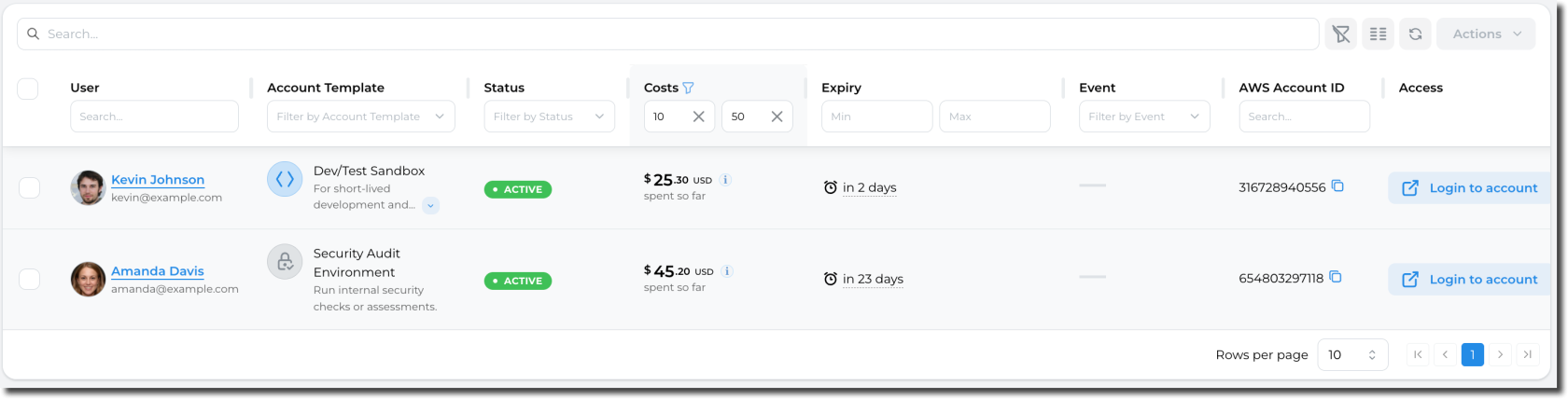](https://docs.sandboxstudiosoftware.com/uploads/images/gallery/2026-04/bIWimage.png) For fields with finite values (i.e. "Account template"), a searchable dropdown will be displayed:[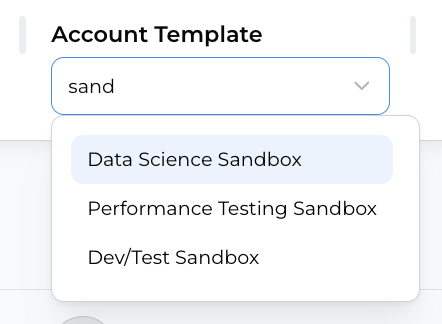](https://docs.sandboxstudiosoftware.com/uploads/images/gallery/2026-04/Ct8image.png) If you close the Filter menu, but still have some filters applied, an icon will be displayed on the columns being filtered: [](https://docs.sandboxstudiosoftware.com/uploads/images/gallery/2026-04/1bRimage.png) # Lease details This page describes the different sections of the lease details page: [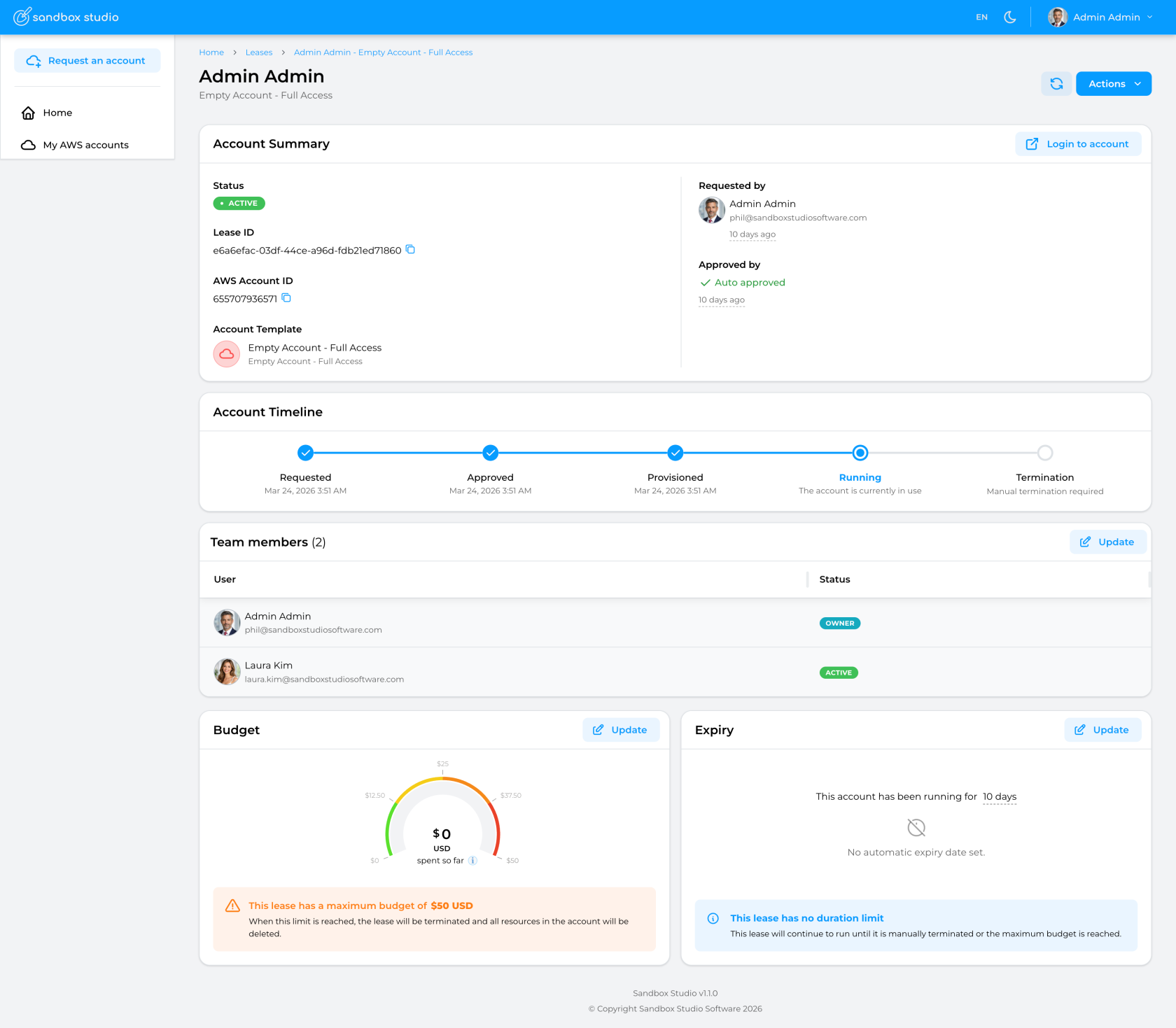](https://docs.sandboxstudiosoftware.com/uploads/images/gallery/2026-04/dev-sandboxstudiosoftware-com-leases-e6a6efac-03df-44ce-a96d-fdb21ed71860.png) #### Account Summary Account summary contains the basic information about the lease and its associated account: [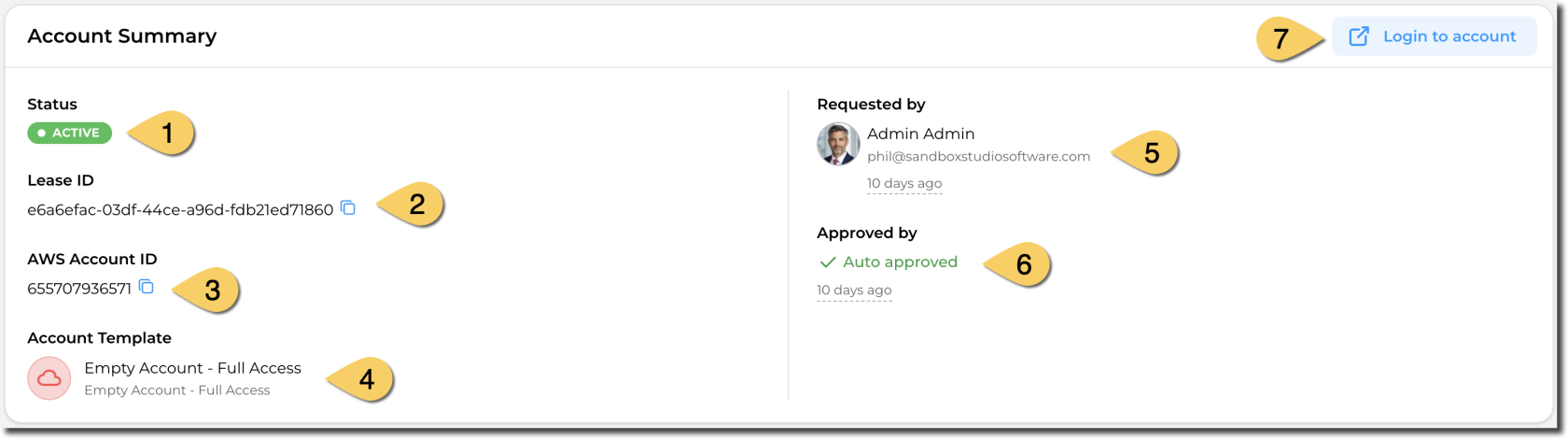](https://docs.sandboxstudiosoftware.com/uploads/images/gallery/2026-04/S65image.png) 1. The **Status** of the lease. [See lease status here](https://docs.sandboxstudiosoftware.com/books/manager-guide/page/reference-lease-states) 2. **Lease ID**. This is the unique identifier of the lease. 3. **AWS Account ID**: When a lease is active, an AWS account is associated to it. This is the AWS account ID for the current lease. 4. **Account template** used for this lease. 5. **User who has requested the lease**. The lease owner may be different than the requester as managers and administrators can request leases on behalf of other users. 6. **Approved by**: Shows the user who has approved (or rejected the lease). For account templates that do not require approval, the lease it auto approved. 7. **Login to the AWS account** using AWS Identity Center.Note: When a manager or administrator requests an account for an account template he/she can approve, the lease will be automatically approved.
#### Account Timeline The timeline shows you the different stages an account (lease) can go through. It also shows you what current state the account is in. [](https://docs.sandboxstudiosoftware.com/uploads/images/gallery/2026-04/nm1image.png) #### Team members This sections shows the users who can access this account. If the account template allows team sharing, then the owner (or a manager/admin) can share the account with other users. The "Status" columns indicates if the share is active (The other user can see and access the lease) or if the account is being shared (Status = "*Sharing...*"). By clicking on "Update", managers and administrators can share or un-share the account with other users. Refer to [How to share an account](https://docs.sandboxstudiosoftware.com/books/user-guide/page/share-my-account "How to share an account") for more details. [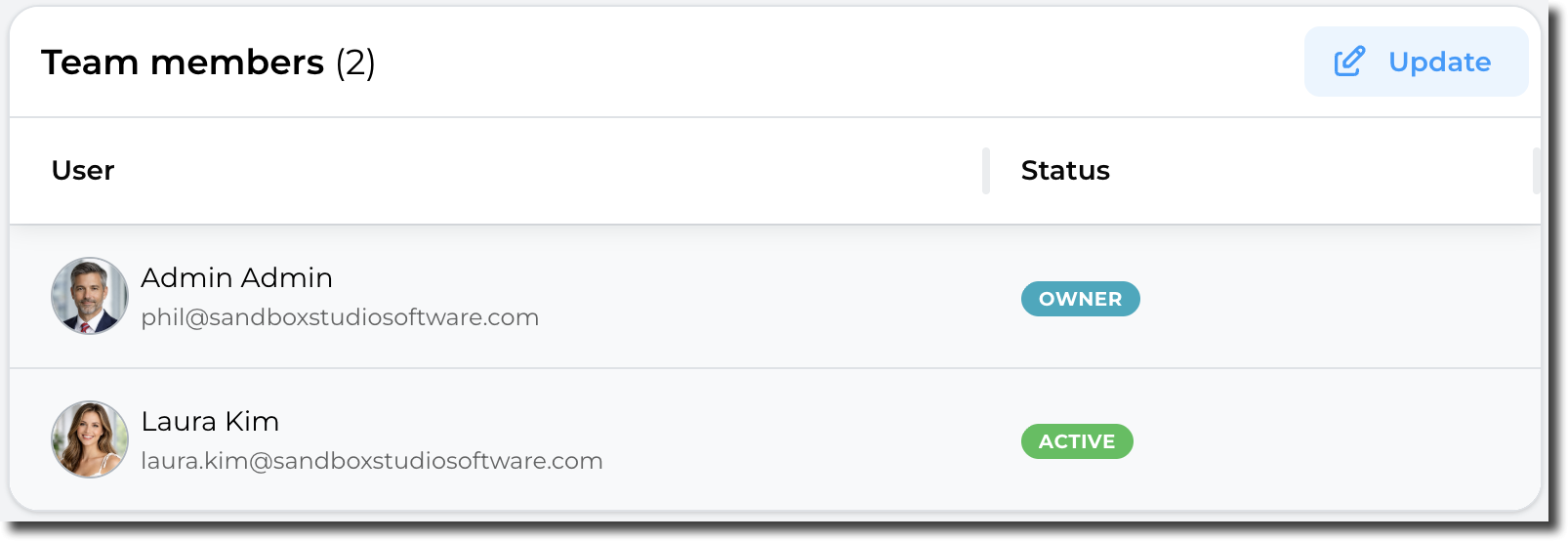](https://docs.sandboxstudiosoftware.com/uploads/images/gallery/2026-04/psbimage.png) #### Budget & Duration ##### Account limits versus Account templates limits:It is important to understand how duration and budget work:
1. The initial budget/duration of an account *(or lease)* is set on account creation, based on the account template used. - i.e: If the account template has a budget of $50, then the account created will have a default budget of $50. - The expiration date is calculated on account creation/start. This is particularly important for accounts related to events: The duration countdown will only start when the event (and therefore the lease) actually start, not when it's created. 2. During the account lifetime, managers and administrators can update the budget/expiration, independently from the account template. They can, for instance, extend the budget or prolongate the lifetime for a particular account without having to change the account template. ##### Budget The budget card shows the maximum budget for the account and the current spend. In this example, the maximum budget for this account is $50 and so far, $4.26 have been spent. Managers and Administrators can extend (or reduce) the budget by clicking on the "Update" button.[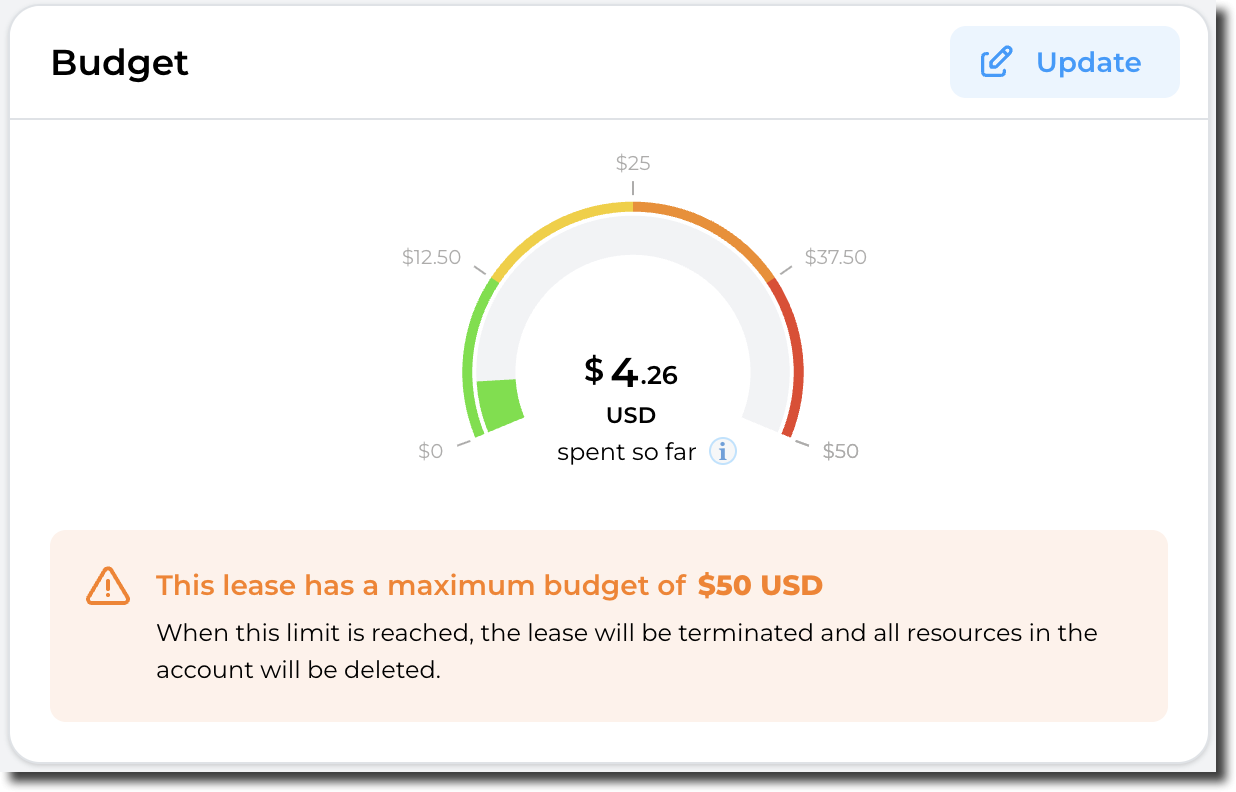](https://docs.sandboxstudiosoftware.com/uploads/images/gallery/2026-04/T6wimage.png) ##### Duration The duration card shows when this account will expire.The expiration date is calculated on account creation/start. This is particularly important for accounts related to events: The duration countdown will only start when the event (and therefore the lease) actually start, not when it's created.
In this example, the account has been running for 8 days and will expire in 20 days and 6 hours. Managers and Administrators can extend (or reduce) the lifespan of the account by clicking on the "Update" button. [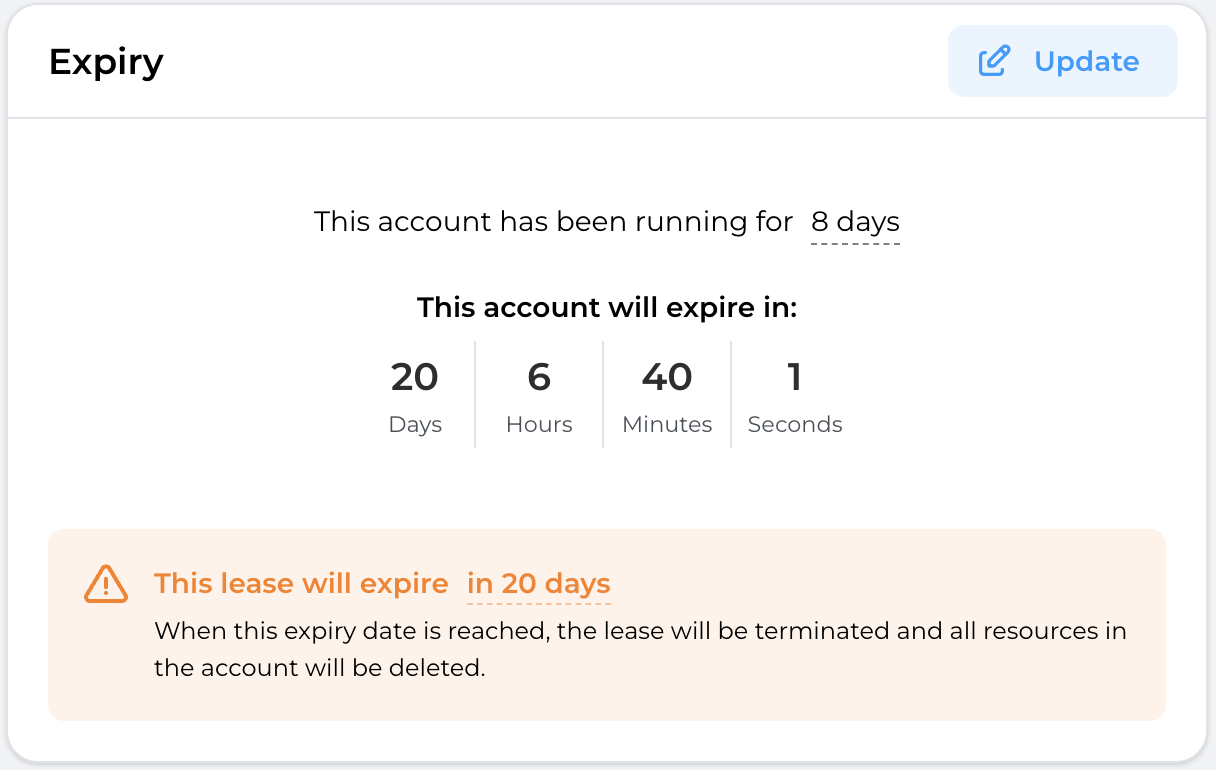](https://docs.sandboxstudiosoftware.com/uploads/images/gallery/2026-04/dxZimage.png) # Approving & rejecting leases #### Accessing approvals When setting up the Account Templates, the Manager or Admins can set an account to require approval, before it is issued to a user. When a user requests such an account, Managers or Admins need to approve the request for the user to be granted access to the lease. - Managers or Admins will be alerted to the fact that an Account Request needs approval on their email and in the Sandbox Studio UI on the left menu with a notifications on **Approvals (1).** From the left, select **Approvals (1)** to view your approval requests. [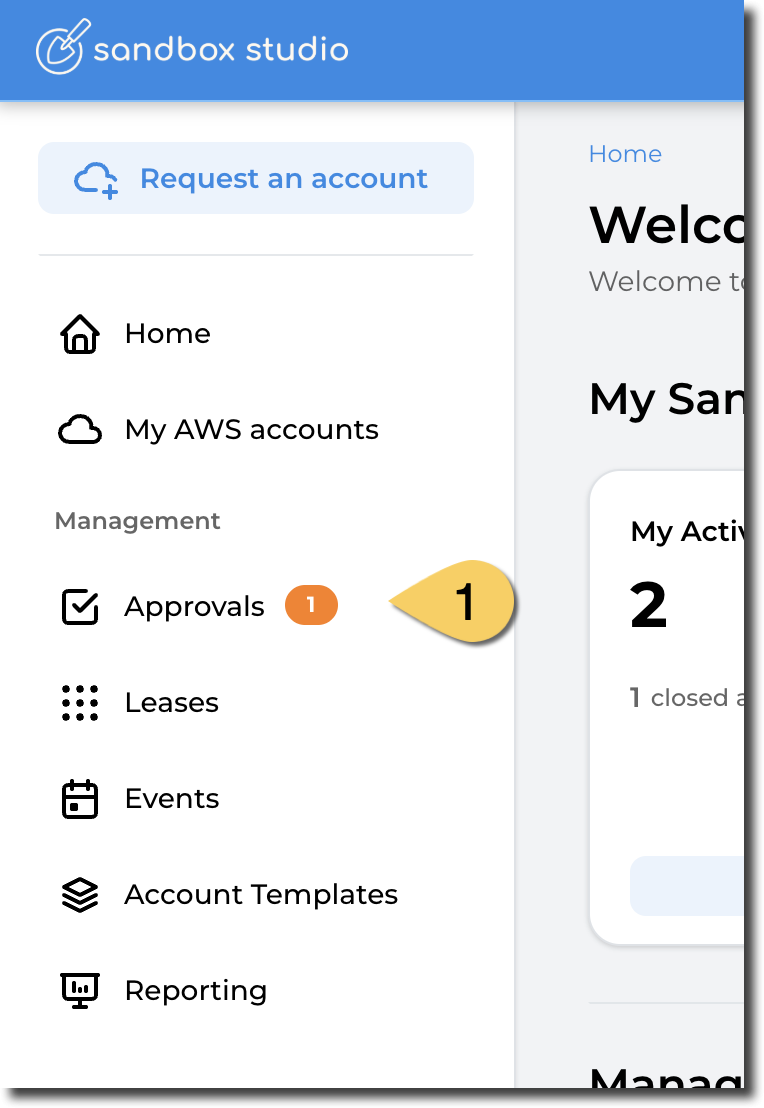](https://docs.sandboxstudiosoftware.com/uploads/images/gallery/2026-04/image.png) - This opens the **Approvals** page: [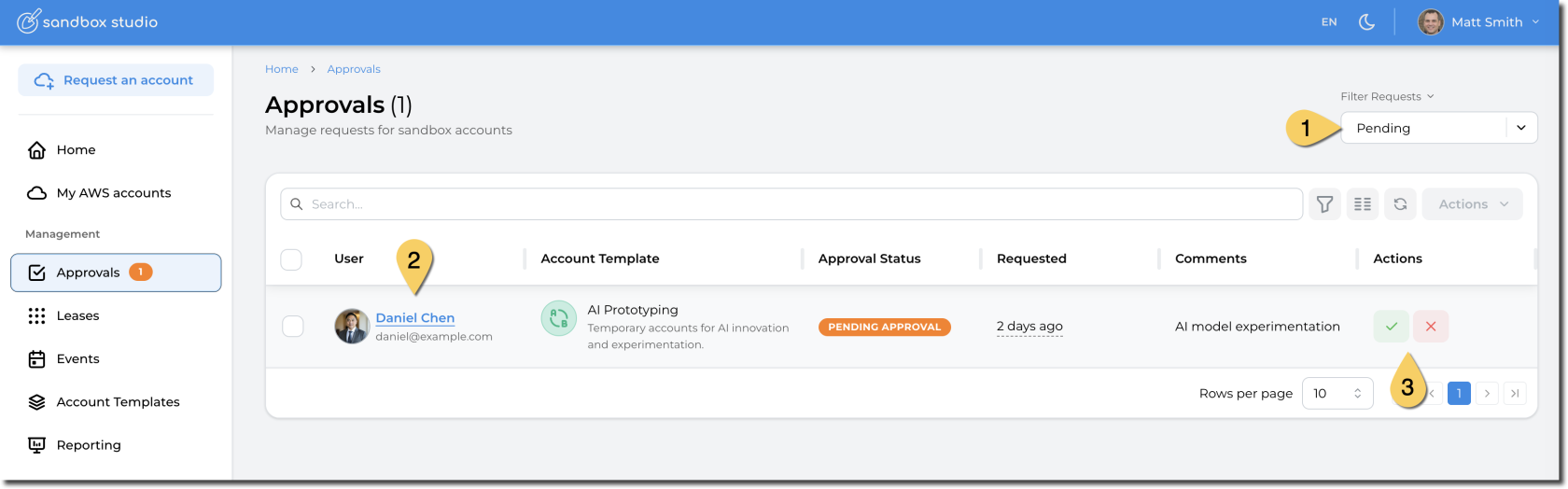](https://docs.sandboxstudiosoftware.com/uploads/images/gallery/2026-04/7oqimage.png) 1. 1. By default, this page only shows the pending approvals, but you can change the filter to display **All**, **Pending**, **Approved**, **Denied** or **Withdrawn** requests. 2. Click on the user's name to display more details about the request 3. Or you can directly Approve or Reject the request from this page. #### Request details If you want to access more details about the request or you need to update some parameters of the request, you can open it by clicking on the username of the requestor (Step 2 in the previous screenshot). The following page is then displayed: [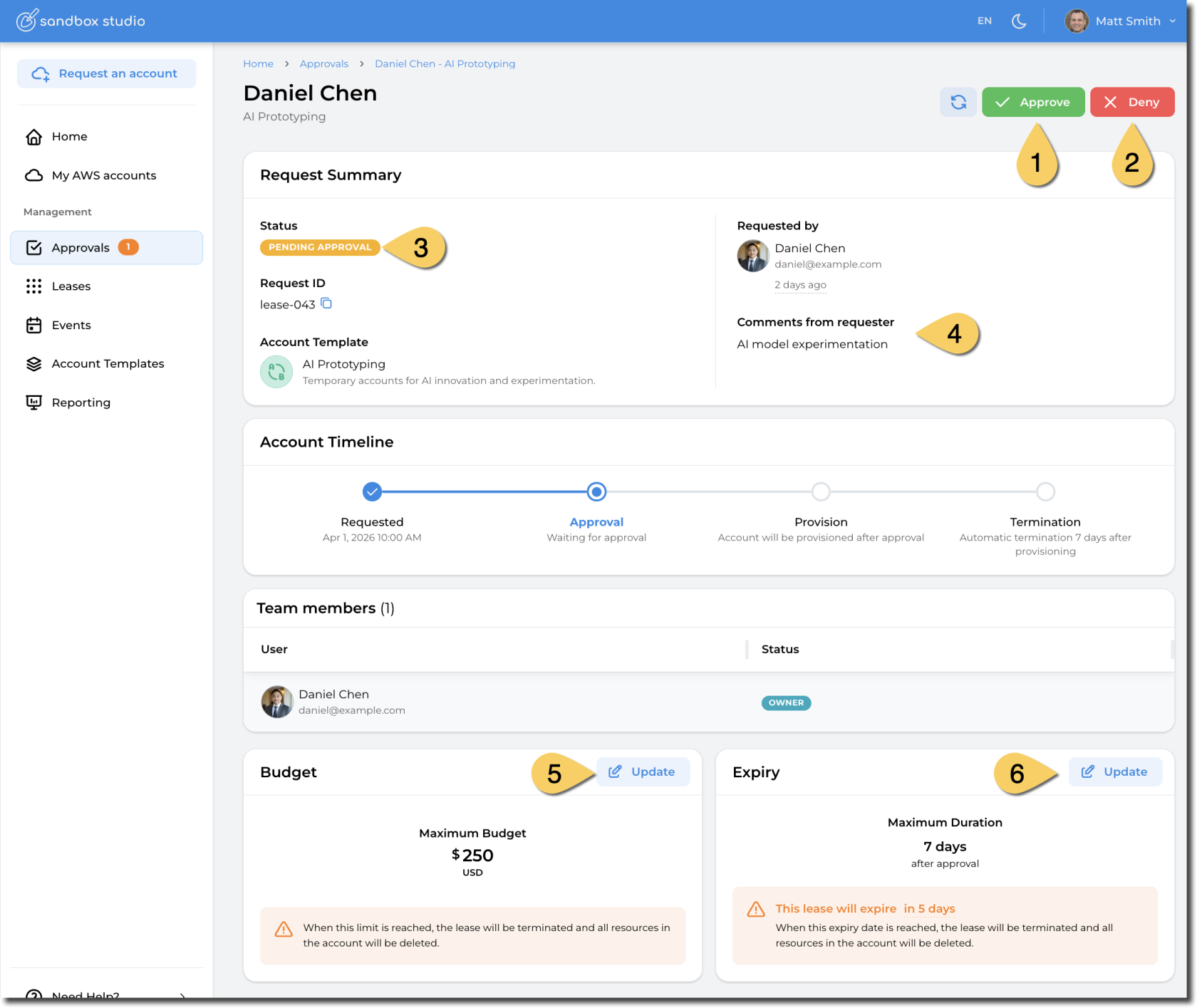](https://docs.sandboxstudiosoftware.com/uploads/images/gallery/2026-04/ogLimage.png) From there, you can: 1. **Approve** the request 2. **Deny** the request 3. See the **current status** of the request 4. See requestor's **comments** 5. **Update budget** for this lease. *(This overrides the account template default details)* 6. **Update duration** of this lease.*(This overrides the account template default details)* Once approved, the lease will go through the setup process, which could take a few minutes depending on the resources being created in the account. Once finished, the account will be marked as "**Active**" (1) and will be available to the requestor. [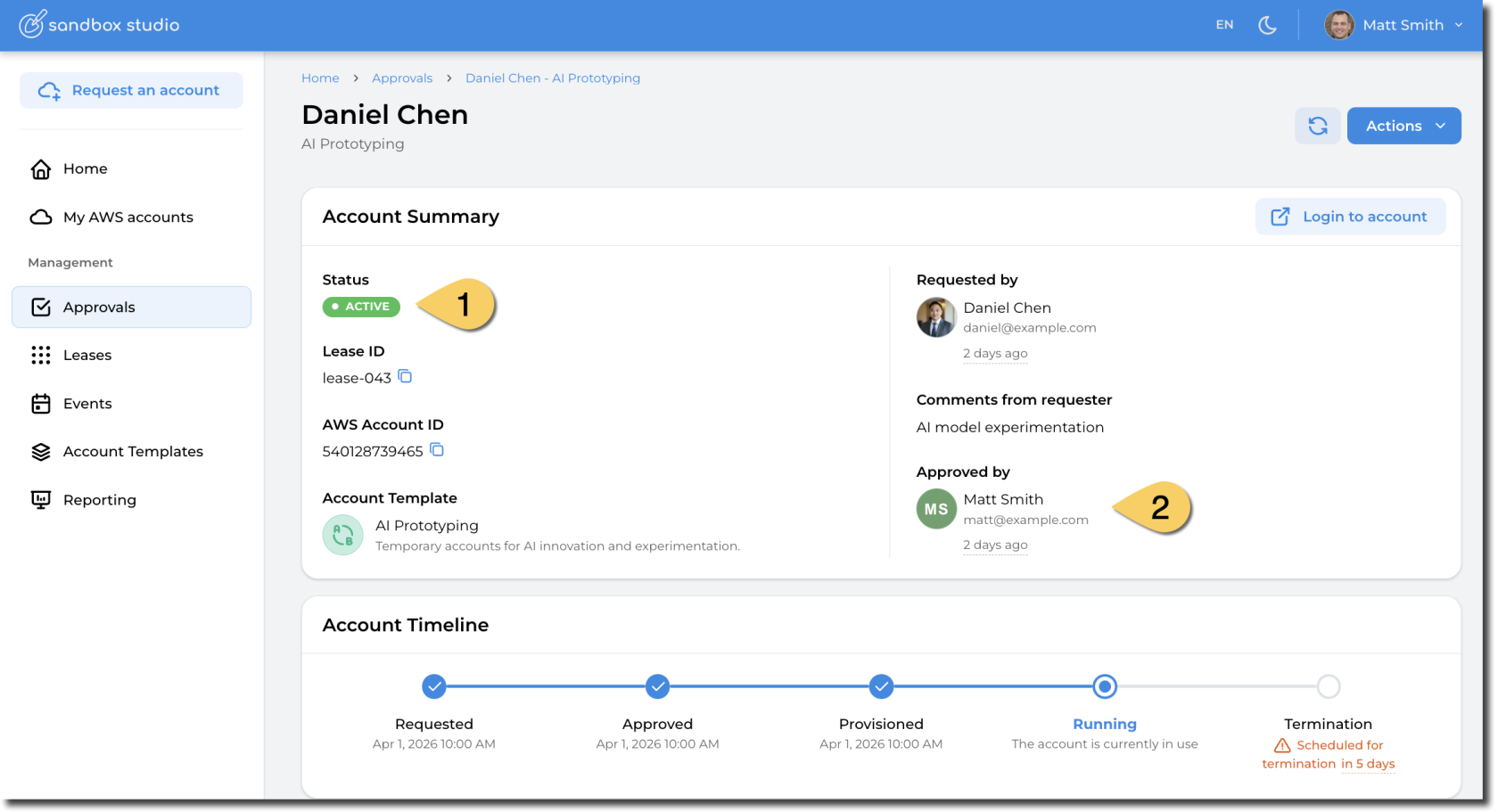](https://docs.sandboxstudiosoftware.com/uploads/images/gallery/2026-04/nWHimage.png) #### Bulk Approval When managing multiple leases at once, we recommend using the Events features, but in certain scenarios, you may need to bulk approve/denied leases. This is possible by going to the Approval page, select the requests to Approve/Deny, click on the Actions buttons and Approve/Reject the requests: [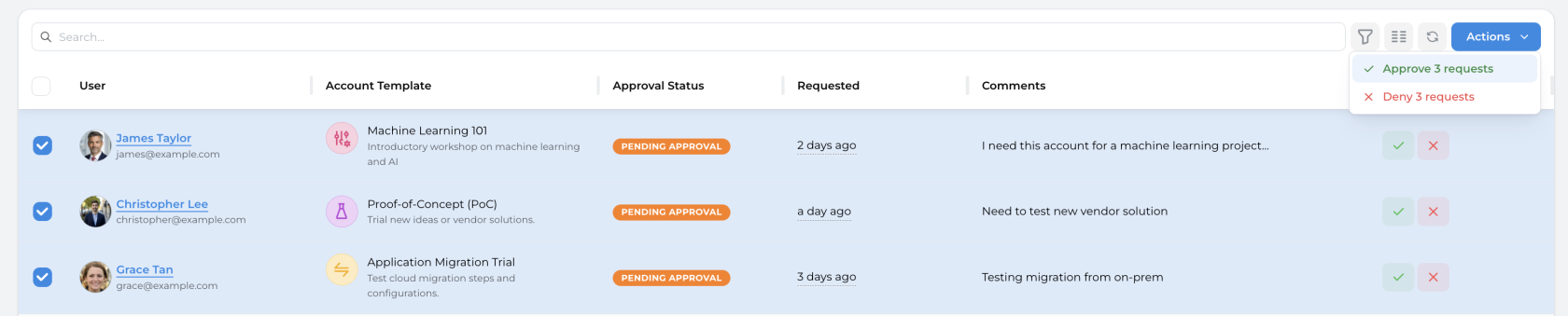](https://docs.sandboxstudiosoftware.com/uploads/images/gallery/2026-04/Du9image.png) # Locking & unlocking an account Managers and Administrators can lock (and unlock) accounts. Accounts can be locked if they are over budget or if they have expired.Once locked, the account is not accessible anymore to the end user, but remains active and accessible to the managers and administrators.
Accounts that are locked keep on incurring cost as existing resources are not stopped.
#### Lock an account From the lease details page, click on the Actions button and select "Lock account": [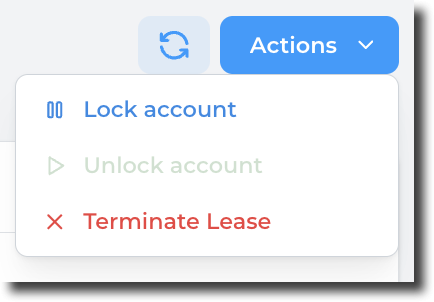](https://docs.sandboxstudiosoftware.com/uploads/images/gallery/2026-04/VaDimage.png) Confirm the action by clicking on "Lock": [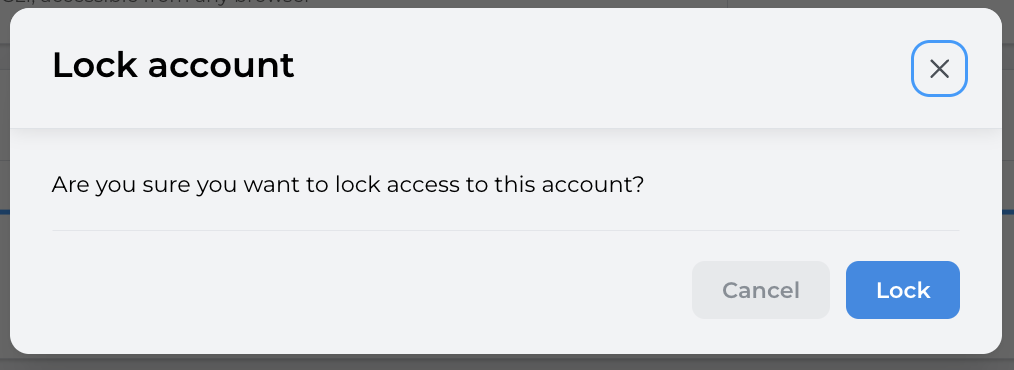](https://docs.sandboxstudiosoftware.com/uploads/images/gallery/2026-04/IKHimage.png) The account status changes to "Account locked" and name of the user who locked the account is shown: [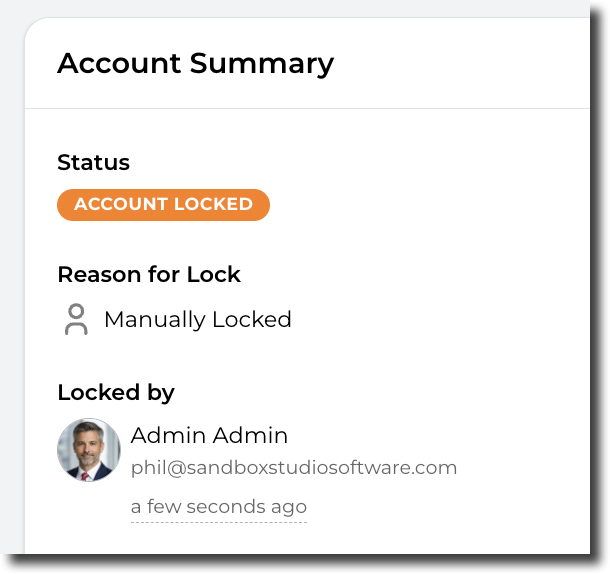](https://docs.sandboxstudiosoftware.com/uploads/images/gallery/2026-04/iL2image.png)The account owner will be notified by e-mail that the account has been locked.
#### Unlock an account From the lease details page, click on the Actions button and select "Unlock account": [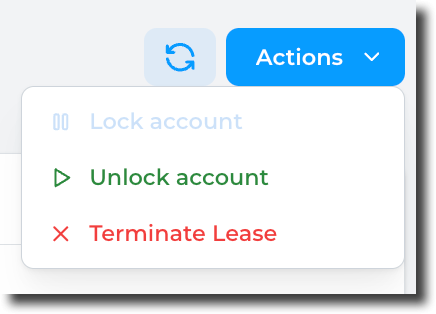](https://docs.sandboxstudiosoftware.com/uploads/images/gallery/2026-04/Tvoimage.png) Confirm the action by clicking on "Unlock": [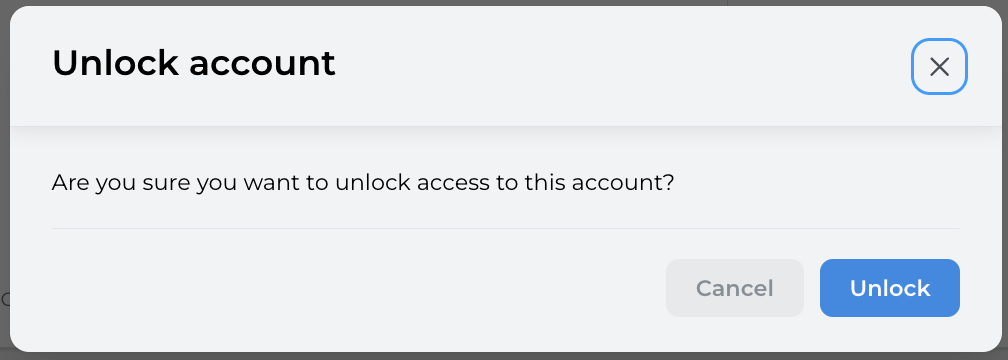](https://docs.sandboxstudiosoftware.com/uploads/images/gallery/2026-04/iN4image.png) The account status return to its previous state: [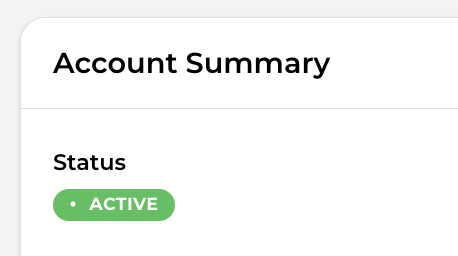](https://docs.sandboxstudiosoftware.com/uploads/images/gallery/2026-04/P7yimage.png)The account owner will be notified by e-mail that the account has been unlocked.
#### Lock/Unlock accounts in bulk: From the leases page, select the accounts you want to lock/unlock and click on the "Actions" button and select "Lock account"/"Unlock accounts": [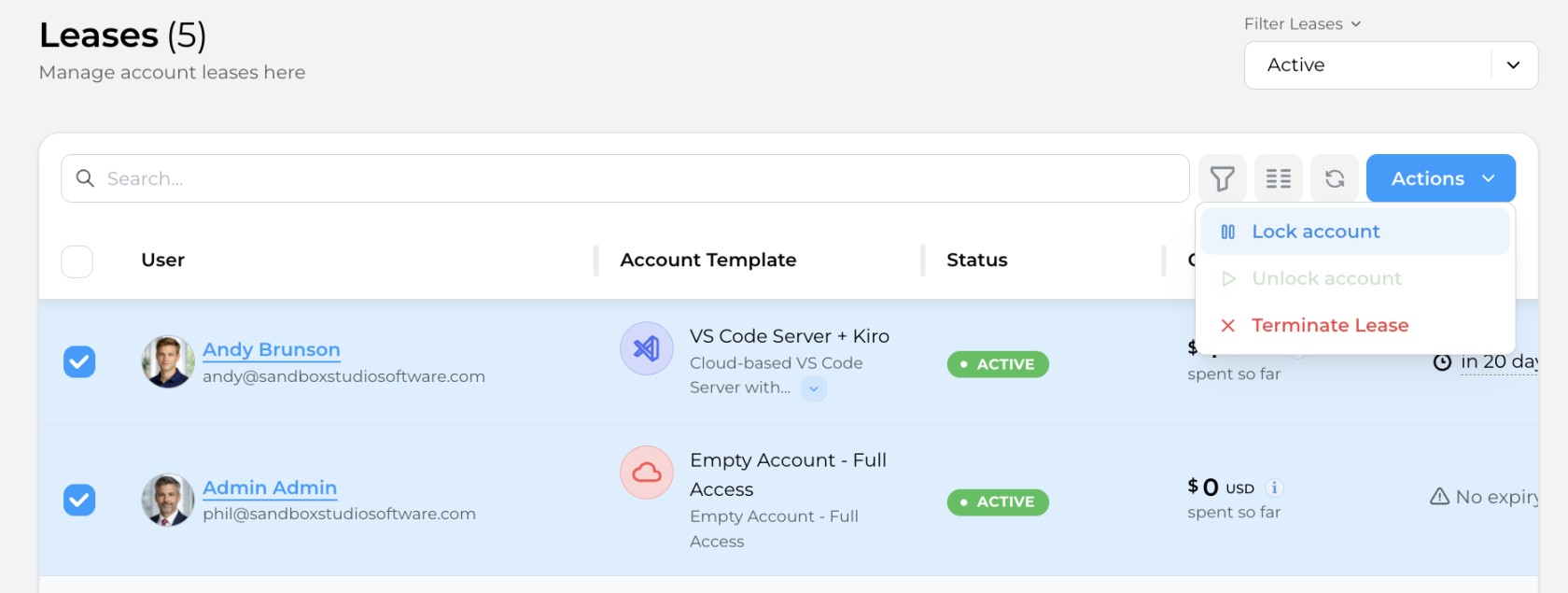](https://docs.sandboxstudiosoftware.com/uploads/images/gallery/2026-04/0HQimage.png) # Extend budget or duration #### Account limits versus Account templates limits:It is important to understand how duration and budget work:
1. The initial budget/duration of an account *(or lease)* is set on account creation, based on the account template used. - i.e: If the account template has a budget of $50, then the account created will have a default budget of $50. - The expiration date is calculated on account creation/start. This is particularly important for accounts related to events: The duration countdown will only start when the event (and therefore the lease) actually start, not when it's created. 2. During the account lifetime, managers and administrators can update the budget/expiration, independently from the account template. They can, for instance, extend the budget or prolongate the lifetime for a particular account without having to change the account template. #### Extend account limitsThe procedure being identical for budget or duration, this document will only cover the "Budget" update. The same exact steps are to be performed for the duration update.
Open the lease you want to extend the budget of by clicking on "Leases" on the left menu and open up the lease: [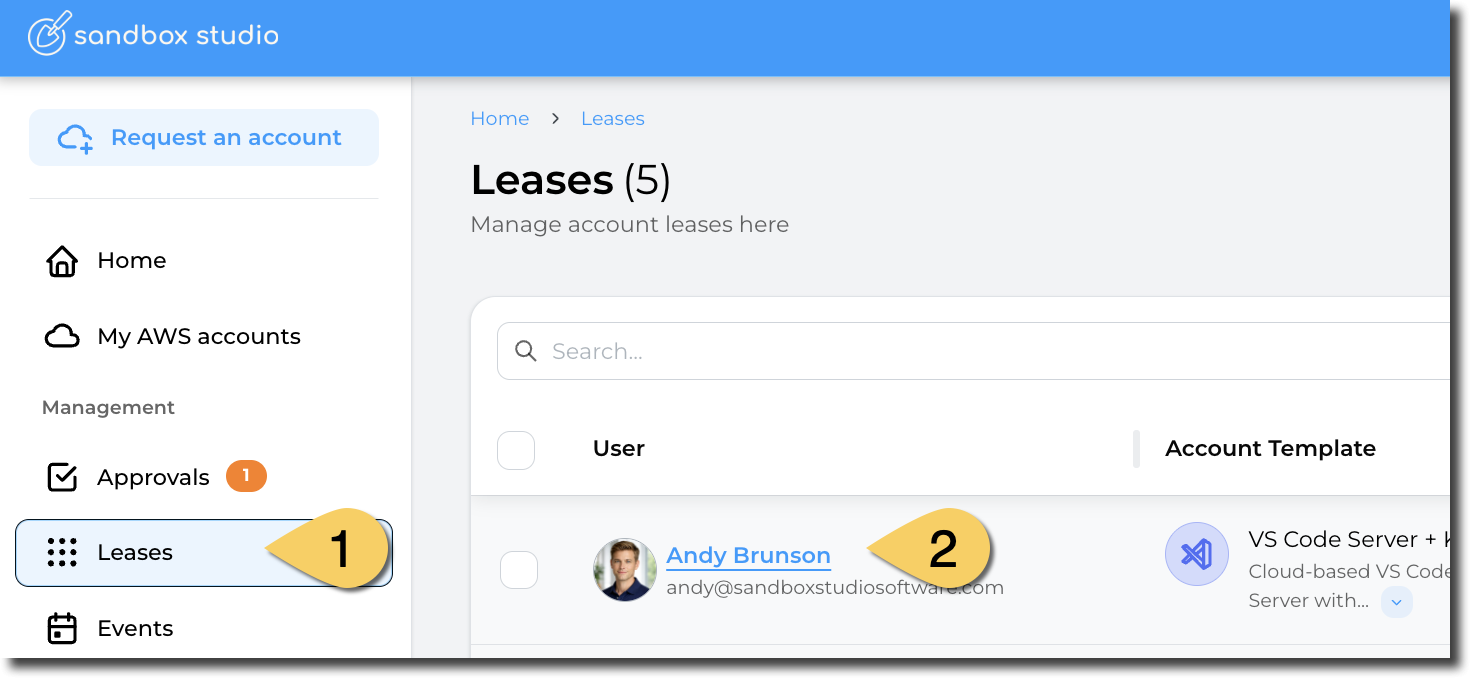](https://docs.sandboxstudiosoftware.com/uploads/images/gallery/2026-04/ju3image.png) Scroll down to the "Budget" section and click on "Update":[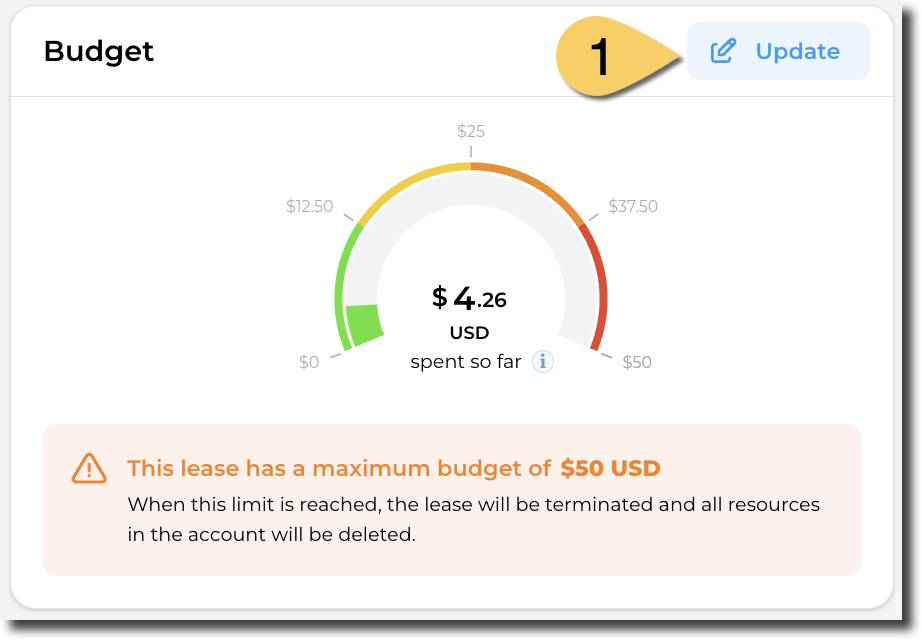](https://docs.sandboxstudiosoftware.com/uploads/images/gallery/2026-04/rf2image.png) Update the maximum budget, actions and threshold for this lease and click on "Update lease" to finish: [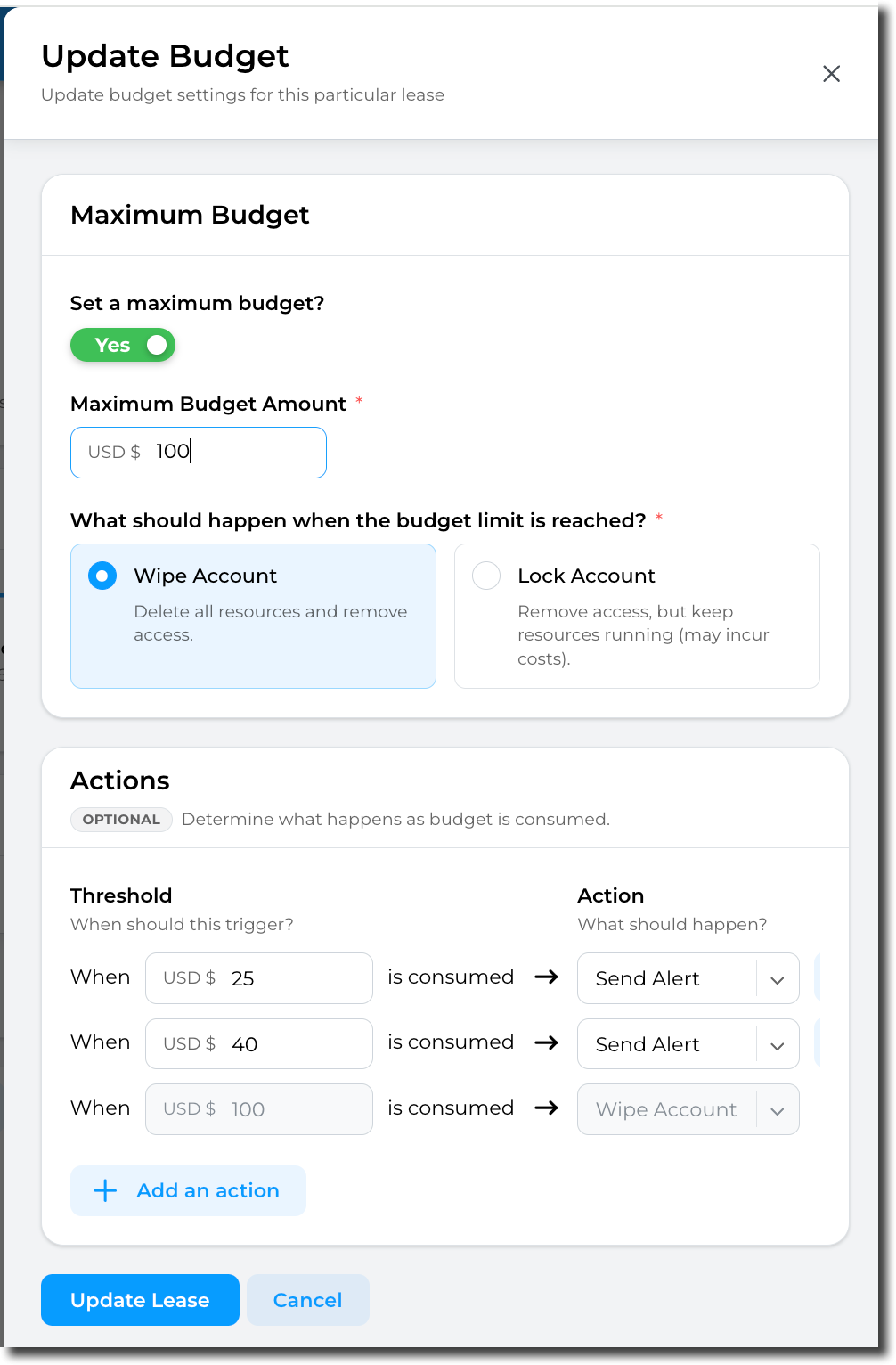](https://docs.sandboxstudiosoftware.com/uploads/images/gallery/2026-04/j19image.png) The lease budget gets immediately updated: [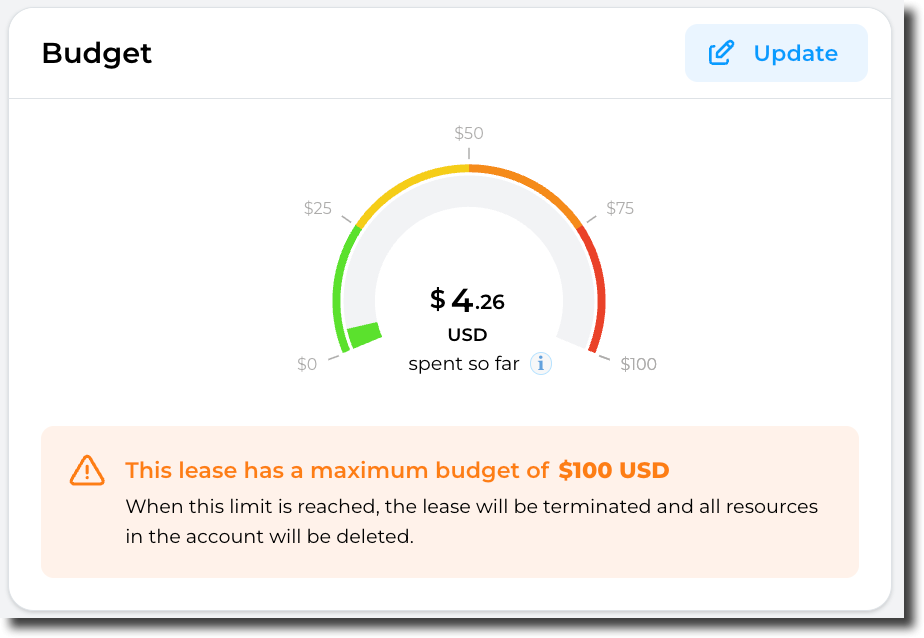](https://docs.sandboxstudiosoftware.com/uploads/images/gallery/2026-04/aInimage.png) # Events # What are events? Events allow you to assign and manage AWS accounts for a group of users in one place. This is useful when working with a defined set of participants, for example: - Running a workshop or hackathon - Delivering a university subject or training course - Onboarding a group of new team members ##### Key Characteristics - **Bulk management** — Create, assign, and manage multiple leases from a single view rather than handling them individually. - **Pre-creation** — Events can be created and fully provisioned before they start. Accounts and resources are prepared ahead of time so users can start immediately when the event is started. - **Unassigned leases** — Leases within an event can be created without being assigned to a specific user. This lets you prepare a pool of ready-to-go accounts and assign them to participants later. - **Limit overrides** — Event-level limits (duration, budget) override the account template defaults. If an account template has a maximum duration of 10 days but the event is configured for 20 days, the event's 20-day limit applies to all leases within it. ##### Event Lifecycle 1. **Created** — The event is defined with its limits, account template, and number of leases. Accounts and resources can be pre-provisioned at this stage. No costs are incurred yet. 2. **Started** — The event is activated. Leases become active and participants can access their assigned accounts. 3. **Ended** — The event concludes. All leases are terminated, access is revoked, and accounts are reclaimed. ##### Events vs Individual Leases Individual leases are suited for on-demand, self-service access — a single user or small team needing a sandbox. Events are designed for coordinated, group-based scenarios where an organiser needs to prepare and manage many accounts at once with consistent settings. # Event creation - Overview To create a new account template: 1. Click on "**Events"** on the left menu 2. Click on "**Create Event**" [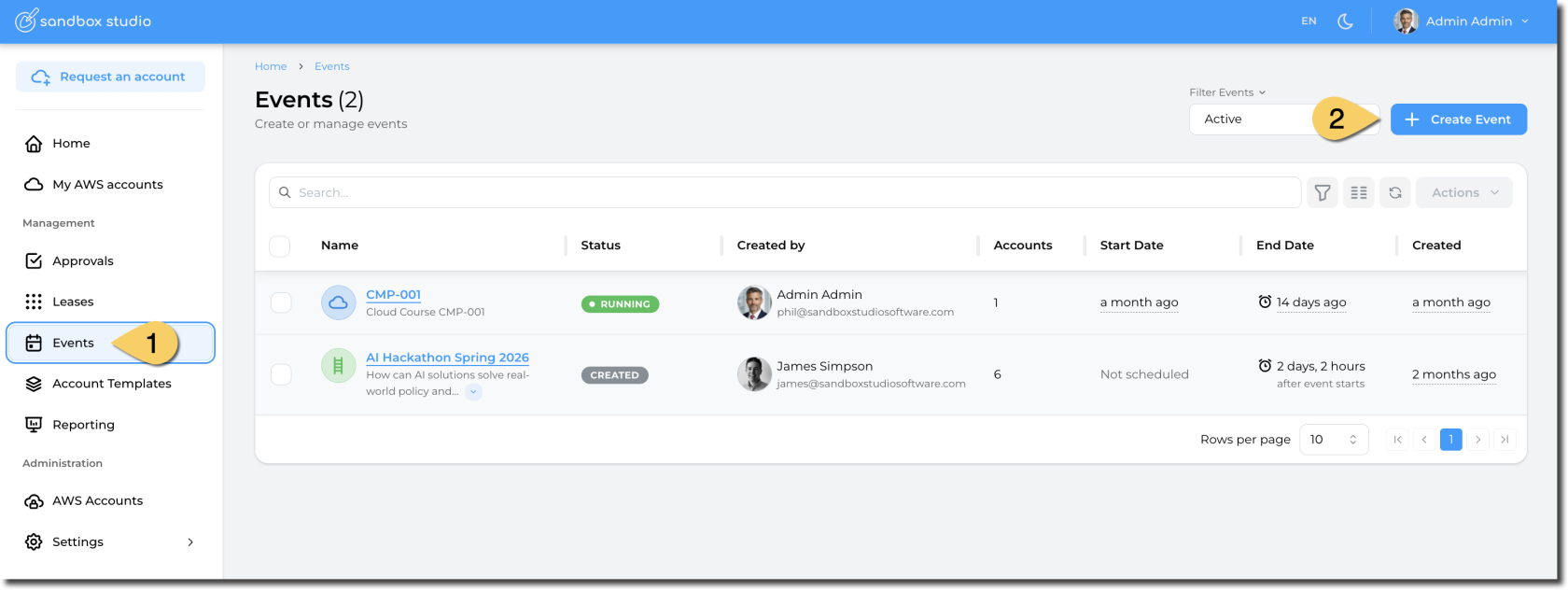](https://docs.sandboxstudiosoftware.com/uploads/images/gallery/2026-04/uYvimage.png) Creating an event is a 6-step process listed as follows: 1. [Basic details](https://docs.sandboxstudiosoftware.com/books/manager-guide/page/event-creation-basic-details "Event creation - Basic Details") 2. [Account template](https://docs.sandboxstudiosoftware.com/books/manager-guide/page/event-creation-account-template "Event creation - Account template") 3. [Schedule](https://docs.sandboxstudiosoftware.com/books/manager-guide/page/event-creation-schedule "Event creation - Schedule") 4. [Participants](https://docs.sandboxstudiosoftware.com/books/manager-guide/page/event-creation-participants "Event creation - Participants") 5. [Managers](https://docs.sandboxstudiosoftware.com/books/manager-guide/page/event-creation-managers "Event creation - Managers") 6. [Review](https://docs.sandboxstudiosoftware.com/books/manager-guide/page/event-creation-review "Event creation - Review") # Event creation - Basic details First step of the event creation wizard is to set the basic information to describe your event: [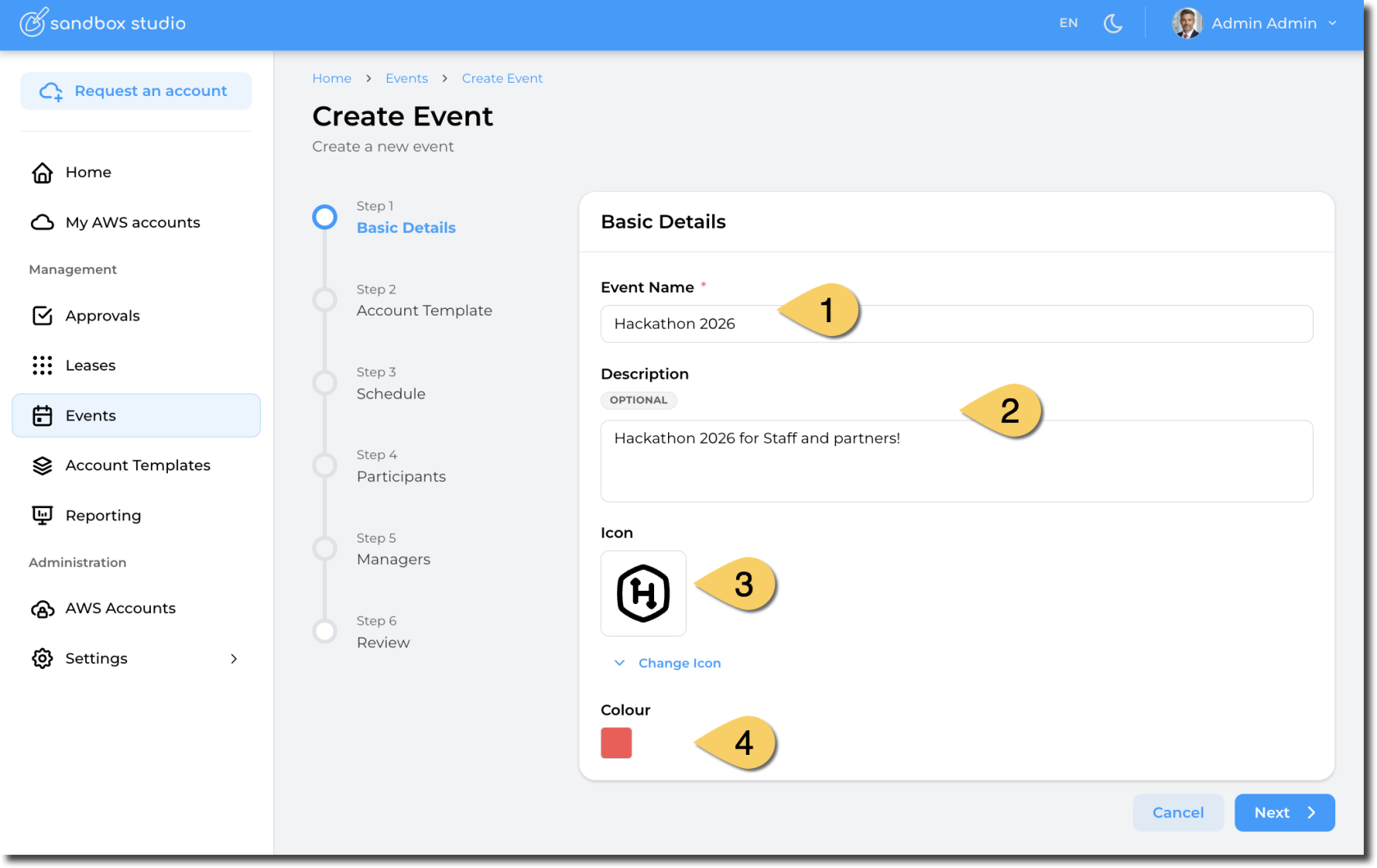](https://docs.sandboxstudiosoftware.com/uploads/images/gallery/2026-04/yatimage.png) 1. **Name** of the event: Remember, this is will be used by your users to find your event, so make it unique and easy to find! 2. **Description** of the event 3. **Icon**: Choose the icon to identify your event 4. **Colour**: Choose the colour of your event Having completed all the fields on the Basic Details page as needed, click on **Next** to move to [Event creation - Account template](https://docs.sandboxstudiosoftware.com/books/manager-guide/page/event-creation-account-template "Event creation - Account template") # Event creation - Account template In this step, you define the account template you want to use in your event. The account template will define settings like: 1. Permissions 2. Resources created in the event 3. Budget 4. ...Note: Account templates also define lease duration, but within an event, this is overridden by the event's own duration setting.
[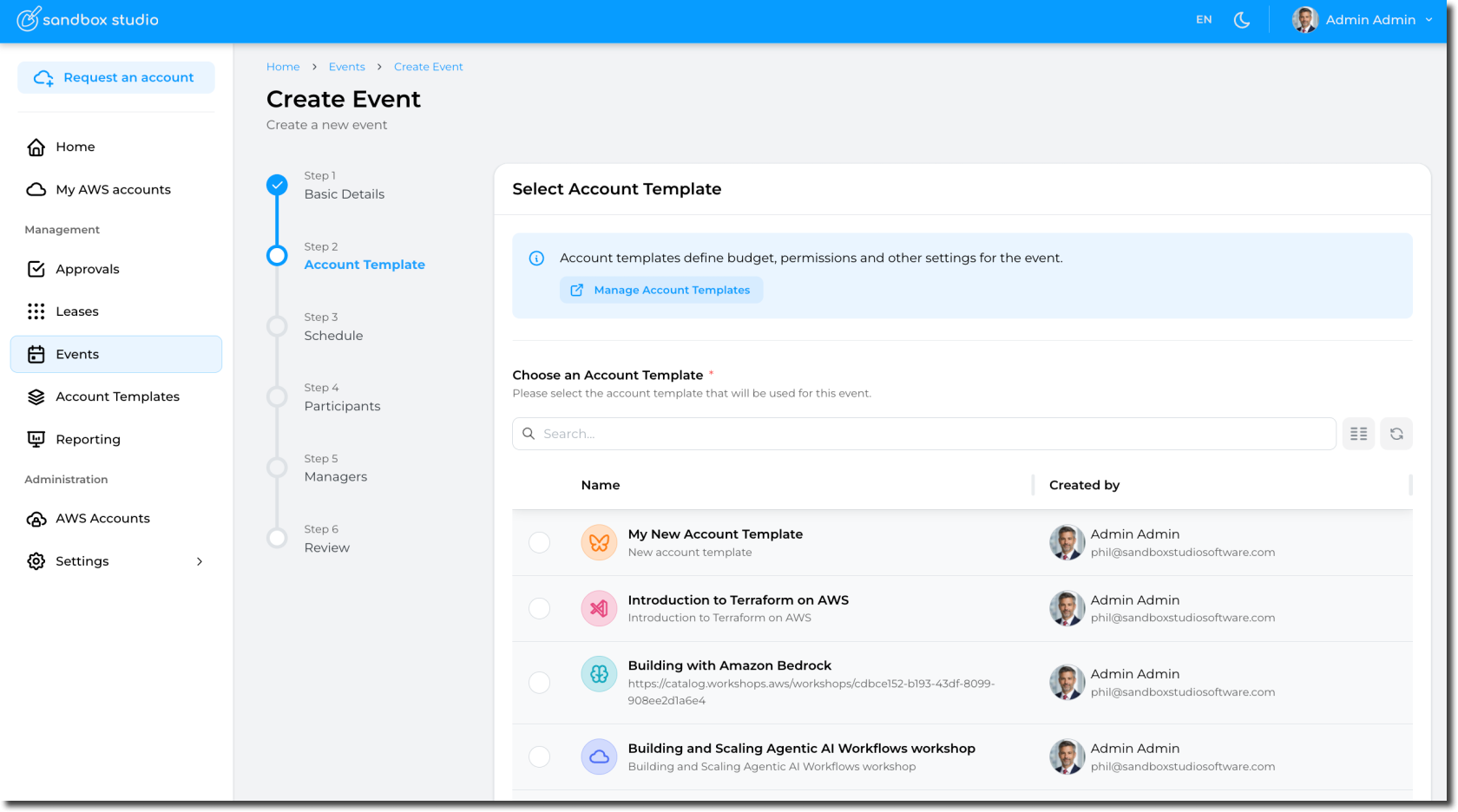](https://docs.sandboxstudiosoftware.com/uploads/images/gallery/2026-04/Xm7image.png) Having selected the account template, click on **Next** to move to [Event creation - Schedule](https://docs.sandboxstudiosoftware.com/books/manager-guide/page/event-creation-schedule "Event creation - Schedule") # Event creation - Managers This step allows you to define who can manage the event: - Update event - Add or remove accounts and assign users [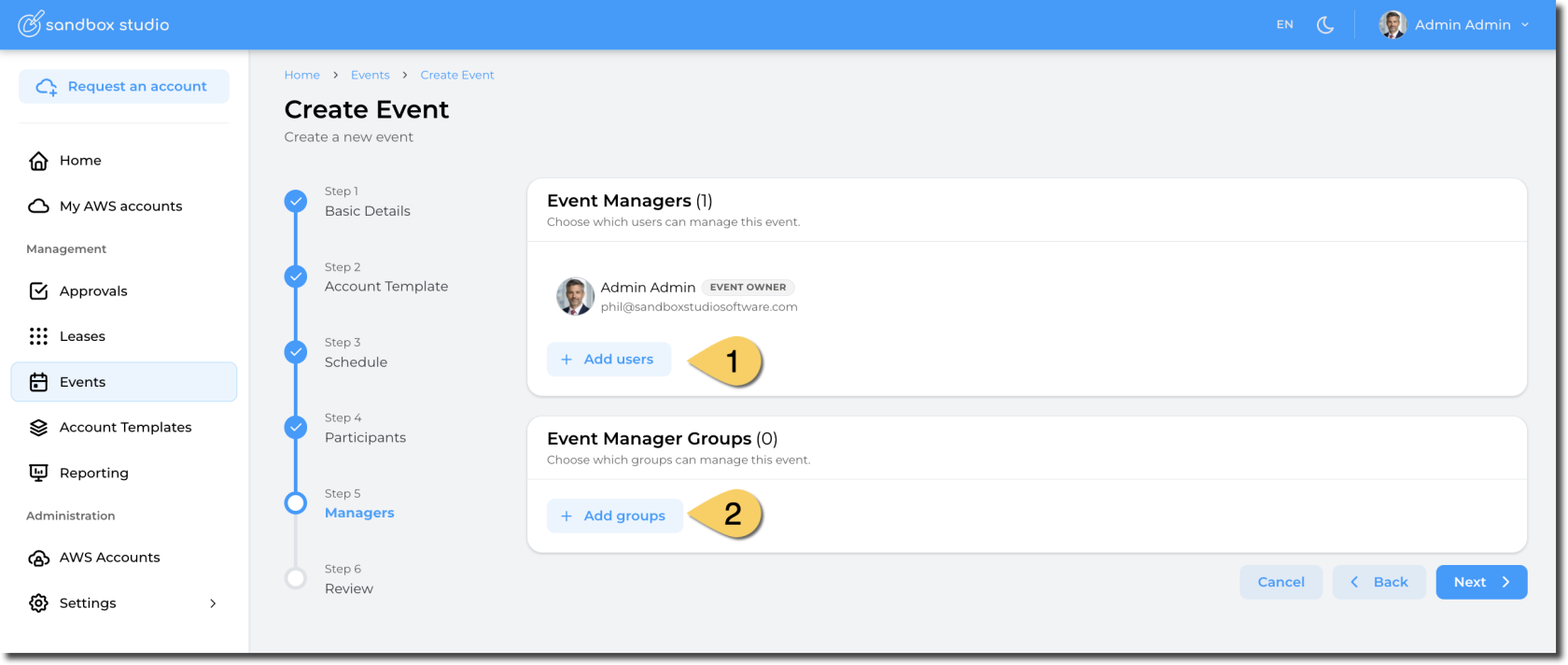](https://docs.sandboxstudiosoftware.com/uploads/images/gallery/2026-04/IZvimage.png) 1. Select the **users** who can manage your event 2. Select the **groups of users** who can manage your eventGroups are defined in IAM Identity Center. [How to add groups to IAM Identity Center](https://docs.aws.amazon.com/singlesignon/latest/userguide/addgroups.html)
Once managers are defined, click Next to [Event creation - Review](https://docs.sandboxstudiosoftware.com/books/manager-guide/page/event-creation-review "Event creation - Review") # Event creation - Schedule This steps define the schedule of an event. [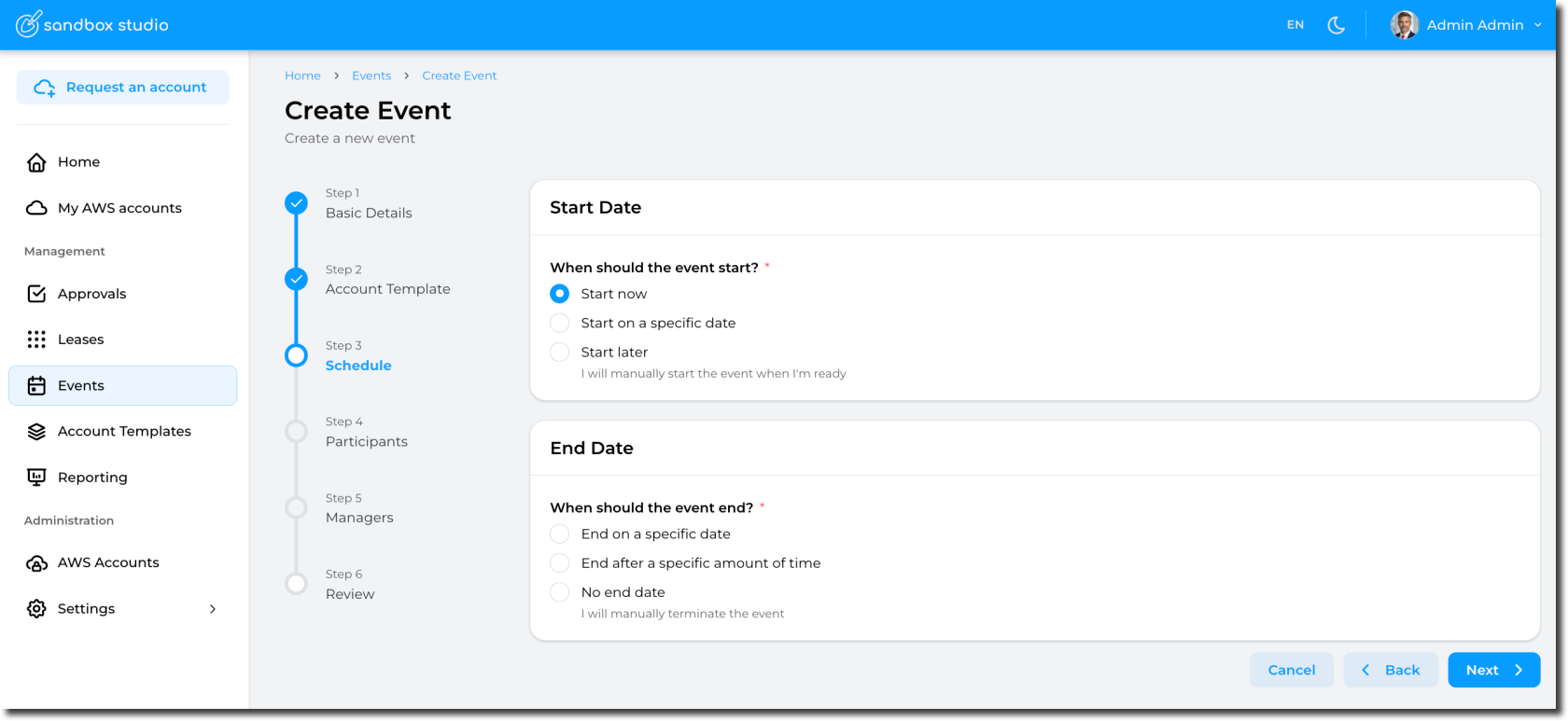](https://docs.sandboxstudiosoftware.com/uploads/images/gallery/2026-04/b6kimage.png) Schedule are defined as follows: ##### Start Date - **Start now** Selecting this option will automatically provision the accounts *(aka, create leases)* and start the event. - - **Pros**: Easy, the event starts immediately and you can start right away! - **Cons**: If your account template provisions resources in the account, you will need to wait for the accounts to be ready before accessing them. This provisioning time counts towards your event duration - **Start on a specific date** You can set the event to start on a specific date (and time) you define. This is particularly useful is you want to schedule an event to start automatically in the future. [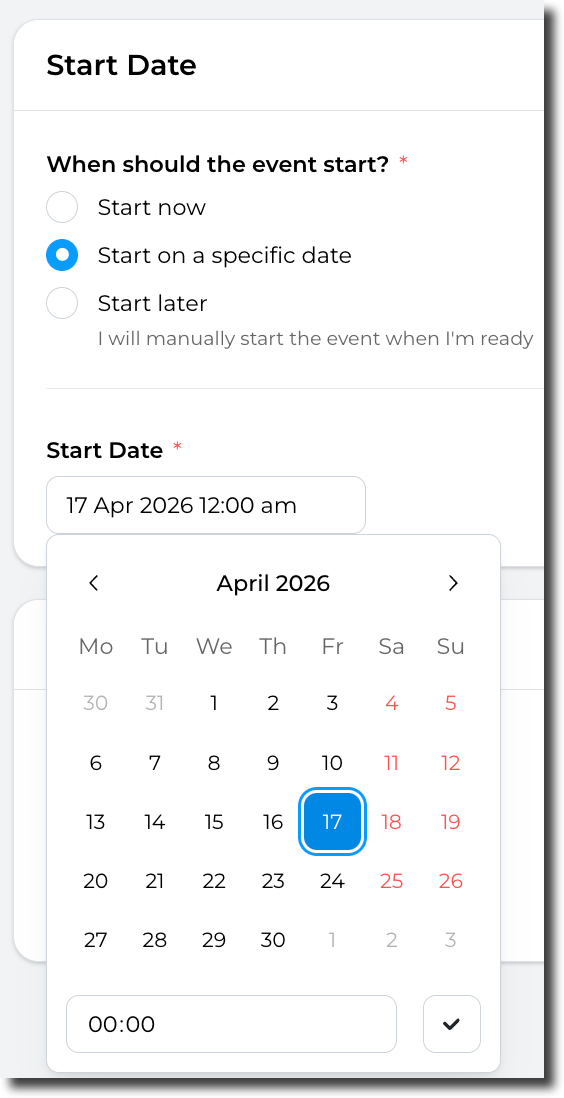](https://docs.sandboxstudiosoftware.com/uploads/images/gallery/2026-04/sy9image.png) - - **Pros**: "Set and forget", the event will automatically start at the date/time of your choice. This option also allows you to pre-provision the accounts before the event starts, so you don't have to wait for the resources to be created in the accounts. - **Cons**: Not much! But as per the "Start now" option, If your account template provisions resources in the account, you will need to either pre-provision the account manually before the start of the event or wait for the accounts to be ready before accessing them. - **Start later** You can chose not to start the event automatically. In this instance, you will have to start the event manually. - **Pros**: No rush! You can take your time to create and configure the event. You can also update this value later if you finally decide to start the event automatically. - **Cons**: The event won't starts automatically, so you will need to start it manually. ##### End DateNote: Account templates also define lease duration, but within an event, this is overridden by the event's own duration setting.
- **End on a specific date** Automatically ends the event on a specific date/time. When this date/time comes, the event will be terminated and leases will be terminated. - **End after a specific amount of time** Automatically ends the event after a specific amount of time: The count down starts when the event is started. Use this option if you want to terminate the event after some time. For instance: *"Terminate the event after 7 days"* - **No end date** With this option, the event will not be terminated automatically. So you will have to terminate the event manually. Having set the schedule, click on **Next** to move to [Event creation - Participants](https://docs.sandboxstudiosoftware.com/books/manager-guide/page/event-creation-participants "Event creation - Participants")Note: You can reserve accounts for your event by adding an account and not assigning it to any user
2. For big events, you can **import a CSV** file with the list of events 3. **Assign users** to the event you will create ##### How to assign user to an account Click on the "Assign user" button and select the user you want to assign to an account. Once assigned, the status becomes "**Assigned**" [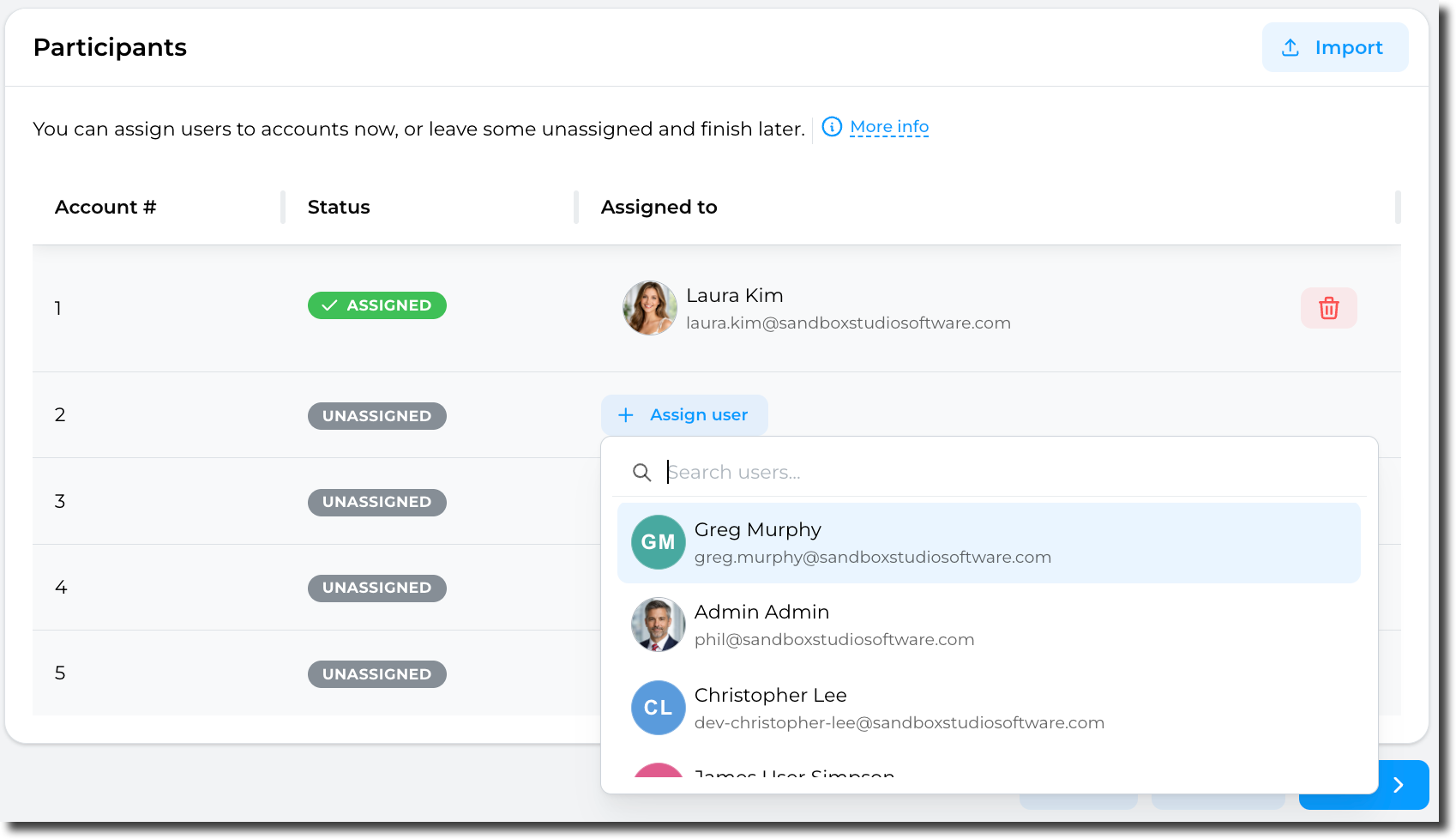](https://docs.sandboxstudiosoftware.com/uploads/images/gallery/2026-04/qy7image.png)If you let the account "Unassigned", a lease will be created but not assigned to any user. This is a way to "reserve" an account and prepare it before later assigning it to users.
##### How to import a CSV Click on the Import button: [](https://docs.sandboxstudiosoftware.com/uploads/images/gallery/2026-04/UPUimage.png) You can then Drag and Drop your CSV file: [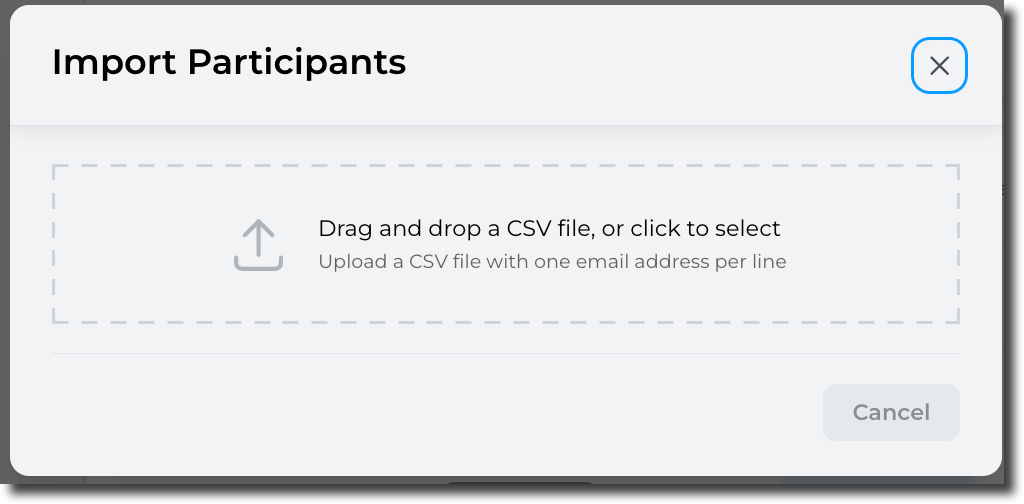](https://docs.sandboxstudiosoftware.com/uploads/images/gallery/2026-04/tN9image.png) Format of the CSV file is as follows: ``` email1@example.com email2@example.com email3@example.com ```Only valid e-mail addresses will be processed. So if you add a header to CSV file, it will be ignored.
Sandbox Studio will then check the CSV file: [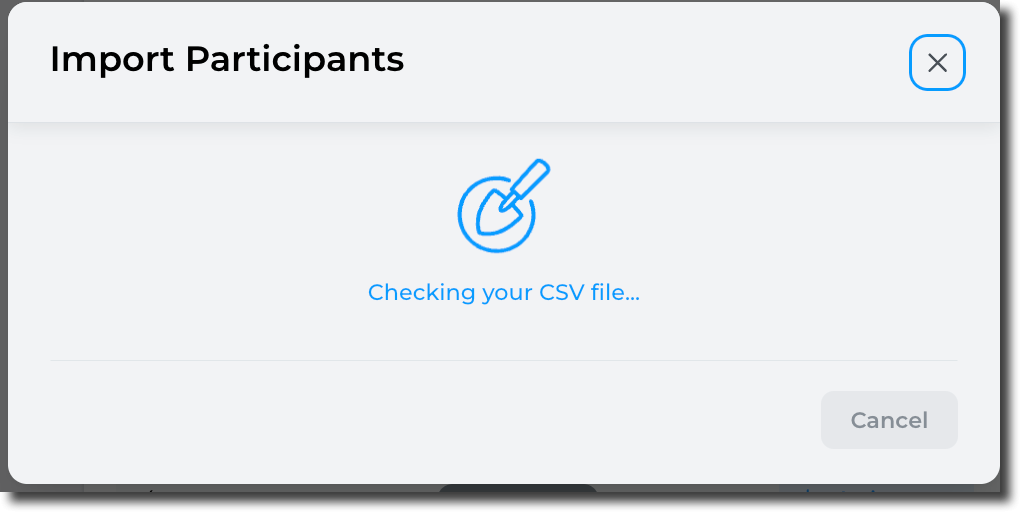](https://docs.sandboxstudiosoftware.com/uploads/images/gallery/2026-04/Cbdimage.png) After a few seconds (depending on how many users are in the CSV file): [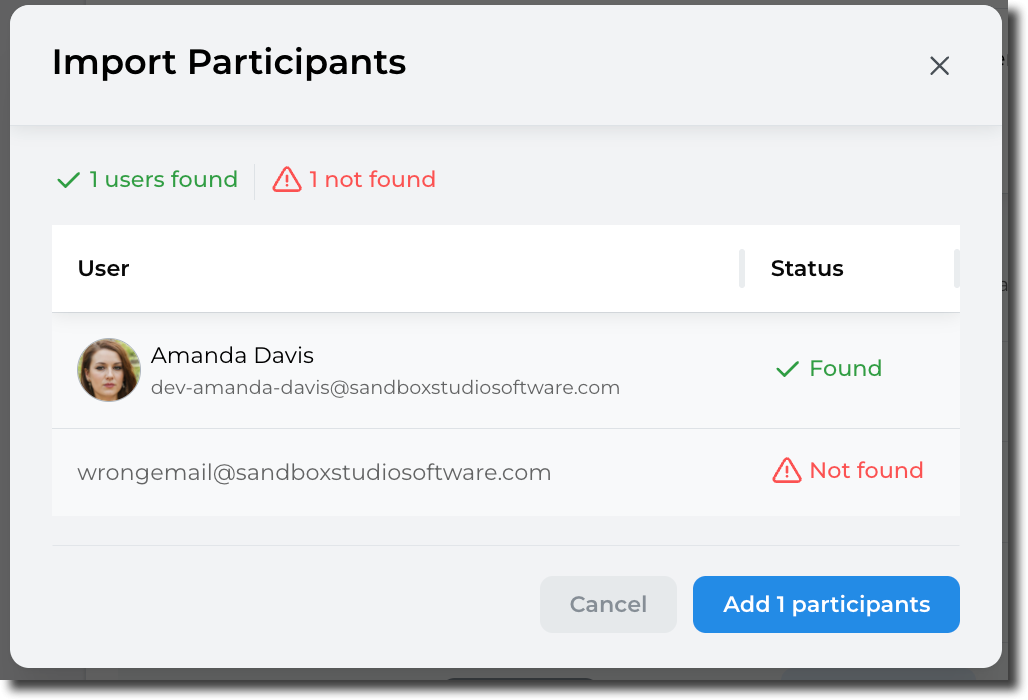](https://docs.sandboxstudiosoftware.com/uploads/images/gallery/2026-04/Vtdimage.png) Only the found users will be added to the event: [](https://docs.sandboxstudiosoftware.com/uploads/images/gallery/2026-04/ob4image.png) Once account numbers are set and users assign, click Next to [Event creation - Managers](https://docs.sandboxstudiosoftware.com/books/manager-guide/page/event-creation-managers "Event creation - Managers") # Event creation - Review Last step of the event creation wizard, the review screen allows to check everything is correct: [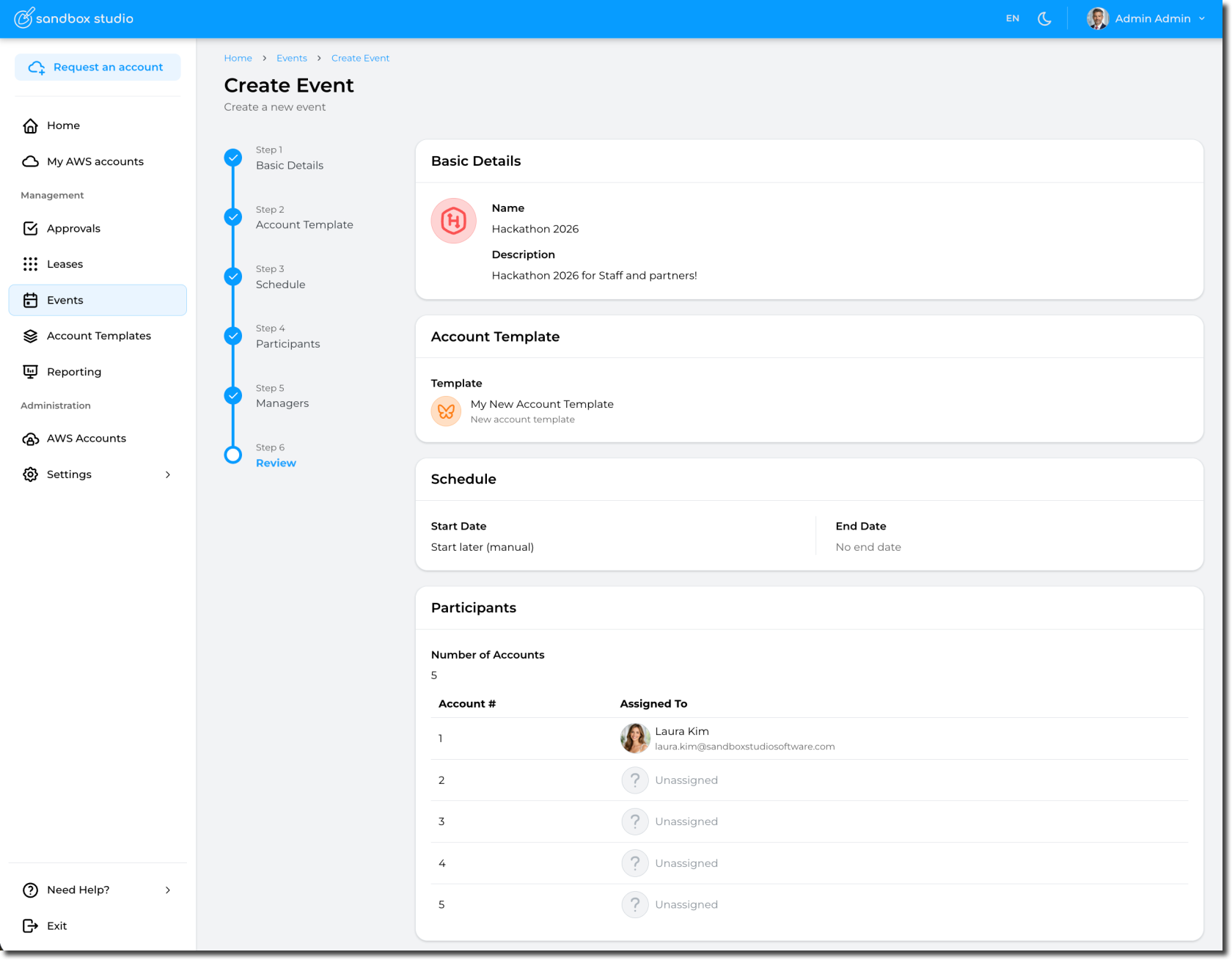](https://docs.sandboxstudiosoftware.com/uploads/images/gallery/2026-04/Ci5image.png) Click Submit to create your event. You are automatically redirected to your event page: [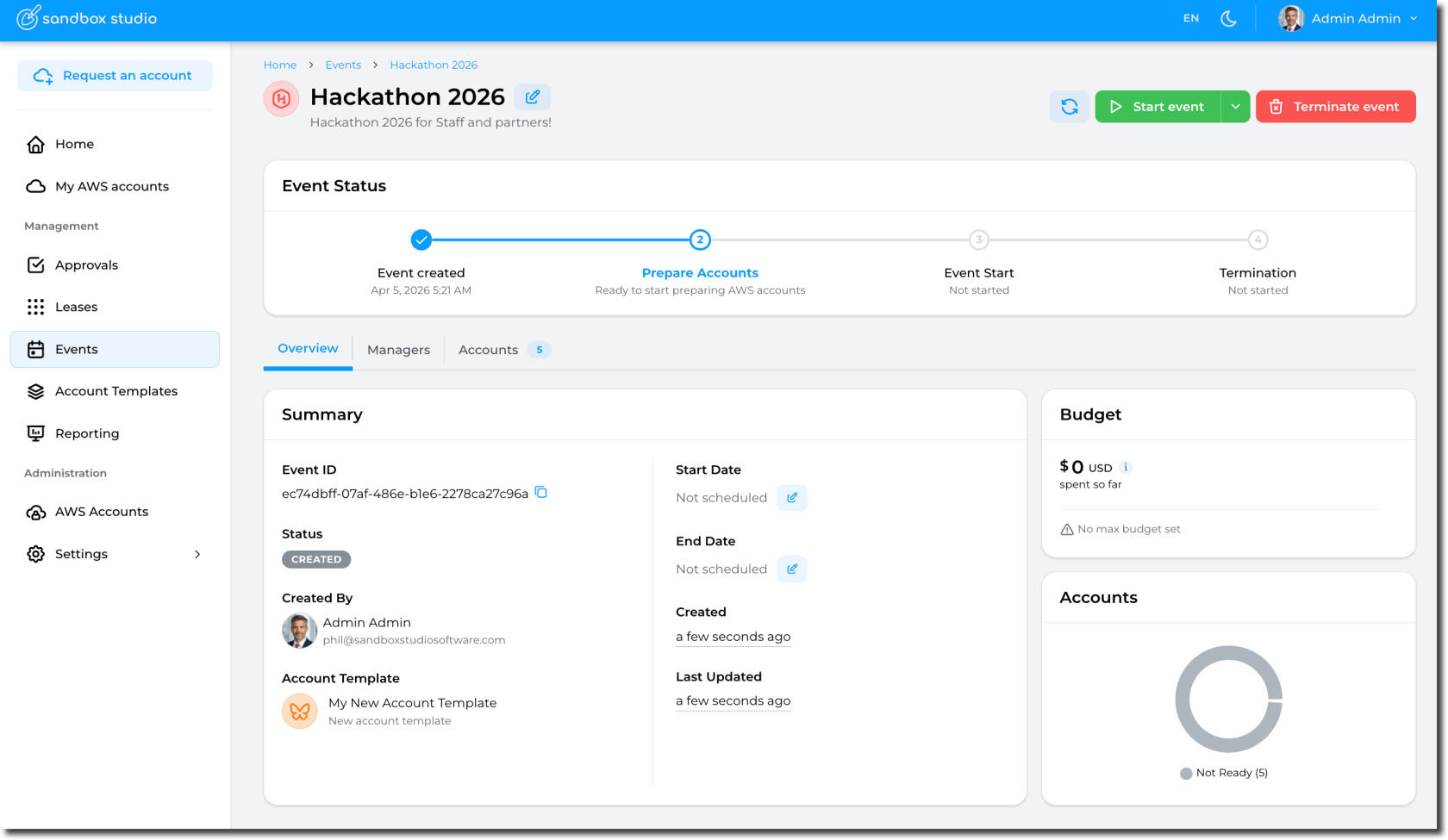](https://docs.sandboxstudiosoftware.com/uploads/images/gallery/2026-04/s4Simage.png) # Terminate events Depending on your event configuration, your event can be stopped : - At a specific date - After a certain duration (from the event start date) - Manually, by an event manager ##### Event lifecycle High level lifecycle of an event is as follows:Sandbox Studio does not include any predefined tags. The dropdown list is populated with tags that already exist in your environment.
You can addd as many tags as needed to help you filter accounts as required. In the example below you can see 3 different tags [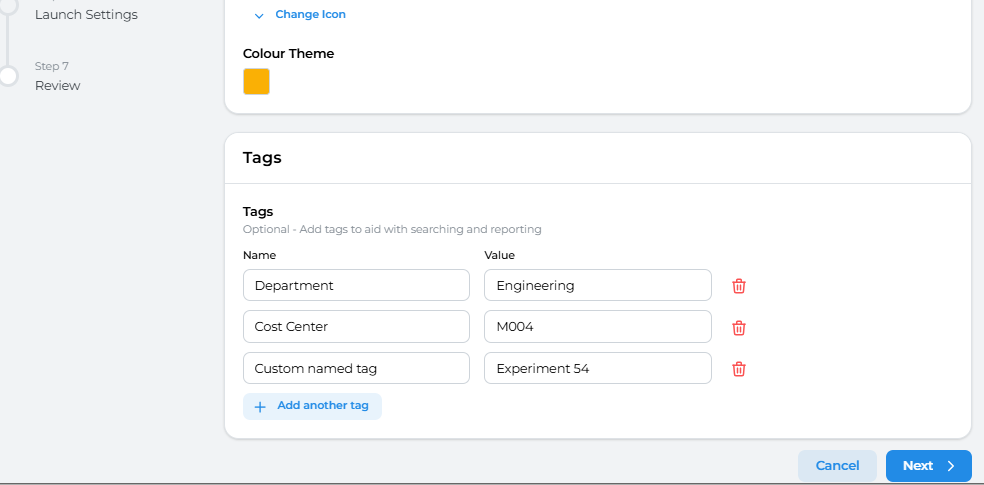](https://docs.sandboxstudiosoftware.com/uploads/images/gallery/2025-07/hsrimage.png) Having completed all the fields on the Basic Details page as needed, click on **Next** to move to [Account template creation - Budget](https://docs.sandboxstudiosoftware.com/books/manager-guide/page/account-template-creation-budget "Account template creation - Budget") # Account template creation - Budget This step defines the budget limits for leases using this template. [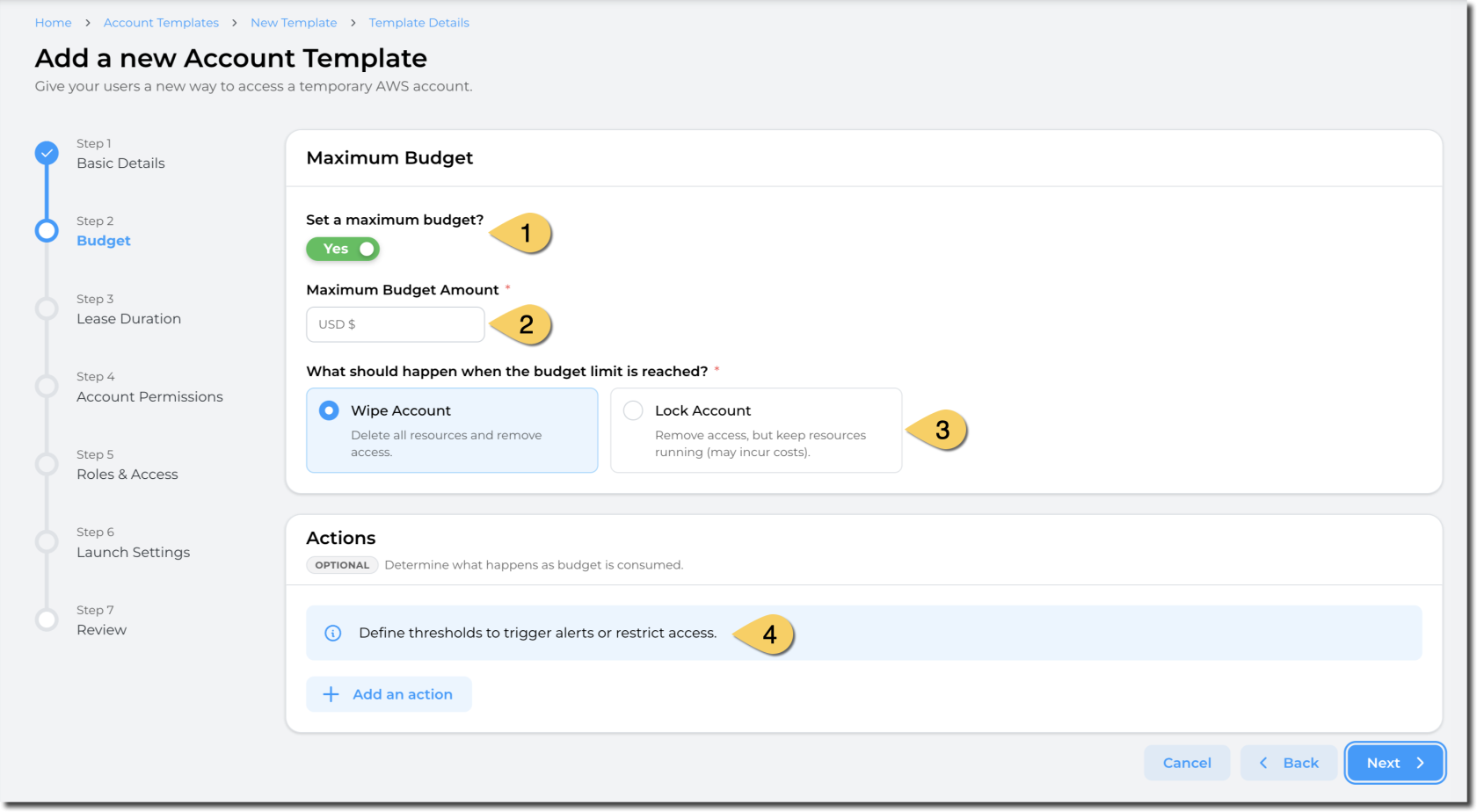](https://docs.sandboxstudiosoftware.com/uploads/images/gallery/2026-04/LsNimage.png) 1. Define if you want a **maximum budget to be enforced** for the leases. By default, this flag is optional *(You can define templates with no budget limits)*, but platform administrators can enforce this flag to be set to "Yes". *(e.g: Enforce maximum budget)* 2. Define the **maximum budget amount**. This value is in USD. 3. Define the **action when the budget is reached.** You can either: - **Wipe the account**: This delete all resources and remove access to the users. - **Pros**: Stop incurring cost - **Cons**: Some data may be lost as the resources will be deleted. - Lock account: Remove access to end users but keep the resources and data 1. **Pros**: Data and resources remain. Administrators and managers can access the account. 2. **Cons**: Resources still incur cost in the AWS account. 4. Define the actions to take based on the thresholds you define.Note: The maximum budget you can set is limited by the maximum budget set in the Global configuration set by the administrator of your Sandbox Studio environment.
##### Actions: Sandbox Studio can perform automatic actions if some thresholds are met. You can define those thresholds and actions in the "Actions" section: [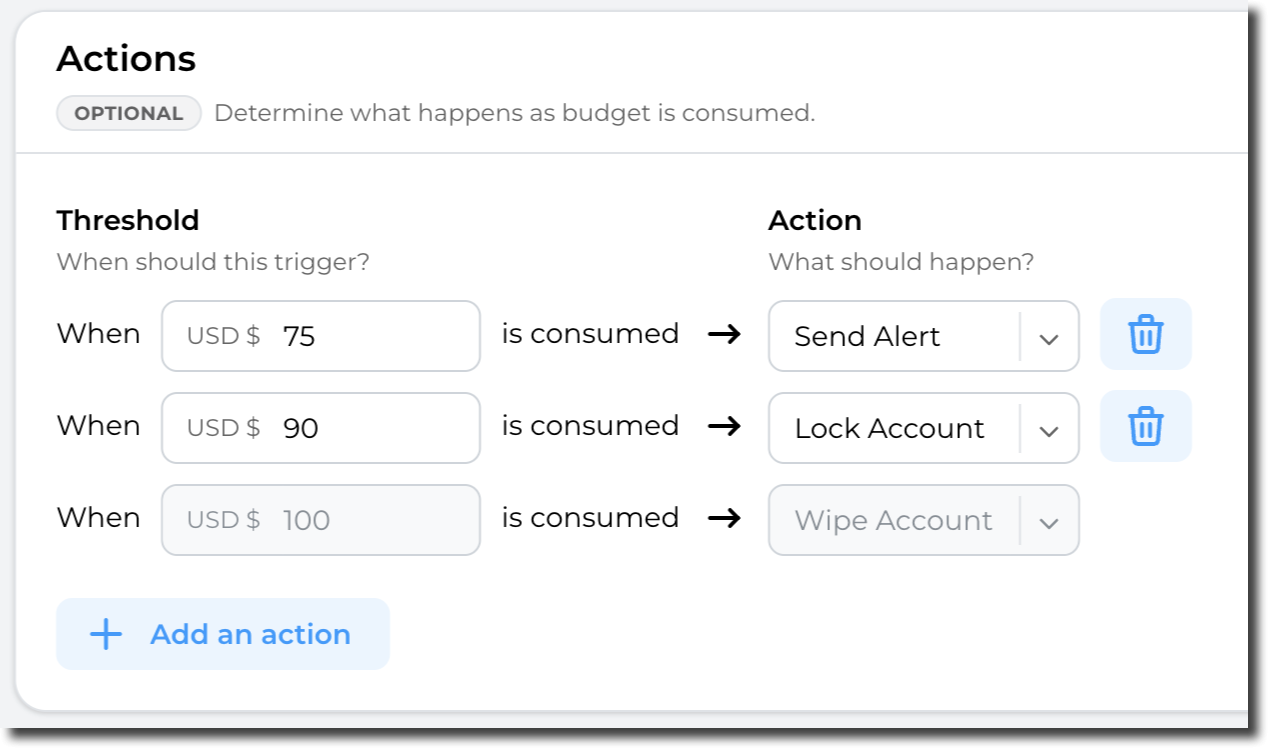](https://docs.sandboxstudiosoftware.com/uploads/images/gallery/2026-04/Mqbimage.png) Having completed all the fields on the Budget page as needed, click on **Next** to [Account template cre](https://docs.sandboxstudiosoftware.com/books/manager-guide/page/account-template-creation-duration "Account template creation - Duration")[ation - Duration](https://docs.sandboxstudiosoftware.com/books/manager-guide/page/account-template-creation-duration "Account template creation - Duration") # Account template creation - Duration This step defines the maximum duration for leases using this template. [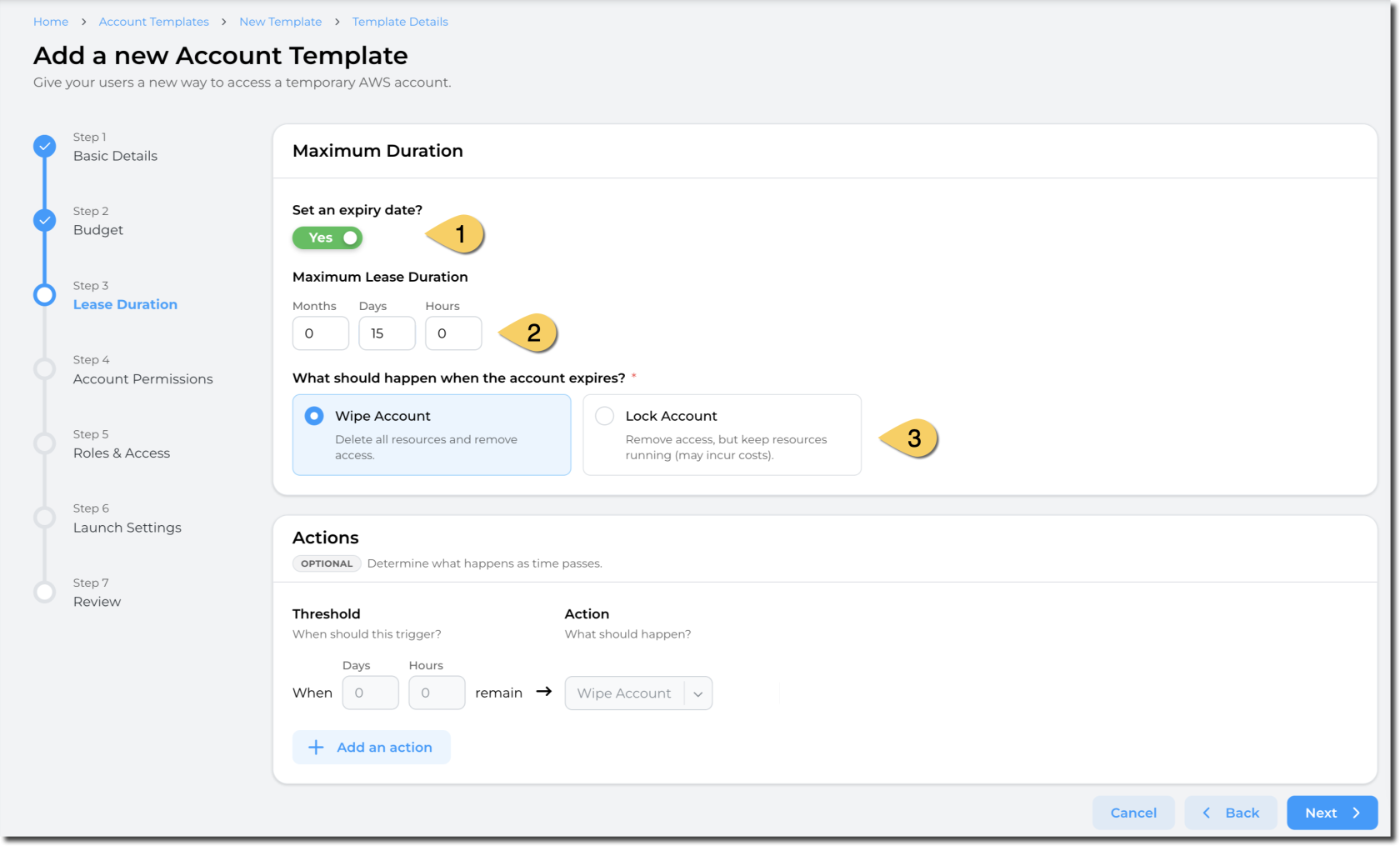](https://docs.sandboxstudiosoftware.com/uploads/images/gallery/2026-04/uoTimage.png) 1. Define if you want a **maximum duration to be enforced** for the leases. 2. If you select **Set an expiry date**, enter a value in **Maximum Lease Duration (in Months, Days or Hours)**. The duration configuration determines how long the account is available once leased to a user. 3. Define the **action when the lease expires.** You can either: - **Wipe the account**: This delete all resources and remove access to the users. - **Pros**: Stop incurring cost - **Cons**: Some data may be lost as the resources will be deleted. - **Lock account**: Remove access to end users but keep the resources and data 1. **Pros**: Data and resources remain. Administrators and managers can access the account. 2. **Cons**: Resources still incur cost in the AWS account. 4. Define the actions to take based on the thresholds you define.The countdown for a lease starts when the lease is created.
##### Actions: Sandbox Studio can perform automatic actions if some thresholds are met. You can define those thresholds and actions in the "Actions" section: [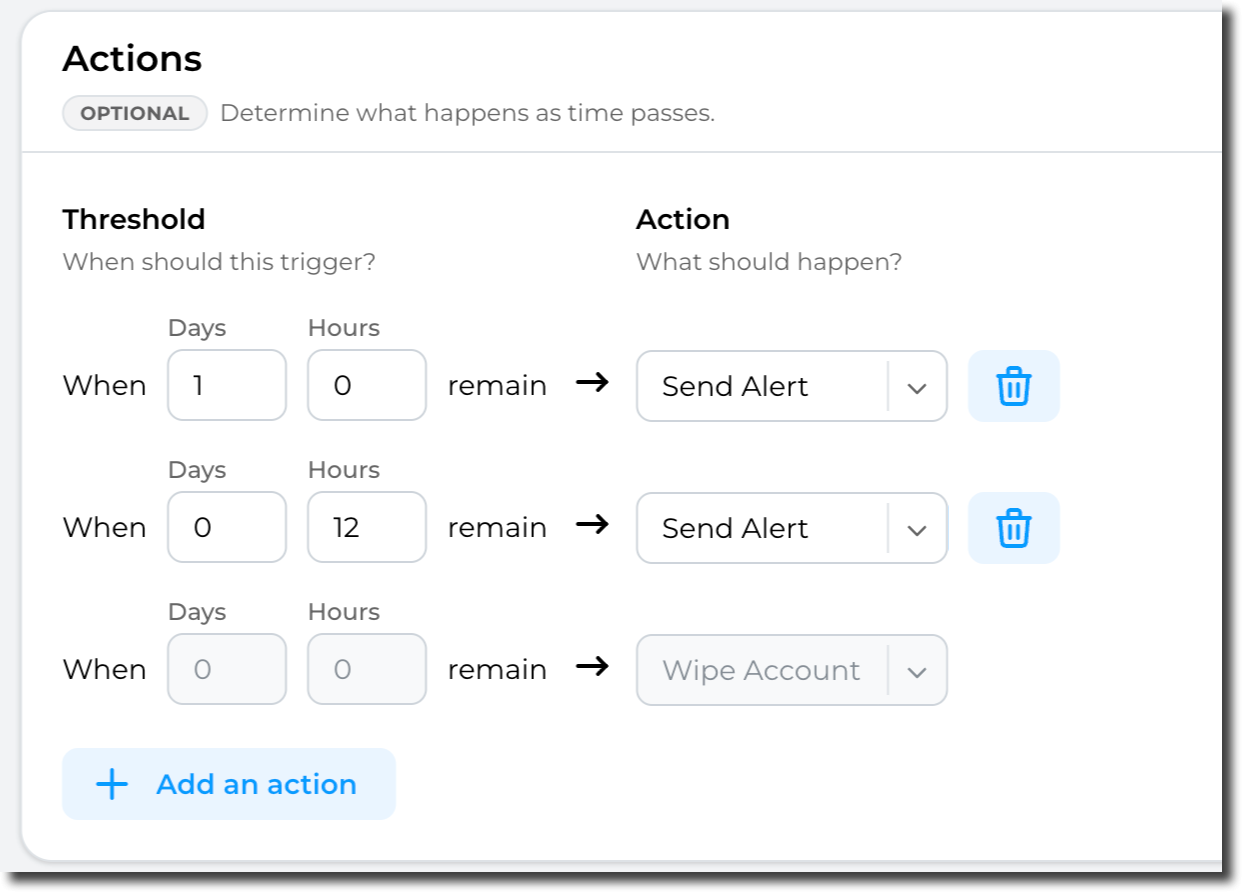](https://docs.sandboxstudiosoftware.com/uploads/images/gallery/2026-04/2sIimage.png)Important: The threshold’s actions are effectively a **count down** - and only trigger when a certain amount of time is left. e.g. 5 Days left, or 24 Hours to go or in the case of "Wipe" when the account has expired.
Having completed all the fields on the **Duration** page as needed, click on **Next** to [Account template creation - Permissions](https://docs.sandboxstudiosoftware.com/books/manager-guide/page/account-template-creation-permissions "Account template creation - Permissions") # Account template creation - Permissions Using Permissions, you can configure what the end users can and cannot do in their accounts.Sandbox Studio uses IAM Identity Center Permissions Sets for permissions. You can see more details explaining each of the sections of this page at https://docs.aws.amazon.com/singlesignon/latest/userguide/permissionsetcustom.html
##### Default permissions By default, "Administrator Access" is provided to end users.Service Control Policies (SCP) are still applied on the accounts and even with Administrator access, some resources and actions may be blocked by your Administrators.
If the default configuration suits your needs, proceed to the next step [Account template creation - Roles & Access](https://docs.sandboxstudiosoftware.com/books/manager-guide/page/account-template-creation-roles-access "Account template creation - Roles & Access") ##### Customise permissions For more granular permissions configuration, you can customise the permissions you provide to the end users by selecting **No, I want to customise permissions:** [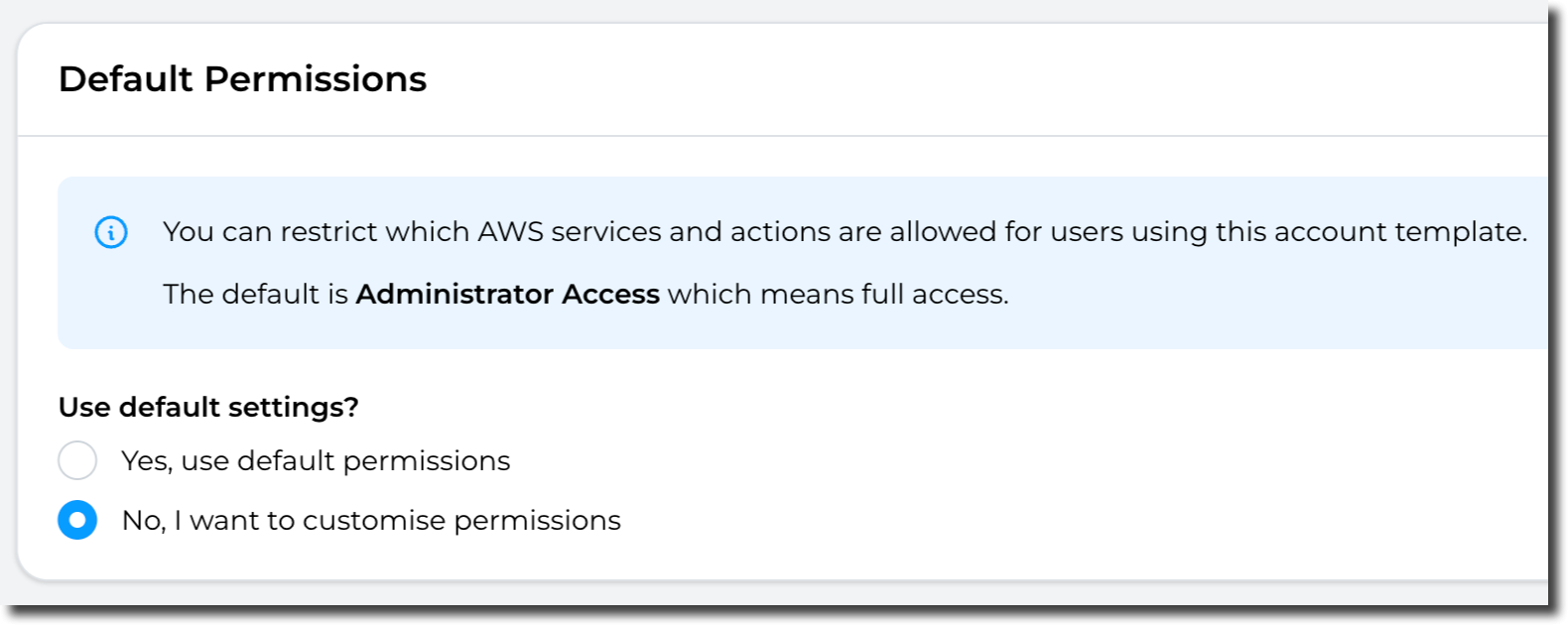](https://docs.sandboxstudiosoftware.com/uploads/images/gallery/2026-04/ZULimage.png) The following sections can be configured: [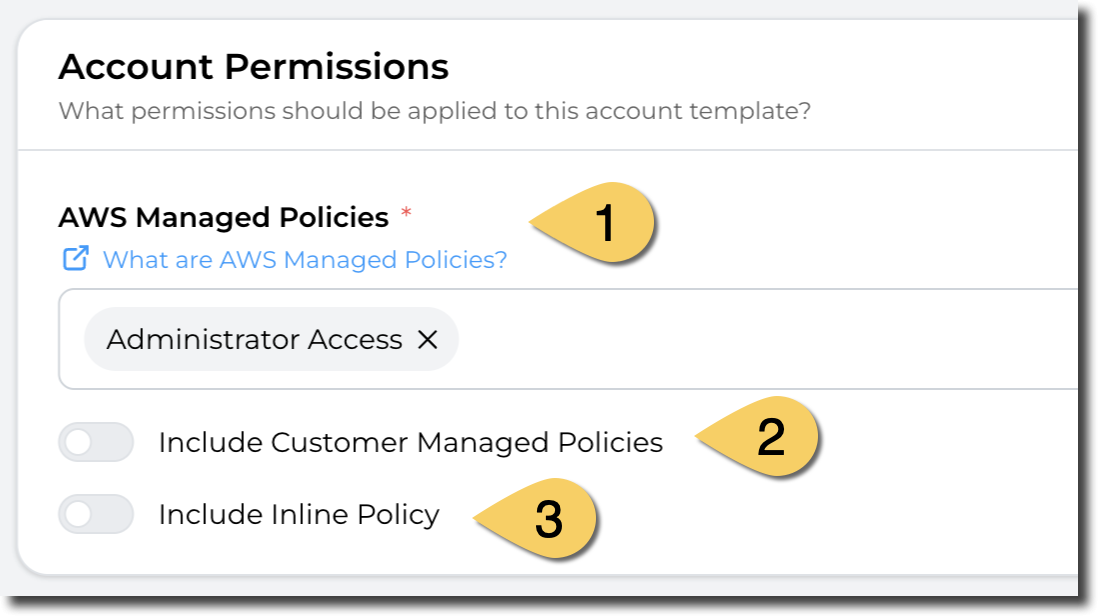](https://docs.sandboxstudiosoftware.com/uploads/images/gallery/2026-04/okpimage.png) 1. **AWS Managed Policies** By default, the Administrator Access policy is applied but you can select one or more policies from the list of AWS Managed policies. More details here about AWS Managed policies: [https://docs.aws.amazon.com/aws-managed-policy/latest/reference/about-managed-policy-reference.html](https://docs.aws.amazon.com/aws-managed-policy/latest/reference/about-managed-policy-reference.html) [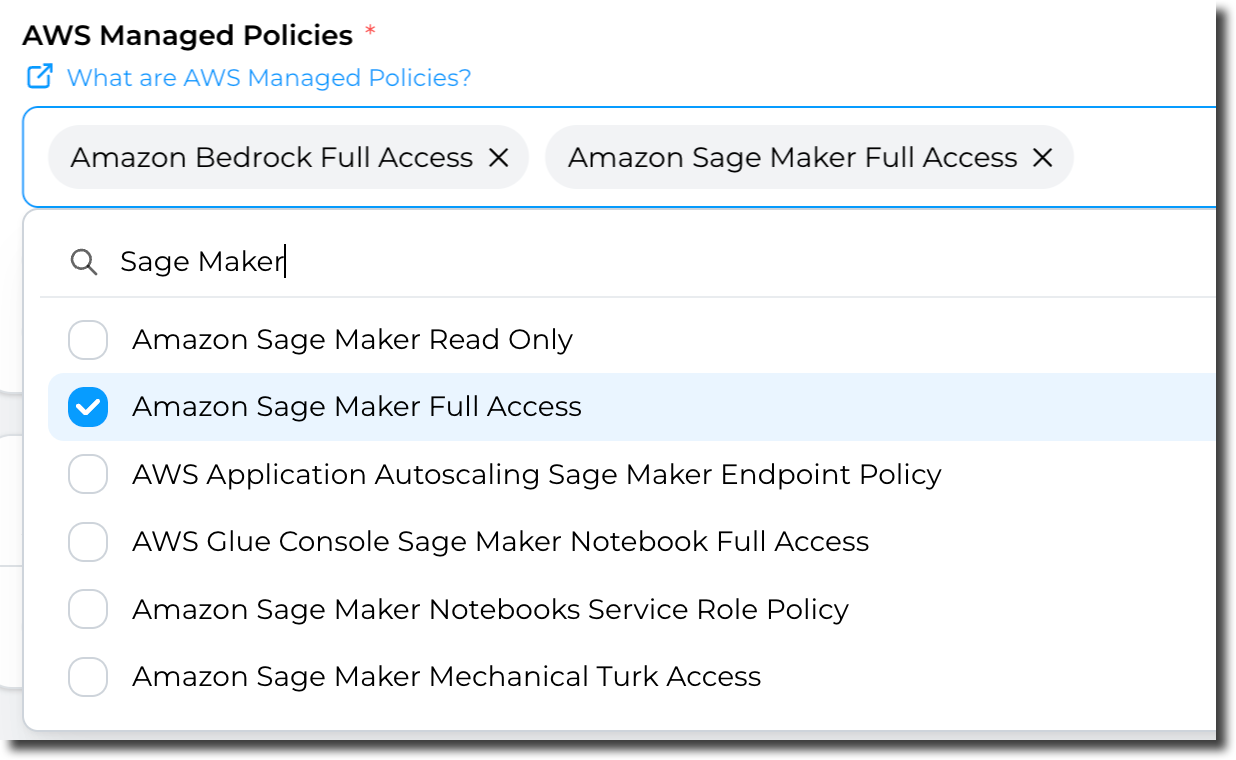](https://docs.sandboxstudiosoftware.com/uploads/images/gallery/2026-04/R6wimage.png) 2. **Customer Managed Policies** If you have pre-defined policies you manage, you can use them here. [More details about Customer managed policies](https://docs.aws.amazon.com/IAM/latest/UserGuide/access_policies_managed-vs-inline.html#customer-managed-policies) [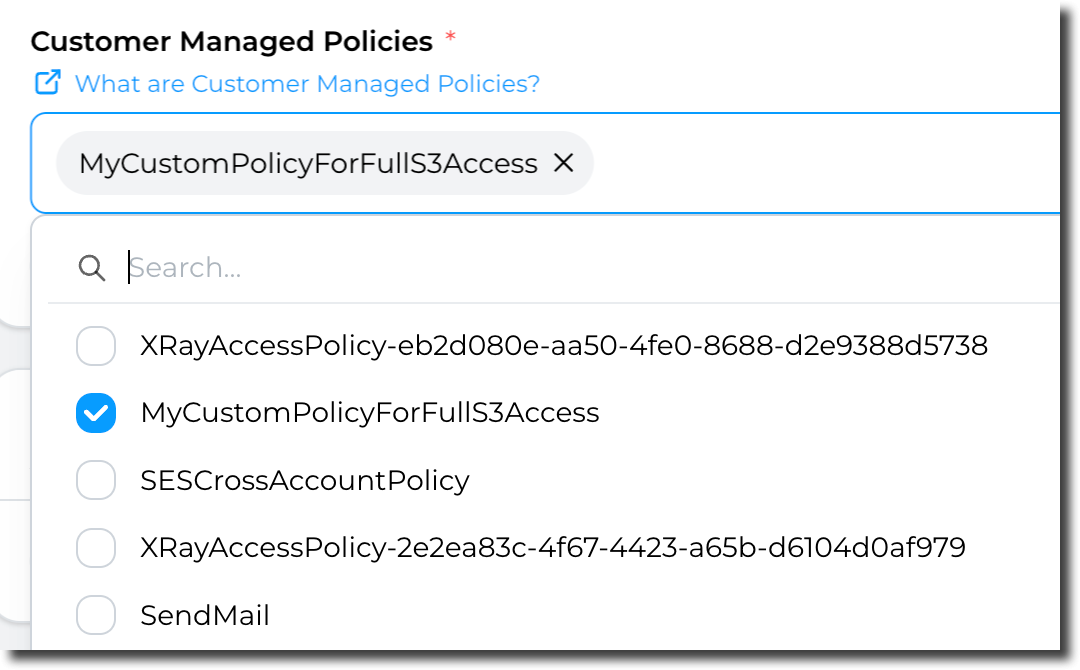](https://docs.sandboxstudiosoftware.com/uploads/images/gallery/2026-04/DYWimage.png) 3. **Inline policy** Finally, you can use inline policy (define the access directly in the section). [More details about inline policies.](https://docs.aws.amazon.com/IAM/latest/UserGuide/access_policies_managed-vs-inline.html#inline-policies) Example: [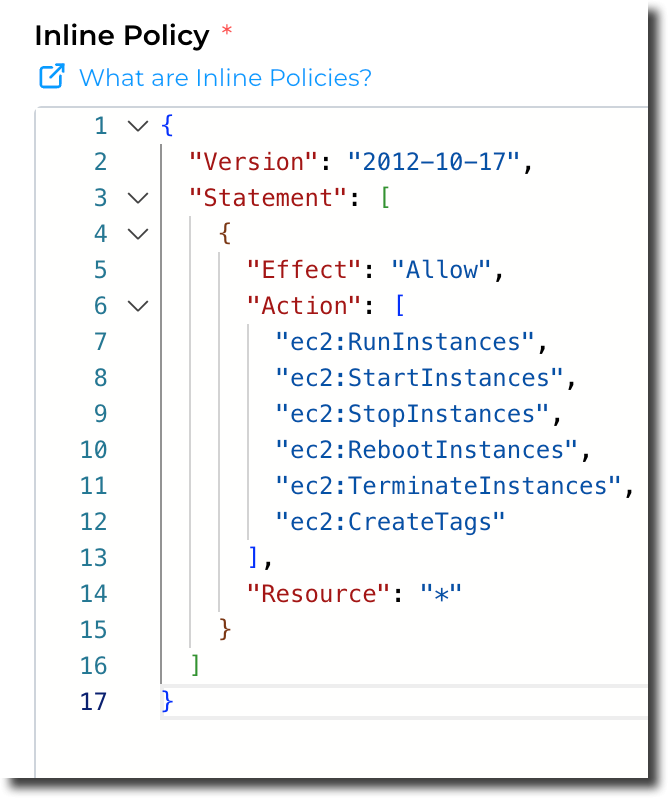](https://docs.sandboxstudiosoftware.com/uploads/images/gallery/2026-04/CS8image.png) ##### Permission Boundary: Finally, and following the same principles as previous options, you have the option to include **Permission boundaries.** [More details about Permission boundaries.](https://docs.aws.amazon.com/IAM/latest/UserGuide/access_policies_boundaries.html) [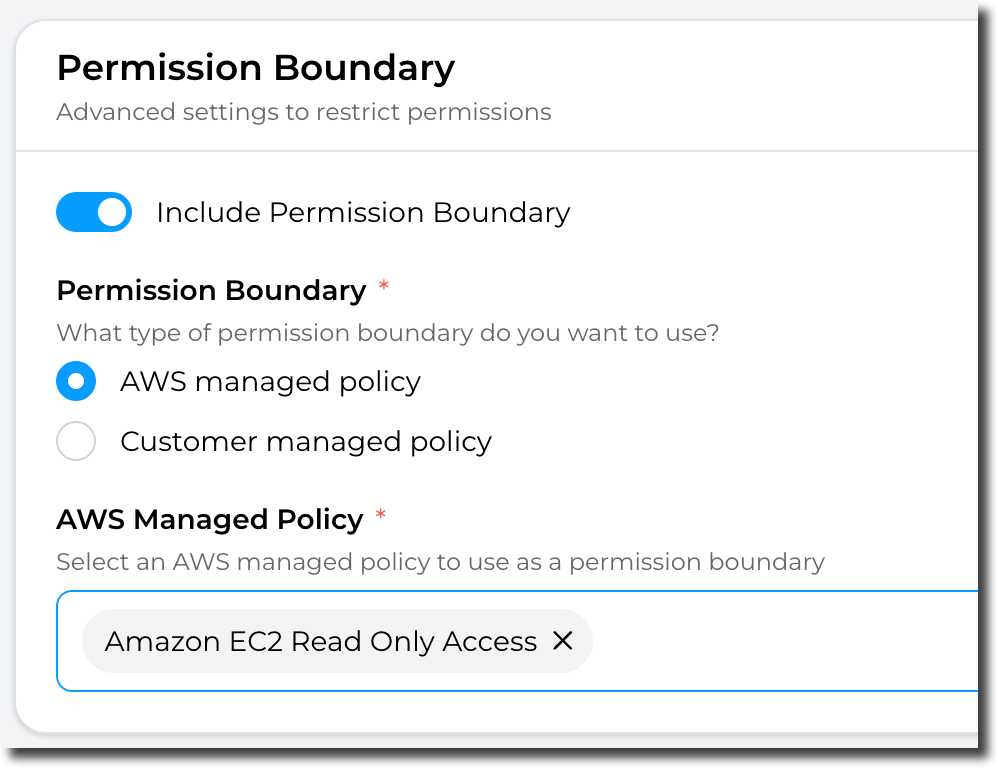](https://docs.sandboxstudiosoftware.com/uploads/images/gallery/2026-04/pkrimage.png)Note: Permission boundaries can only be "AWS managed policy" OR "Customer managed policy" (Not both). In addition, you can only select **ONE** policy to apply.
Having completed all the fields on the **Permissions** page as needed, click on **Next** to move to [Account template creation - Roles & Access](https://docs.sandboxstudiosoftware.com/books/manager-guide/page/account-template-creation-roles-access "Account template creation - Roles & Access") #### Example: This example restricts users to only basic EC2 actions: [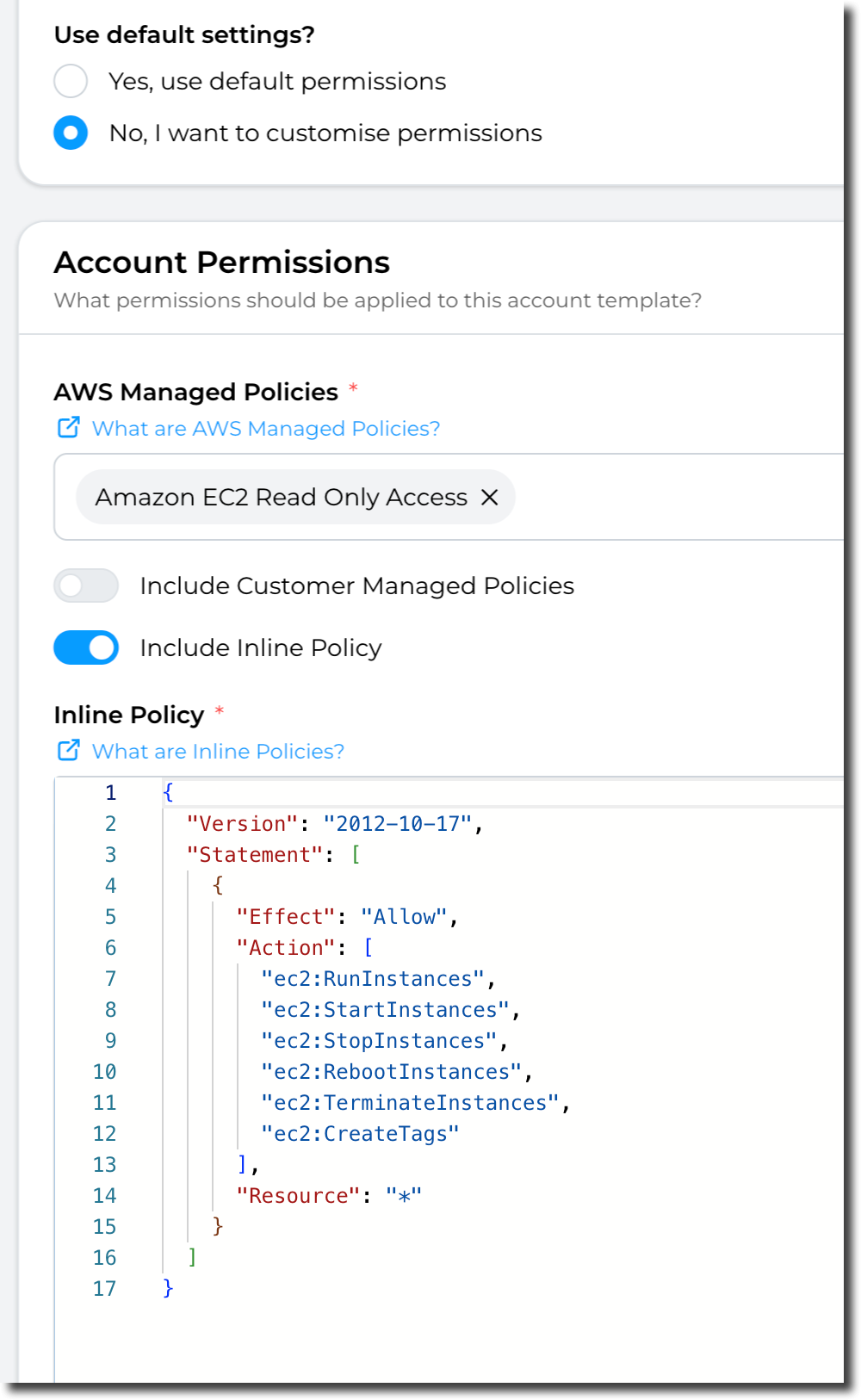](https://docs.sandboxstudiosoftware.com/uploads/images/gallery/2026-04/q2wimage.png) # Account template creation - Roles & Access In this section, you define if leases can be shared, if they require approval, and who can manage and approves them. [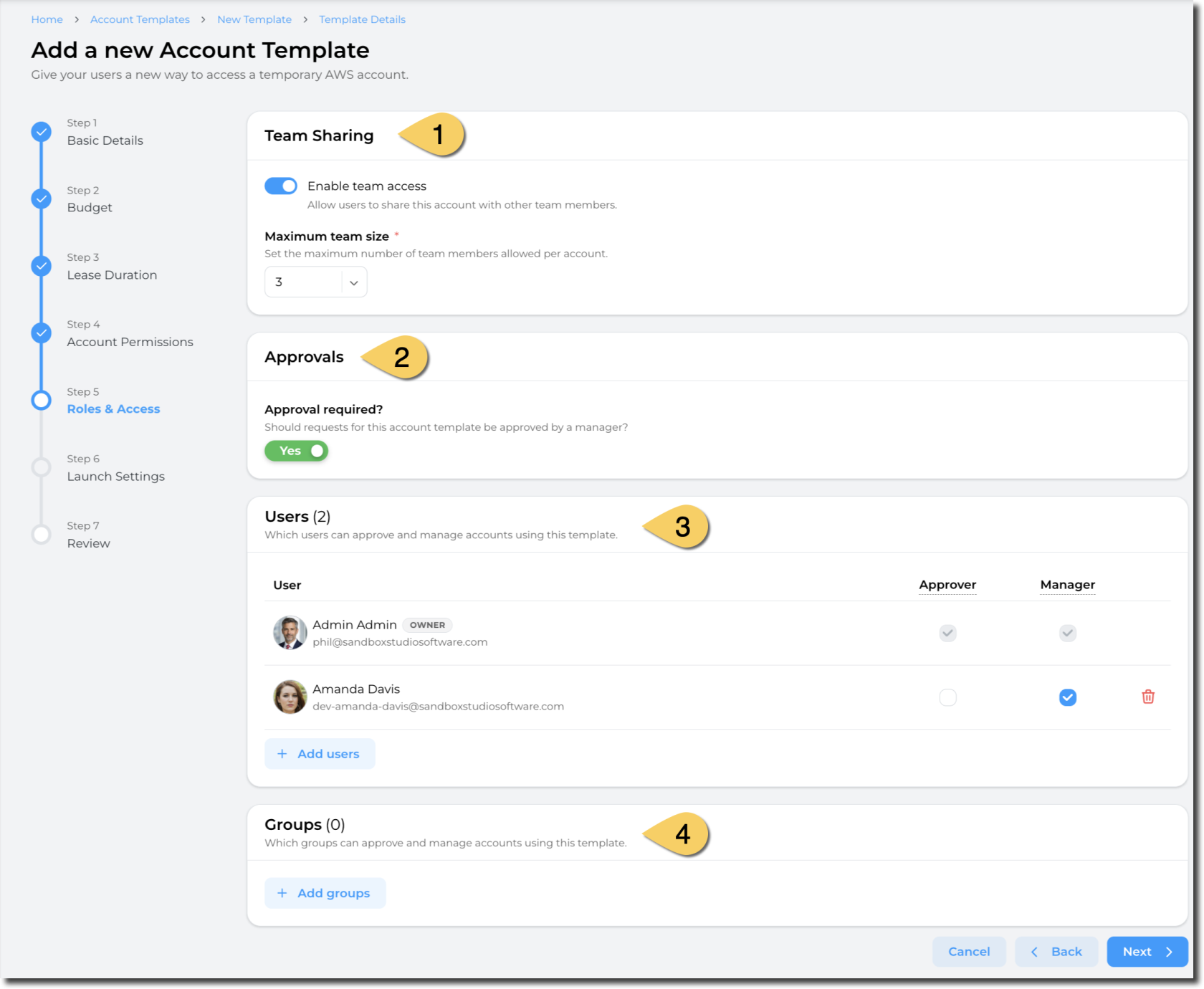](https://docs.sandboxstudiosoftware.com/uploads/images/gallery/2026-04/a4Pimage.png) ##### Team sharing (1) In the **Team Sharing** section of the page. A simple toggle that once enabled will require the Manager or Administrator to provide the number of Users it can be shared with. A User will provide the additional Users that a lease can be shared with a the request. - - Toggle the **Enable team access** to being configuring the number of Users that a lease can be shared with. - Set the **Maximum team size** to the number of Users to permit per lease.Team size is: Owner + Number of additional users
##### Approvals (2) This section lets you define whether an approval is required to create new leases using this template.We recommend requiring approval for leases with extended permissions or that will incur high costs.
- Set "**Approval required**" to **Yes** if you want new lease to be approved by managers before being created.If no approval is required, new leases are created immediately.
##### Users & Groups (3 & 4) These sections are set to define who can Approve or Managed leases created for this template: - **Approver**: Users or groups of users who receive approval requests on lease creation and who can approve leases created with this template - **Manager**: Users or groups of users who can manage leases created with this template, that is: - View the leases - Extend budget and duration - Terminate leases - Login to the AWS accountAdministrators can both approve and manage leases, even if not in this list of users/groups
Groups are defined in IAM Identity Center. [How to add groups to IAM Identity Center](https://docs.aws.amazon.com/singlesignon/latest/userguide/addgroups.html)
Having completed all the fields on the Managers page as needed, click on **Next** to [Account template creation - Launch Settings](https://docs.sandboxstudiosoftware.com/books/manager-guide/page/account-template-creation-launch-settings "Account template creation - Launch Settings") # Account template creation - Launch Settings Using launch templates, managers can define what resources need to be set up on new accounts creation. For instance, create S3 buckets, deploy Cloud Formation templates, etc.Sandbox Studio uses [AWS Codebuild](https://docs.aws.amazon.com/codebuild/latest/userguide/welcome.html) to set up resources.
[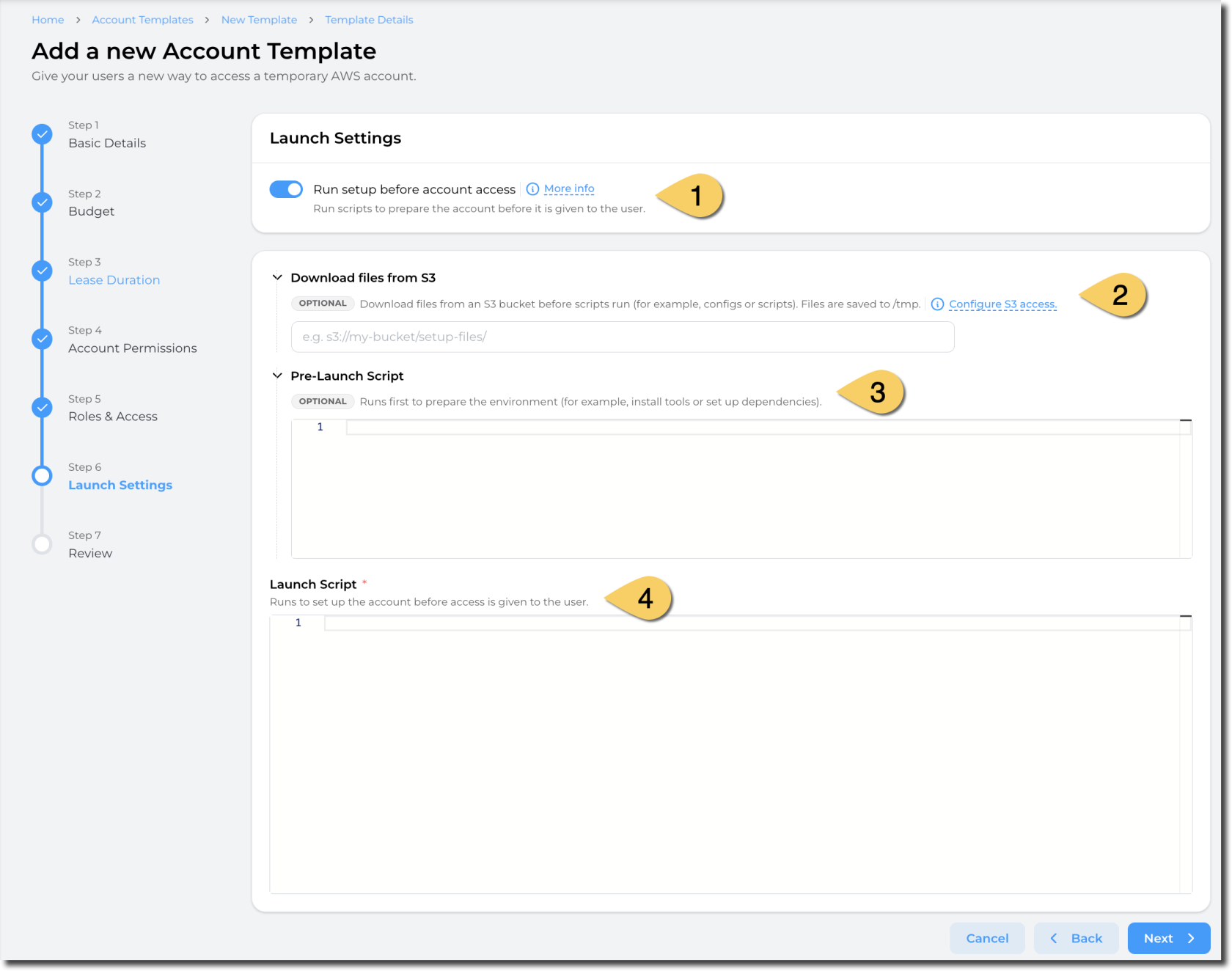](https://docs.sandboxstudiosoftware.com/uploads/images/gallery/2026-04/JiJimage.png) ##### Launch Settings (1) Select "**Run setup before account access**" to enable launch templates. By ticking this item, you need to provide the script to create resources on account creation.If no resource needs to be created on account creation, untick this box to provide an "empty" account to users.
##### Download files from S3 (2) In some scenario, you may need to download files from S3 to create your resources. For example, download a Cloudformation template, download softwares, etc.You need to provide an S3 path to a folder or a bucket (not to the object directly).
[](https://docs.sandboxstudiosoftware.com/uploads/images/gallery/2026-04/Z7nimage.png) Sandbox Studio will run a `sync` command to fetch the folders and objects from S3 into the `/tmp` folder of the Codebuild instance.Sandbox Studio does not require your bucket to be public! Follow the next steps to learn how to configure S3 access
Sandbox Studio requires your bucket to be accessible to the `LaunchTemplateExternalAccessRole` created in your environment. You can click on "Configure S3 access" to display the S3 bucket policy to apply on your S3 bucket: [](https://docs.sandboxstudiosoftware.com/uploads/images/gallery/2026-04/vm6image.png)| [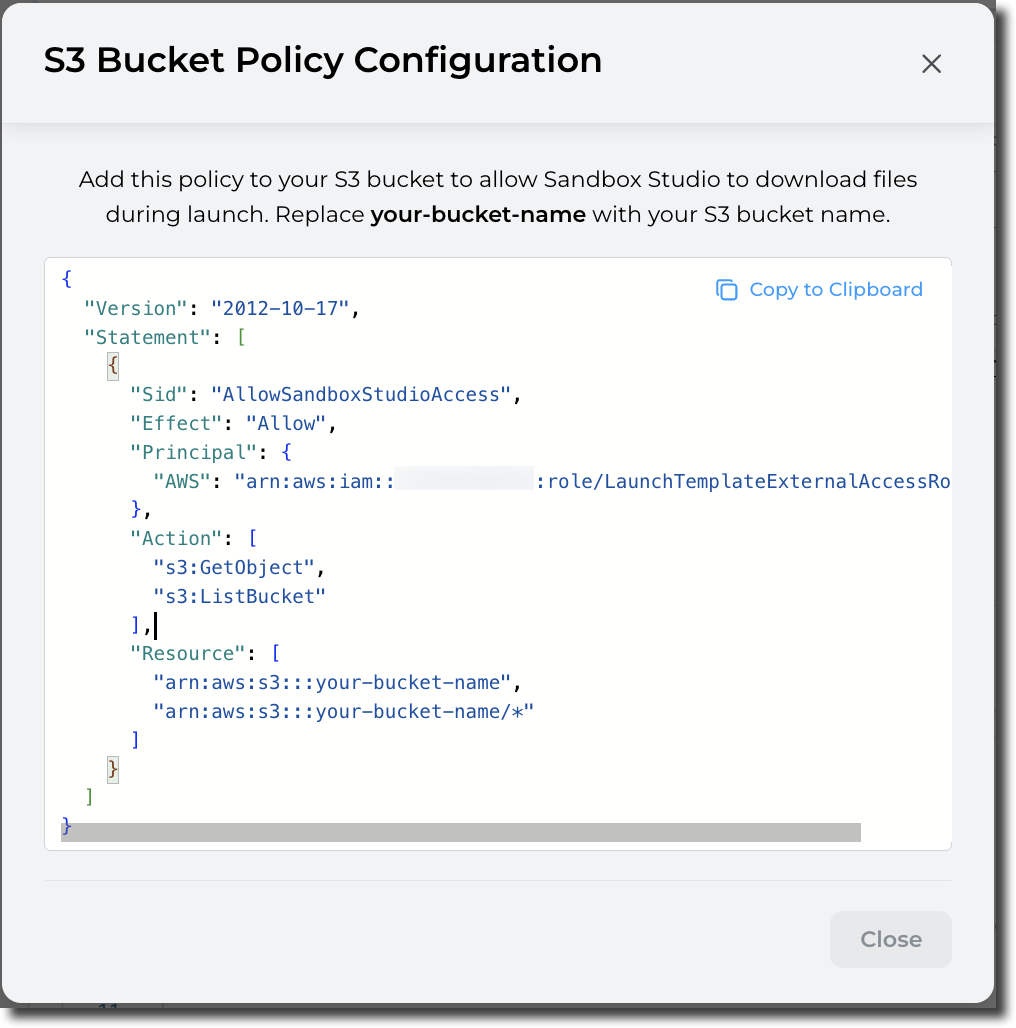](https://docs.sandboxstudiosoftware.com/uploads/images/gallery/2026-04/x4himage.png) | ```json
{
"Version": "2012-10-17",
"Statement": [
{
"Sid": "AllowSandboxStudioAccess",
"Effect": "Allow",
"Principal": {
"AWS": "arn:aws:iam:: |
The environment used to create the resources is based on **Amazon Linux 2023 (x86\_64)**. ([aws/codebuild/amazonlinux-x86\_64-standard:5.0)](https://docs.sandboxstudiosoftware.com/uploads/images/gallery/2025-07/Xwjimage.png)
##### Launch script (4) Launch script is your actual script to create resources in your account.The environment used to create the resources is based on **Amazon Linux 2023 (x86\_64)**. ([aws/codebuild/amazonlinux-x86\_64-standard:5.0)](https://docs.sandboxstudiosoftware.com/uploads/images/gallery/2025-07/Xwjimage.png)
Please refer to following section to return environment details to the Sandbox Studio interface.
Example of script to create a S3 bucket: ```bash #!/bin/bash BUCKET_NAME="sample-bucket-$(date +%s)" # Unique bucket name from current timestamp REGION="us-east-1" aws s3 mb --region $REGION s3://$BUCKET_NAME ``` #### How to set "Environment details" in Sandbox Studio? Sandbox Studio allows you to display environment details from the launch template script. You can, for example, return URLs, passwords, environment variables, etc.One interesting use case is to provide access to a VSCode environment: You can create a VSCode environment to your users and return the URL to the user. They don't need to login to the account and can directly access their VSCode with the information provided by the install script.
To set the environment details, you can use the pre-defined `set-sandbox-output` command: ```bash VSCODE_URL="https://example.com" PASSWORD="SuperStrongPassword" set-sandbox-output --name "VSCodeServerUrl" --value "$VSCODE_URL" set-sandbox-output --name "Password" --value "$PASSWORD" --is-secret ``` The tool takes 2 parameters (name and value). For secret strings (i.e.: Password, API keys, etc.), add the parameter `is-secret` [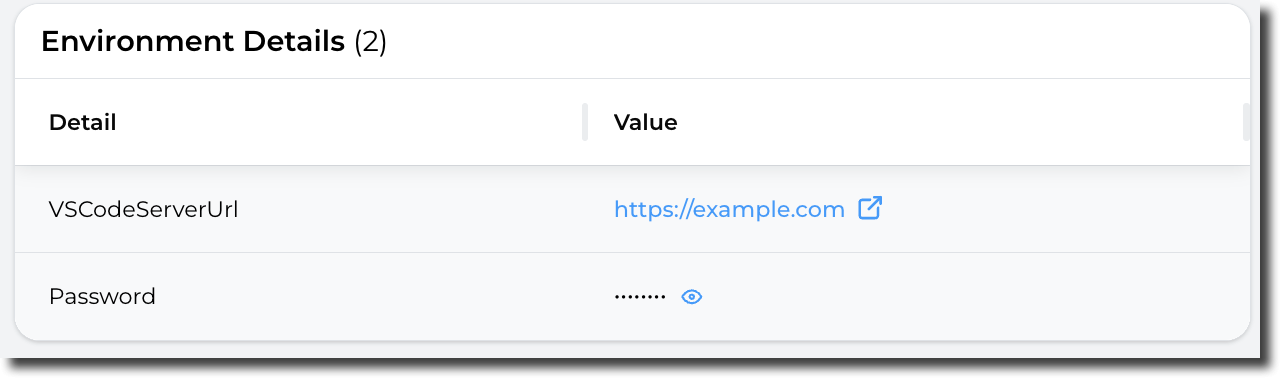](https://docs.sandboxstudiosoftware.com/uploads/images/gallery/2026-04/wDVimage.png)Secrets variables are saved in AWS Secrets Manager and only displayed when the user clicks on the Display icon.
Having completed all the fields on the Launch Settings page as needed, click on **Next** to [Account template creation - Review](https://docs.sandboxstudiosoftware.com/books/manager-guide/page/account-template-creation-review "Account template creation - Review") # Account template creation - Review Having completed all the steps, the final step is to **Review** the selected settings and one satisfied that everything is correct, click **Submit** to create a new lease template. Users can then request a lease with this new lease template. [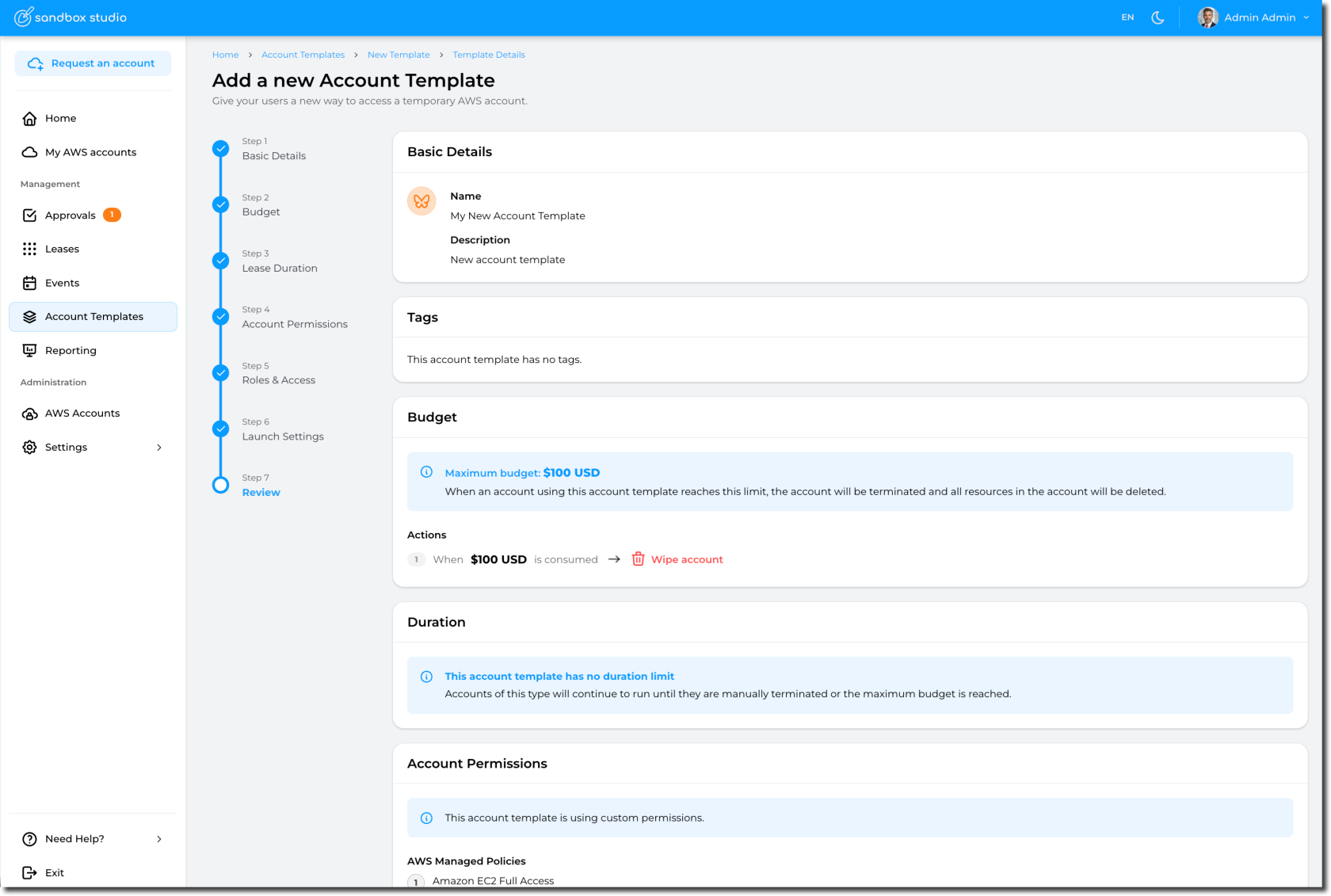](https://docs.sandboxstudiosoftware.com/uploads/images/gallery/2026-04/OWQimage.png) The new lease template becomes available immediately: [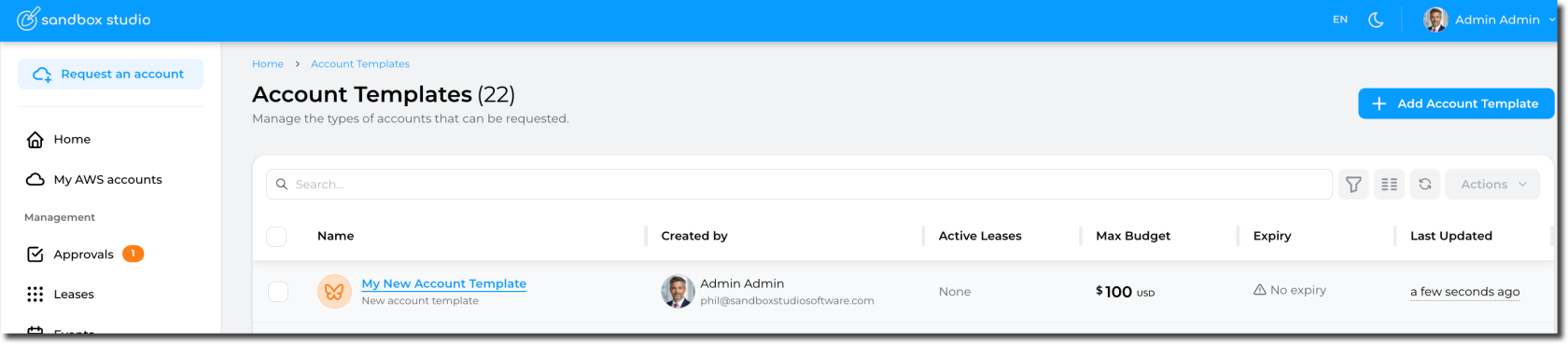](https://docs.sandboxstudiosoftware.com/uploads/images/gallery/2026-04/6Ofimage.png) And end users can start using it: [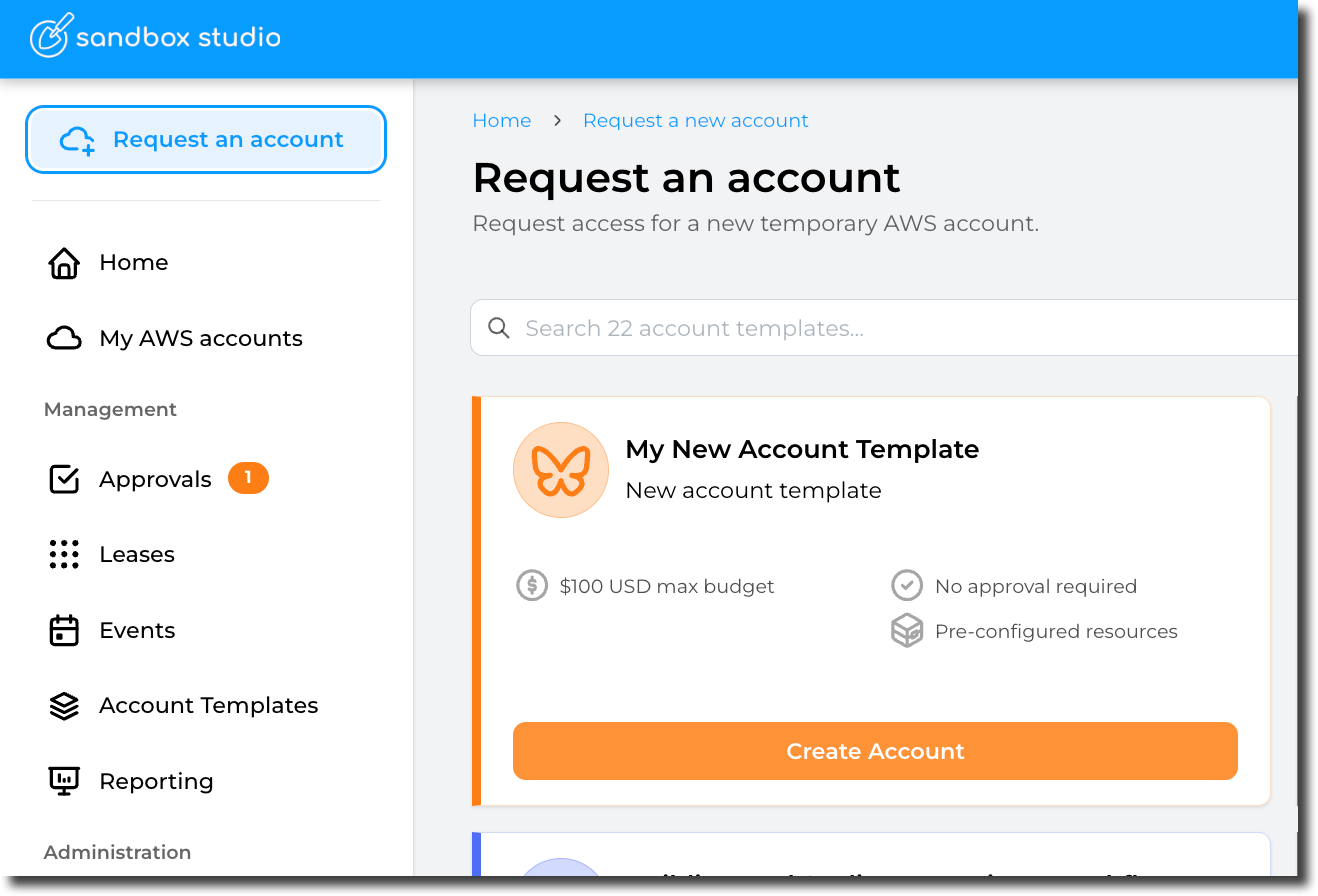](https://docs.sandboxstudiosoftware.com/uploads/images/gallery/2026-04/J9aimage.png) # Update Account templates To update an account template, go to "Account Templates" and open the template you want to modify: [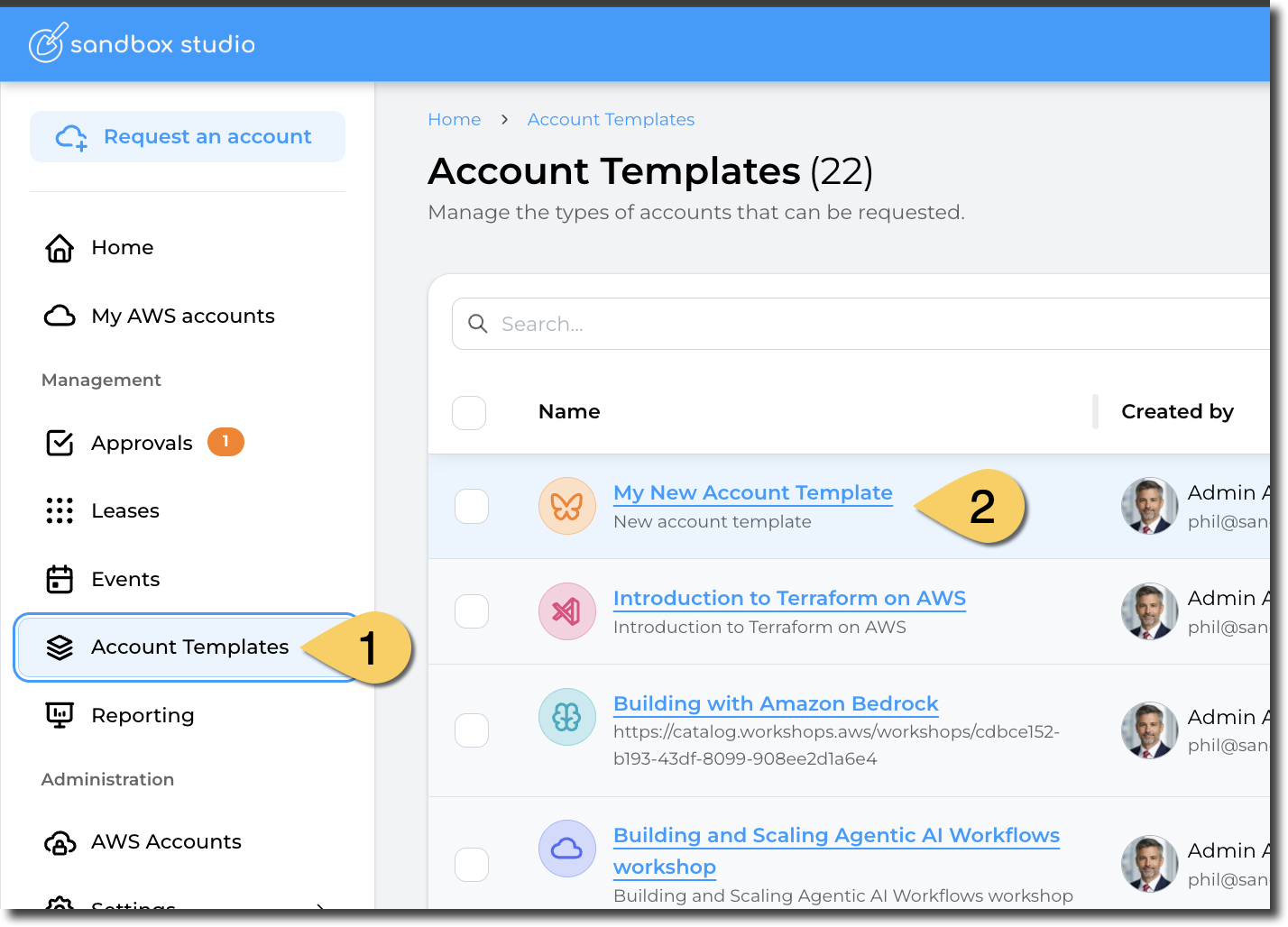](https://docs.sandboxstudiosoftware.com/uploads/images/gallery/2026-04/s15image.png) Then edit any of the fields you want to update: [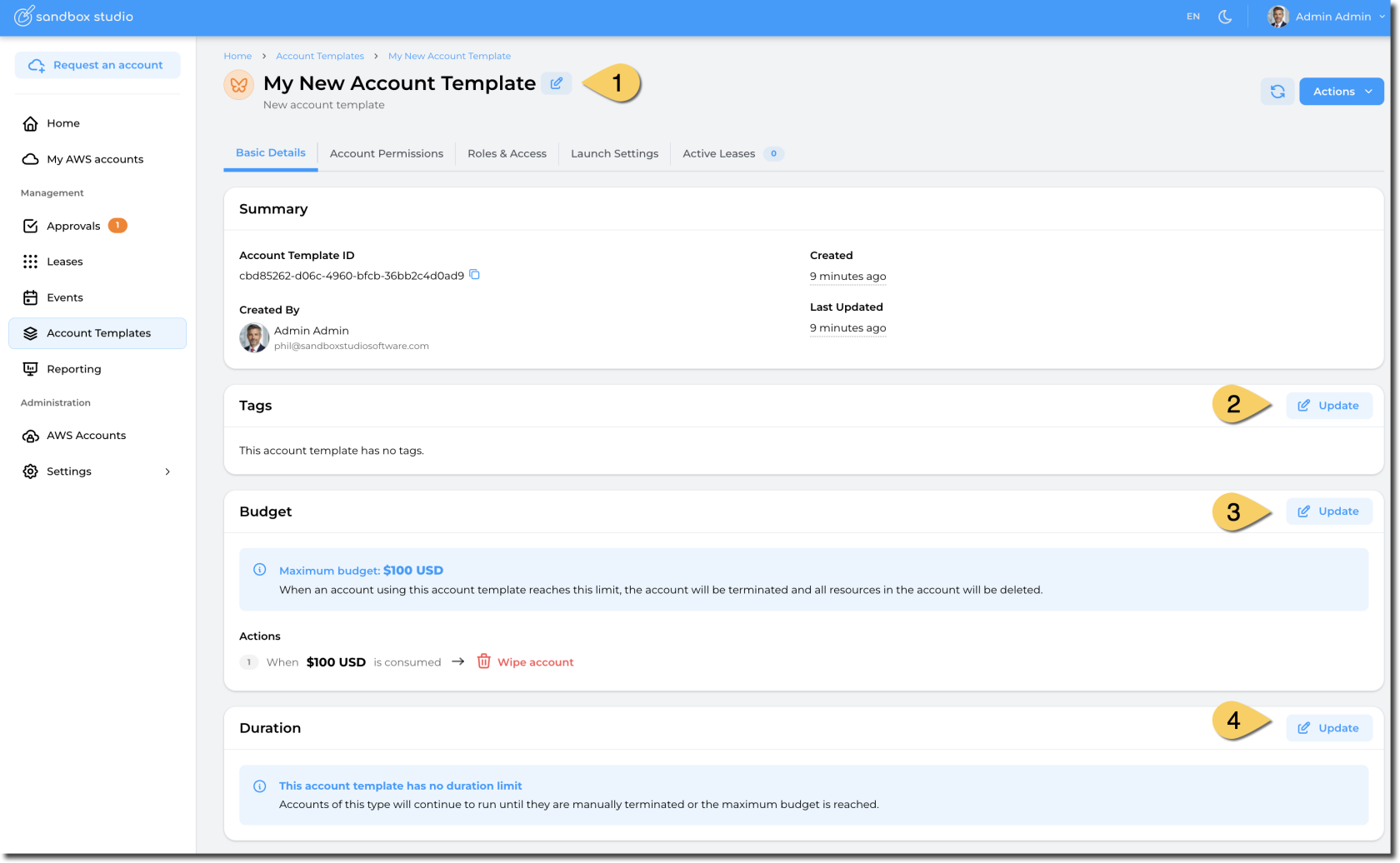](https://docs.sandboxstudiosoftware.com/uploads/images/gallery/2026-04/B4bimage.png) # Duplicate Account Templates To duplicate an account template, go to "Account Templates" and open the template you want to duplicate: [](https://docs.sandboxstudiosoftware.com/uploads/images/gallery/2026-04/s15image.png) Click on the "Actions" button and choose "Duplicate account template": [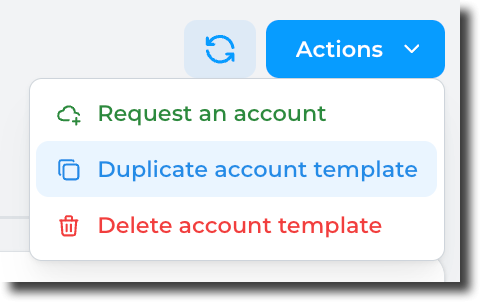](https://docs.sandboxstudiosoftware.com/uploads/images/gallery/2026-04/0jcimage.png) This will redirect you to the Account template creation page with information pre-filled: [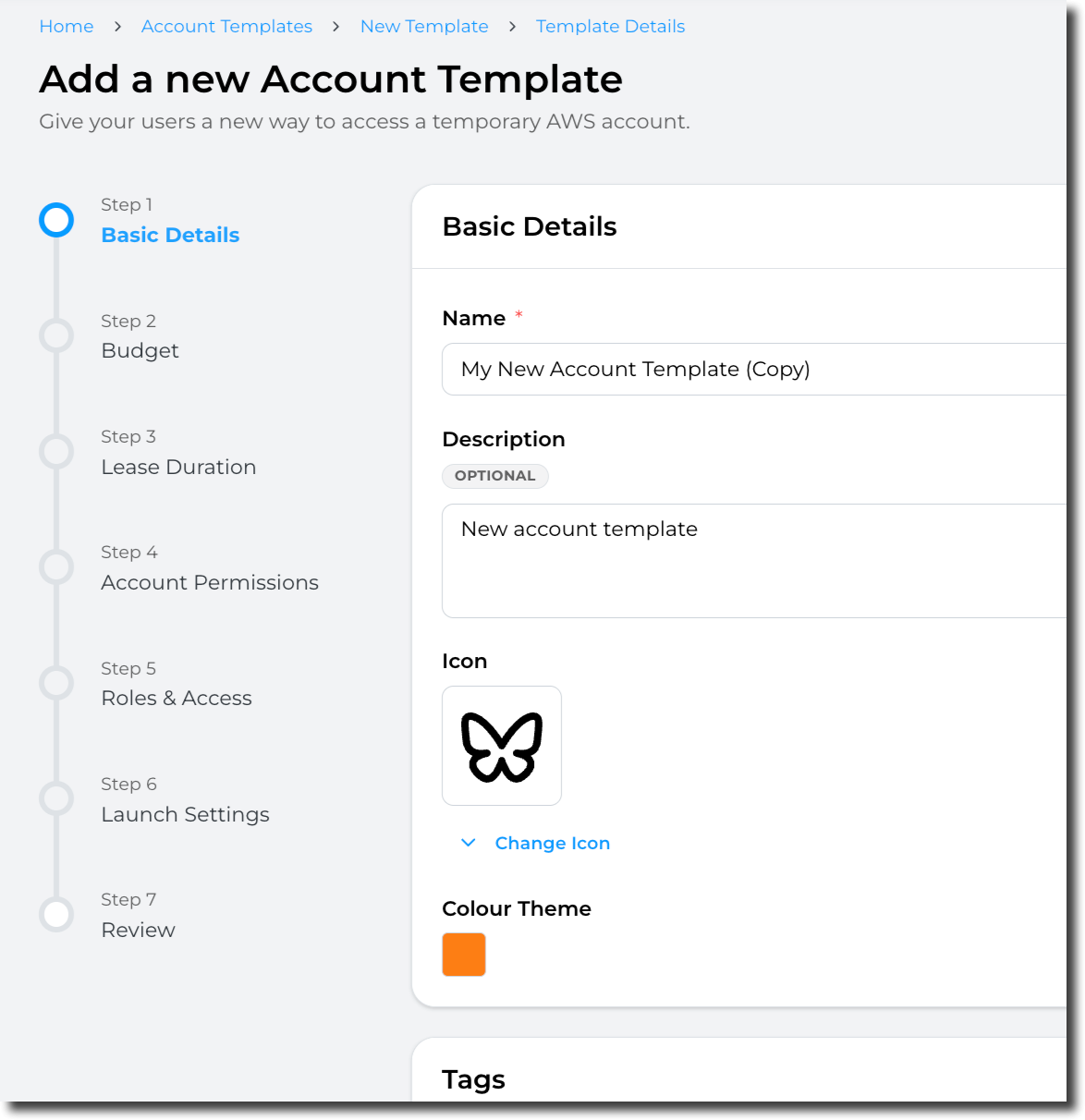](https://docs.sandboxstudiosoftware.com/uploads/images/gallery/2026-04/g7simage.png) # Reporting # Reporting As a Manager or Administrator, you can view the costs incurred by the leases. This allows you to keep track of the costs of your leased accounts. - You can view all leases on the **Manage Leases** page. Each lease will display the amount spent on the lease so far under the Costs column. By default, the Leases page will only display the Active and Locked leases. If you’d like to see the costs incurred by Terminated leases, you can use the Status filter. - Detailed **reporting (1)** is available from the left hand menu. You can filter by date, but also by **Account Template, Event** or **Tags** (2). This enables reporting per department or cost code. [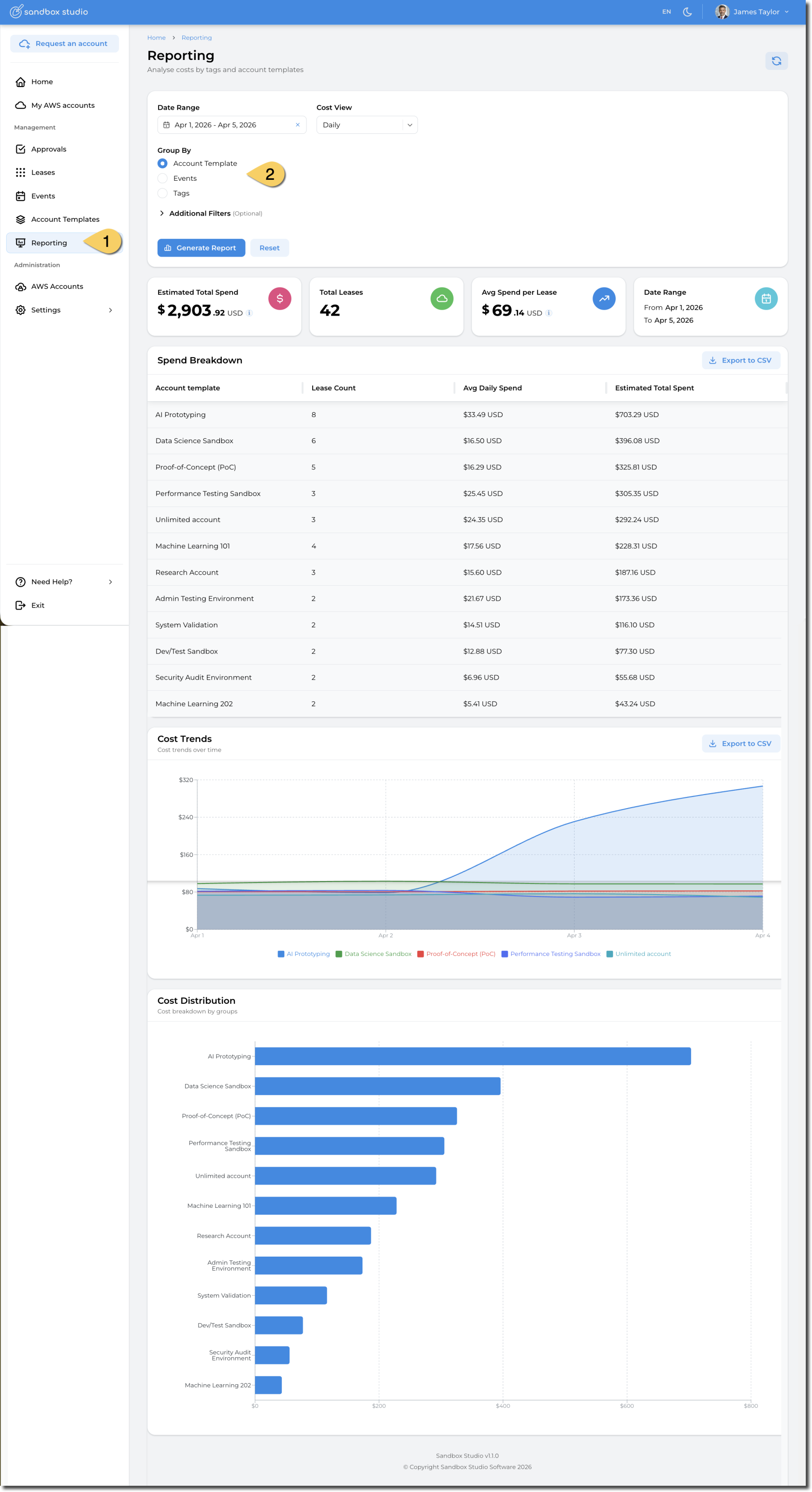](https://docs.sandboxstudiosoftware.com/uploads/images/gallery/2026-04/xswimage.png)Note: Administrators with access to the organisation’s management account can access the AWS Cost Explorer console for full data on spending in their organisation. Cost Explorer refreshes your cost data at least once every 24 hours. For more information, refer to the Analysing your costs and usage with AWS Cost Explorer page.
# Reference : Lease States ##### Leases states in Sandbox Studio. This table explains the various states the leases can be in at any given time.| State | Terminal state? | Description |
| Pending Approval | No | The lease request is pending approval from an Admin or a Manager. |
| Processing Approval | No | The lease approval is currently being processed by the system. This step should not be visible in the Sandbox Studio web UI. |
| Approval Denied | Yes | The lease request has been denied by an Admin or a Manager. |
| Withdrawn | Yes | The lease request was withdrawn before it was approved or processed. |
| Pending Setup | No | The lease has been approved and the account is being set up for the user. |
| Setup Failed | Yes | The account setup process failed. Admin intervention may be required to investigate and retry. |
| Active | No | The lease is actively being used by a sandbox user. |
| Suspended | No | The lease has been suspended. This can occur when manually suspended by an Admin or Manager, when the budget has been exceeded, or when the lease has expired. Sandbox users will no longer have access to the lease but the account could still have active AWS resources running. |
| Processing Termination | No | The lease is currently being terminated and resources are being cleaned up. |
| Expired *(Terminated)* | Yes | The lease has reached its predefined maximum lease duration and the resources in the account are being cleaned up. |
| Budget Exceeded *(Terminated)* | Yes | The lease has reached its predefined budget threshold and the resources in the account are being cleaned up. |
| Manually Terminated *(Terminated)* | Yes | The lease has been manually terminated by an Admin or a Sandbox Manager and the resources in the account are being cleaned up. |
| Account Quarantined | Yes | The clean up process failed to terminate some of the resources in the account and manual intervention is required by the Admin to complete clean up. Refer to [Troubleshooting guide](https://docs.sandboxstudiosoftware.com/books/administrator-guide/chapter/troubleshooting-support) for more details on next action to perform |
| Ejected | Yes | An Admin has manually ejected the account out of the account pool. |