Prefer an unattended, scripted installation? You can skip the interactive prompts and provide all settings up front using a configuration file. See Non-interactive installation (Configuration file).
#### Running the wizard 1. Login to your AWS **Organisation Management account**. 2. Open a new [CloudShell](https://aws.amazon.com/cloudshell/) console (a link to open CloudShell can be found in the bottom left corner of the AWS console). 3. Ensure you are in the region where you want to install Sandbox Studio. 4. Run the following command: ```bash bash <(curl -s https://dist.sandboxstudiosoftware.com/install.sh) ``` The following should display: [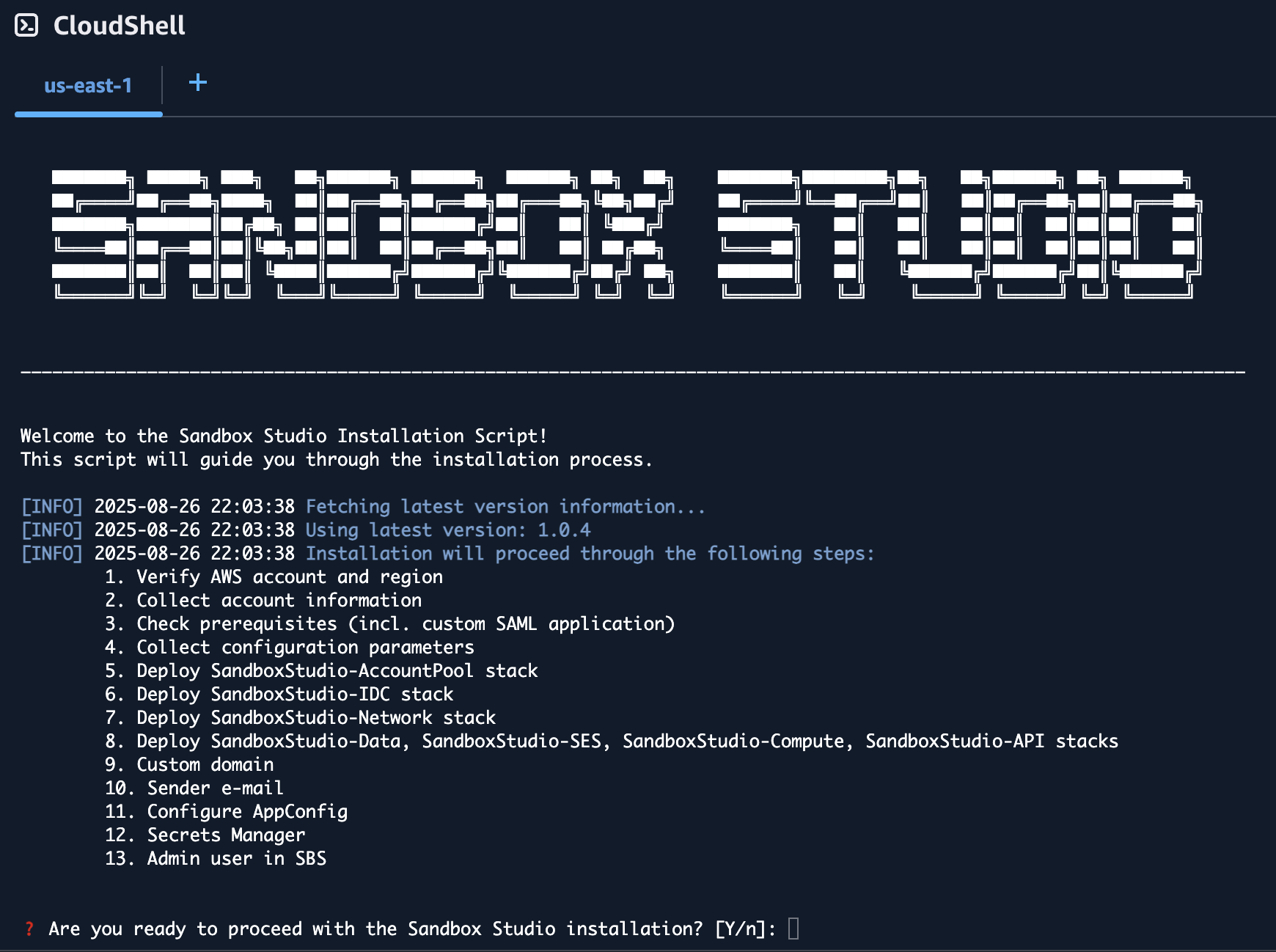](https://docs.sandboxstudiosoftware.com/uploads/images/gallery/2025-08/P7gimage.png) The wizard will guide you through the installation process.Do not use your root account to run this script as it will fail and does not follow AWS best practices!
#### Prerequisites The wizard will automatically check for [prerequisites](https://docs.sandboxstudiosoftware.com/books/installation-guide/page/installation-prerequisites "Installation Prerequisites"). If any of the prerequisites are not met, the wizard will display the URL to the right documentation to help you configure your environment. See [Installation Prerequisites](https://docs.sandboxstudiosoftware.com/books/installation-guide/page/installation-prerequisites "Installation Prerequisites") page for more details. #### Inputs The installation wizard will ask you to set/confirm a set of input parameters during the installation process:| **Input Variable** | **Description** | **Input or Confirm** | **Comments** |
|---|---|---|---|
| Management Account ID | The AWS account ID of the management account (auto-detected by the script). | Confirm | During setup, you will be asked to confirm that you are indeed using the correct **organisation management account**. This ensures Sandbox Studio can set up organisation units and Service Control Policies. |
| Region | AWS region where Sandbox Studio will be deployed. | Confirm / Input | The script attempts to detect the region from AWS CLI config. If not found, you will be prompted to input one (default `us-east-1`). |
| Hub Account ID | The account ID that will host Sandbox Studio infrastructure (may be same as management account). | Input | Must be a 12-digit AWS account ID. If left empty, the management account ID will be used. See [Choosing the hub account](https://docs.sandboxstudiosoftware.com/books/installation-guide/page/choosing-the-hub-account "Choosing the hub account"). |
| Parent OU ID | AWS Organisation Unit ID where Sandbox Studio OUs will be created. | Input | Defaults to the **Root OU ID**, but can be set to any valid parent OU so that Sandbox Studio's OU are created under that OU and inherit existing SCP's if required. |
| Namespace | Short prefix (3–8 alphanumeric characters) used to name Sandbox Studio resources. | Input | Example: `MySs`. Used as a unique identifier in stack names and IAM groups. |
| Managed Regions | List of AWS regions where Sandbox Studio should manage accounts/resources. | Input | Comma-separated values (e.g., `us-east-1,eu-west-1`). Defaults to the chosen region. See [Choosing your region(s)](https://docs.sandboxstudiosoftware.com/books/installation-guide/page/choosing-your-regions "Choosing your region(s)"). |
| Admin Group Name | IAM Identity Center group name for Sandbox Studio administrators. | Input | Defaults to ` |
| Manager Group Name | IAM Identity Center group name for Sandbox Studio managers. | Input | Defaults to ` |
| User Group Name | IAM Identity Center group name for Sandbox Studio end users. | Input | Defaults to ` |
| Identity Center Instance | The IAM Identity Center instance ARN and Identity Store ID used for Sandbox Studio integration. | Confirm | The wizard will list the detected Identity Center instance and ask you to confirm it is the correct one. |
| Custom Application in Identity Center | The SAML 2.0 application used by Sandbox Studio for authentication. | Confirm / Input | You can either select an existing Identity Center application or the wizard will help you create a new one. |
| Allowed IP Ranges | CIDR ranges of IP addresses allowed to access the Sandbox Studio API. | Input | Defaults to all IPs (`0.0.0.0/1,128.0.0.0/1`). Restrict to corporate ranges if needed. |
| Custom Domain | (Optional) A DNS domain for Sandbox Studio instead of the CloudFront URL. | Input | If used, must configure CloudFront and ACM with this domain, and update Identity Center ACS URL accordingly. |
| Email From Address | Email address Sandbox Studio will use to send system notifications. | Input | Must be a verified identity in SES. Example: `sandboxstudio@example.com`. |
| Admin Users | Initial set of users (by username) to be added to the Admin group in Identity Center. | Input | You will be prompted to enter usernames to grant them full Sandbox Studio admin rights. |
Make sure your session timeout is at least 2 hours for during the installation of Sandbox Studio.
# Update Sandbox Studio # Update Sandbox Studio ##### Updating Made Simple Updating Sandbox Studio is easier than ever. The update process uses the same [installation script ](https://docs.sandboxstudiosoftware.com/link/89#bkmrk-page-title)you used for the initial setup, making it straightforward and familiar. ##### How It Works When you run the installation script on a environment with an existing Sandbox Studio installation, the script automatically: 1. **Detects** the previous installation 2. **Gathers** all required configuration information from your current setup 3. **Presents** a summary of what will be updated 4. **Asks for confirmation** before proceedingYou can also update non-interactively by supplying a configuration file with the --config-file flag. When an existing installation is detected in this mode, all stacks are upgraded automatically without prompts. See Non-interactive installation (Configuration file).
**Best Practice:** It is highly recommended to update all stacks to ensure compatibility and access to the latest features and security patches.
[](https://docs.sandboxstudiosoftware.com/uploads/images/gallery/2025-10/h3timage.png) #####Note: During update process, the script does not modify your existing configuration (AppConfig), your Identity Center applications, or anything else than the CloudFormation stacks for Sandbox Studio. You can force a reinstall of the solution by adding the flag **--reinstall true** to the installation script
##### ##### Support If you encounter any issues during the update process, please contact your Sandbox Studio support team atThe configuration file drives exactly the same deployment as the interactive wizard. Every value you would normally be asked for in the wizard has a matching field in the configuration file.
#### Installing with the script and a configuration file You can run the installer from any terminal, including AWS CloudShell, your local machine, or a build agent, as long as it meets the requirements below. **Before you begin, make sure your terminal is:** - Authenticated to your AWS **Organisation Management account** (for example via `aws configure`, environment variables, an SSO profile, or an assumed role).Do not use your root account.
- Targeting the AWS region where you want to install Sandbox Studio (for example by setting `AWS_REGION` / `AWS_DEFAULT_REGION` or your CLI profile's default region). You can confirm which account and region your terminal is using with: ```bash aws sts get-caller-identity aws configure get region ``` **Then run the installation:** 1. Create your configuration file somewhere on the machine running the installer. For example, create a file called `sbs-config.json` in your home directory: ```bash nano ~/sbs-config.json ``` Paste your configuration (see the [example configuration files](#bkmrk-example-configuration) below), then save and exit. You can use any text editor; `nano` is just an example. 2. Run the installation script and point it at your configuration file: ```bash bash <(curl -s https://dist.sandboxstudiosoftware.com/install.sh) --config-file ~/sbs-config.json ``` The installer will load every value from the file and deploy the solution without prompting. Because no questions are asked, make sure your file is complete and correct before you run the command. #### Using a configuration file to update Sandbox Studio The same command is used to update an existing installation. When the script runs with a configuration file and detects an existing Sandbox Studio installation, it automatically upgrades all deployed stacks, with no confirmation prompts. Point the `--config-file` flag at your file exactly as you would for a first-time install: ```bash bash <(curl -s https://dist.sandboxstudiosoftware.com/install.sh) --config-file ~/sbs-config.json ``` For more details on the update behaviour, see [Update Sandbox Studio](https://docs.sandboxstudiosoftware.com/books/installation-guide/page/update-sandbox-studio "Update Sandbox Studio"). #### The configuration file The configuration file is a single JSON object. The sections below describe every field, whether it is required, its default value, and what it does. ##### Required fields These fields must always be present in the configuration file.| Field | Type | Description |
|---|---|---|
namespace | string | Unique namespace for this Sandbox Studio instance. Must be 3 to 8 alphanumeric characters (pattern ^[0-9a-zA-Z]{3,8}$). Used as a prefix to name Sandbox Studio resources. Example: Sandbox. |
hub_account_id | string | AWS account ID of the hub account where the data, compute, and API stacks are deployed. Must be a 12-digit account ID (pattern ^[0-9]{12}$). |
parent_ou_id | string | ID of the parent Organisational Unit where the Sandbox OUs will be created. Example: ou-xxxx-xxxxxxxx or a root ID such as r-xxxx. |
managed_regions | string | Comma-separated list of AWS regions to manage. us-east-1 is always included automatically. Example: us-east-1,eu-west-1,ap-southeast-2. |
admin_group_name | string | IAM Identity Center group name for administrators. Example: Sandbox_AdminsGroup. |
manager_group_name | string | IAM Identity Center group name for managers. Example: Sandbox_ManagersGroup. |
user_group_name | string | IAM Identity Center group name for regular users. Example: Sandbox_UsersGroup. |
allowed_ip_ranges | string | Comma-separated CIDR ranges allowed to access the API. Default: 0.0.0.0/1,128.0.0.0/1 (all IPs). Restrict to your corporate ranges if required. |
use_existing_vpc | boolean | Whether to use an existing VPC (true) or create a new one (false). |
notifications_enabled | boolean | Whether to enable email notifications. |
| Field | Type | Required | Description |
|---|---|---|---|
db_instance_type | string | Optional | RDS instance type for the PostgreSQL database, without the db. prefix. Default: t4g.small. Examples: t4g.small, t4g.medium, r6g.large. |
db_engine_version | string | Optional | PostgreSQL engine version (format X.Y, major version 17 or higher). Leave empty ("") to use the latest default. Example: 17.4. |
db_encryption | string | Optional | Enable storage encryption for the RDS database. One of Yes or No. Default: Yes for new installations. |
idc_app_arn) **or** a name for a new application (idc_app_name). If idc_app_arn is not supplied, a new SAML application is created using idc_app_name and idc_app_description.
| Field | Type | Required | Description |
|---|---|---|---|
idc_app_arn | string | Conditional | ARN of an existing IAM Identity Center application to use. If provided, an existing application is reused instead of creating a new one. Example: arn:aws:sso::123456789012:application/ssoins-xxxxxxxxxxxxxxxx/apl-xxxxxxxxxxxxxxxx. |
idc_app_name | string | Conditional | Display name for a new IAM Identity Center SAML application (used when creating a new application). Default: Sandbox Studio. |
idc_app_description | string | Optional | Description for a new IAM Identity Center SAML application. Default: Sandbox Studio allows users to access temporary AWS accounts. |
use_existing_vpc is true, the following three fields become **required**. When use_existing_vpc is false, a new VPC is created and these fields are ignored.
| Field | Type | Required | Description |
|---|---|---|---|
vpc_id | string | Required if use_existing_vpc is true | VPC ID to use. Example: vpc-0123456789abcdef0. |
database_subnets | string | Required if use_existing_vpc is true | Comma-separated subnet IDs for the database. Minimum 2 subnets in different Availability Zones. Example: subnet-aaa,subnet-bbb. |
compute_subnets | string | Required if use_existing_vpc is true | Comma-separated subnet IDs for compute resources. Minimum 1 subnet. Example: subnet-ccc,subnet-ddd. |
| Field | Type | Required | Description |
|---|---|---|---|
custom_domain | string or null | Optional | Custom domain name for the application. Set to null to use the default CloudFront URL. Example: sandbox.example.com. |
certificate_arn | string | Required if custom_domain is set | ARN of the ACM certificate in us-east-1. Example: arn:aws:acm:us-east-1:123456789012:certificate/xxxxxxxx-xxxx-xxxx-xxxx-xxxxxxxxxxxx. |
| Field | Type | Required | Description |
|---|---|---|---|
add_admin_users | boolean | Optional | Whether to add IAM Identity Center users as Sandbox Studio administrators during installation. Default: false. |
admin_users | array of strings | Optional | List of IAM Identity Center usernames to add as Sandbox Studio administrators. Used when add_admin_users is true. Example: ["admin@example.com", "john.doe"]. |
notifications_enabled is true, email_service and email_from are **required**. If email_service is set to SMTP, the SMTP fields below also become required.
| Field | Type | Required | Description |
|---|---|---|---|
email_service | string | Required if notifications_enabled is true | Email service to use for notifications. One of SES or SMTP. Default: SES. |
email_from | string (email) | Required if notifications_enabled is true | Sender email address for notifications. For SES, this must be a verified identity. Example: sandboxstudio@example.com. |
smtp_server | string | Required if email_service is SMTP | SMTP server hostname. Example: smtp.example.com. |
smtp_username | string | Required if email_service is SMTP | SMTP username. |
smtp_password | string | Required if email_service is SMTP | SMTP password. |
smtp_port | string or integer | Required if email_service is SMTP | SMTP port number. Default: 587. |
smtp_use_tls | boolean | Required if email_service is SMTP | Whether to use TLS for SMTP connections. Default: true. |
Security: When you use the SMTP email service, the configuration file contains your smtp_password in plain text. Do not commit this file to source control and do not share it. Delete it once the installation is complete, and store any long-lived copy securely.
email_from address must be a verified identity in SES.
```json
{
"namespace": "Sandbox",
"hub_account_id": "123456789012",
"parent_ou_id": "ou-xxxx-xxxxxxxx",
"managed_regions": "us-east-1,eu-west-1",
"db_instance_type": "t4g.small",
"db_engine_version": "",
"idc_app_name": "Sandbox Studio",
"idc_app_description": "Sandbox Studio allows users to access temporary AWS accounts",
"admin_group_name": "Sandbox_AdminsGroup",
"manager_group_name": "Sandbox_ManagersGroup",
"user_group_name": "Sandbox_UsersGroup",
"allowed_ip_ranges": "0.0.0.0/1,128.0.0.0/1",
"use_existing_vpc": false,
"custom_domain": null,
"notifications_enabled": true,
"email_service": "SES",
"email_from": "sandboxstudio@example.com"
}
```
##### Example 4: Email notifications with SMTP
This example enables email notifications using an SMTP server. When email_service is set to SMTP, all of the smtp_* fields are required.
```json
{
"namespace": "Sandbox",
"hub_account_id": "123456789012",
"parent_ou_id": "ou-xxxx-xxxxxxxx",
"managed_regions": "us-east-1,eu-west-1",
"db_instance_type": "t4g.small",
"db_engine_version": "",
"idc_app_name": "Sandbox Studio",
"idc_app_description": "Sandbox Studio allows users to access temporary AWS accounts",
"admin_group_name": "Sandbox_AdminsGroup",
"manager_group_name": "Sandbox_ManagersGroup",
"user_group_name": "Sandbox_UsersGroup",
"allowed_ip_ranges": "0.0.0.0/1,128.0.0.0/1",
"use_existing_vpc": false,
"custom_domain": null,
"notifications_enabled": true,
"email_service": "SMTP",
"email_from": "sandboxstudio@example.com",
"smtp_server": "smtp.example.com",
"smtp_username": "smtp-user",
"smtp_password": "your-smtp-password",
"smtp_port": "587",
"smtp_use_tls": true
}
```
##### Example 5: Custom domain with an ACM certificate
This example serves Sandbox Studio from a custom domain instead of the default CloudFront URL. When custom_domain is set, certificate_arn is required and the certificate must exist in us-east-1.
```json
{
"namespace": "Sandbox",
"hub_account_id": "123456789012",
"parent_ou_id": "ou-xxxx-xxxxxxxx",
"managed_regions": "us-east-1,eu-west-1",
"db_instance_type": "t4g.small",
"db_engine_version": "",
"idc_app_name": "Sandbox Studio",
"idc_app_description": "Sandbox Studio allows users to access temporary AWS accounts",
"admin_group_name": "Sandbox_AdminsGroup",
"manager_group_name": "Sandbox_ManagersGroup",
"user_group_name": "Sandbox_UsersGroup",
"allowed_ip_ranges": "0.0.0.0/1,128.0.0.0/1",
"use_existing_vpc": false,
"custom_domain": "sandbox.example.com",
"certificate_arn": "arn:aws:acm:us-east-1:123456789012:certificate/xxxxxxxx-xxxx-xxxx-xxxx-xxxxxxxxxxxx",
"notifications_enabled": false
}
```
#### Support
If you encounter any issues, please contact your Sandbox Studio support team at