UI Customisation
- How to display users profile pictures
- Display Settings - Change default language
- Display Settings - Change header logo
- Display Settings - Change theme colour
How to display users profile pictures
Starting with version 1.1.0 of Sandbox Studio, users' profile pictures can be displayed in the interface:
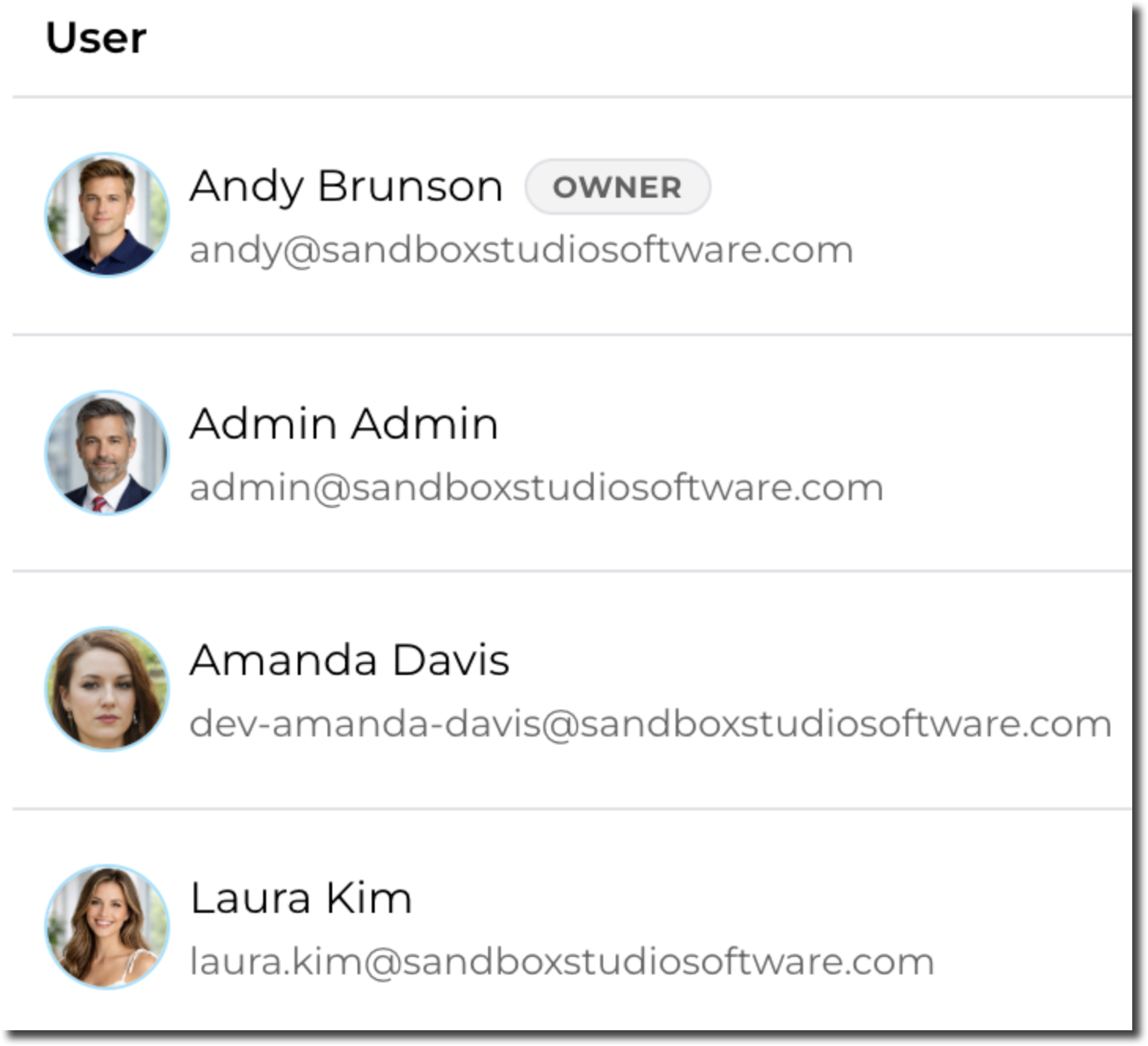
IAM Identity Center
IAM IdC has a specific attribute for profile picture URL:
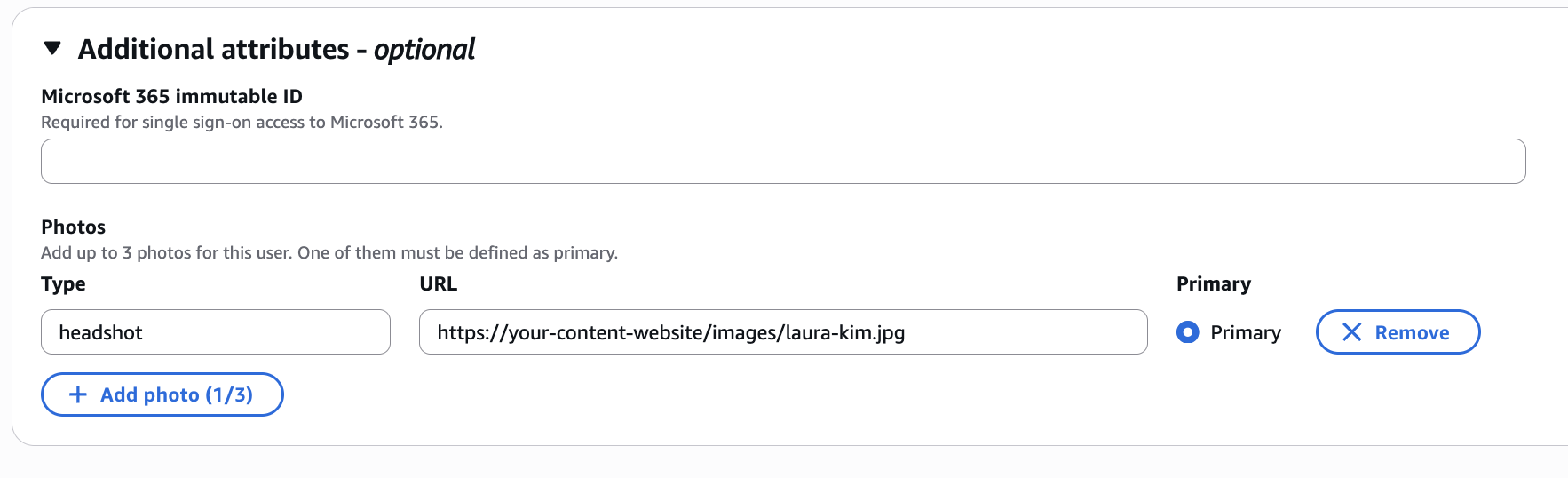
This is the field that you need to map from your IdP in order to show the profile picture.
- "Type" will be ignored by Sandbox Studio.
- The URL will be used to display the image.
- Only the Primary photo will be displayed in Sandbox Studio
Display Settings - Change default language
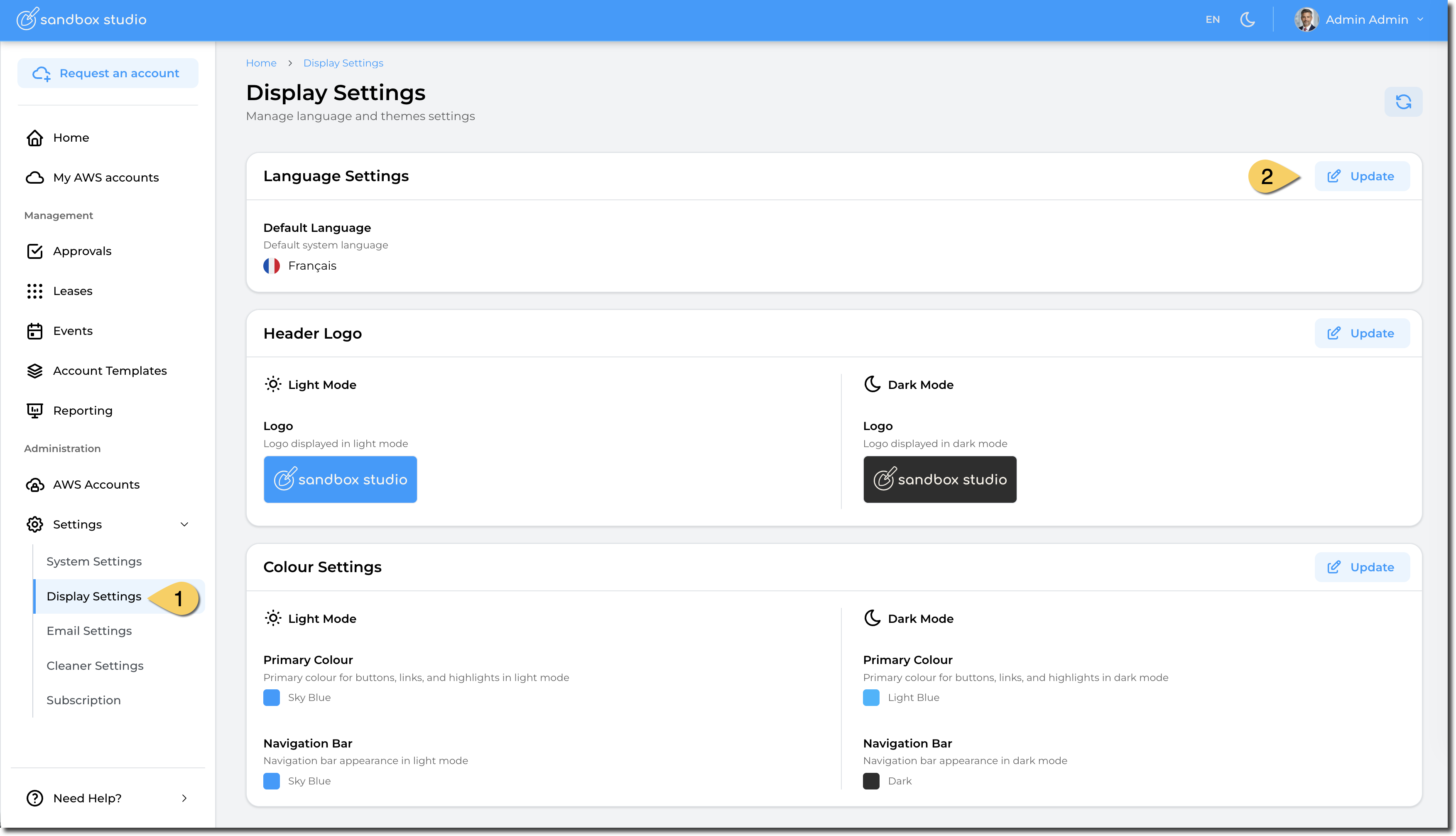
To change the default language of your Sandbox Studio installation, go to "Settings" > "Display Settings" (1) and click on "Update" in the "Language Settings" section (2):
Then select the language and "Update":
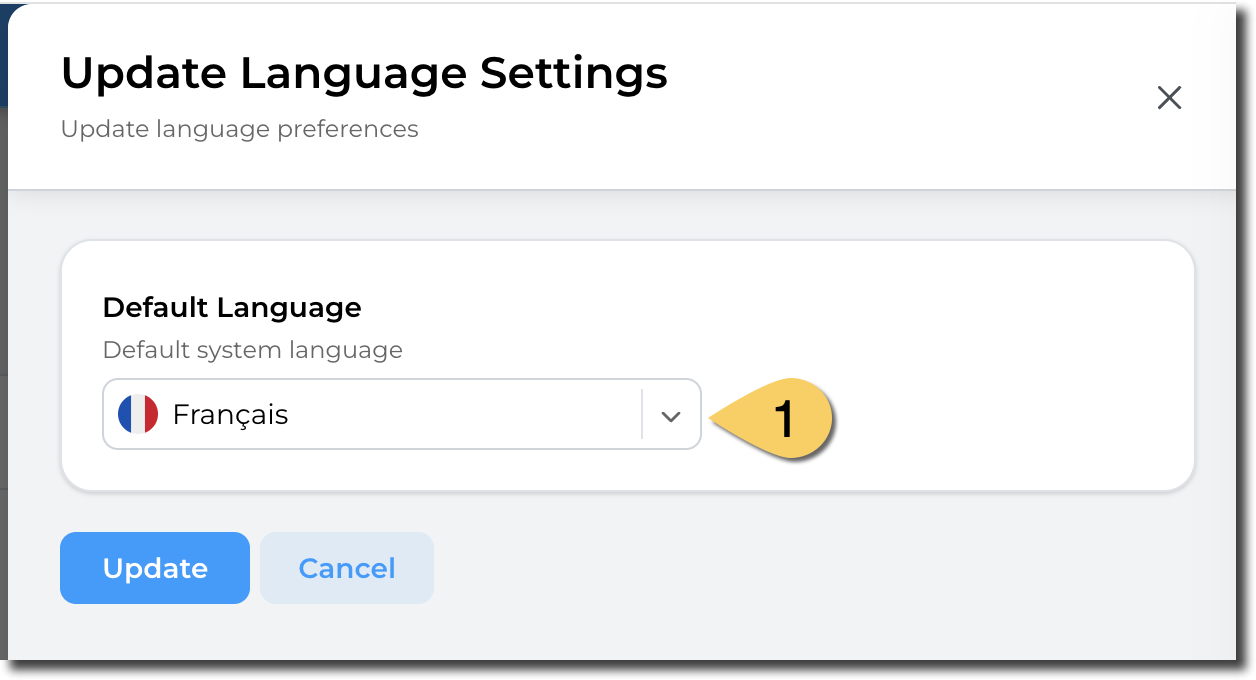
Default language will be used if users have not selected their default language.
Display Settings - Change header logo
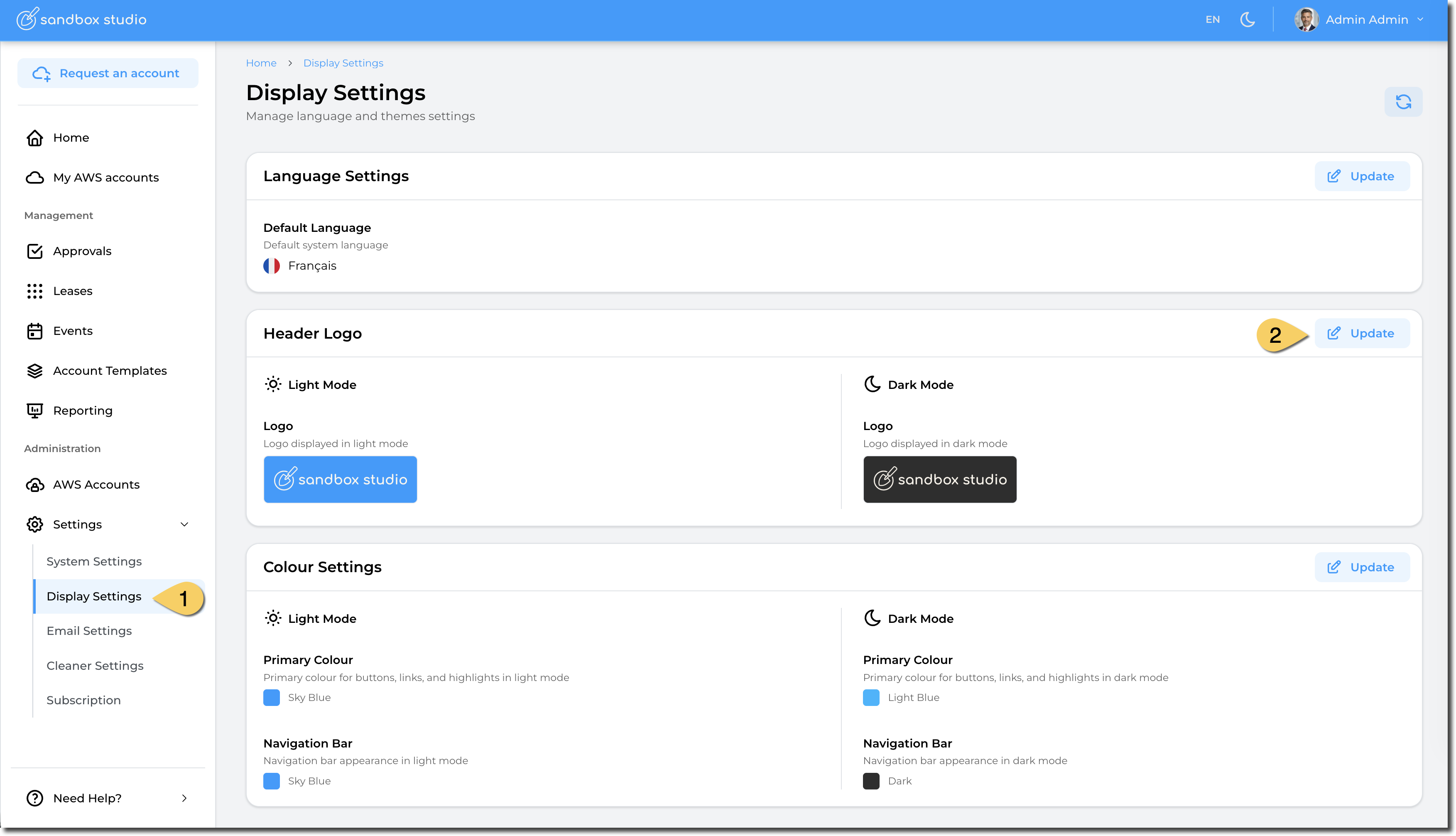
To change the default language of your Sandbox Studio installation, go to "Settings" > "Display Settings" (1) and click on "Update" in the "Header Logo" section (2):
You can now select your custom header image:
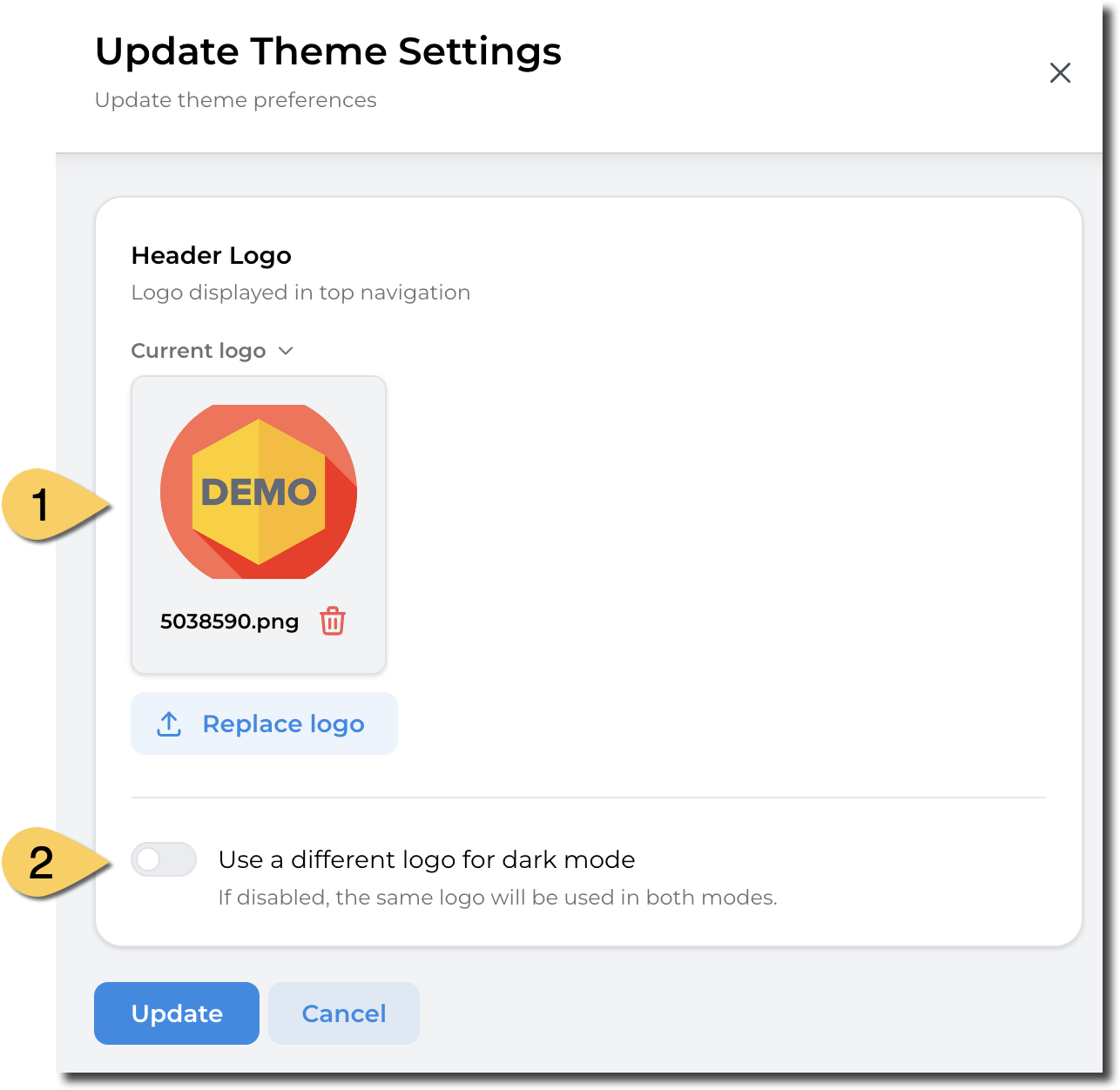
- Upload your image file. We recommend using transparent background so the logo displays flawlessly.
- You can choose to have a different logo for dark mode. If this option is left unticked, the same logo as the first one is used.
Display Settings - Change theme colour
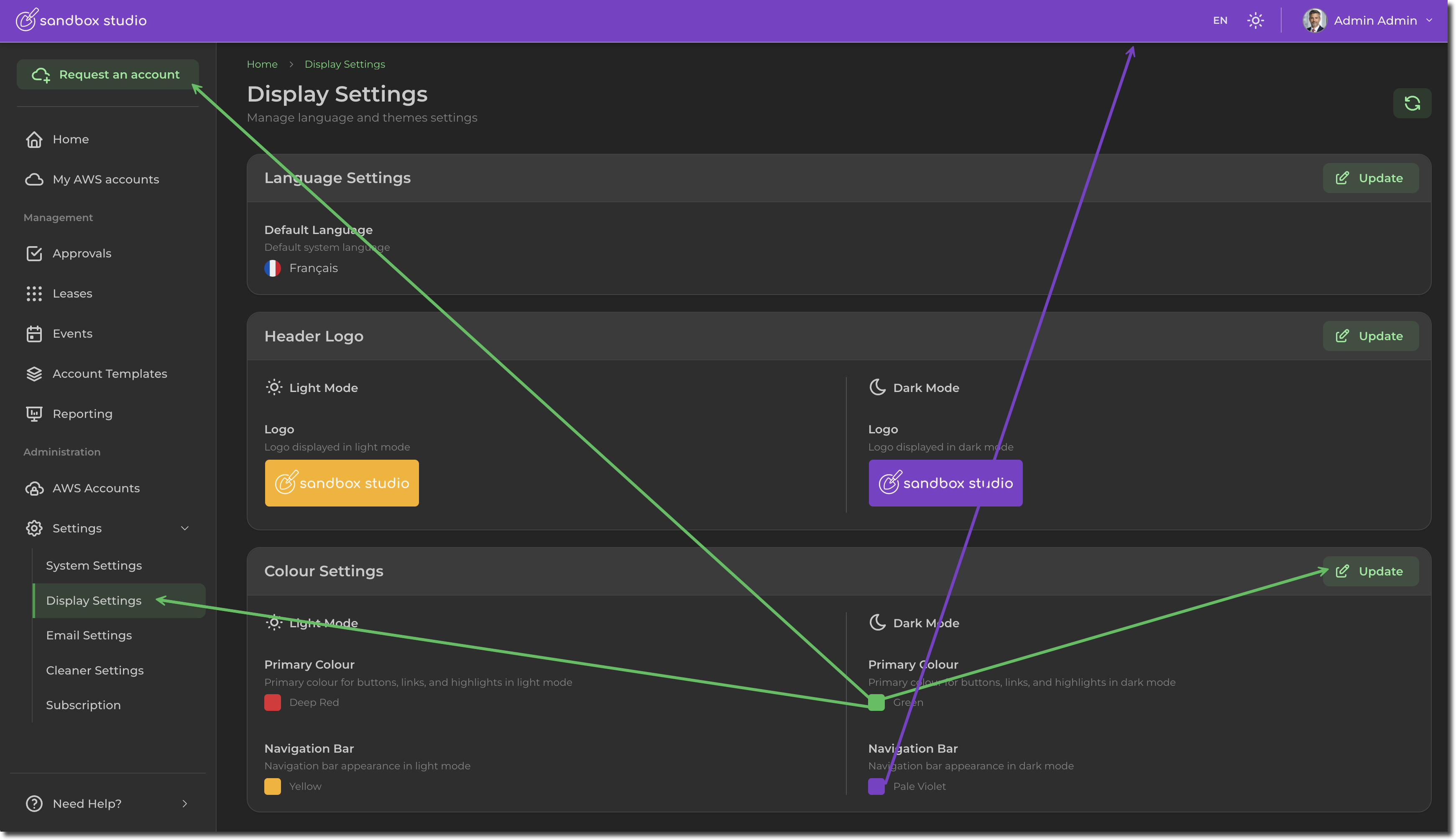
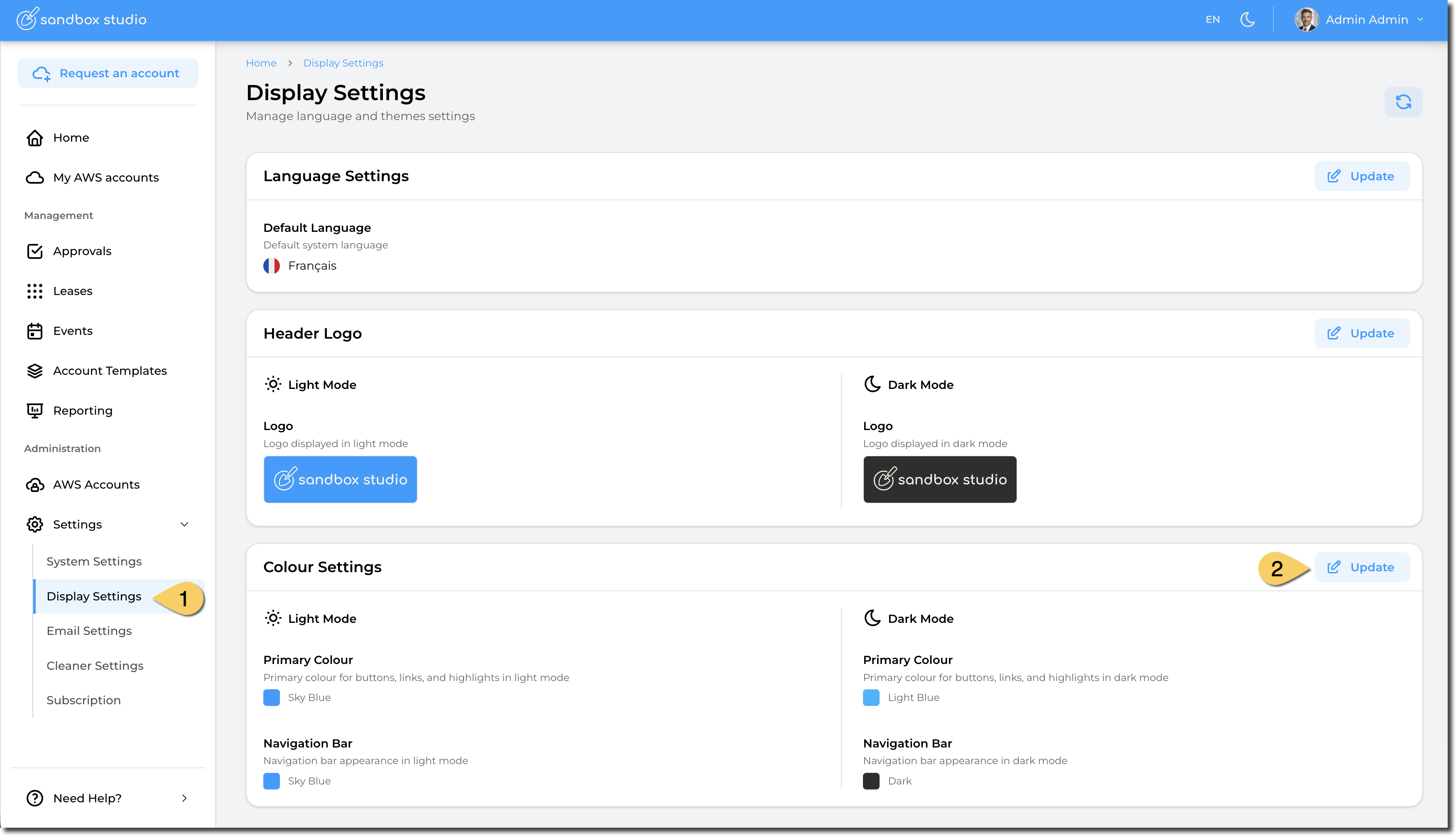
To change the theme colour of your Sandbox Studio installation, go to "Settings" > "Display Settings" (1) and click on "Update" in the "Colour Settings" section (2):
You can now select your custom colours:
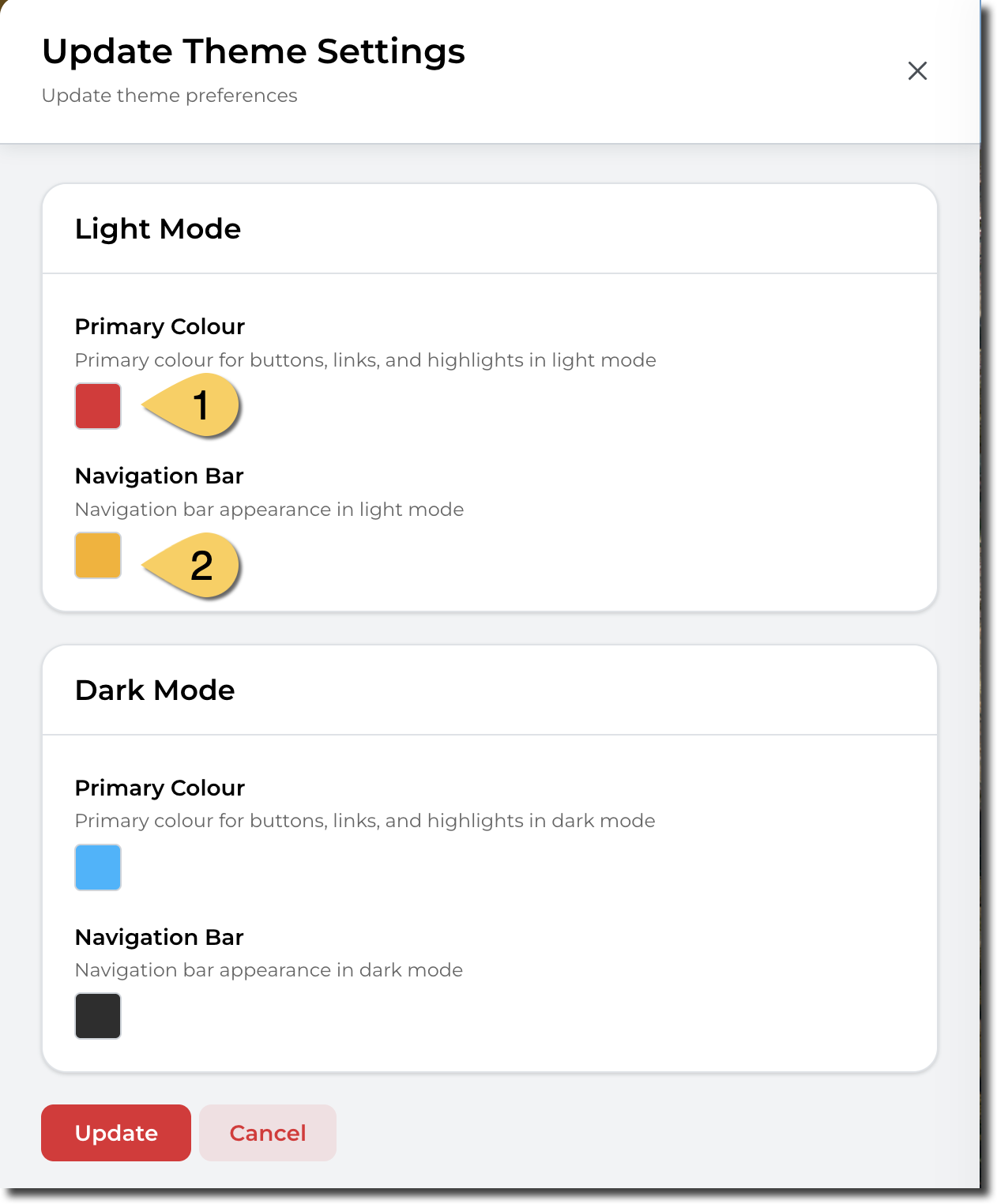
- Primary Colour. This colour is used for buttons, menu items, etc.
- Navigation Bar. This colour is used for the top bar of Sandbox Studio
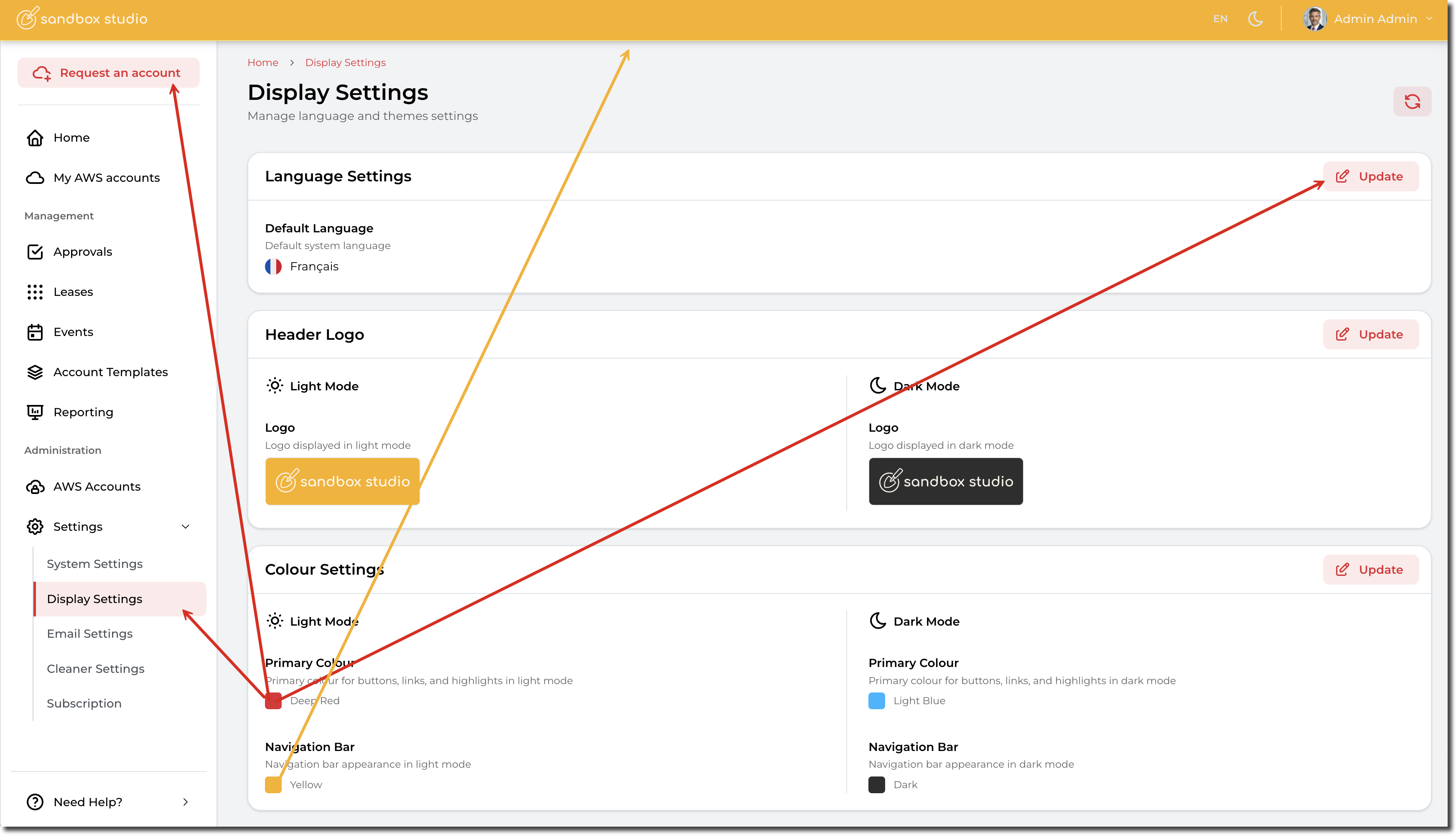
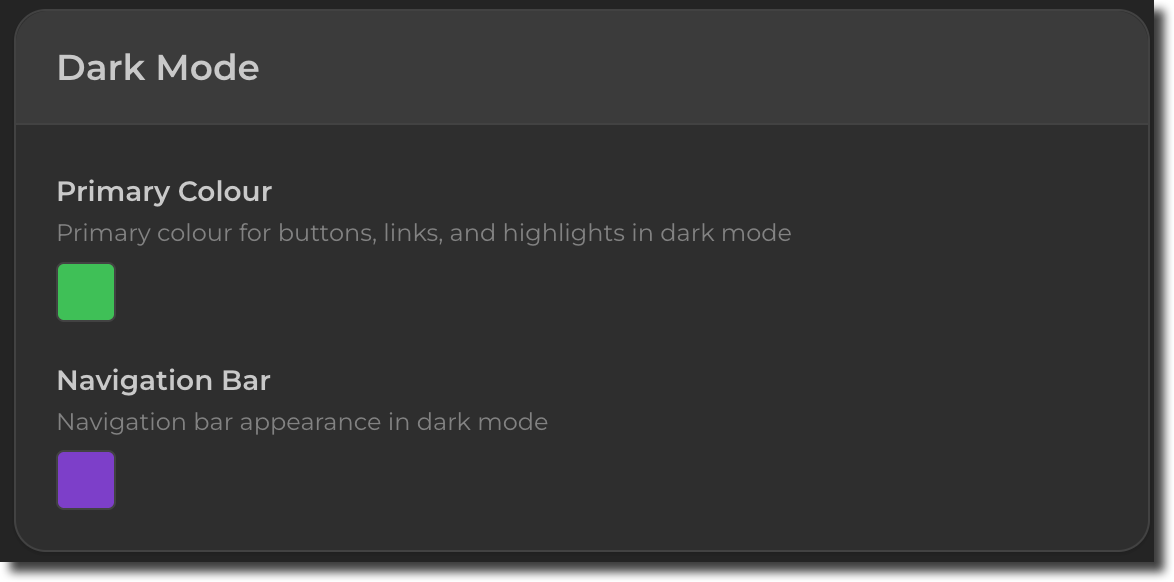
You can also change the colours that display for the dark mode. For instance: