# Troubleshooting & Support
If you need support, there is a full **knowledge base** and **ticketing site** here:
[https://support.sandboxstudiosoftware.com/](https://support.sandboxstudiosoftware.com/)
Below are some common problems identified during installation.
# Investigating accounts in Quarantine state
When the Sandbox Studio solution detects an issue with one of its sandbox accounts, the account is moved to a `Quarantine` state and an email is sent to the solution administrators indicating that action be taken to resolve the account’s quarantine status.
Note: If the account clean-up mechanism fails to automatically delete resources at the end of an active lease, you might have accounts in a Quarantine state. We highly recommend investigating quarantined accounts as quickly as possible, as these accounts can incur costs for resources running inside these accounts.
##### To resolve the quarantined status:
- Log in to the Web UI as an Administrator, and from the left, under **Administration**, select **AWS Accounts**.
- Verify the accounts in Quarantine Status, and decide whether to clean up the account and return to the account pool, or to eject the account from the solution.
- To clean-up the account and return it to the account pool, select the account, and under **Actions**, select **Retry cleanup**.
- To eject the account, select the account, and under **Actions**, select **Eject account.** For more information, refer to Uninstall the solution section.
If the account is in quarantine if the retry clean up failed, refer to the Resolving cleanup failures section.
# Resolving clean-up failures
If the cleanup process fails to completely clean an account at the end of a lease, Sandbox Studio will move the account into a Quarantine state, and email the Administrators notifying them of the issue.
To resolve an account that has failed clean-up:
1. Log in to the Web UI as an Administrator, and from the left, under **Administration**, select **AWS Accounts**.
2. Confirm the account that has failed the clean-up process. You can preview the error by hovering your mouse over the "Clean-up error" text[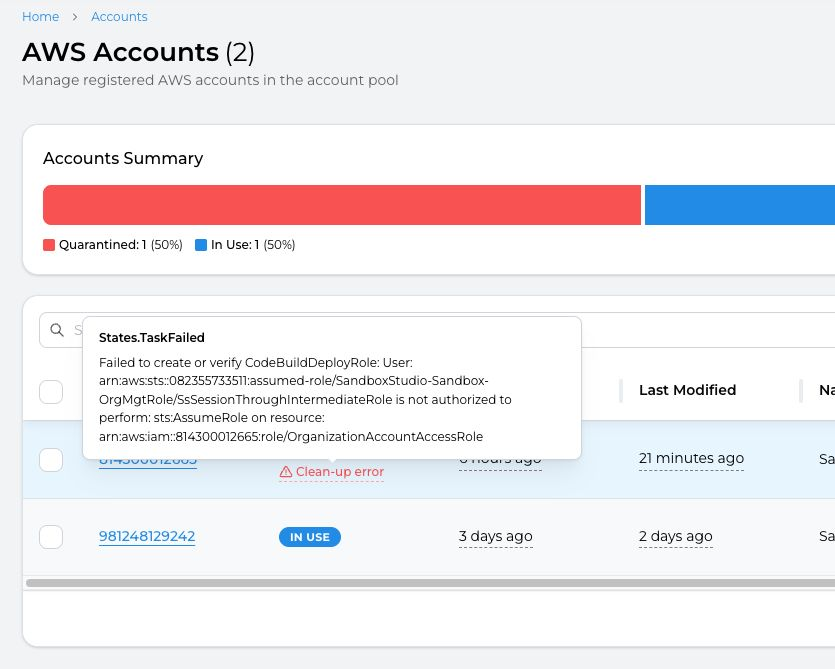](https://docs.sandboxstudiosoftware.com/uploads/images/gallery/2025-10/p5limage.png)
For a detailed view of the error, you need to access the AWS Console and look at the "AccountCleaner" step functions
[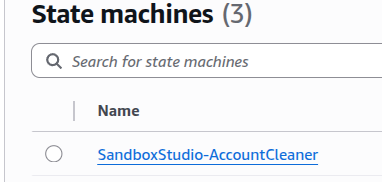](https://docs.sandboxstudiosoftware.com/uploads/images/gallery/2025-10/Mmnimage.png)
##### See log details:
1. Log in to the AWS Console using the **Hub account**, and navigate to the **CloudWatch > Logs Insights** page.
2. From the right pane, under Sample queries, select the **SS-Sandbox** group, and from the dropdown, choose the `AccountCleanupLogs` saved query, and **Apply**.
[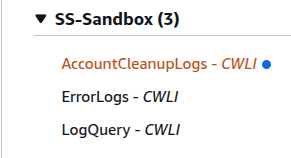](https://docs.sandboxstudiosoftware.com/uploads/images/gallery/2025-10/9o0image.png)
3\. Change the time frame to match the execution you want to get the logs for:
[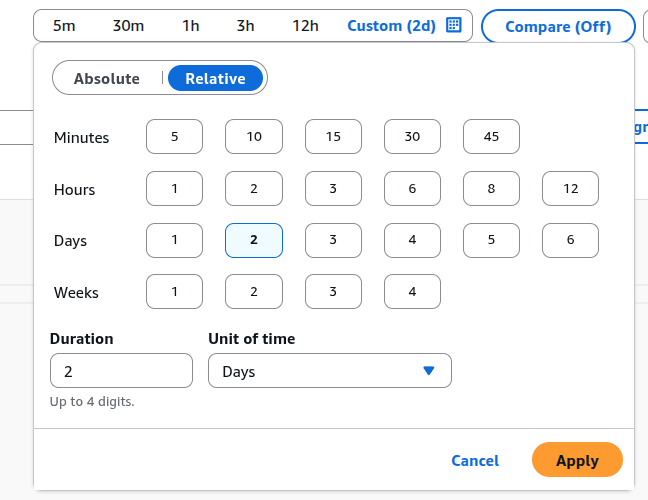](https://docs.sandboxstudiosoftware.com/uploads/images/gallery/2025-10/uG3image.png)
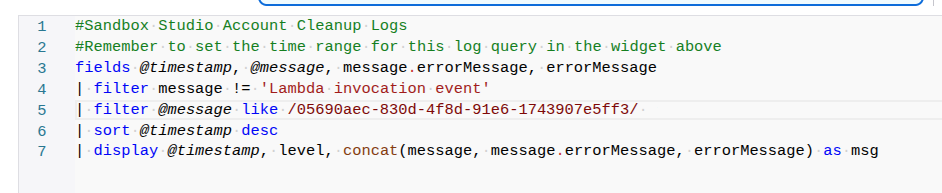
4\. Update the query to copy the last cleanup process ID:
[](https://docs.sandboxstudiosoftware.com/uploads/images/gallery/2025-10/cZdimage.png)
You can get the cleanup process ID from the '**Last Cleanup ReferenceID**'.
Select **Run query** to see related events. The log information is displayed under the *Logs* tab.