Troubleshooting & Support
If you need support, there is a full knowledge base and ticketing site here:
https://support.sandboxstudiosoftware.com/
Below are some common problems identified during installation.
Investigating accounts in Quarantine state
When the Sandbox Studio solution detects an issue with one of its sandbox accounts, the account is moved to a Quarantine state and an email is sent to the solution administrators indicating that action be taken to resolve the account’s quarantine status.
Note: If the account clean-up mechanism fails to automatically delete resources at the end of an active lease, you might have accounts in a Quarantine state. We highly recommend investigating quarantined accounts as quickly as possible, as these accounts can incur costs for resources running inside these accounts.
To resolve the quarantined status:
- Log in to the Web UI as an Administrator, and from the left, under Administration, select AWS Accounts.
-
Verify the accounts in Quarantine Status, and decide whether to clean up the account and return to the account pool, or to eject the account from the solution.
- To clean-up the account and return it to the account pool, select the account, and under Actions, select Retry cleanup.
- To eject the account, select the account, and under Actions, select Eject account. For more information, refer to Uninstall the solution section.
If the account is in quarantine if the retry clean up failed, refer to the Resolving cleanup failures section.
Resolving clean-up failures
If the cleanup process fails to completely clean an account at the end of a lease, Sandbox Studio will move the account into a Quarantine state, and email the Administrators notifying them of the issue.
To resolve an account that has failed clean-up:
-
Log in to the Web UI as an Administrator, and from the left, under Administration, select AWS Accounts.
-
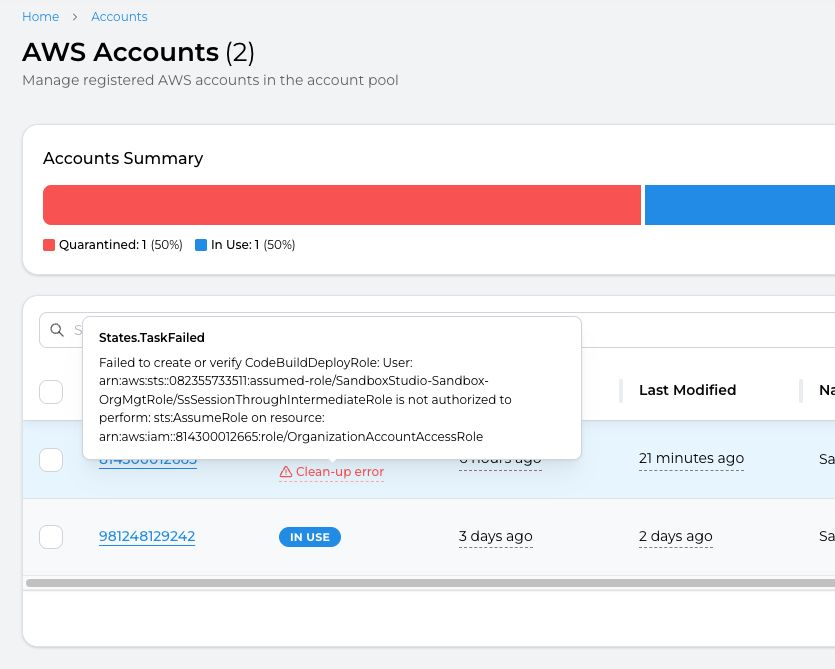
Confirm the account that has failed the clean-up process. You can preview the error by hovering your mouse over the "Clean-up error" text

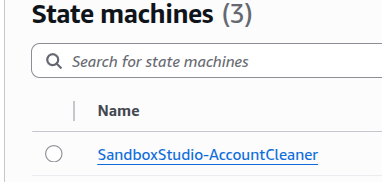
For a detailed view of the error, you need to access the AWS Console and look at the "AccountCleaner" step functions
See log details:
-
Log in to the AWS Console using the Hub account, and navigate to the CloudWatch > Logs Insights page.
-
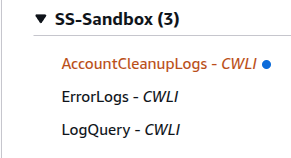
From the right pane, under Sample queries, select the SS-Sandbox group, and from the dropdown, choose the
AccountCleanupLogssaved query, and Apply.
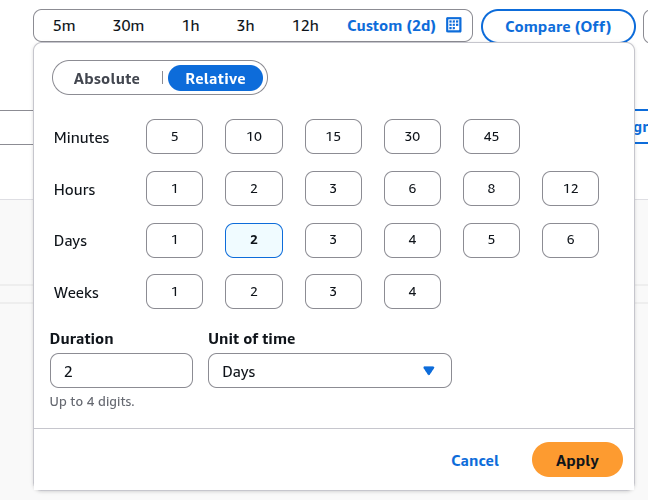
3. Change the time frame to match the execution you want to get the logs for:
4. Update the query to copy the last cleanup process ID:
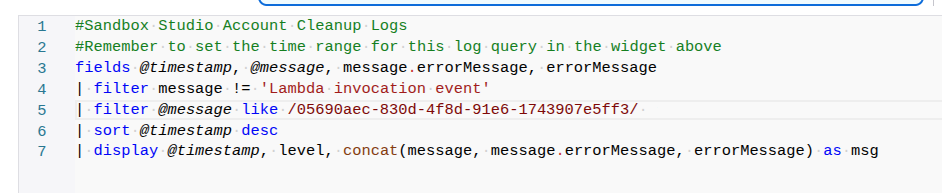
You can get the cleanup process ID from the 'Last Cleanup ReferenceID'.
Select Run query to see related events. The log information is displayed under the Logs tab.