Unless requested by the Sandox Studio team for support purpose, please avoid changing this value.
[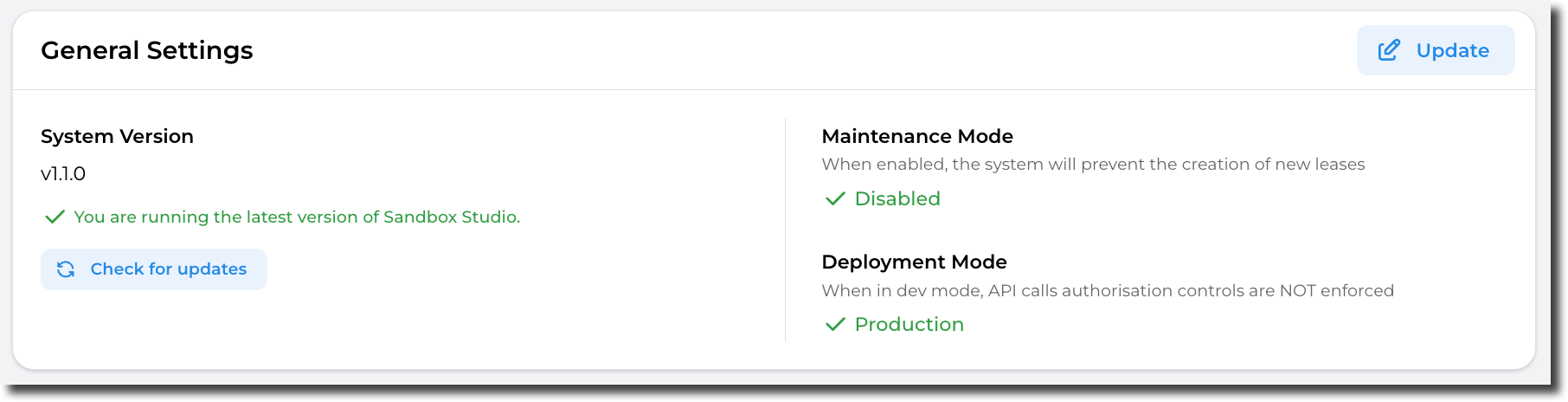](https://docs.sandboxstudiosoftware.com/uploads/images/gallery/2026-04/yERimage.png) ##### ##### Lease Settings In the Lease Settings section, the Administrator can make the following configuration changes by clicking on the Update (1) button: - **Requires Maximum Budget**: If set to **Yes**, managers or administrators creating an account templates will have to set a maximum budget. In other words, this makes sure manager set a maximum budget when creating an account template. - **Maximum Budget**: The maximum budget that an account template can have. Account templates won't be able to have budget higher than this value. - **Maximum Leases Per User**: This setting limits the number of active leases a user can have at any point in time.Leases shared don't count towards this value
- **Requires Maximum Duration**: If set to **Yes**, managers or administrators creating an account templates will have to set a maximum duration. In other words, this makes sure manager set a maximum duration when creating an account template. - **Maximum Duration**: The maximum duration that an account template can have. Account templates won't be able to have duration longer than this value. [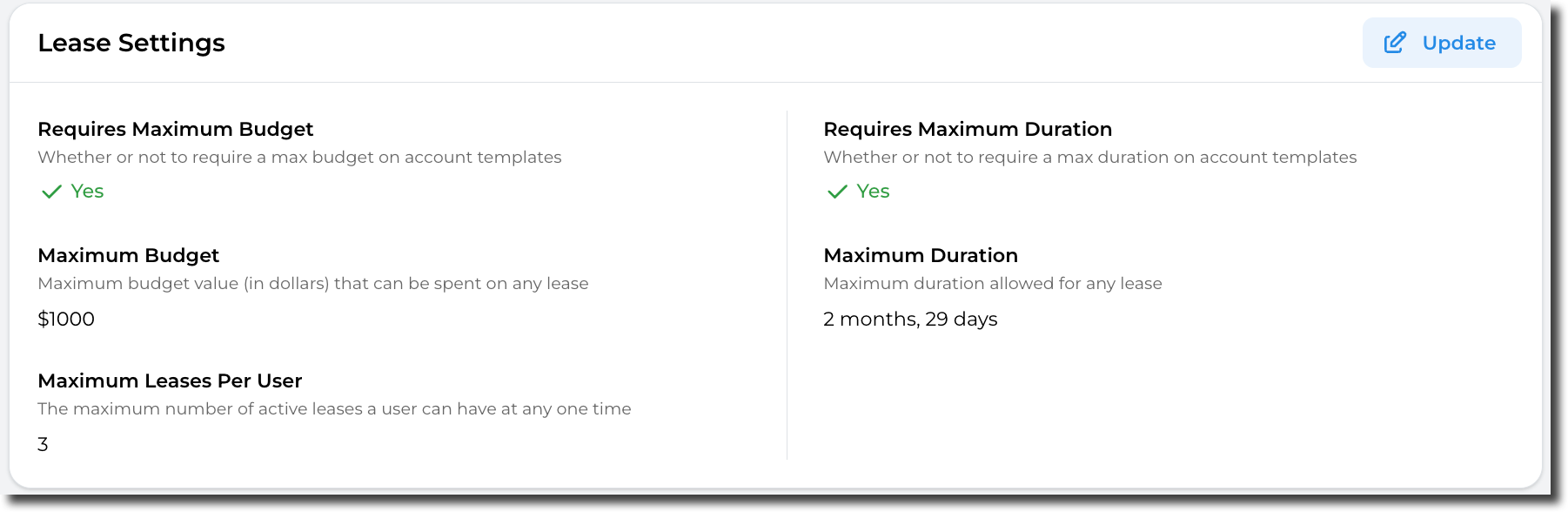](https://docs.sandboxstudiosoftware.com/uploads/images/gallery/2026-04/bbeimage.png) ##### Terms of Service An Administrator may wish to get the users of their sandbox accounts to agree to certain Terms of Service before they access their sandbox environments. An Administrator is able to edit these Terms of Service and also keep a record of previous versions that users agreed too. Within the Terms of Service page, the Administrator is able to **view (1)** the existing terms of service, **Edit (2)** the terms of service and view the **version history (3)** of previous versions of Terms of Service. [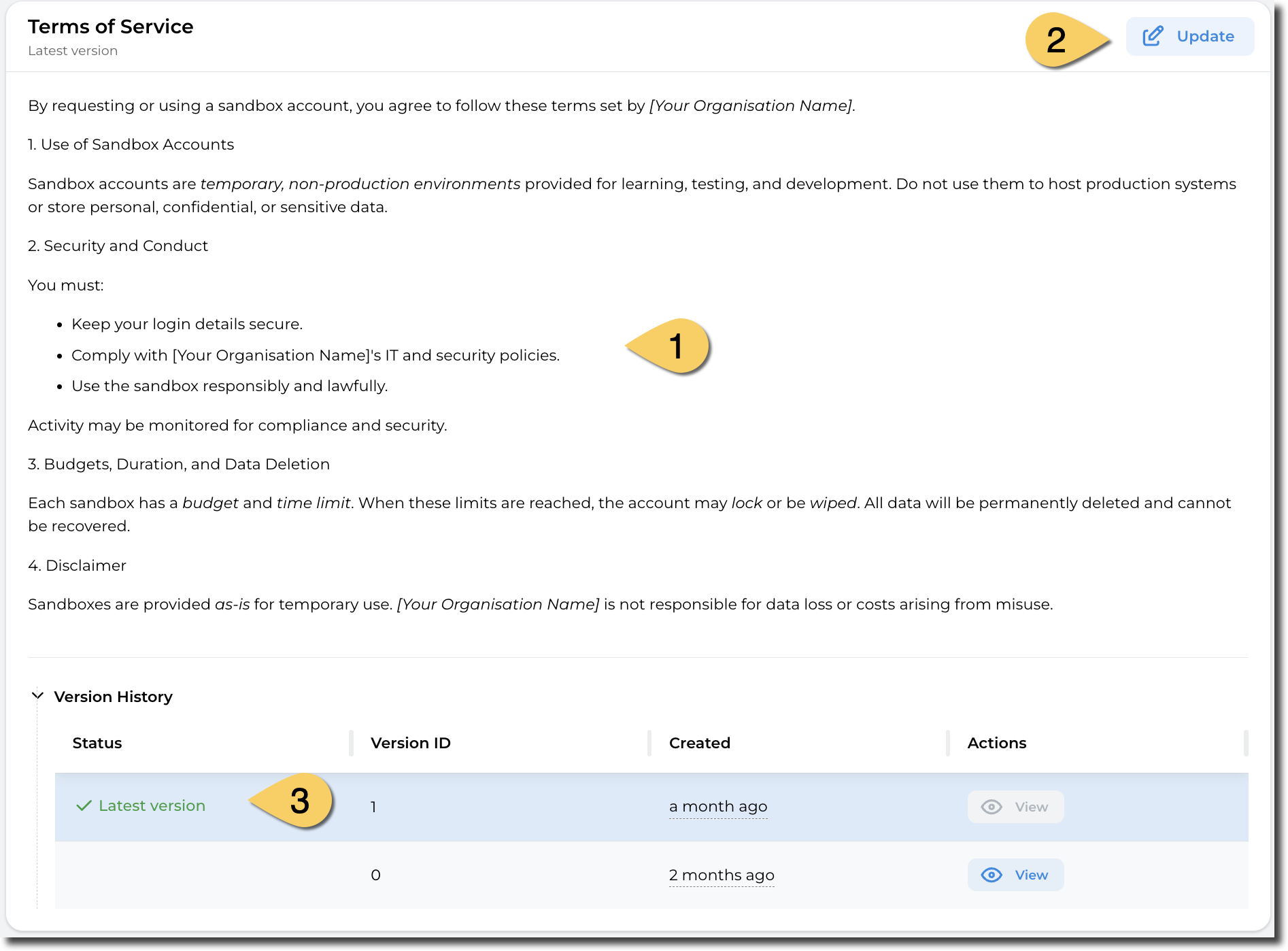](https://docs.sandboxstudiosoftware.com/uploads/images/gallery/2026-04/Hy9image.png) ##### ##### Authentication Settings In the Authentication Settings section, the Administrator can make the following configuration changes by clicking on the Update button : - **Web App URL**: The URL of the application (defaults to Cloud Front Distribution URL or custom domain) - **AWS Access Portal URL**: The AWS Access Portal URL for IAM Identity Center SSO - **Session Duration**: The duration of the session in minutes - **IDP Sign In URL**: The IDP Sign In URL for IAM Identity Center SSO - **IDP Sign Out URL**: The IDP Sign Out URL for IAM Identity Center SSO - **IDP Audience**: The IDP Audience Identifier for IAM Identity Center SSOChanging those settings may break your Sandbox Studio installation, please update carefully!
##### Account Monitoring In the Account Monitoring section, the Administrator can trigger the following checks manually: - **Lease Monitoring**: Active accounts i.e. accounts associated with a lease are checked hourly to determine if the budget or expiry date has been reached. However if you wish to check the current status - you can press the **Start Lease Monitoring** buttons to run a check immediately. - **Account Drift Monitoring**: All AWS accounts are periodically checked to ensure they remain in sync with Sandbox Studio. This includes verifying their AWS Organisation Unit and permissions. Click on the **Detect Drift** to run this check immediately. [](https://docs.sandboxstudiosoftware.com/uploads/images/gallery/2025-08/FEKimage.png) # Display Settings [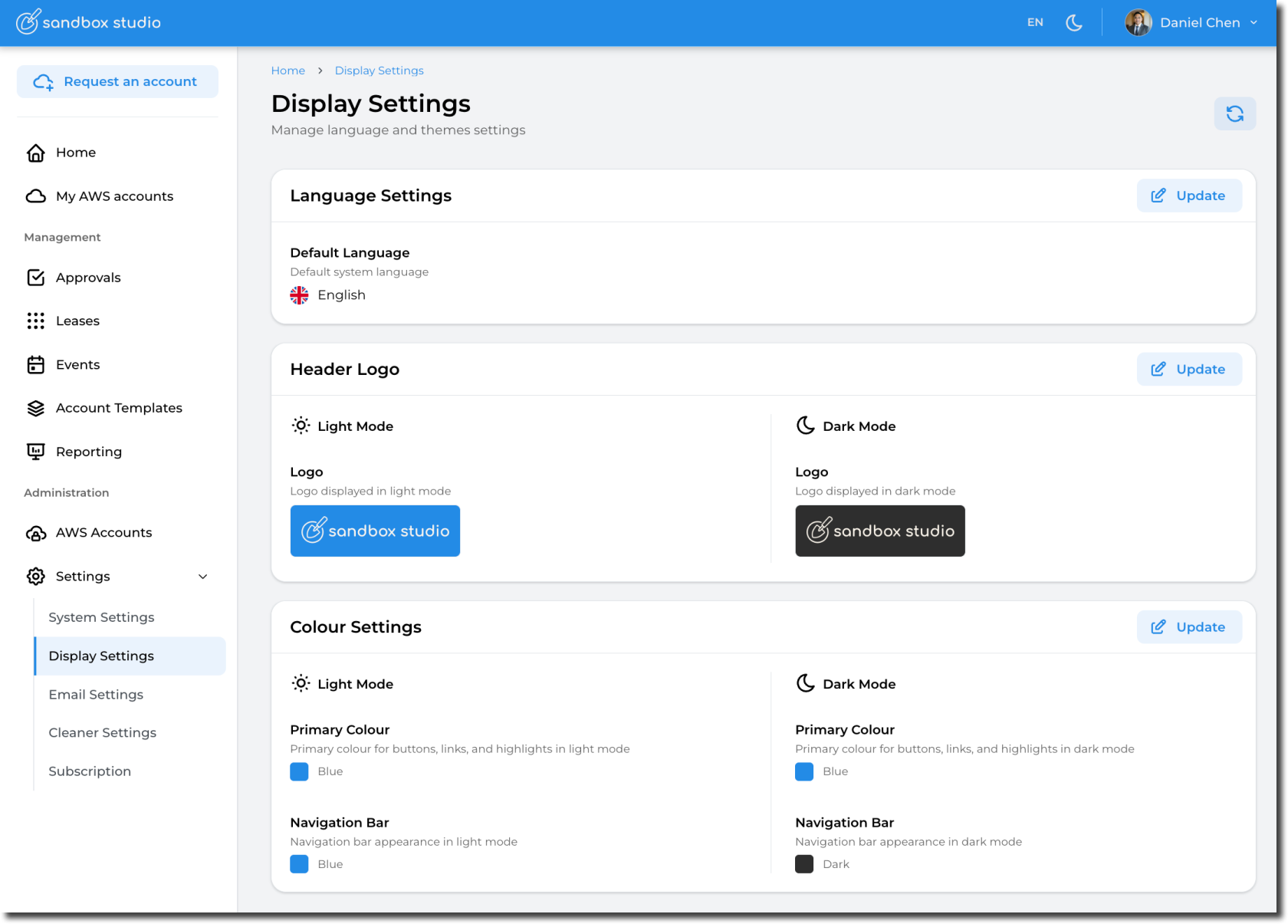](https://docs.sandboxstudiosoftware.com/uploads/images/gallery/2026-04/yLzimage.png)Please refer to [UI Customisation](https://docs.sandboxstudiosoftware.com/books/administrator-guide/chapter/ui-customisation "UI Customisation") for more details about Display Settings.
# Email Settings As an Administrator you have control over what and how notifications are sent. From the left hand menu, select **Settings > Email Settings (1):** [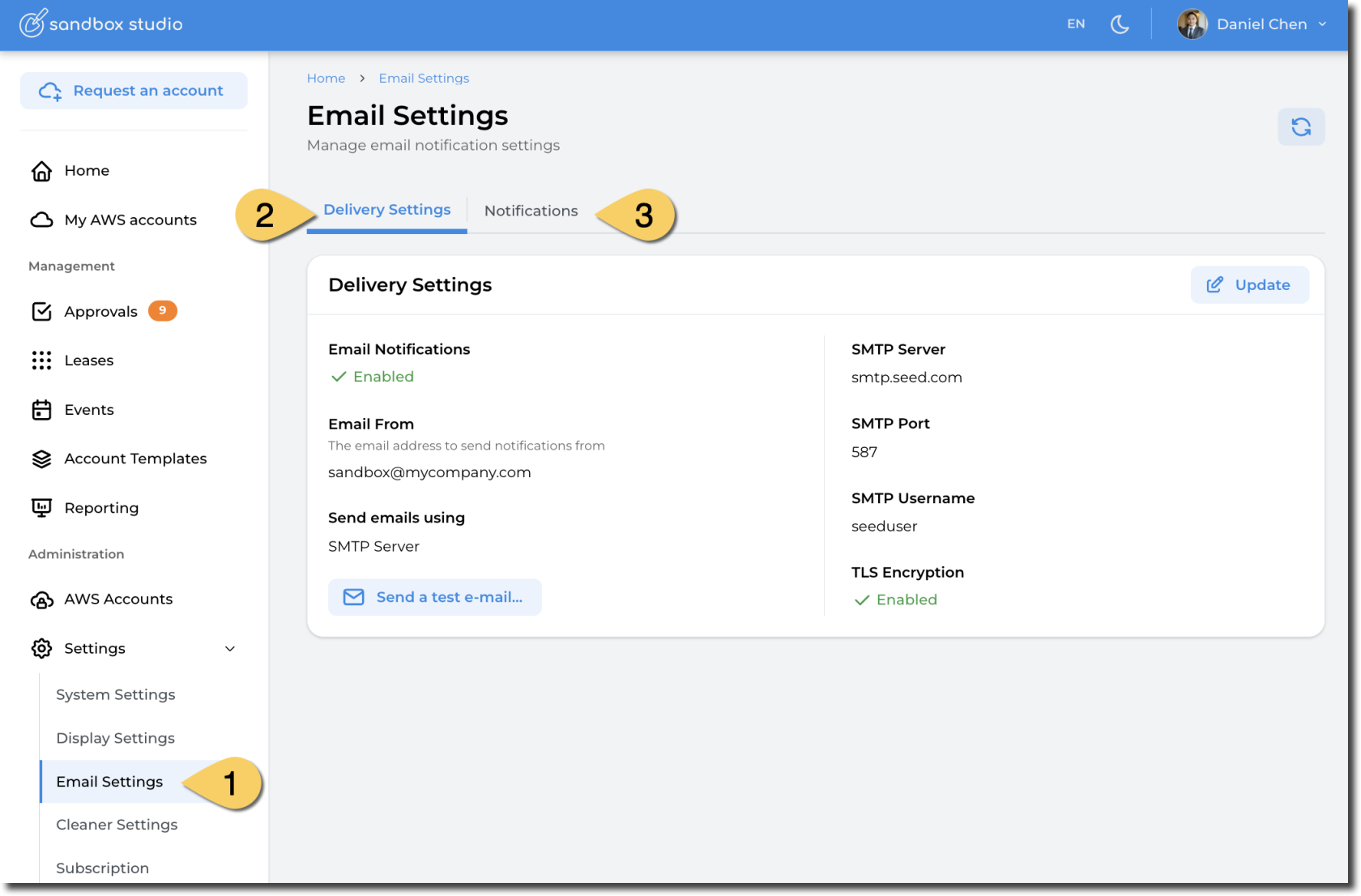](https://docs.sandboxstudiosoftware.com/uploads/images/gallery/2026-04/qgkimage.png) Two tabs are available: 2. **Delivery Settings**: Allows to configure how emails are sent, either through Amazon Simple Email Service (SES) or through a standard SMTP server. 3. **Notifications**: Allows to select what notifications are sent to users, managers or approvers. In the current version of Sandbox Studio, this settings applies for all users. #### Delivery Settings ##### Configure SMTP server| [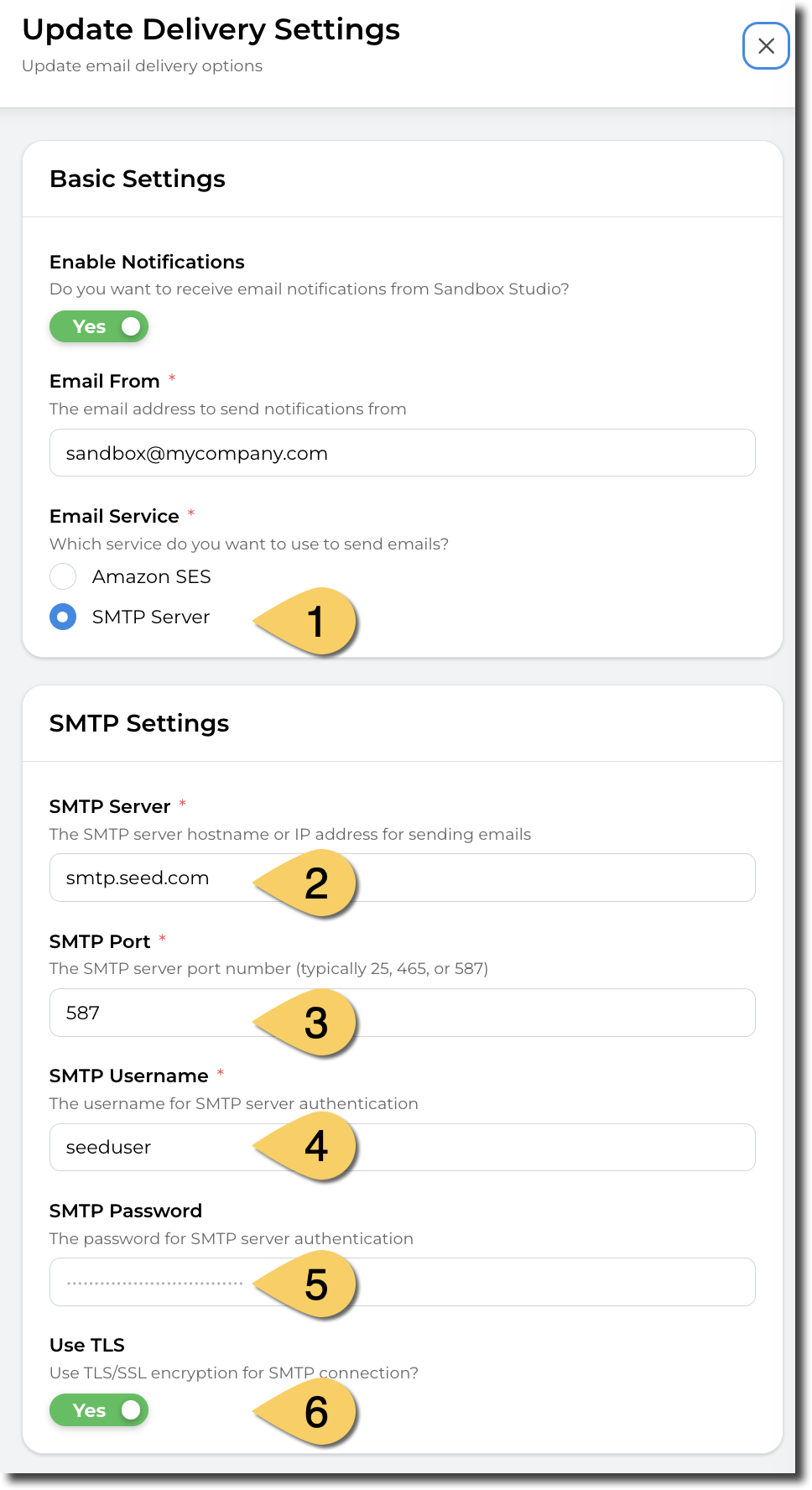](https://docs.sandboxstudiosoftware.com/uploads/images/gallery/2026-04/3KYimage.png) | 1. Select SMTP Server 2. Set the SMTP Server address 3. SMTP Port 4. SMTP Username 5. SMTP Password 6. Use TLS for authentication |
We recommend having a domain verified identity and have your environment out of the SES Sandbox. https://docs.aws.amazon.com/ses/latest/dg/request-production-access.html
#### Notifications In the notification tab, you can select the notifications you want Sandbox Studio to send. Those notifications can be for leases lifecycle (Lease created, lease shared, ...), for events (Event created, event started, etc.) but also for administrative tasks (ie: account failed setup, or account failed cleanup) [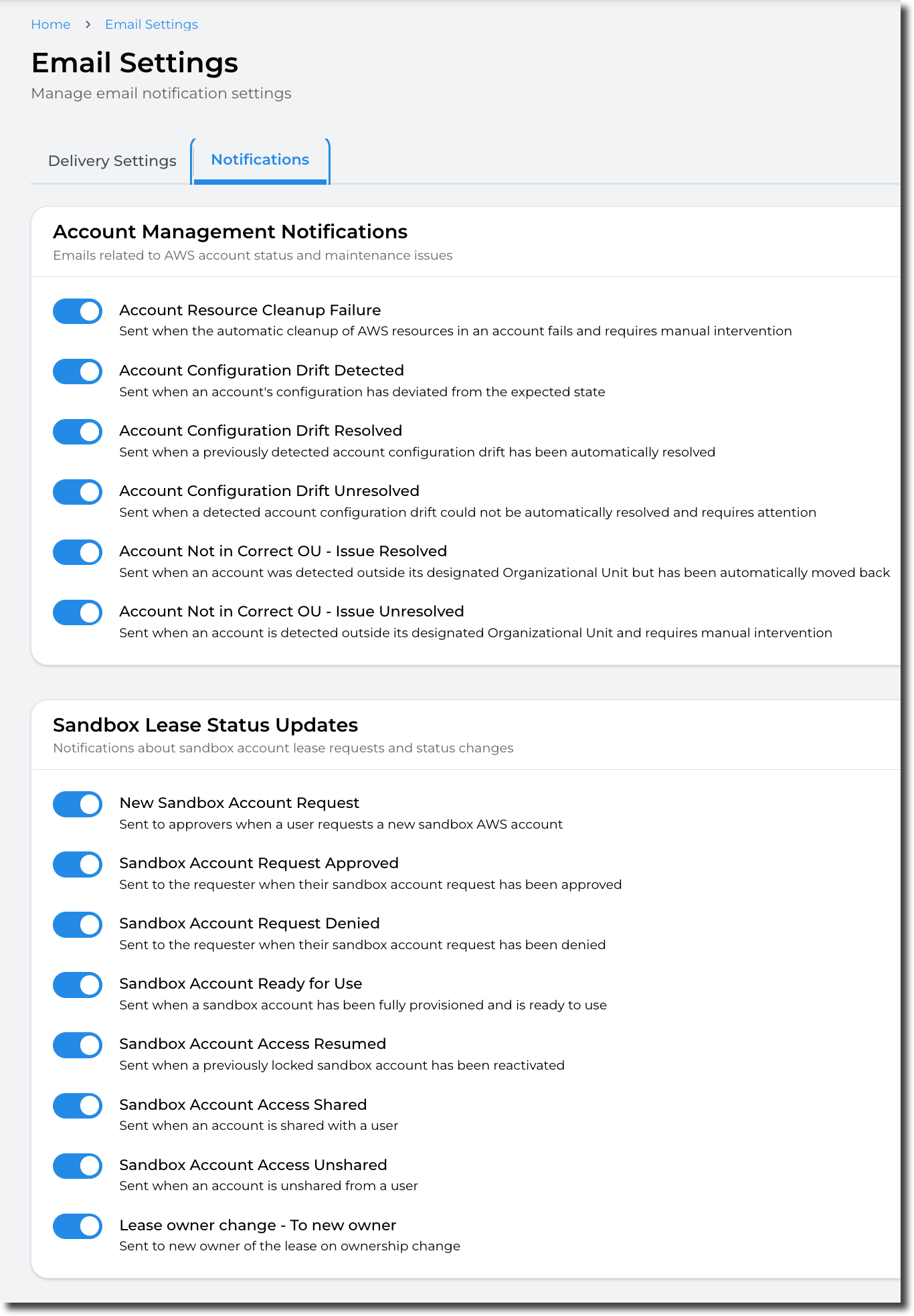](https://docs.sandboxstudiosoftware.com/uploads/images/gallery/2026-04/43Himage.png)In this version of Sandbox Studio, the modifications on the notifications will apply for ALL users. eg: if you disable the notifications for leases, no user will receive notification for when leases are created.
# Cleaner Settings An Administrator is able to control and change the way that the AWS Accounts are cleaned/recycled at the end of a lease. This is task is completed by an open-source tool called [AWS Nuke](https://github.com/ekristen/aws-nuke). However, in some instances an Administrator may wish to modify the way that the accounts are cleaned to preserve or delete certain resources. This can be done through the **Cleaner Settings (1)** menu on the left hand menu. [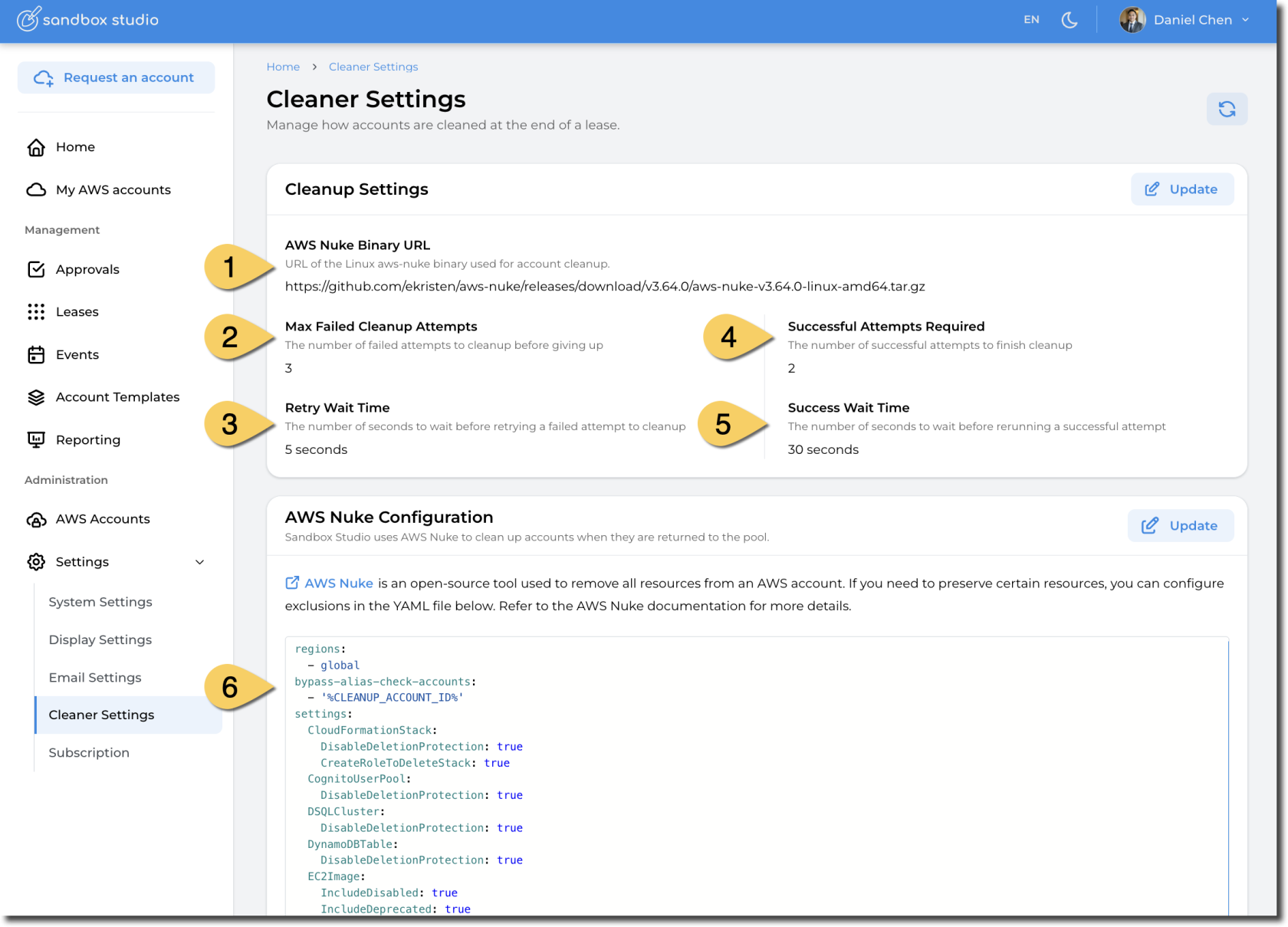](https://docs.sandboxstudiosoftware.com/uploads/images/gallery/2026-04/C3uimage.png) 1. **AWS Nuke Binary URL**: URL of the Linux aws-nuke binary used for account cleanup. This allows you to use the latest available AWS Nuke version as soon as it's released.You can find the latest releases links here: [https://github.com/ekristen/aws-nuke/releases](https://github.com/ekristen/aws-nuke/releases)
Distribution: Linux, AMD64
2. **Max Failed Cleanup Attempts**: In certain circumstances, AWS Nuke fails to cleanup resources from the first try. Sandbox Studio to retry on error. This setting help defines how many times it needs to retry. 3. **Retry Wait Time**: Time to wait between retries when cleanup fails. 4. **Successful Attempts Required**: Number of successful cleanup to execute before Sandbox Studio marks the cleanup as successful. In this example, Nuke will run 2 times and if both execution succeed, the account will be marked as successfully cleaned up. 5.Refer to [AWS Nuke documentation](https://github.com/ekristen/aws-nuke) for more details.
# Subscription On the Subscription page, an Administrator can view their Sandbox Studio current licensing entitlements and usage. ##### Subscription page The Subscription page shows the current status of the licence, how many AWS accounts are allowed, the API key used to connect to Sandbox Studio for updates and the duration of the licence. - It is possible to add or edit the API Key - by clicking on the Update button. [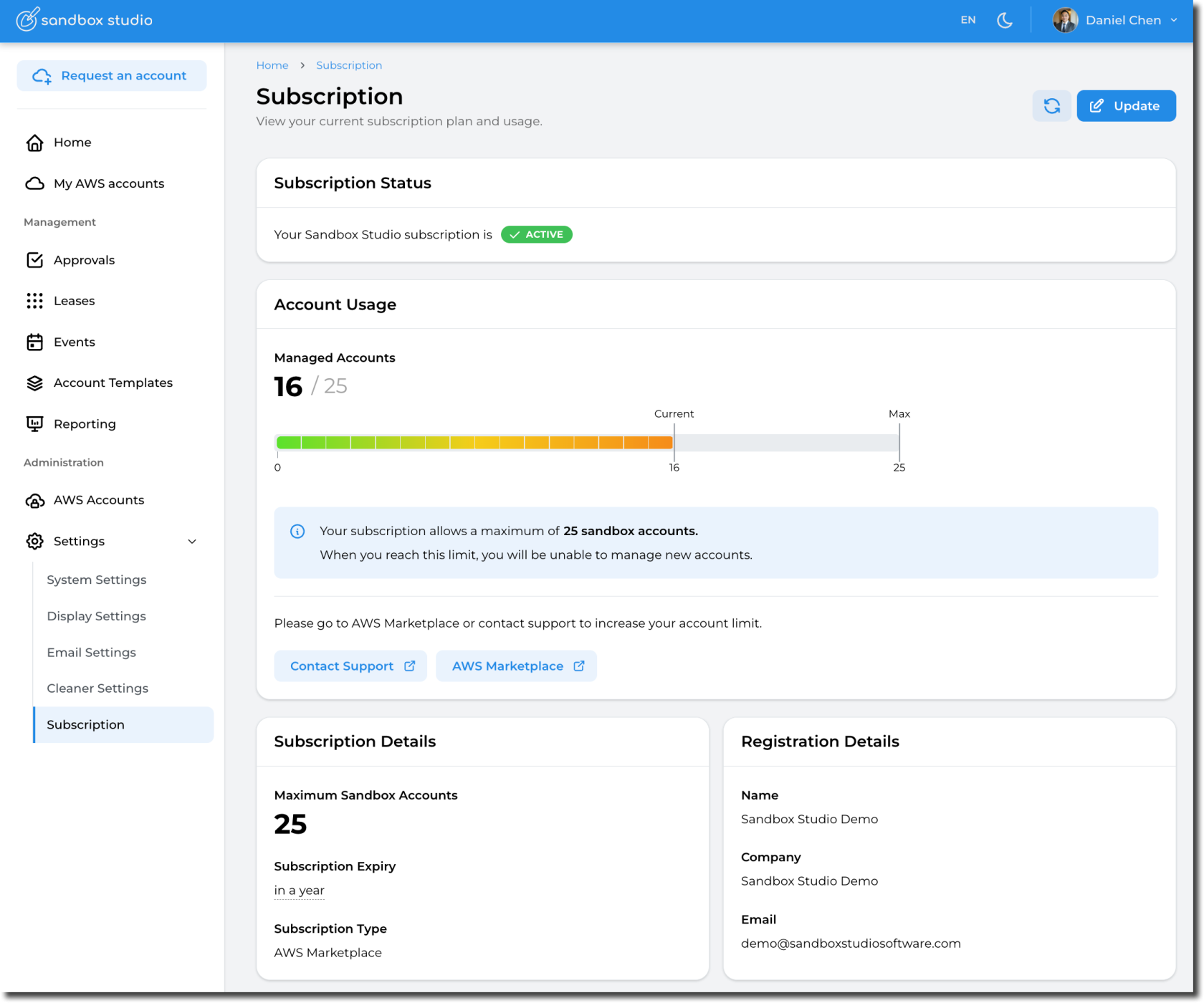](https://docs.sandboxstudiosoftware.com/uploads/images/gallery/2026-04/fe3image.png) ##### Account Usage On the account usage page, the Administrator can view how many accounts are in use and what the maximum number of AWS accounts are allowed. [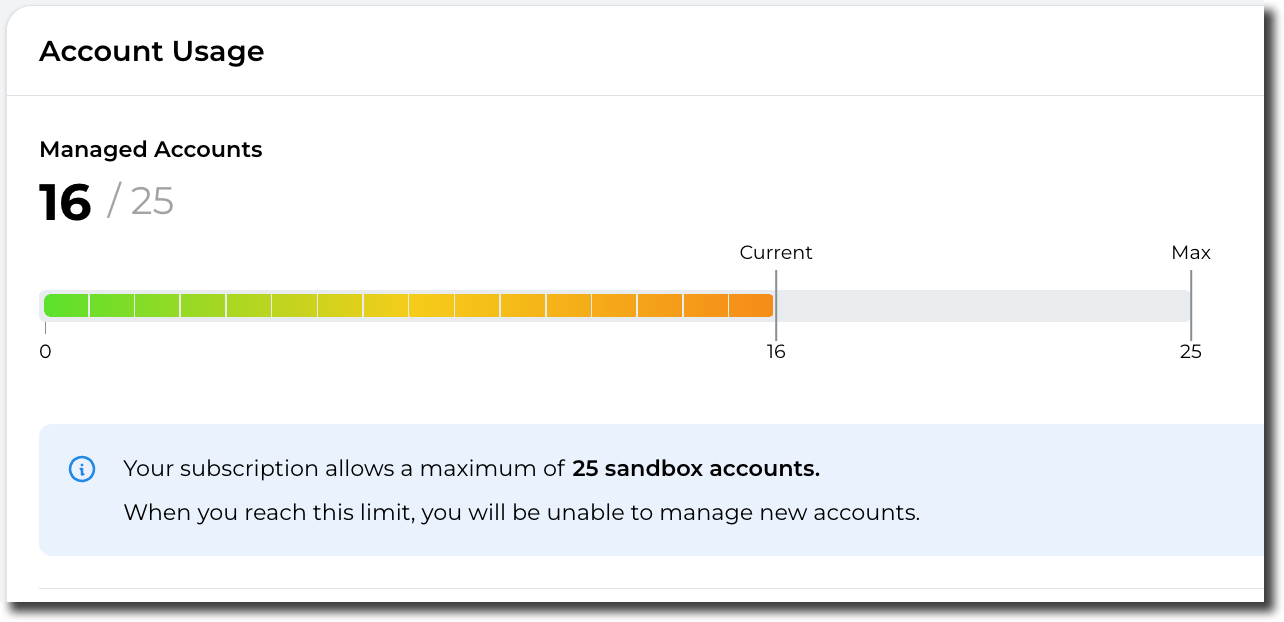](https://docs.sandboxstudiosoftware.com/uploads/images/gallery/2026-04/dRlimage.png)